The easiest way to get a Google Keep icon on your iPhone is to install the free Google Keep – Notes and lists app from the App Store, then sign in with your Google account. If you can’t or don’t want to install the app, open keep.google.com in Safari, tap Share, and choose Add to Home Screen to make an icon that opens Keep on the web.
The official app is the better choice for most people. The current app needs iOS 18 or later, per its App Store listing. If your iPhone can’t update that far, use the Safari shortcut further down.
Install the Google Keep App
- Open the App Store on your iPhone.
- Tap the Search tab, the magnifying glass at the bottom of the screen.
- Type Google Keep in the search field and tap Search on the keyboard.
- Find Google Keep – Notes and lists in the results. Check that the developer listed under the name is Google. Several third-party apps have similar names and yellow note icons.
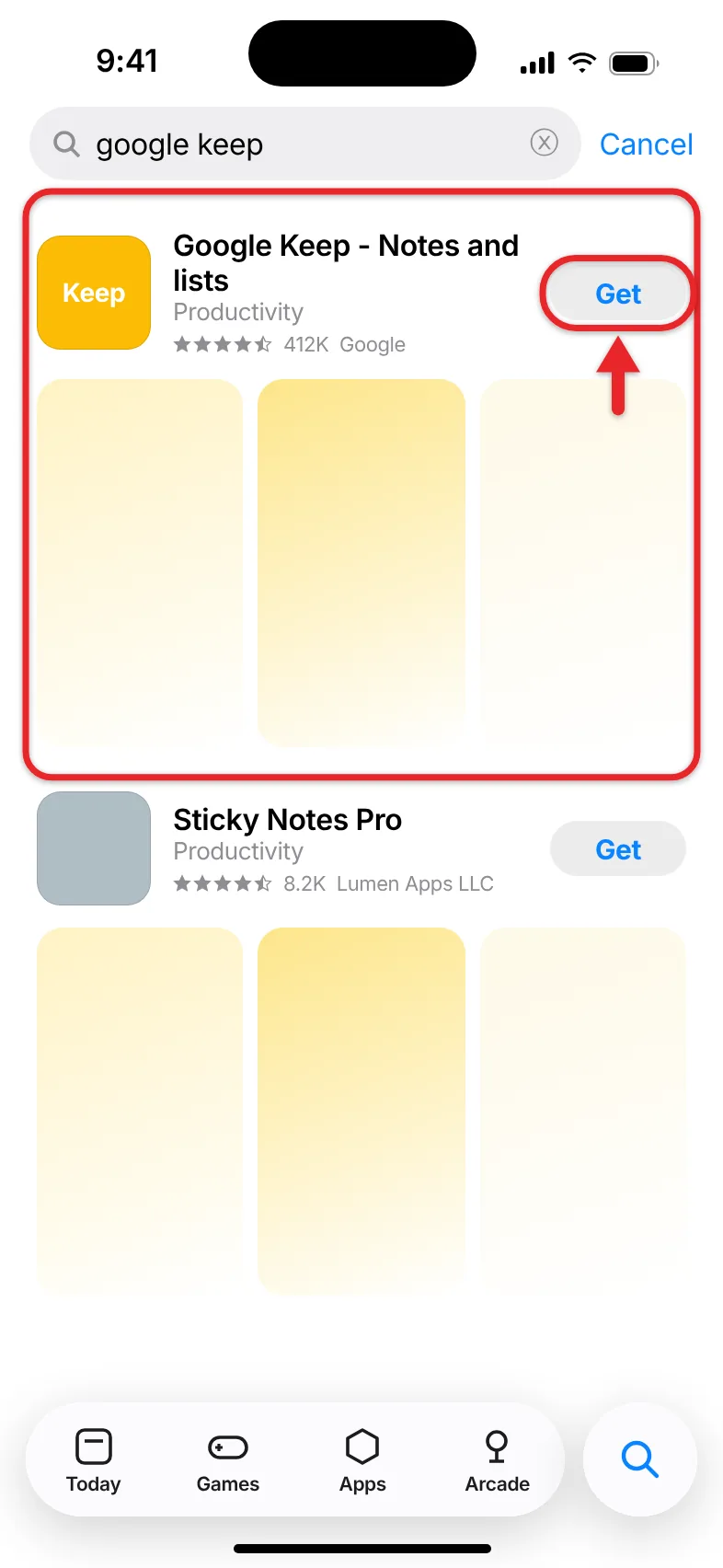
- Tap Get. If you’ve downloaded Keep before with the same Apple Account, you’ll see a cloud icon instead; tap it.
- Confirm the download with Face ID, Touch ID, or your Apple Account password if your iPhone asks. When the download finishes, the button changes to Open.
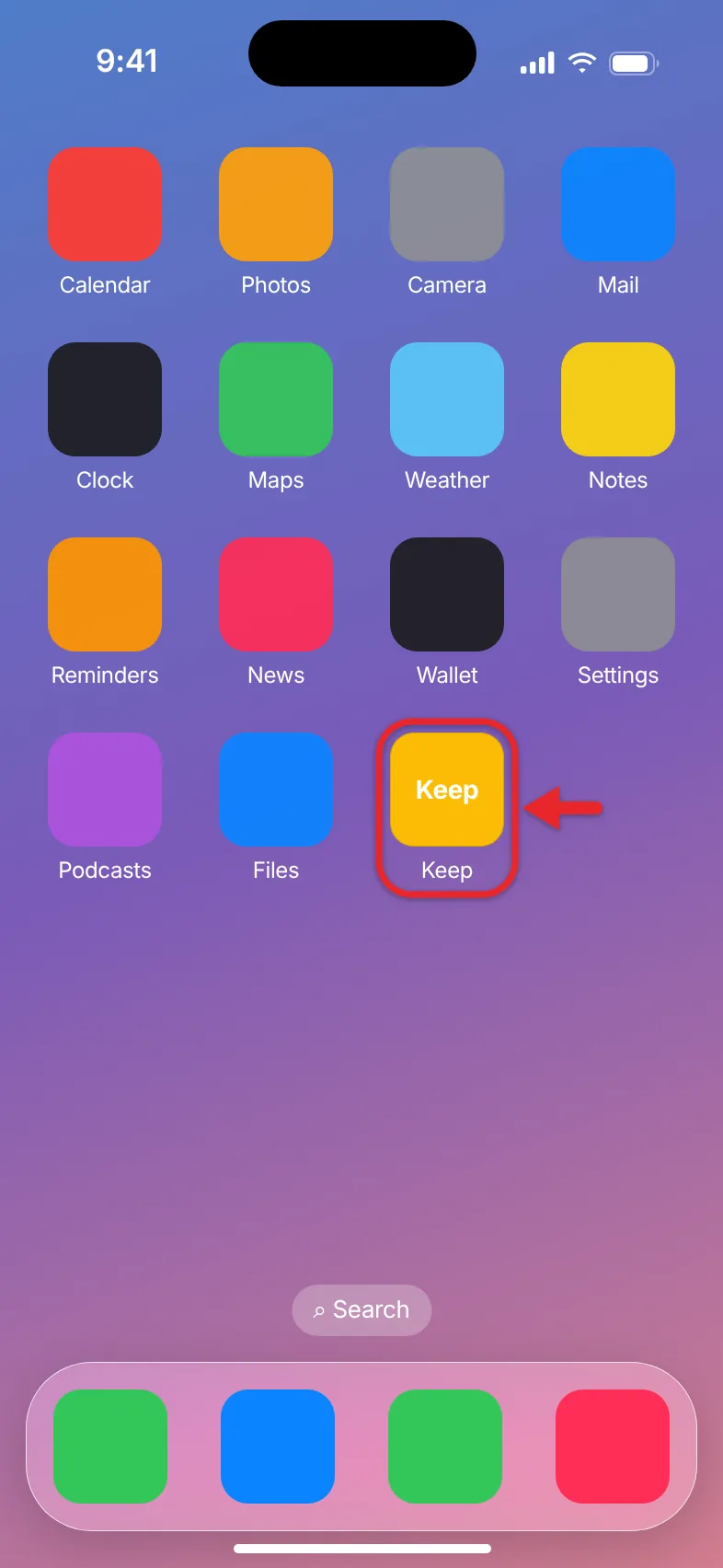
- Tap Open, or find the new yellow Keep icon on your Home Screen and tap it.
- Sign in with the Google account that holds your notes. If you already use another Google app on this iPhone, such as Gmail, Keep may offer that account so you can sign in with a tap.
Your notes, lists, and labels load from your Google account, and the Keep icon now sits on your Home Screen like any other app. New apps usually land on the last Home Screen page.
Google’s Keep help page for iPhone and iPad describes the same install route. The app is free, takes up about 220 MB according to its App Store listing in October 2026, and syncs with Keep on the web, Android, and other devices signed into the same account.
Chrome, Gmail, Google Maps, and Google’s other apps install the same way. For an example, read about installing Google Chrome and other Google apps on iPhone.
Add keep.google.com to Your Home Screen With Safari
Use this method if your iPhone can’t run the current Keep app, if you’d rather not install another app, or if you only check Keep now and then. You’ll get a Home Screen icon that opens the Keep website.
- Open Safari and type keep.google.com in the address bar, then tap Go.
- Sign in to your Google account if Keep asks. Your notes appear once you’re signed in.
- Tap the Share button, the square with an arrow pointing up. Where it lives depends on your Safari layout:
- Bottom or Top layout: Share is in the toolbar.
- Compact layout on iOS 26: tap the More button (three dots) in the lower-right corner, then tap Share.
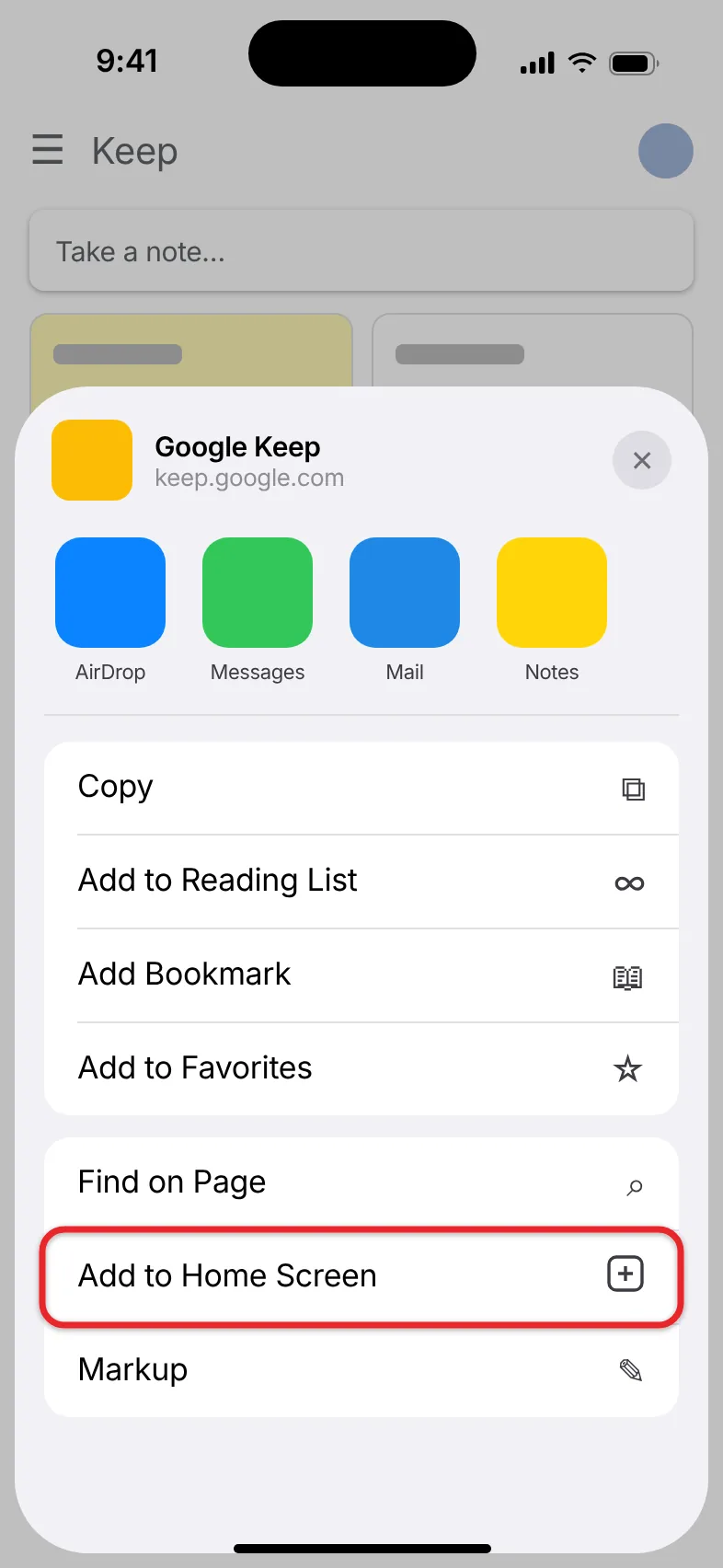
- In the share sheet, tap Add to Home Screen. If it isn’t in the first row of options, tap View More or scroll down the list of actions.
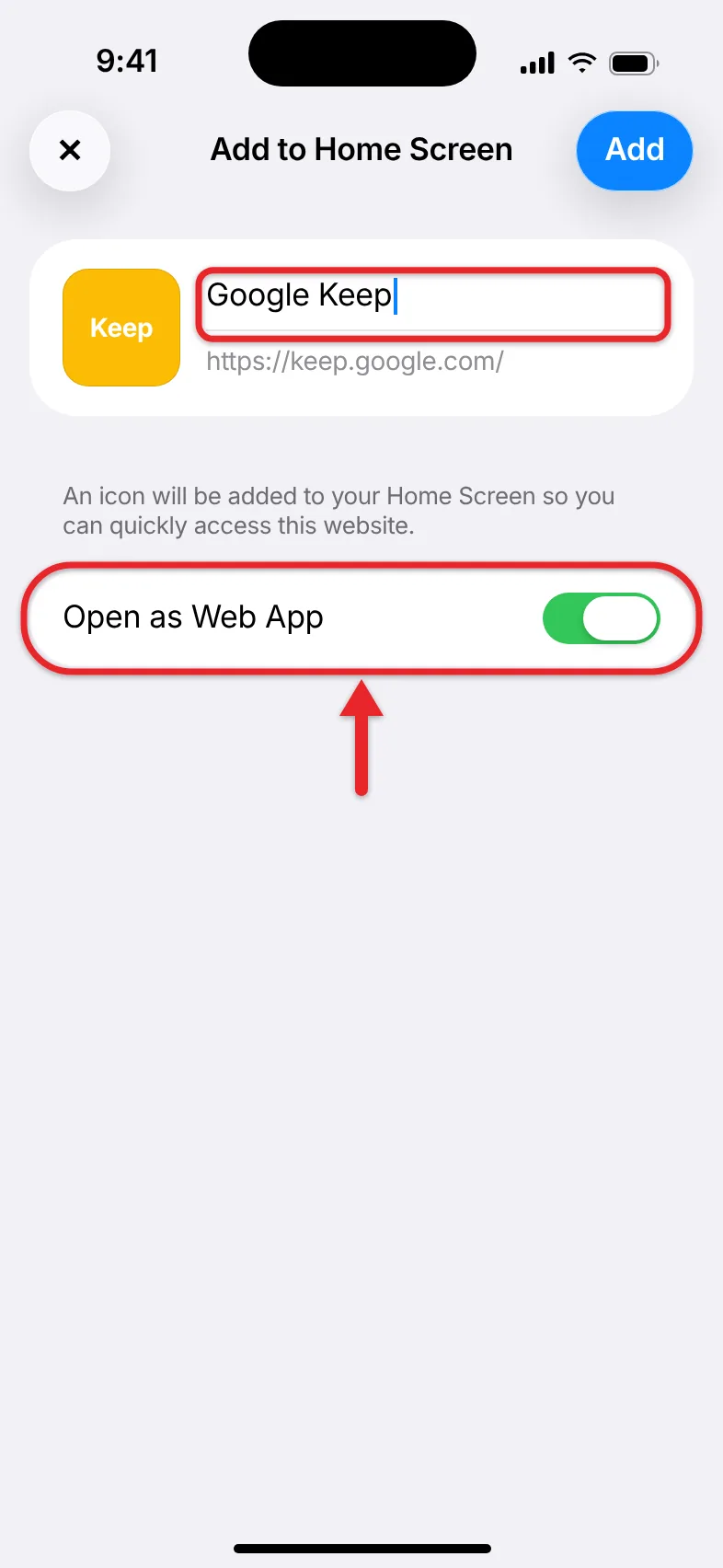
- Edit the name if you like. Safari usually fills in “Google Keep” or “Keep,” and you can shorten it so it fits under the icon.
- On iOS 26 and later, leave Open as Web App turned on if you want Keep to open in its own window without Safari’s address bar. Turn it off if you’d rather have the icon open Keep in a regular Safari tab.
- Tap Add (on some versions the button reads Add to Home Screen). The sheet closes and the new Keep icon appears on your Home Screen.
Tap the icon to test it. With Open as Web App turned on, Keep opens full-screen and gets its own card in the app switcher. Because a web app keeps its own sign-in data apart from Safari, it may ask you to sign in to Google once more the first time you open it.
If the Share button is hard to reach in the Compact layout, you can switch layouts in Settings > Apps > Safari under Tabs. Choosing Bottom puts Share back in the toolbar. Apple covers Home Screen icons in its Safari bookmarks guide for iPhone, and the steps for adding a Safari link to your iPhone Home Screen work for any website.
App or Home Screen Shortcut: Which Should You Use?
Both put a Keep icon on your Home Screen, but they behave differently.
| Google Keep app | Safari shortcut to keep.google.com | |
|---|---|---|
| Needs | iOS 18 or later (current version) | Safari on any recent iOS |
| Storage | About 220 MB | Almost none |
| Reminders | Time and location reminders, such as a grocery list that pops up when you reach the store | Fewer options, and alerts depend on the website |
| Voice notes | Records audio and transcribes it into text | Not the main focus of the web version |
| Opens | As a regular app | In its own web app window or a Safari tab |
Pick the app if you use Keep every day, want reminders tied to a time or place, or like to dictate notes. Pick the shortcut if you have an older iPhone, little free storage, or only need to read and jot down the occasional list.
Move or Remove the Keep Icon
To move it, touch and hold an empty spot on the Home Screen until the icons jiggle, then drag the Keep icon where you want it. Drag it to the right edge of the screen to move it to another page, and tap Done when you’re finished. To learn about folders, widgets, and pages, read about customizing the iPhone Home Screen.
The same jiggle mode is where you start to add a Weather widget to your Home Screen.
To remove the app, touch and hold the Keep icon, tap Remove App, then tap Delete App and confirm. Your notes stay in your Google account, so you can see them again on the web or after you reinstall. Choose Remove from Home Screen instead if you want to keep the app installed but move the icon to the App Library.
To remove the Safari shortcut, touch and hold its icon, tap the remove option, and confirm. Deleting the shortcut doesn’t delete anything from your Keep account.
If Something Doesn’t Work
- The App Store says the app needs a newer iOS. The current Keep app requires iOS 18 or later. Update your iPhone in Settings > General > Software Update if it supports a newer version. If it doesn’t, use the Safari shortcut instead.
- You can’t find the Keep app after installing it. Swipe left past your last Home Screen page to open the App Library, or swipe down on the Home Screen and search for Keep. If new apps never show up on your Home Screen, go to Settings > Home Screen & App Library and choose Add to Home Screen under Newly Downloaded Apps.
- You installed the wrong app. Several note apps use yellow icons and “Keep” in their names. Delete the app you got and look for Google Keep – Notes and lists from Google.
- Your notes are missing. You’re probably signed into a different Google account. In the app, tap your profile picture in the top-right corner and switch accounts. In the web shortcut, sign out of Google and sign in with the right account.
- Add to Home Screen isn’t in the share sheet. Scroll down past the first row of apps and look in the list of actions, or tap View More. If it’s still missing, scroll to the bottom of the share sheet, tap Edit Actions, and add it to your list.
- The shortcut opens in Safari instead of its own window. Remove the icon and add it again with Open as Web App turned on.
Frequently Asked Questions
Is there an official Google Keep app for iPhone?
Yes. Google publishes Google Keep – Notes and lists in the App Store for free. It works on iPhone and iPad and syncs with Keep on the web and on Android. The old advice that Keep only works through Safari on iPhone is out of date.
Does Google Keep cost anything on iPhone?
No. The app and the website are both free to use with a Google account, and there’s no paid version of Keep to unlock.
Can I use Google Keep without installing the app?
Yes. Open keep.google.com in Safari, sign in, and use it in the browser. Adding it to your Home Screen just gives you a faster way to open it.
Will deleting the Keep icon delete my notes?
No. Your notes are stored in your Google account. Deleting the app or the shortcut only removes it from your iPhone.
Can I add other Google services to my Home Screen this way?
Yes. Most Google services, including Gmail, Google Docs, Google Drive, and Google Calendar, have their own App Store apps from Google. You can also use the Safari steps above to make a Home Screen icon for any Google website.

Matthew Burleigh is the founder, head writer, and editor of Solve Your Tech, which he launched in 2012. He has written technology tutorials since 2008 and worked in IT since 2003, including small-business support, IT management, and consulting. He holds Bachelor’s and Master’s degrees in Computer Science from Arizona State University.
Matthew writes practical guides for Windows, iPhone and iPad, Microsoft Office, Outlook, Google apps, and Android. Solve Your Tech’s guides are checked step by step against the device or app maker’s own documentation and tested on his own devices whenever he has the hardware or software, with clear steps, sources, and update dates.
Read more about Matthew and how Solve Your Tech writes and updates its guides, or report a correction.