To move apps on iPhone, touch and hold an empty spot on the Home Screen until the apps jiggle, then drag an app where you want it. You can put apps anywhere on the page, including the top, bottom or sides, or drag them to another page. Tap the background when you’re done. To start over, reset the layout in Settings > General > Transfer or Reset iPhone > Reset.
This guide covers moving one app, moving several at once, using the Dock and other pages, the App Library, rearranging pages, and resetting the Home Screen. The steps come from Apple’s Move apps and widgets on the iPhone Home Screen guide (iOS 27) and its Organize the Home Screen and App Library article.
How to Move an App
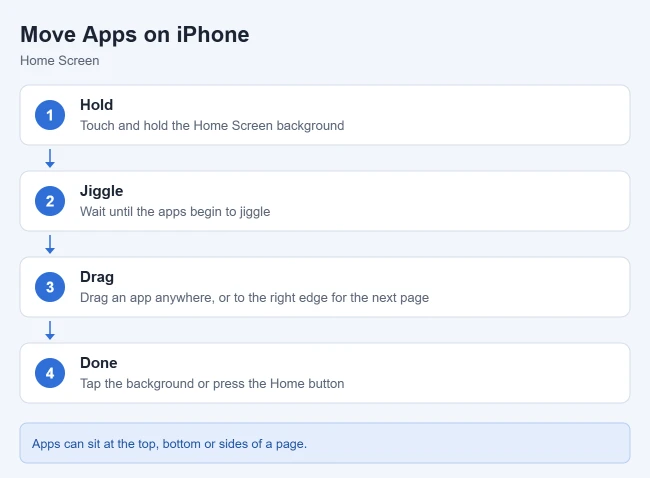
- Go to the Home Screen.
- Touch and hold the background until the apps start to jiggle.
- Drag the app to a new spot, including the top, bottom or side of the screen.
- To move it to another page, drag it to the right edge of the screen and wait a moment for the next page to appear.
- Tap the background, or press the Home button on an iPhone that has one, when you’re done.
Result: the app stays where you dropped it. Apple notes that each Home Screen page can have its own layout, and the dots at the bottom show how many pages you have. If the icons are hard to see, see how to make apps bigger on iPhone.
Start from the app instead
There is a second way in: touch and hold the app icon, choose Edit Home Screen from the menu, drag the icon, then tap Done.
Move several apps at once
You can start dragging one app with one finger, then tap other app icons with another finger to stack them, and move the whole group to a new spot or page together.
Move apps into or out of the Dock
While the icons are jiggling you can drag an app down into the Dock, or drag a Dock app up onto the Home Screen. It also notes that dragging an app past your last page creates a new page, and moving every app off a page removes it.
Use the App Library to Clear the Home Screen
You don’t have to keep every app on a Home Screen page. Apple’s steps:
- Remove from Home Screen: touch and hold the app, tap Remove App, then tap Remove from Home Screen. The app stays installed in the App Library.
- Bring it back: in the App Library (swipe left past your last page), touch and hold the app, swipe left while holding it, place it on the Home Screen, then tap Done.
- Choose where new apps go: open Settings > Home Screen & App Library and pick Add to Home Screen or App Library Only.
Rearrange, Hide or Remove Whole Pages
- Touch and hold an empty area of the Home Screen.
- Tap the dots near the bottom of the screen.
- Touch and hold a page to drag it to a new position, or tap the circle under a page to hide it.
- Tap Done.
Result: your pages appear in the new order, and hidden pages stay out of the way until you turn them back on. Apple says that if you remove a page instead, its apps still appear in the App Library.
How to Reset the Home Screen Layout
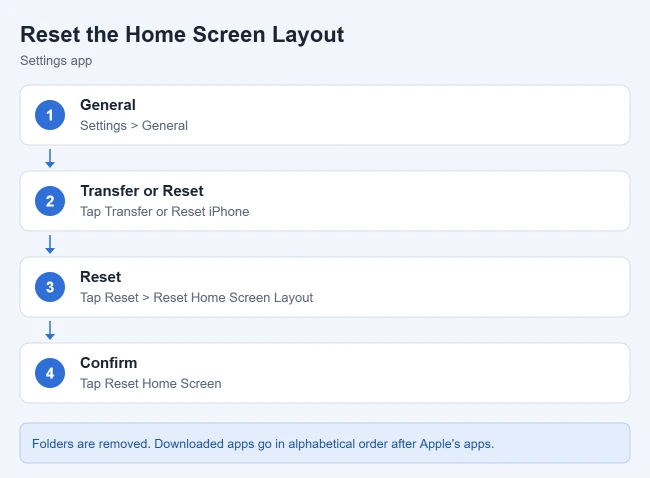
- Open the Settings app.
- Tap General, then tap Transfer or Reset iPhone.
- Tap Reset, tap Reset Home Screen Layout, then tap Reset Home Screen.
Result: per Apple, any folders you created are removed, and apps you downloaded are arranged alphabetically after the apps that came with your iPhone. This is a one-time reset, not a setting that keeps apps in alphabetical order.
Frequently Asked Questions
Does removing an app from the Home Screen delete it?
No. Remove from Home Screen only moves it to the App Library. To uninstall it, choose Delete App instead.
Can I move apps with VoiceOver?
Yes. Select the app, double-tap and hold until you hear three rising tones, drag to the new spot, release, and then select Done.
More iPhone Guides
Can’t find an app to move? App Library sorts every installed app into categories. See how to browse for apps by category on an iPhone.

Matthew Burleigh is the founder, head writer, and editor of Solve Your Tech, which he launched in 2012. He has written technology tutorials since 2008 and worked in IT since 2003, including small-business support, IT management, and consulting. He holds Bachelor’s and Master’s degrees in Computer Science from Arizona State University.
Matthew writes practical guides for Windows, iPhone and iPad, Microsoft Office, Outlook, Google apps, and Android. Solve Your Tech’s guides are tested on current devices or checked against official product documentation, with clear steps, sources, and update dates.
Read more about Matthew and how Solve Your Tech writes and updates its guides, or report a correction.