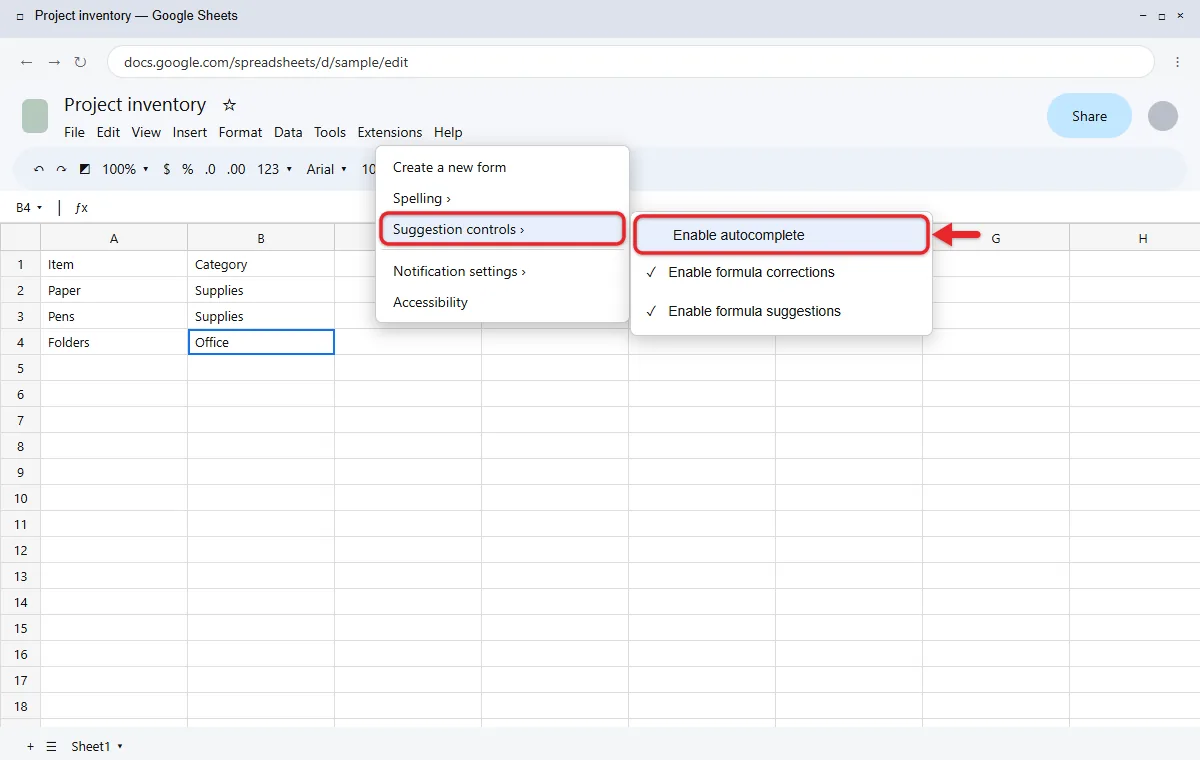
To turn off autocomplete in Google Sheets on a computer, open your spreadsheet and click Tools > Suggestion controls, then click Enable autocomplete to remove its check mark. Sheets stops suggesting completions and Smart Fill entries as you type.
These steps are for Google Sheets in a web browser on Windows, Mac or ChromeOS, using the menu labels on Google’s help pages. Formula suggestions, formula corrections and enhanced Smart Fill have their own switches in the same menu, covered below.
What autocomplete does in Google Sheets
When you start typing in a cell, Sheets can propose the rest of the entry, often text that already appears in the same column, shown as a preview you can accept. That saves time when you type the same product names or categories over and over. It gets in the way when entries are similar but different, such as North Region and Northern Office, because it’s easy to accept the wrong one without noticing.
Turn off the ordinary autocomplete setting
- Open the spreadsheet in Google Sheets in a computer browser.
- Click Tools > Suggestion controls. A short list of options with check marks opens.
- Click Enable autocomplete to remove its check mark. The menu closes.
- Type in a blank cell. Sheets no longer offers completions.
Turning autocomplete off only affects what you type from now on. Entries you already accepted stay in the cells, so fix those by hand.
Google’s Smart Fill guide gives this current menu path. Its autofill guide also identifies the autocomplete setting as the control for relevant suggestions.
To turn it back on, click Enable autocomplete again so the check mark returns. Google’s pages don’t say whether the choice follows your account or stays with one file, so if suggestions still appear in another spreadsheet, check the option there too.
This setting only covers Sheets. Suggestions in Chrome itself are separate, and you can turn off predictions in the Chrome address bar.
If you see Tools > Autocomplete instead
Some older layouts, and one section of Google’s own formula help page, show these options under Tools > Autocomplete rather than Suggestion controls. The check boxes have the same names, so uncheck Enable autocomplete there.
Identify the kind of suggestion
| What you see | Relevant feature or control |
|---|---|
| A proposed completion or ordinary pattern suggestion | Enable autocomplete. |
| A suggested formula or range | Enable formula suggestions. |
| A suggested correction to a formula | Enable formula corrections. |
| An enhanced Smart Fill prediction in an eligible account | Enable enhanced Smart Fill suggestions. |
| Values copying or extending when you drag a blue handle | Manual autofill; stop dragging or undo that fill. |
| Words suggested by the phone’s keyboard | The keyboard’s prediction feature, separate from Sheets’ desktop menu. |
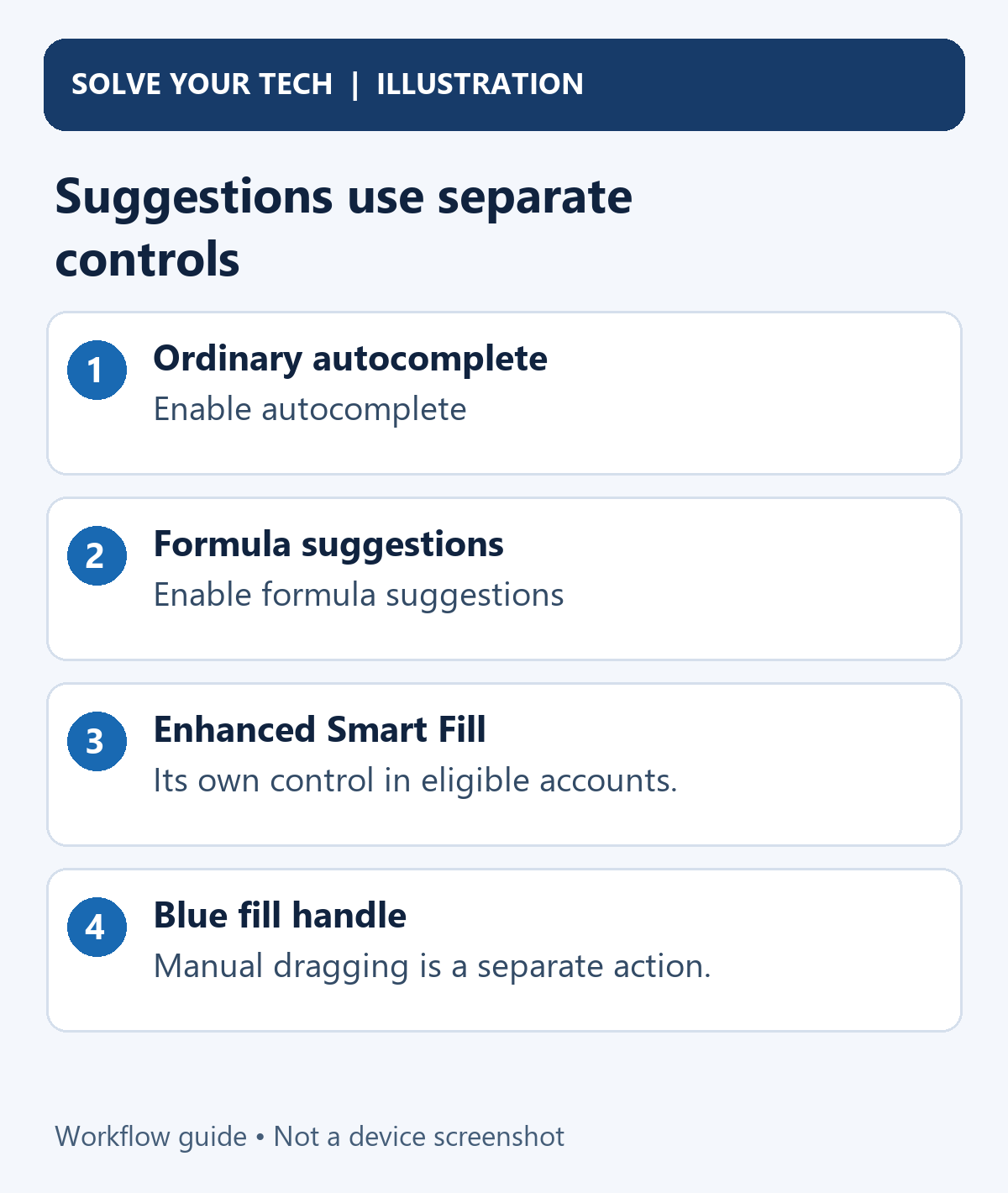
Each option controls one kind of suggestion. Turning off autocomplete doesn’t stop formula suggestions, and turning off formula suggestions doesn’t stop autocomplete.
Formula suggestions and formula corrections
Google Sheets can recommend a formula or range while you are working with data. It can also offer corrections when it detects an issue with a formula.
To turn off formula suggestions on a computer:
- Click Tools > Suggestion controls.
- Click Enable formula suggestions to remove its check mark.
- To stop correction prompts too, click Enable formula corrections to remove its check mark.
Formula suggestions are different from the help box that explains a function’s arguments while you type it. Google’s shortcut list gives Shift + F1 to show or hide that box while you’re entering a formula (Shift + Fn + F1 on a Mac), and F1 to switch between full and compact help.
Google’s formula guide documents these separate controls. Existing formulas continue to calculate when suggestion features are disabled.
If a cell displays the formula text rather than the calculated answer, read about showing or hiding formulas. If the issue is when results update, recalculation settings address a different part of Sheets.
Smart Fill and enhanced Smart Fill
Ordinary Smart Fill detects patterns and suggests completing data, such as pulling first names out of a column of full names. Google says to accept a Smart Fill suggestion with Ctrl + Shift + Y (Command + Shift + Y on a Mac). Turning off Enable autocomplete also stops these Smart Fill suggestions.
Some accounts also have enhanced Smart Fill, an AI version that predicts the rest of a column pair and fills it in. Google offers it through the Workspace Experiments trusted tester program, on computers only, for US English. It has its own switch: Tools > Suggestion controls > Enable enhanced Smart Fill suggestions. You can also click the three-dot menu on any enhanced suggestion and uncheck the same option.
Turn that switch off if the unwanted prediction comes from enhanced Smart Fill. Google’s enhanced Smart Fill instructions explain that this is separate from ordinary Smart Fill.
Turning it off removes pending suggestions you have not accepted or rejected, across all your sheets. Values you already accepted stay. To dismiss one suggestion without turning the feature off, click the cancel icon on that suggestion.
If you don’t see the enhanced option, your account doesn’t have the feature, and turning off Enable autocomplete is all you need to do.
Autofill previews and the fill handle
Autofill is a separate tool. When you drag the small blue square at the bottom-right corner of a selection, Sheets copies the values or continues a pattern, such as dates or numbers, into the cells you drag across. Number and date patterns continue as a series, while other values repeat.
Nothing in Suggestion controls turns the fill handle off, because it only acts when you drag it. If a drag fills the wrong cells, press undo right away. When Sheets shows an autofill preview, it waits for you to accept it with Command + Enter on a Mac, which matches Ctrl + Enter on Windows and ChromeOS.
Check and correct existing data
To undo a completion you just accepted, press Ctrl + Z (Windows or ChromeOS) or Command + Z (Mac). For older changes, edit the cells by hand or restore an older version of the sheet.
If you turned autocomplete off because the same few values kept getting mistyped, a dropdown may suit the column better. Select the cells, click Insert > Dropdown, enter the allowed values under Criteria, and click Done. Google’s dropdown instructions note that entries not on the list are rejected unless you choose Show a warning under Advanced options. To stop other people from changing finished cells, you can also protect a range or sheet.
Troubleshooting and Frequently Asked Questions
I cannot find Suggestion controls
Make sure you are using Google Sheets on a computer and have opened the Tools menu in the spreadsheet. Older layouts may show Tools > Autocomplete instead. If the menus are hidden entirely, press Ctrl + Shift + F to show them. The Android and iPhone apps don’t have the same menu.
Suggestions continue on my phone
Check whether they come from the on-screen keyboard. Keyboard word predictions are separate from Sheets’ menu setting; on an iPad, for example, you would turn off predictive text on the iPad keyboard. Also check whether the item is a formula prompt, a Smart Fill prediction, or a dropdown rather than an ordinary completion.
Does this delete formulas or stop calculation?
No. Disabling a suggestion feature does not delete existing formulas or replace their results. Formula calculation and suggestion controls serve different purposes.
Should I leave autocomplete on?
Leave it on for columns where the same entries repeat, such as categories or names you type often. Turn it off when entries are unique codes or similar-looking values where a wrong match would be hard to spot.
Does Google Docs have the same setting?
No. Docs uses Smart Compose and AutoCorrect under Tools > Preferences instead. To change them, follow the steps for turning off AutoCorrect in Google Docs.

Matthew Burleigh is the founder, head writer, and editor of Solve Your Tech, which he launched in 2012. He has written technology tutorials since 2008 and worked in IT since 2003, including small-business support, IT management, and consulting. He holds Bachelor’s and Master’s degrees in Computer Science from Arizona State University.
Matthew writes practical guides for Windows, iPhone and iPad, Microsoft Office, Outlook, Google apps, and Android. Solve Your Tech’s guides are checked step by step against the device or app maker’s own documentation and tested on his own devices whenever he has the hardware or software, with clear steps, sources, and update dates.
Read more about Matthew and how Solve Your Tech writes and updates its guides, or report a correction.