To change row height in Google Sheets, right-click the row number on the left side of the sheet, click Resize row, type a height in pixels (or choose Fit to data), and click OK. Column width works the same way: right-click the column letter and click Resize column. For a quick change, drag the bottom edge of a row number, or double-click it to fit the row to its contents.
These steps cover Google Sheets in a web browser on Windows, Mac, and Chromebook, plus the Google Sheets app for Android, iPhone, and iPad. You need edit access to the spreadsheet; if someone shared it with you as a viewer or commenter, you can’t change its row sizes.
How Row Height Works in Google Sheets
Every new Google Sheets spreadsheet starts with rows 21 pixels tall and columns 100 pixels wide. That’s enough for one line of text at the default font size. A pixel is a dot on your screen, so 42 pixels is about twice the starting height, and 63 is about three times.
Two things are worth knowing before you start:
- Size applies to the whole row or column. You can’t make one cell taller than the cells beside it. Changing the height of row 5 changes every cell in row 5.
- Rows grow on their own in some cases. If text wrapping is turned on, or you type a line break inside a cell, Sheets makes the row taller to show all of the text. Once you set a height yourself, that row keeps your number until you change it or choose Fit to data.
Change Row Height With Resize Row
This method lets you type an exact height, which is useful when you want several rows to match.
- Open the spreadsheet at sheets.google.com or from Google Drive.
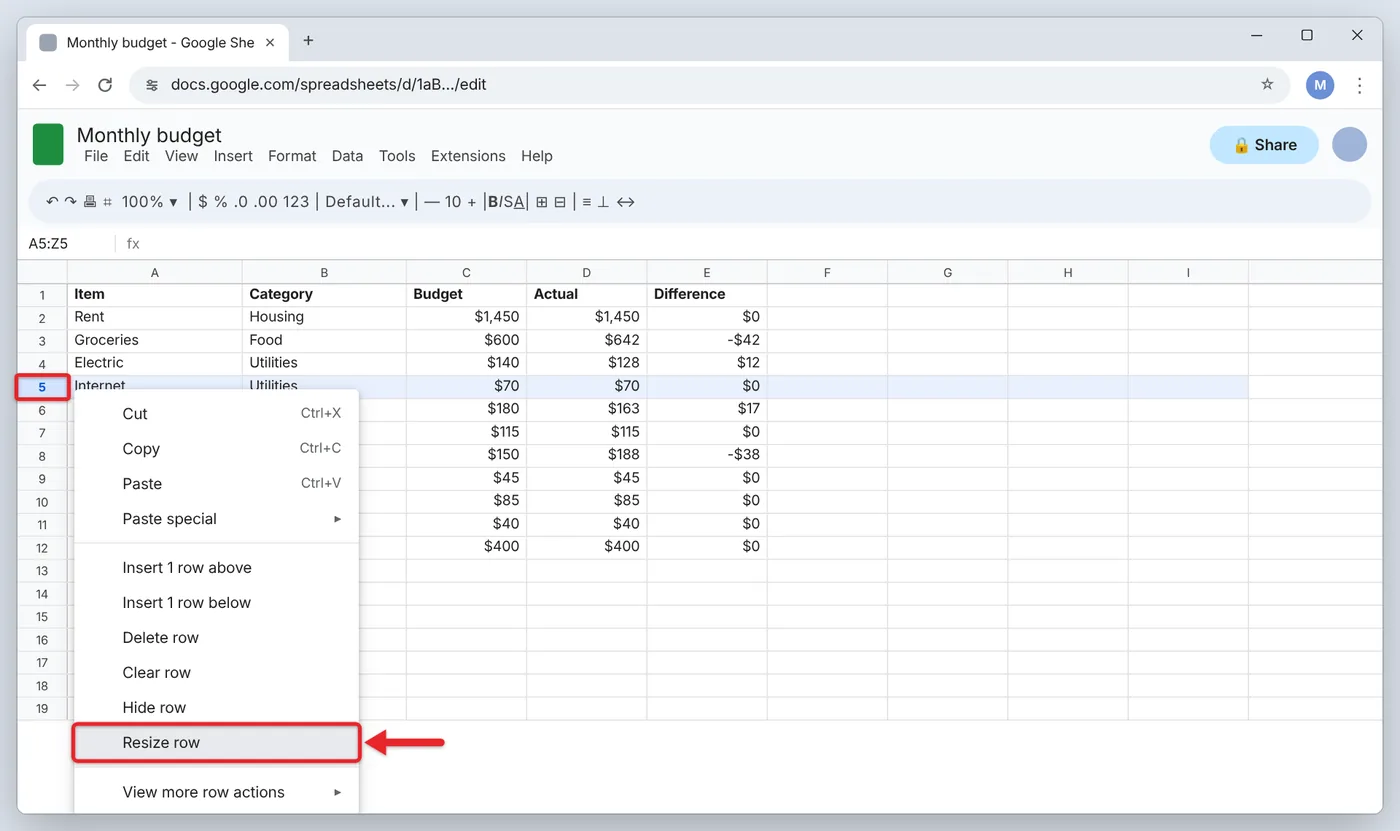
- Click the gray row number on the left side of the sheet for the row you want to change. The whole row turns blue to show it’s selected.
- Right-click the row number. A menu opens next to your cursor.
- Click Resize row. A small window opens with two choices. If you selected more than one row, the menu item names the range, such as Resize rows 2 – 9.
- Leave Specify row height selected and type a new height in pixels, such as 42. To go back to the original size, type 21.
- Or select Fit to data if you want Sheets to size the row for its tallest cell.
- Click OK. The row changes to the new height right away. There’s no separate save step; Sheets saves the change automatically.

To undo the change, press Ctrl + Z (Windows or Chromebook) or Command + Z (Mac), or click the Undo arrow in the toolbar.
If you prefer the keyboard, click a cell in the row, press Shift + Space to select the row, then press Shift + F10 to open the same right-click menu. Google lists both shortcuts on its Google Sheets keyboard shortcuts page.
Change Column Width
Columns work like rows, but you start from the letters across the top of the sheet.
- Click the gray column letter, such as B, to select the column.
- Right-click the column letter.
- Click Resize column.
- Type a width in pixels under Enter new column width in pixels, or select Fit to data.
- Click OK. The column changes to the new width.
A wider column is the right fix when long numbers show as ### or text gets cut off at the cell edge. If you’d rather keep a column narrow and let the text stack onto several lines, wrap the text in Google Sheets instead. Wrapping makes the row taller instead of the column wider.
If you work in Excel instead, here is how to AutoFit columns and rows in Excel with a double-click or a short key sequence.
Taller rows and wider columns also give more room to an image when you insert a picture in Google Sheets.
Narrower columns help in the other direction when you fit a Google Sheet on one printed page.
In a taller row, entries sit at the bottom of the cell by default. You can change the cell alignment in Google Sheets to center them from top to bottom.
If a column was dragged so narrow it looks missing, widen it with Resize column. A column that is truly hidden shows small arrows instead, and you can unhide a column in Google Sheets by clicking them.
Resize Several Rows or Columns at Once
You can give a group of rows the same height in one step.
- Select the rows. For rows next to each other, click the first row number and drag down to the last one, or click the first and then Shift-click the last. For rows that aren’t next to each other, hold Ctrl (Windows or Chromebook) or Command (Mac) and click each row number.
- Right-click any of the selected row numbers.
- Click Resize rows (the menu shows the row range).
- Enter one height, or choose Fit to data, and click OK.
Every selected row now has the same height. With Fit to data, each row gets its own height based on its own contents, so they may not match.
To change every row in the sheet, click the empty gray box in the top-left corner, where the row numbers and column letters meet. That selects the whole sheet. Then right-click any row number and use Resize rows. The same trick works for columns: select the whole sheet, right-click any column letter, and use Resize columns.
Drag or Double-Click to Resize
When you don’t need an exact number, the mouse is faster.
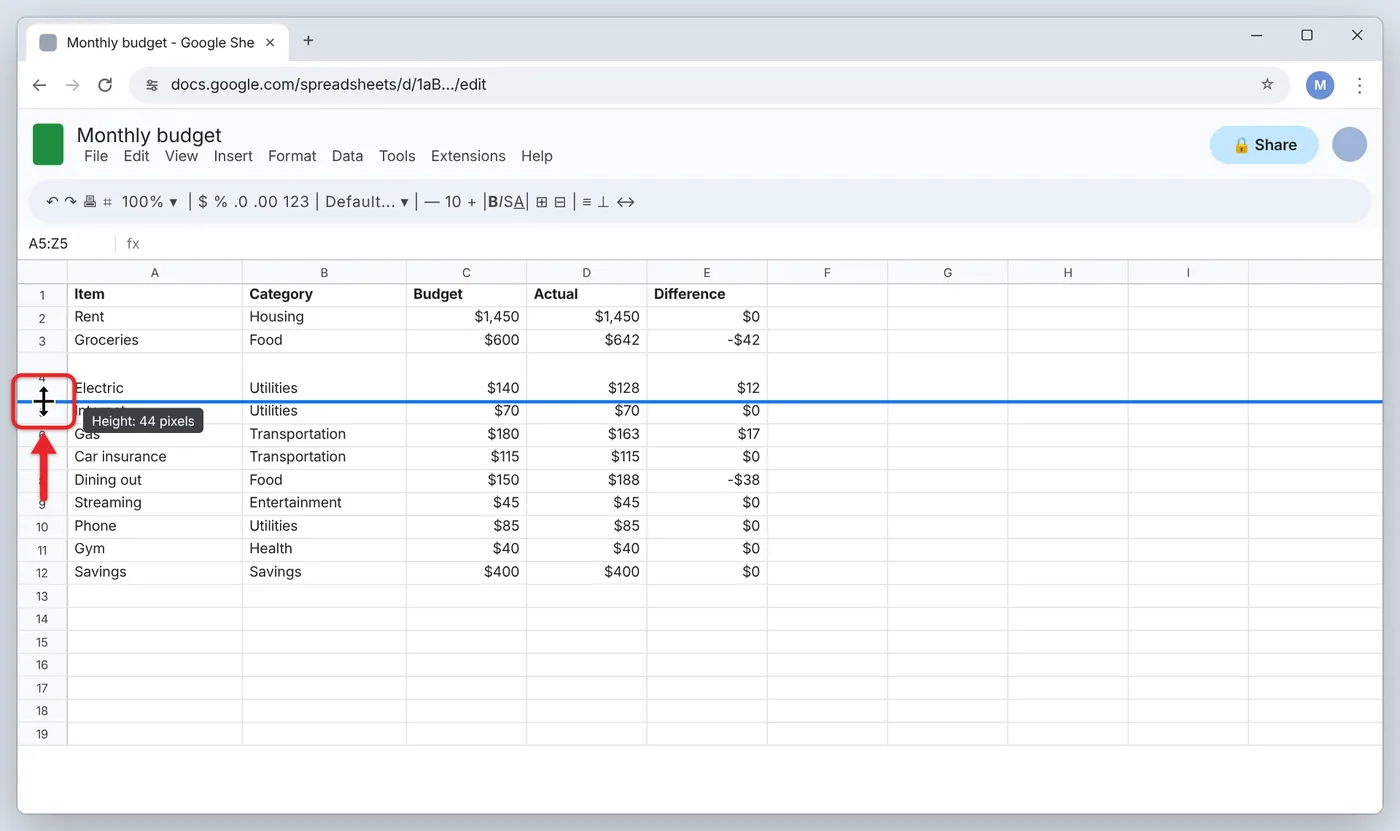
- Drag: Point at the bottom edge of a row number until the cursor changes to a two-way arrow. Drag down to make the row taller or up to make it shorter. For columns, drag the right edge of the column letter.
- Double-click: Double-click the bottom edge of a row number to fit that row to its contents. Double-click the right edge of a column letter to fit the column to its longest entry. This gives the same result as Fit to data.
- Drag a group: Select several rows or columns first, then drag the edge of any one of them. All of the selected rows or columns change to the same size.
Change Row Height in the Sheets App on Android, iPhone, or iPad
The Google Sheets mobile app can resize rows and columns too, but the steps differ by platform.
Android
- Open the spreadsheet in the Google Sheets app.
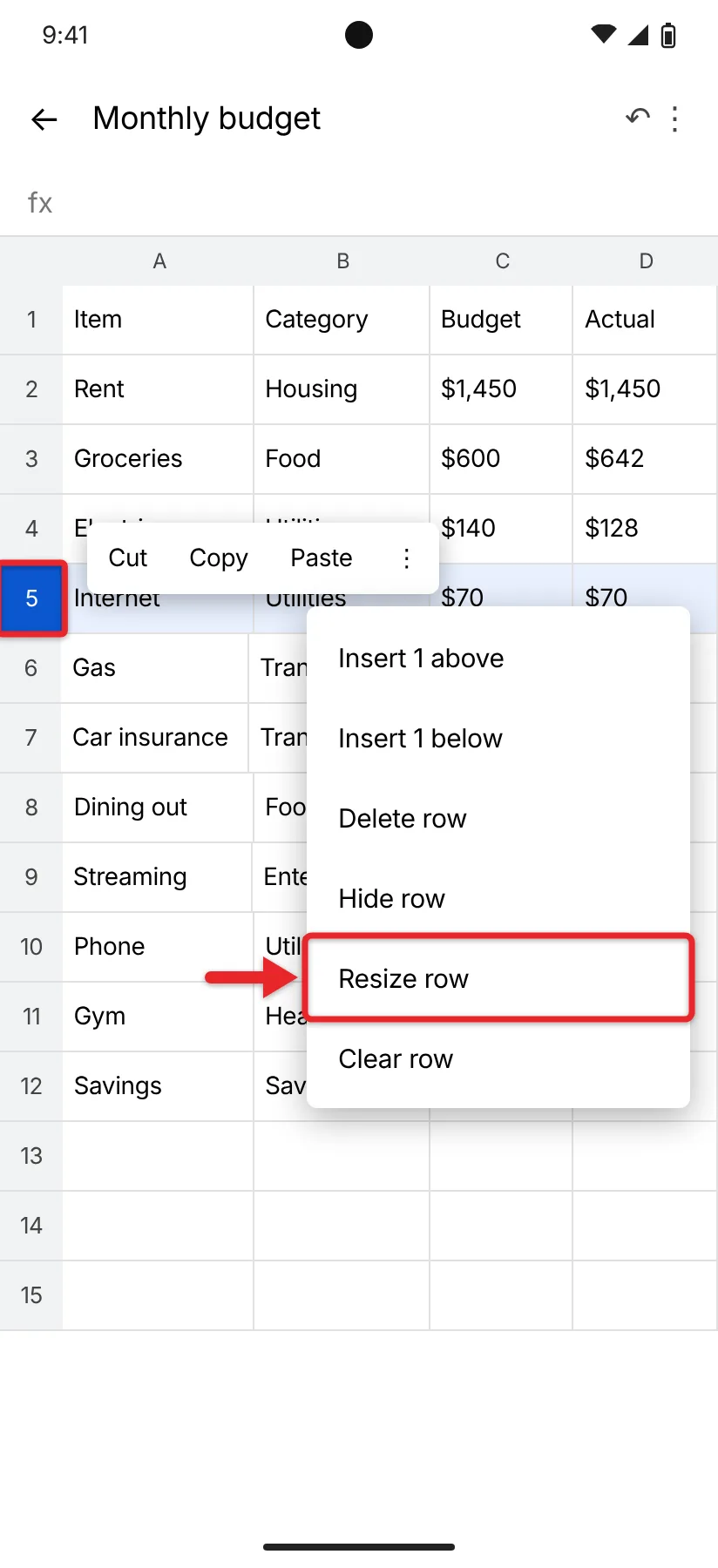
- Touch and hold the row number (or column letter) you want to change. A menu appears.
- Tap Resize row or Resize column.
- Enter a new height or width and tap Save.
You can also tap the row number once and drag the edge of it to resize the row by hand.
iPhone and iPad
On iPhone and iPad, you resize rows and columns by dragging.
- Open the spreadsheet in the Google Sheets app.
- Tap the row number (or column letter) to select it.
- Touch and drag the edge of the box that holds the row number or column letter. Drag down to make a row taller, or right to make a column wider.
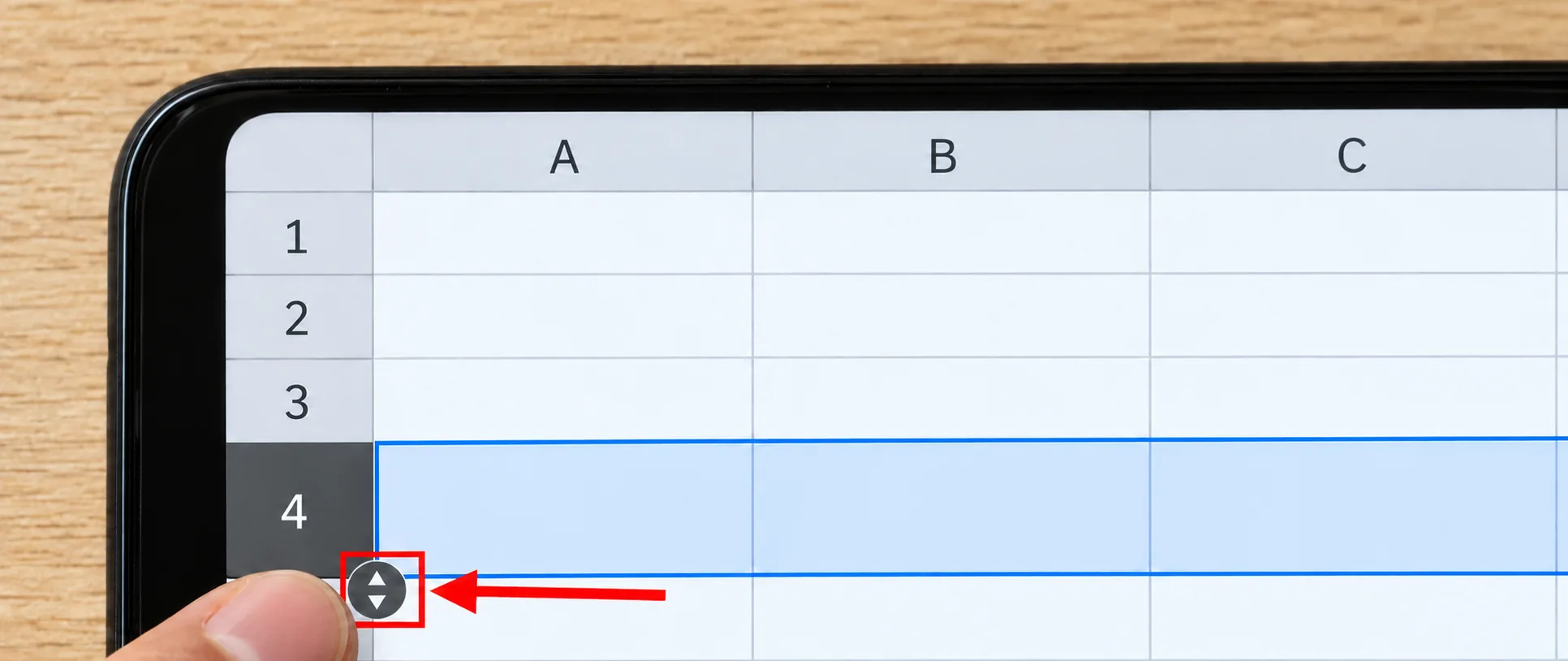
- Lift your finger when the row looks right. The change saves automatically.
If you need an exact pixel height from an iPhone or iPad, open the spreadsheet in a browser on a computer and use Resize row there.
If Row Height Won’t Change
- Resize row is missing or grayed out. You may have view-only or comment-only access. Ask the owner for edit access, or make a copy with File > Make a copy and resize the rows in your copy. A protected sheet or range can also block changes if you’re not on its list of editors.
- Fit to data doesn’t shrink the row. Fit to data sizes the row for its tallest cell anywhere in that row, including cells off screen to the right. Scroll across the row and look for a cell with wrapped text, a line break, a large font, or an image placed in the cell.
- Text is still cut off after you make the row taller. Tall rows don’t wrap text. Select the cells and choose Format > Wrapping > Wrap so the text uses the extra lines.
- You only want one cell bigger. Sheets can’t resize a single cell. The closest option is to merge cells in Google Sheets to make one large cell, but merged cells can get in the way of sorting and filtering.
- The row grows by itself when you type. Wrapping or a line break inside a cell is making the row taller. Set a fixed height with Resize row > Specify row height, or change wrapping to Clip under Format > Wrapping.
- New spreadsheets start at the old size. Sheets doesn’t have a setting for a default row height. Set up a spreadsheet with the sizes you like, then use File > Make a copy each time you need a new one.
Sheets Row Height Questions
What is the default row height in Google Sheets?
A new row is 21 pixels tall and a new column is 100 pixels wide. Type 21 in the Resize row window to put a row back to its starting height.
What unit does Google Sheets use for row height?
Pixels. Both the Resize row and Resize column windows ask for whole numbers in pixels. You can’t enter inches or a percentage.
How do I make all cells the same size in Google Sheets?
Click the gray box in the top-left corner of the sheet to select everything. Right-click a row number, choose Resize rows, and enter one height. Then right-click a column letter, choose Resize columns, and enter one width.
Can Fit to data make a row smaller?
Yes. Fit to data sizes the row for its tallest cell, so an extra-tall row shrinks if nothing in it needs the space.
How do I move a row instead of resizing it?
Select the row, click Edit at the top of the screen, and choose an option such as Move row up. You can also drag the row number to a new spot. To add or remove rows, follow the steps for inserting and deleting rows and columns in Google Sheets.

Matthew Burleigh is the founder, head writer, and editor of Solve Your Tech, which he launched in 2012. He has written technology tutorials since 2008 and worked in IT since 2003, including small-business support, IT management, and consulting. He holds Bachelor’s and Master’s degrees in Computer Science from Arizona State University.
Matthew writes practical guides for Windows, iPhone and iPad, Microsoft Office, Outlook, Google apps, and Android. Solve Your Tech’s guides are checked step by step against the device or app maker’s own documentation and tested on his own devices whenever he has the hardware or software, with clear steps, sources, and update dates.
Read more about Matthew and how Solve Your Tech writes and updates its guides, or report a correction.