To convert Google Slides to a PDF, open the presentation and click File > Download > PDF Document (.pdf). The same Download menu also saves the whole deck as a Microsoft PowerPoint (.pptx) file or saves the current slide as a PNG or JPEG picture.
This covers Google Slides in a web browser on a Windows PC, Mac, or Chromebook, plus the Google Slides app for Android and iPhone. The computer steps follow Google’s Download a file and Print a file help pages.
Which Format Should You Pick?
Each format solves a different problem, so choose by what the other person needs to do with the file.
| You want to | Pick | What you get |
|---|---|---|
| Share a deck that looks the same everywhere and can’t be edited easily | PDF Document (.pdf) | One slide per page, fonts and images fixed in place |
| Print or share speaker notes or handouts | Print settings and preview | A PDF with notes or several slides on each page |
| Give someone a file they can edit in PowerPoint | Microsoft PowerPoint (.pptx) | An editable copy of every slide |
| Put one slide in a document, post, or email | PNG or JPEG | A picture of the selected slide only |
A PDF opens on almost any phone or computer without a Google account, which makes it the safest choice when you send slides to someone outside your school or company.
Before You Start
- You need permission to download the file. If you own the presentation or have edit access, you’re set. If you only have view or comment access, the owner can block downloading, printing, and copying.
- Check the slide size under File > Page setup. The PDF pages use the same shape as your slides, so a 16:9 deck becomes wide pages.
- Wait for every image and video thumbnail to finish loading before you download. A slow connection can leave blank spots in the export.
How to Convert Google Slides to PDF
- Open the presentation at slides.google.com.
- Click File in the menu bar near the top left.
- Point to Download. A list of formats opens to the side.
- Click PDF Document (.pdf).
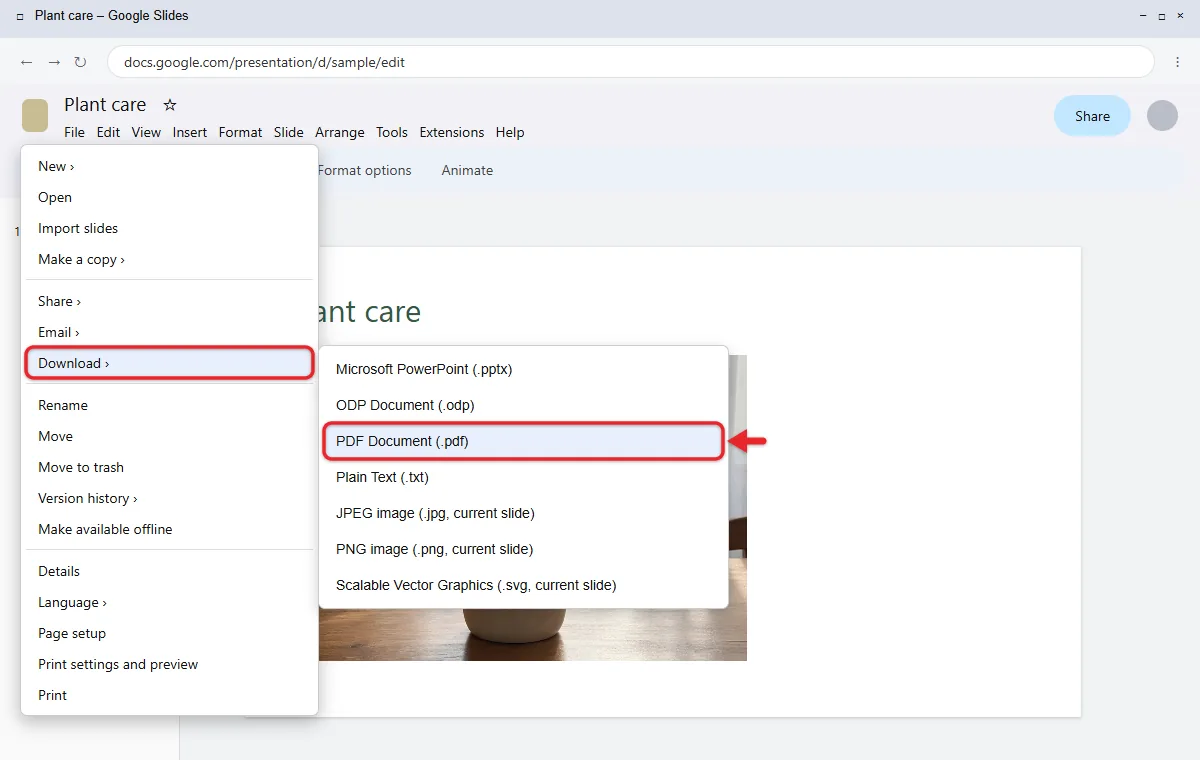
Your browser saves the PDF, usually to your Downloads folder, with the presentation’s name as the file name. Each slide becomes one page. Text, fonts, shapes, and images look the way they do in Slides, but animations, transitions, and videos don’t play, because a PDF is a static file. This quick download doesn’t include speaker notes.
Open the PDF before you send it and page through it. If a slide looks wrong, fix it in Slides and download again.
Working in a spreadsheet instead? You can also publish a Google Sheet to the web as a PDF so one link always shows the latest version.
How to Save a PDF With Speaker Notes or Handouts
Use the print preview when you want notes under each slide, several slides per page, or no background color.
- Click File > Print settings and preview. A preview of your printed pages opens.
- In the toolbar, click 1 slide with notes to put each slide’s speaker notes below it. To fit several slides on a page instead, open the same layout menu and choose a Handout option, such as 4 or 6 slides per page.
- Choose Portrait or Landscape from the orientation menu if your layout offers it.
- Turn on Include skipped slides if you want slides you’ve marked as skipped in the PDF, or Hide background to save ink when printing.
- Click Download as PDF.
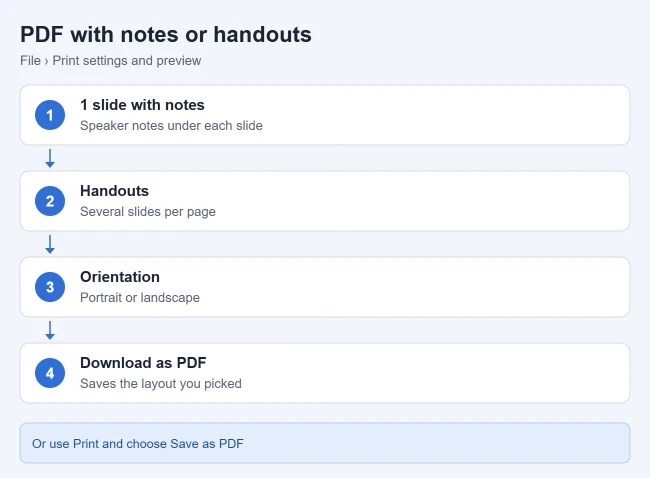
The PDF uses the layout you picked. Notes pages show one slide per page with the notes underneath, so a 20-slide deck makes a 20-page PDF. Handouts are good for audiences who want to follow along and write their own notes. For a printed copy instead of a file, print 4 slides per page in Google Slides.
How to Save Only Some Slides as a PDF
The Download menu always exports the whole deck. To get a PDF of certain slides, use your browser’s print window.
- Click File > Print settings and preview, then click Print. Your browser’s print window opens.
- Set Destination (Chrome and Edge) to Save as PDF. On a Mac, you can also click the PDF menu at the bottom of the print dialog and choose Save as PDF.
- Under Pages, choose Custom and type the slide numbers. Type 3 for one slide, 2-5 for a range, or 1, 4, 7 for separate slides.
- Click Save, pick a folder, and click Save again.
Your PDF has only the slides you typed. On Windows, the Microsoft Print to PDF printer works the same way if your browser doesn’t show Save as PDF.
Another route: click File > Make a copy > Entire presentation, delete the slides you don’t want from the copy, and download the copy as a PDF. Your original deck stays complete.
How to Email Slides as a PDF
You can send a PDF without saving it to your computer first.
- Click File > Email > Email this file.
- Add the recipient’s address, a subject, and a short message.
- Make sure the option to attach a copy is selected and choose PDF as the file type.
- Click Send.
The email goes from your Google account with the PDF attached. Google describes this option in its tips to edit and collaborate on files.
How to Download Google Slides as a PowerPoint File
- Open the presentation.
- Click File > Download.
- Click Microsoft PowerPoint (.pptx).
You get a .pptx file you can open and edit in PowerPoint on Windows or Mac. Your Google Slides presentation stays where it was. You can also save a PowerPoint copy without opening the deck: in Google Drive, right-click the presentation and click Download. Drive saves Slides files as .pptx by default.
Check these things after converting to PowerPoint
PowerPoint and Slides handle some items differently, so open the file and go through each slide before you present.
- Fonts: Google Fonts that aren’t installed on your computer get swapped for a default font, which can push text onto extra lines or out of its box. Common fonts like Arial and Georgia convert cleanly.
- Animations and transitions: some don’t have a PowerPoint match and get dropped or changed.
- Videos: YouTube and Drive videos may come through as a still picture or a link. Insert a video file in PowerPoint if you need it to play offline.
- Charts from Google Sheets: the link to the spreadsheet is lost, so the chart won’t update anymore.
If the other person only needs to view the slides, send a PDF instead. It keeps the layout exactly.
If you finish the deck in PowerPoint, you can export the PowerPoint file as a PDF from there too.
How to Save One Slide as a Picture
- In the filmstrip on the left, click the slide you want.
- Click File > Download.
- Click PNG image (.png) or JPEG image (.jpg). Scalable Vector Graphics (.svg) is also listed.
Only the selected slide is saved. PNG keeps text and lines sharp, which suits screenshots and documents. JPEG makes a smaller file, which helps when you upload a slide with photos. SVG is a vector format for designers that stays sharp at any size.
Save every slide as a picture
Slides saves one picture at a time. For a whole deck, download it as a .pptx file, open it in PowerPoint, and use File > Export to save every slide as a PNG or JPEG at once. You can also repeat the download for each slide in Slides.
Other Download Formats
- ODP Document (.odp): for LibreOffice Impress and other OpenDocument apps.
- Plain Text (.txt): the text from your slides only, with no pictures or layout. It’s handy for pulling slide text into a document.
How to Convert Google Slides to PDF on Your Phone
The Google Slides app on Android and iPhone can send a PDF copy to another app.
- Open the presentation in the Google Slides app.
- Tap More (three dots) at the top right.
- Tap Share & export, then tap Send a copy.
- Choose PDF and tap OK.
- Pick where the PDF goes, such as Gmail, Messages, Files, or Drive.
On Android, Share & export also has a Save as option, which can save a PDF copy in your Drive. Menu names in the app can change with updates, so look under Share & export if you don’t see these exact labels.
Troubleshooting
- Download is grayed out or missing: the owner has likely turned off download, print, and copy for viewers and commenters. Ask the owner to give you edit access or to share a PDF.
- Nothing happens when you click a format: blocked third-party cookies and browser extensions can stop Drive downloads. Allow third-party cookies for drive.google.com in your browser settings, or turn off extensions and try again. An Incognito or private window is a quick test, since most extensions don’t run there.
- Fonts look different in the PDF or PowerPoint file: switch to a Google Font or a common system font, then download again.
- Images are blurry or missing: reload the presentation, wait for every image to load, and replace low-resolution images with larger versions.
- Speaker notes are cut off: very long notes may not fit on one page. Shorten them or split the content across two slides.
- Hidden slides are missing from the PDF: turn on Include skipped slides in Print settings and preview, or unskip them before you download.
Frequently Asked Questions
Does converting change my original presentation?
No. Downloading creates a separate file on your device. Your presentation stays in Google Slides, and later edits there don’t change the PDF or .pptx you already saved.
Do links still work in the PDF?
Text and object links you added in Slides usually stay clickable in a PDF made with File > Download. Test one link in the finished PDF before you send it.
Can I edit the PDF later?
Not in Google Slides. Make your changes in the presentation and download a new PDF. Keep the Slides file as your editable master copy.
Why is my PDF so large?
Big photos and many images add size. Replace oversized images with smaller versions, or crop them in Slides, then download again.
Can I convert a PowerPoint file to Google Slides?
Yes. Upload the .pptx file to Drive and open it with Google Slides. Here’s how to convert PowerPoint to Google Slides step by step.
Next, if you want people to view your deck online instead of downloading a file, you can embed a Google Slides presentation on a web page.

Matthew Burleigh is the founder, head writer, and editor of Solve Your Tech, which he launched in 2012. He has written technology tutorials since 2008 and worked in IT since 2003, including small-business support, IT management, and consulting. He holds Bachelor’s and Master’s degrees in Computer Science from Arizona State University.
Matthew writes practical guides for Windows, iPhone and iPad, Microsoft Office, Outlook, Google apps, and Android. Solve Your Tech’s guides are checked step by step against the device or app maker’s own documentation and tested on his own devices whenever he has the hardware or software, with clear steps, sources, and update dates.
Read more about Matthew and how Solve Your Tech writes and updates its guides, or report a correction.