To watch USA Network on your TV with an Apple TV, install the free USA Network app from the App Store on the Apple TV itself and sign in with your TV provider. If you’d rather start a show on your iPhone, open it in the USA Network app on the phone, tap the AirPlay button in the video player, and choose your Apple TV.
The old USANow app this page once covered no longer exists. It was replaced by the USA Network app, which is now published by Versant Media, the company that took over USA Network and several other cable channels from NBCUniversal in January 2026. These steps cover the current USA Network app on an Apple TV 4K or Apple TV HD running tvOS 16.6 or later, and on an iPhone running iOS 16 or later (including iOS 26 and iOS 27).
What You Need First
- A TV subscription that includes USA Network. The app’s App Store listing says you need to sign in with your TV provider for live TV and the full on-demand catalog. It names DirecTV, Spectrum, Xfinity, Dish, and AT&T among the supported providers. Live TV streaming services that carry the channel can also work, as long as they offer a TV provider sign-in for network apps.
- Your provider’s username and password. This is the login for your cable, satellite, or streaming TV account, not your Apple Account.
- An Apple TV connected to the internet. If it isn’t online yet, connect the Apple TV to your Wi-Fi network first.
- For the iPhone method: the iPhone and the Apple TV must be on the same Wi-Fi network.
Watch USA Network With the Apple TV App (Recommended)
Running the app directly on the Apple TV gives you the best picture and frees up your phone. Your iPhone’s battery and notifications don’t matter, and the stream won’t stop if you take a call.
- On the Apple TV Home Screen, open the App Store.
- Select Search, type USA Network, and select the app from the results. Check that the developer listed is Versant Media.
- Select Get to download it. The app icon appears on your Home Screen when the install finishes.
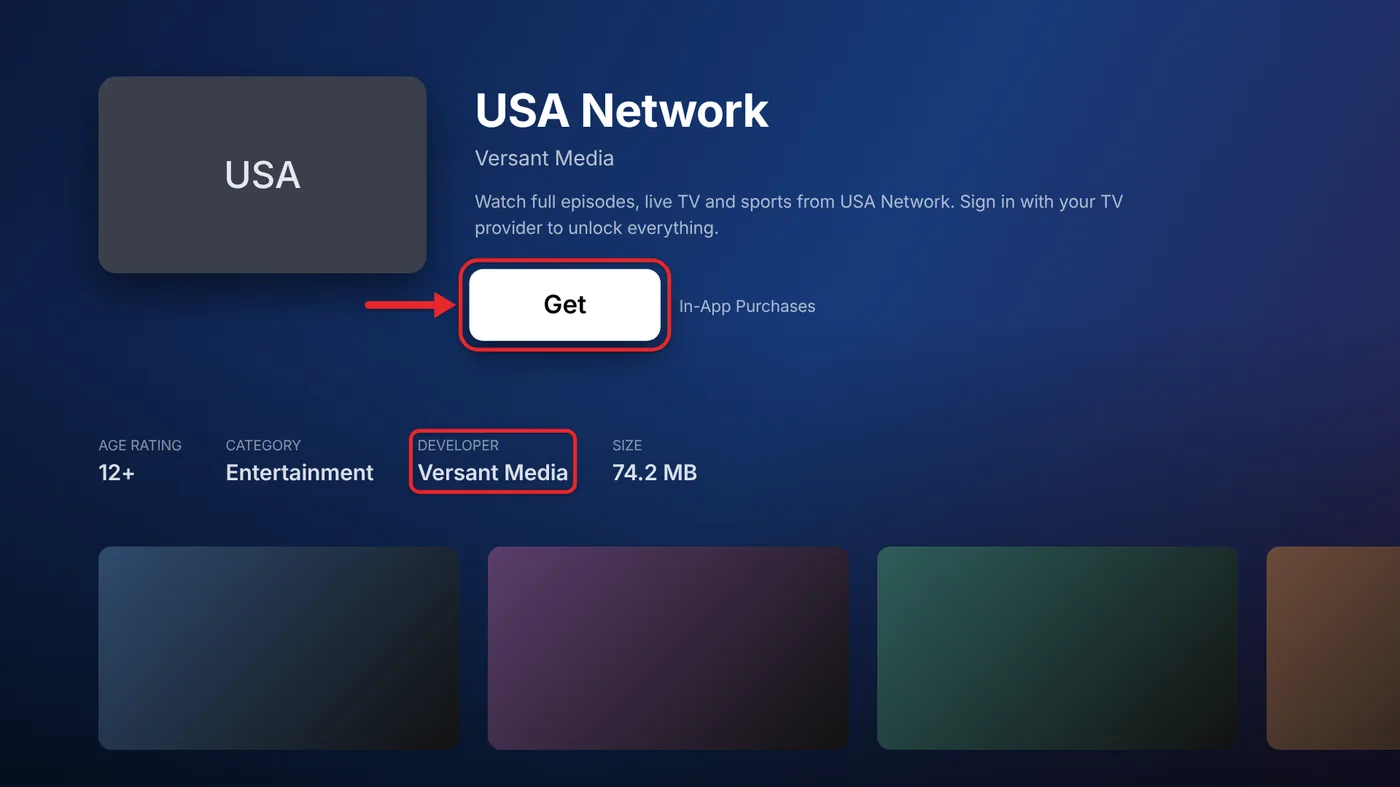
- Open the USA Network app. You’ll see the app’s home page with shows, live TV, and sports.
- Choose a live channel or an episode. If you aren’t signed in yet, the app asks you to pick your TV provider.
- Follow the sign-in prompt on screen. Depending on your provider, you’ll either enter your provider username and password, or the app will show an activation code and a web address (such as usanetwork.com/activate) to visit on your phone or computer, where you enter the code and sign in.

- When sign-in is complete, the video starts playing. You won’t need to sign in again on that Apple TV unless you sign out or remove the provider.
Sign In Once for Several Apps
The Apple TV can also store your TV provider login at the system level. Apple calls this single sign-on. It lets supported channel apps sign you in automatically, so you don’t have to repeat the activation step for each one. Here’s how to set it up, following Apple’s TV provider instructions:
- Open Settings on the Apple TV.
- Go to Profiles and Accounts > TV Provider, then select Sign In.
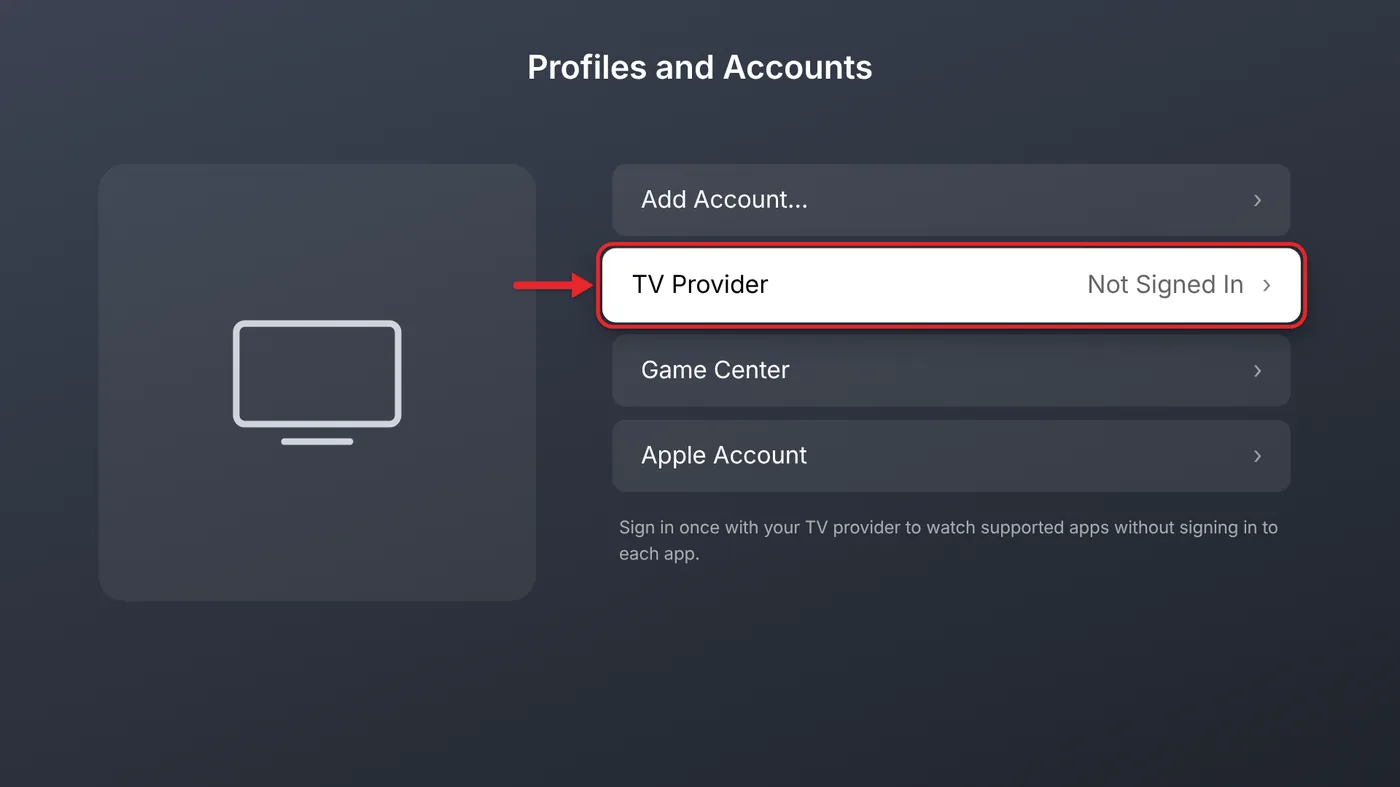
- Search for your provider or pick it from the list.
- Enter your provider username and password, then select Continue.
Not every provider and app supports single sign-on. If the USA Network app still asks you to sign in after you do this, use the activation steps above. If your provider also sells you home internet, some content may only play when the Apple TV is on that provider’s network.
Typing a long provider password with the remote is slow, so you may want to connect a Bluetooth keyboard to your Apple TV first.
The same choice applies to your own movie library: you can install Plex on the Apple TV or AirPlay a Plex movie from an iPhone.
AirPlay USA Network From Your iPhone
Use this method if you already have the USA Network app on your iPhone and want to send something to the TV quickly. AirPlay sends the video stream to the Apple TV, and your phone acts as the remote. The steps match Apple’s AirPlay guide for iPhone and iPad.
- Connect your iPhone to the same Wi-Fi network as your Apple TV.
- Turn on your TV and switch it to the Apple TV’s HDMI input.
- Open the USA Network app on your iPhone and sign in with your TV provider if you haven’t already.
- Start playing the episode or live channel you want to watch.
- Tap the video once to show the playback controls, then tap the AirPlay button. It looks like a rectangle with a triangle at the bottom.
- Under Speakers & TVs, tap your Apple TV. The video moves to your TV, and the phone screen shows that it’s playing on the Apple TV.

To stop, tap the AirPlay button again and choose your iPhone from the list. Playback returns to the phone.
If you want to use the same trick with other content, the steps for AirPlaying iPhone photos to an Apple TV cover the Photos app.
Use Screen Mirroring If the AirPlay Button Is Missing
Some video players don’t show an AirPlay button, or hide it for certain live streams. Screen Mirroring copies your entire iPhone screen to the TV instead.
- Start the video in the USA Network app on your iPhone.
- Open Control Center by swiping down from the top-right corner of the screen.
- Tap Screen Mirroring (two overlapping rectangles).
- Choose your Apple TV. If a code appears on the TV, type it on your iPhone.
- Turn your iPhone sideways and make the video full screen.
Mirroring has drawbacks. Notifications and anything else on your phone appear on the TV, and some apps block protected video while the screen is being mirrored, which can leave you with sound and a black picture. If that happens, use the Apple TV app method instead.
Troubleshooting
- Your Apple TV doesn’t appear in the AirPlay list. Make sure both devices are on the same Wi-Fi network and the Apple TV is awake. Also check that AirPlay is turned on in the Apple TV’s settings. The steps for turning AirPlay on or off on Apple TV show where it is.
- The app says your provider isn’t supported or the channel isn’t in your package. Your plan has to include USA Network. Contact your provider to confirm, or check its channel lineup.
- The activation code expired. Codes time out after a while. Back out of the sign-in screen on the Apple TV and start again to get a new one.
- The USA Network app won’t install. The app needs tvOS 16.6 or later. Go to Settings > System > Software Updates on the Apple TV and install any available update. Older third-generation and earlier Apple TV boxes can’t run App Store apps at all, so on those models AirPlay from the iPhone is the only option.
- Video plays on the phone but not the TV. Restart both devices, then try again. If you’re mirroring, switch to the AirPlay button or the Apple TV app, since protected video often won’t mirror.
- Some shows require a sign-in and others don’t. The App Store listing only promises full access with a TV provider login. If a video asks you to sign in, that’s expected.
For the full process, including automatic updates, read about updating the Apple TV.
Frequently Asked Questions
What happened to the USANow app?
USANow was the original name of USA Network’s streaming app. It was replaced by the app now called USA Network, which has the same App Store listing and is available on iPhone, iPad, and Apple TV.
Is the USA Network app free?
The app is free to download. To stream live TV and most on-demand episodes, you need to sign in with a TV provider whose package includes USA Network.
Do I need an iPhone to watch USA Network on an Apple TV?
No. The USA Network app runs directly on Apple TV 4K and Apple TV HD. The iPhone is only needed if you want to start a video on your phone and send it to the TV with AirPlay.
Can I AirPlay USA Network to a smart TV without an Apple TV?
Many recent Samsung, LG, Sony, and Vizio TVs support AirPlay, and they show up in the same Speakers & TVs list as an Apple TV. The steps are the same; choose your TV instead of the Apple TV.
Why does the app ask me to sign in again?
This usually happens after you sign out of your provider, change your provider password, or remove the TV provider from your Apple TV settings. Sign in again using the steps above.

Matthew Burleigh is the founder, head writer, and editor of Solve Your Tech, which he launched in 2012. He has written technology tutorials since 2008 and worked in IT since 2003, including small-business support, IT management, and consulting. He holds Bachelor’s and Master’s degrees in Computer Science from Arizona State University.
Matthew writes practical guides for Windows, iPhone and iPad, Microsoft Office, Outlook, Google apps, and Android. Solve Your Tech’s guides are checked step by step against the device or app maker’s own documentation and tested on his own devices whenever he has the hardware or software, with clear steps, sources, and update dates.
Read more about Matthew and how Solve Your Tech writes and updates its guides, or report a correction.