The easiest way to upload pictures to the cloud is to turn on automatic backup in a photo service you already have: iCloud Photos on an iPhone, Google Photos on Android, and either one (or OneDrive) on a computer. Once backup is on, every new photo uploads by itself whenever your device is online, so you don’t have to remember to do it.
These steps were checked against Apple, Google, and Microsoft help pages in October 2026. They cover iPhones on iOS 26 and iOS 27, Android phones with the Google Photos app, and Windows or Mac computers using a web browser or the iCloud for Windows and OneDrive apps.
- iPhone: turn on Sync this iPhone under Settings > your name > iCloud > Photos, or use the Google Photos app.
- Android: in Google Photos, tap your profile picture > Photos settings > Backup and turn on Backup.
- Computer: upload at photos.google.com or icloud.com/photos, or back up your Pictures folder with OneDrive on Windows.
Pick a Cloud Service for Your Photos
All three major services do the same basic job: they copy your photos to the company’s servers and let you see them on your other devices. The main differences are which devices they work best with and how much free space you get.
| Service | Works best with | Free storage | What else uses that space |
|---|---|---|---|
| iCloud Photos | iPhone, iPad, Mac | 5 GB | iPhone backups, iCloud Drive, Mail |
| Google Photos | Android, but has an iPhone app and a website | 15 GB | Gmail and Google Drive |
| OneDrive | Windows PCs | 5 GB | All your OneDrive files |
The free tier fills up fast if you shoot a lot of video. A few thousand phone photos can use most of 5 GB, so plan on a paid plan if you want your whole library in one place. If you only use Apple devices, iCloud Photos is the simplest choice. If you use Android, or a mix of iPhone and Windows, Google Photos is usually easier because it works the same way everywhere.
Upload Pictures From an iPhone With iCloud Photos
iCloud Photos uploads your full Photos library and keeps it in sync on every device signed in to the same Apple Account. These steps follow Apple’s iCloud Photos setup guide.
- Open the Settings app on your iPhone.
- Tap your name at the top of the screen. Your Apple Account page opens.
- Tap iCloud. You’ll see your storage bar and a list of apps that use iCloud.
- Tap Photos.
- Turn on Sync this iPhone. The switch turns green, and your iPhone starts uploading your library in the background.
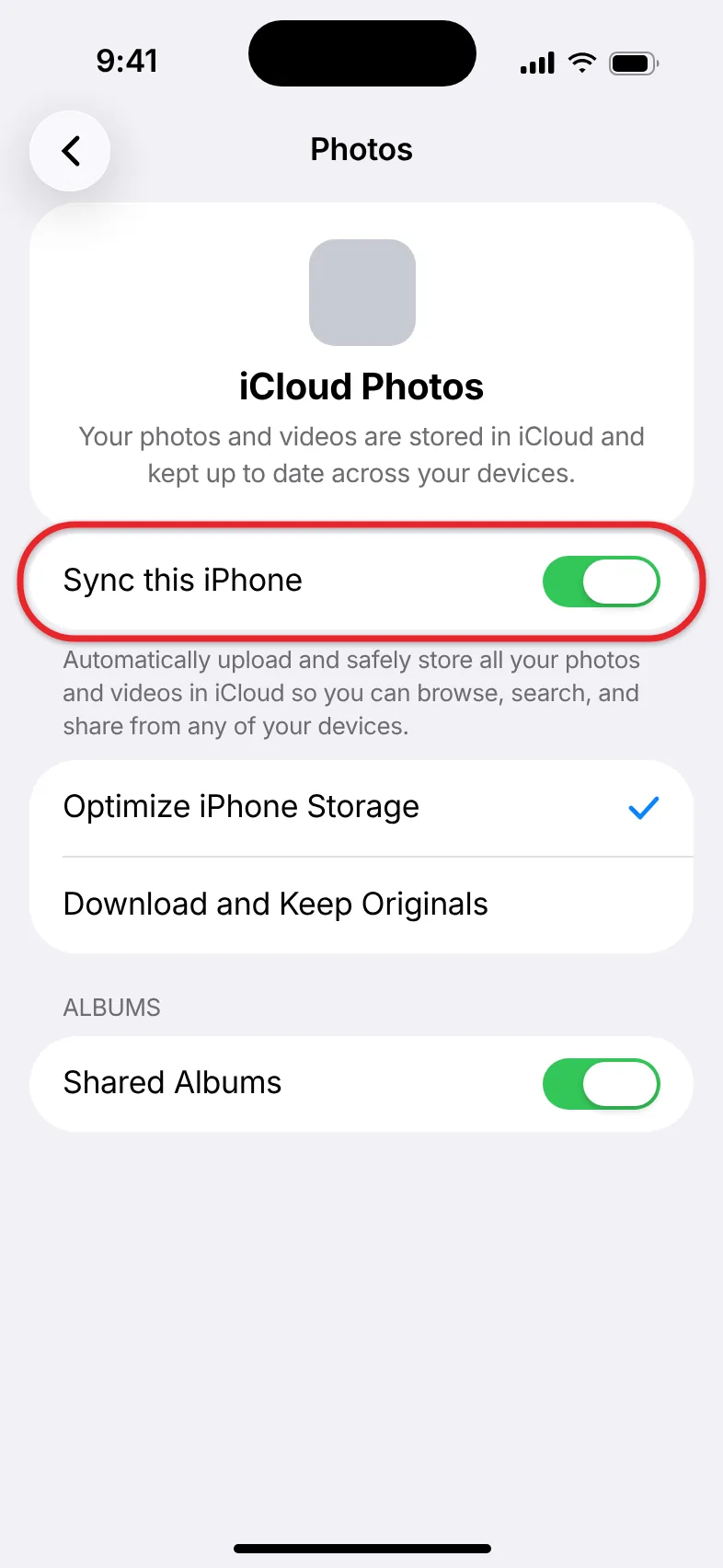
To check progress, open the Photos app and scroll to the bottom of your library. You’ll see a status line that shows how many items are left to upload, or that your library is up to date. A large library can take a day or more on the first upload, especially over a slow Wi-Fi connection. Keeping the phone plugged in and on Wi-Fi helps.
If you’re running low on space on your iPhone, make sure Optimize iPhone Storage is on. It is on by default with iCloud Photos, and it keeps smaller versions of older pictures on the phone while the full-size originals stay in iCloud. In iOS 27, tap iPhone Storage on the same Photos screen to find it. In iOS 26 and earlier, it appears on the Photos screen right below the sync switch.
Manage your photo and video storage has more on this setting, and turning on iCloud Photos on an iPhone covers the download options in more detail.
Before you rely on it: iCloud Photos is a sync service. If you delete a picture on one device, it’s deleted everywhere. Deleted items stay in the Recently Deleted album for 30 days, and then they’re gone for good. Apple also notes that photos synced with iCloud Photos aren’t duplicated in your iCloud Backup, so keep a second copy of important pictures somewhere else.
Upload Pictures From an Android Phone With Google Photos
Most Android phones come with Google Photos installed. The steps below follow Google’s backup instructions. The menu is the same on Pixel, Samsung Galaxy, and other Android phones.
- Open the Google Photos app and sign in with your Google Account if it asks.
- Tap your profile picture or initial in the top-right corner.
- Tap Photos settings (the gear icon).
- Tap Backup.
- Turn on Backup. Google Photos starts uploading, and your library shows the backup progress at the top.
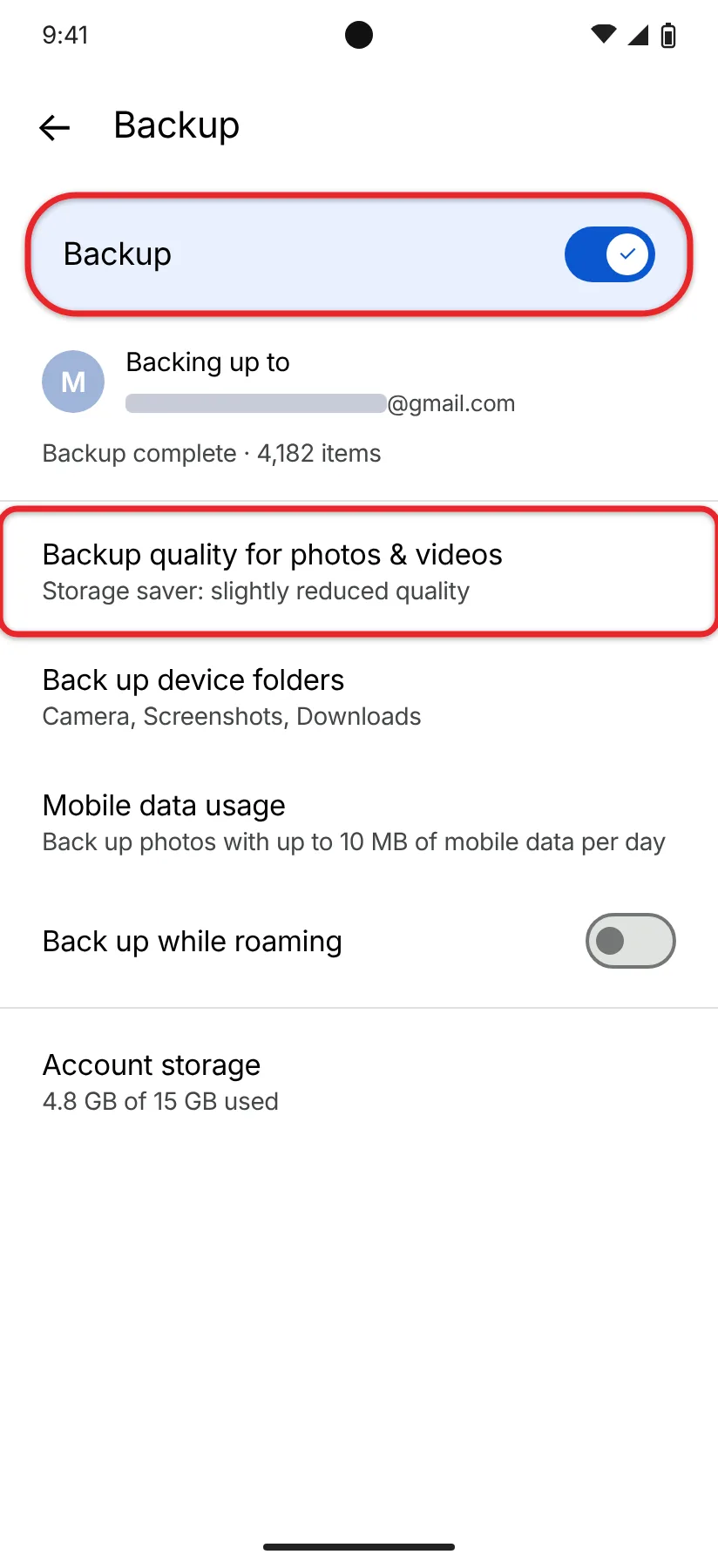
On the same Backup screen, tap Photos & videos quality to choose how your pictures are saved:
- Original quality keeps every photo exactly as it was taken.
- Storage saver compresses photos slightly to use less space. It’s fine for viewing on a phone or TV, but pick Original if you print large or edit your pictures.
- Express is a lower-quality option that only appears in some countries.
All three count against your Google Account storage, which Gmail and Google Drive share. Google doesn’t let you change the quality once your storage is full, so set it before you run out.
You can also turn on Back up device folders on the Backup screen to include pictures saved by other apps, such as WhatsApp or your screenshots folder. By default, Google Photos only backs up your camera folder.
To make new photos smaller before they upload, try taking smaller pictures on an Android phone.
Once your pictures are uploaded, here is how to access your Google cloud storage from a computer or phone.
If you change your mind later, here’s how to unsync Google Photos without deleting the pictures already uploaded.
Use Google Photos on an iPhone Instead
Google Photos works the same way on an iPhone, which is handy if you also use Android or a Windows PC.
- Install Google Photos from the App Store and sign in.
- When it asks for access to your photos, choose Allow Full Access. If you picked a limited option by mistake, open Settings > Privacy & Security > Photos > Google Photos and choose Full Access.
- Tap your profile picture, tap Photos settings, tap Backup, and turn on Backup.
iPhones limit how much apps can do in the background, so keep Google Photos open with the phone plugged in during a large first backup. If a Standby Mode notification appears, tap it and then tap Start to keep uploading while the phone sits idle.
Upload Pictures From a Computer
On a computer you can upload pictures once through a website, or set a folder to back up automatically.
Upload to Google Photos in a Web Browser
- Go to photos.google.com and sign in.
- Click Create and add photos (the plus sign) at the top right.
- Under Add photos, click Import photos.
- Select the pictures you want and click Open. An upload bar appears at the bottom of the window.
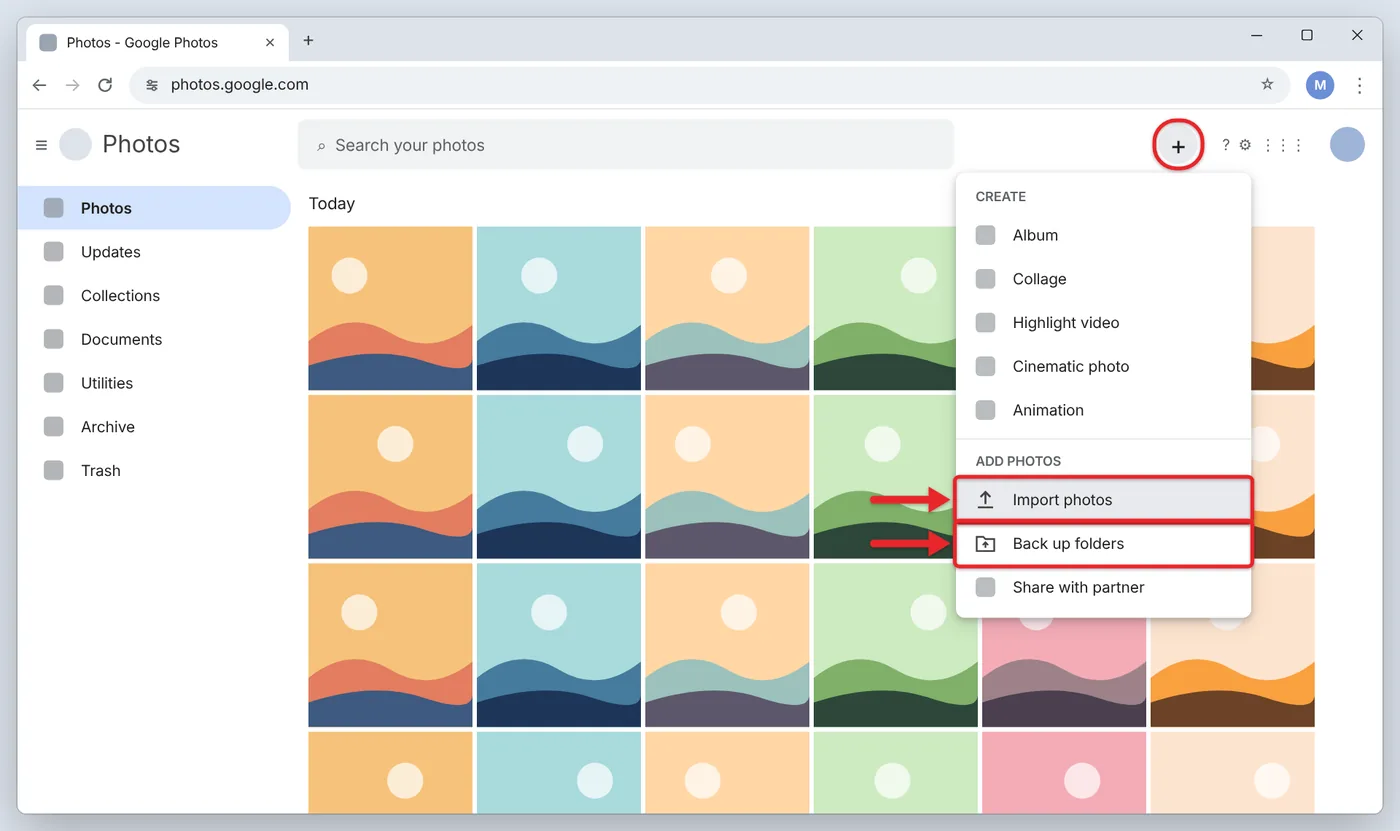
You can also drag pictures from File Explorer or Finder straight into the Google Photos window. Drop them on an album to upload them into that album.
To keep a folder backed up, choose Back up folders in step 3 instead, pick the folders, and click Allow. This needs Chrome, Edge, or another Chromium-based browser, and the Google Photos tab (or the installed Photos web app) has to stay open for backup to keep running. It doesn’t work with an Apple Photos library on a Mac.
If you used Google Drive for desktop to back up folders to Google Photos, note that Google ended that feature on August 10, 2026. Photos already uploaded stay in your account, but new pictures won’t go to Google Photos that way anymore. Use the Back up folders option above instead.
Upload to iCloud Photos
On a Mac, turn on Sync this Mac under System Settings > [your name] > iCloud > Photos, and everything in your Photos library uploads automatically. On macOS Sonoma or earlier, Photos is listed under Apps Using iCloud.
On a Windows PC, or any computer with a browser, you can upload individual pictures at iCloud.com:
- Go to icloud.com/photos and sign in with your Apple Account.
- Select Library in the sidebar, or the album you want to add to.
- Click the Add Photos to Album button (an upload icon) near the top of the page.
- Click Choose Files, select your pictures, and click Upload.
The pictures show up on your iPhone and other Apple devices once they sync. To see your iCloud library inside File Explorer on Windows, install iCloud for Windows from the Microsoft Store, open it, click the arrow next to iCloud Photos, turn on iCloud Photos, and click Done. Apple’s guide to setting up Photos in iCloud for Windows lists the extra download options.
Documents and other non-photo files need a different method: transferring files from iPhone to PC.
Back Up Your Pictures Folder to OneDrive on Windows
Windows 11 comes with OneDrive, which can back up your whole Pictures folder.
- Click the OneDrive cloud icon in the taskbar notification area.
- Click the gear icon (Help & Settings), then click Settings.
- Open the Sync and backup tab and click Manage backup.
- Turn on Pictures and click Save changes.
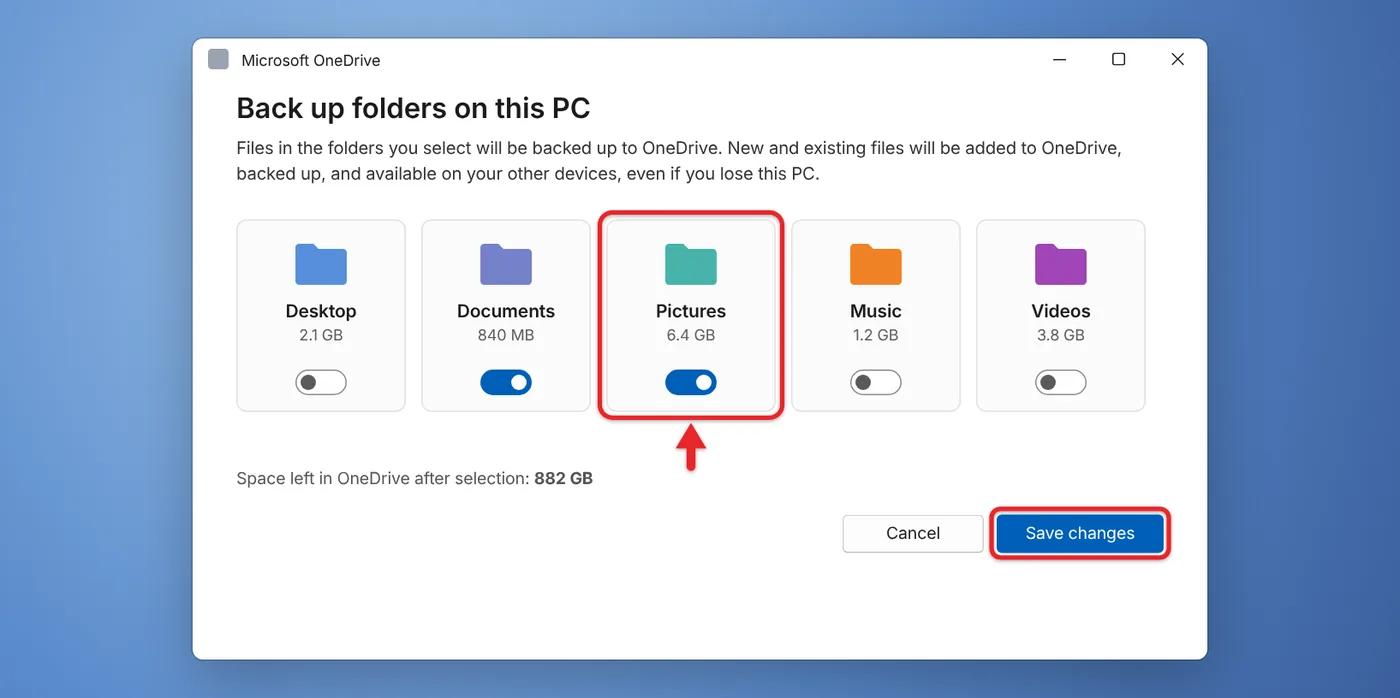
Your Pictures folder now syncs to OneDrive, and new pictures saved there upload automatically. For help with the sync status icons, read about syncing OneDrive in Windows 11.
Use One Service Across iPhone, Android, and Computers
If your household has a mix of devices, pick one service and install it everywhere instead of spreading pictures across three accounts. Google Photos is the easiest to share across platforms because it has apps for Android and iPhone and a full website for computers. iCloud Photos is the better fit if everyone uses Apple devices, since it’s built into the Photos app and doesn’t need a separate app.
Once your pictures are uploaded, you can create a Google Drive link for photos and send it to anyone.
Dropbox is another option if you already pay for it. Its app can upload your camera roll automatically once you set up iPhone uploads to Dropbox.
If Your Photos Aren’t Uploading
- Your storage is full. Uploads stop when you run out of space. Check your storage in iCloud settings, the Google One page, or OneDrive settings, then delete large videos or buy more space.
- You’re on cellular data. Both iCloud and Google Photos can wait for Wi-Fi before uploading videos. Connect to Wi-Fi, or allow cellular uploads in the app’s backup settings.
- Low Power Mode or battery saver is on. These modes pause background uploads. Charge the phone or turn the mode off.
- The app doesn’t have full photo access. On an iPhone, check Settings > Privacy & Security > Photos and make sure the app has Full Access.
- Battery optimization is stopping Google Photos on Android. Set Google Photos to Don’t optimize (or Unrestricted) in your phone’s battery settings.
- A file is too big. Google Photos skips photos larger than 200 MB or 200 megapixels, videos over 10 GB, and images smaller than 256 x 256 pixels.
- You’re signed in to the wrong account. Google Photos backs up to one Google Account at a time. Tap your profile picture to see which one.
Frequently Asked Questions
Is uploading pictures to the cloud the same as backing them up?
Not quite. iCloud Photos and Google Photos sync with your phone, so deleting a picture on the phone can delete it from the cloud too, after a 30-day or 60-day holding period in the trash. For a true backup, keep a second copy that doesn’t sync, such as an external drive.
Which service gives the most free storage?
Google gives you 15 GB free with a Google Account, but Gmail and Google Drive share that space. iCloud and OneDrive each start you with 5 GB.
Can I upload pictures from my computer to my iPhone’s photo library?
Yes. Upload them at icloud.com/photos or add them to the Photos app on a Mac with iCloud Photos turned on. They’ll appear on your iPhone after it syncs.
Will uploading photos use my phone’s data plan?
It can if you allow uploads over cellular in the app’s settings. Leave that option off if your plan has a data cap, and your photos will wait until you’re on Wi-Fi.

Matthew Burleigh is the founder, head writer, and editor of Solve Your Tech, which he launched in 2012. He has written technology tutorials since 2008 and worked in IT since 2003, including small-business support, IT management, and consulting. He holds Bachelor’s and Master’s degrees in Computer Science from Arizona State University.
Matthew writes practical guides for Windows, iPhone and iPad, Microsoft Office, Outlook, Google apps, and Android. Solve Your Tech’s guides are checked step by step against the device or app maker’s own documentation and tested on his own devices whenever he has the hardware or software, with clear steps, sources, and update dates.
Read more about Matthew and how Solve Your Tech writes and updates its guides, or report a correction.