To turn Background App Refresh on or off on an iPhone, open Settings, tap General, then tap Background App Refresh. Tap Background App Refresh again at the top and choose Off, Wi-Fi, or Wi-Fi & Cellular Data. You can also leave it on and switch it off only for the apps you don’t need updating in the background.
What Background App Refresh does
When you switch away from an app, it runs for a short time and is then put in a suspended state. Apple describes a suspended app as one that isn’t actively in use, open, or taking up system resources. Background App Refresh lets those suspended apps check for updates and new content, so a news feed, inbox, or weather forecast can be current when you come back to it.
The setting has two levels. A main setting decides whether any app may refresh in the background and over which kind of connection. Below it, every app that supports the feature has its own switch. An app refreshes only when the main setting allows it and that app’s switch is on.
Before you start
- These steps follow Apple’s current instructions for iPhone. The same menu is on iPad.
- If your iPhone uses a region setting outside the United States, Cellular Data may be labeled Mobile Data.
- Check whether the battery icon in the status bar is yellow. That means Low Power Mode is on, and Apple says Low Power Mode turns off Background App Refresh. Turn it off first if you want to change the setting.
- Nothing here deletes data or signs you out of an app. Every choice can be reversed from the same screen.
Turn Background App Refresh on or off for all apps
- Open the Settings app.
- Tap General.
- Tap Background App Refresh. You see the main setting at the top and a list of apps under it.
- Tap Background App Refresh at the top of the screen.
- Choose Off, Wi-Fi, or Wi-Fi & Cellular Data. A checkmark shows your choice.
- Tap the back arrow. The main row now shows the option you picked.
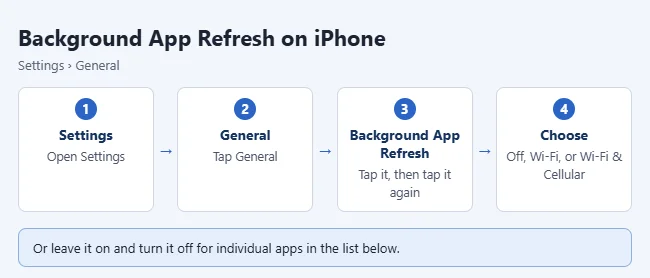
Apple lists these steps in Switch apps on your iPhone, iPad, or iPod touch, under the heading Use Background App Refresh.
Which option to choose
| Option | What it allows | Good for |
|---|---|---|
| Off | No app checks for new content through Background App Refresh. | Getting the most battery and data savings from this one setting. |
| Wi-Fi | Apps can refresh in the background only while the iPhone is on Wi-Fi. | Limited data plans, or travel where cellular data is expensive. |
| Wi-Fi & Cellular Data | Apps can refresh in the background on either connection. | Apps you want current everywhere, when data use is not a concern. |
If you are trying to cut cellular data, try Wi-Fi before Off. Apps still update at home or work, and the list of app switches stays available. With Off selected, apps wait until you open them to load new content, so a feed or inbox may take a moment to catch up.
Turn it off for specific apps
You do not have to choose all or nothing. Leave the main setting on and decide app by app.
- Open Settings and tap General.
- Tap Background App Refresh.
- Make sure the main setting at the top shows Wi-Fi or Wi-Fi & Cellular Data. If it shows Off, the app switches are not available.
- Scroll through the list of apps and turn off the switch next to each app you don’t need refreshing in the background. The switch turns gray.
- Leave the switch on, shown in green, for apps you want ready when you open them.
A simple way to decide: turn it off for apps you open rarely, such as games, shopping apps, or an app you keep for one store or event. Keep it on for apps where stale information would bother you, such as email, calendar, maps, or weather. An app that is missing from the list generally does not offer Background App Refresh.
How to confirm the change and undo it
Go back to Settings > General > Background App Refresh. The top row shows Off, Wi-Fi, or Wi-Fi & Cellular Data, and each app switch shows its current state.
To undo it, repeat the steps and pick the earlier option, or turn an app’s switch back on. If one app starts to feel out of date after you change things, turn its switch back on first instead of reversing everything.
Does turning it off save battery or data?
It can, but it is rarely the whole answer. Background App Refresh covers one kind of background activity: suspended apps checking for new content. Apple’s battery guidance lists other causes of drain separately, such as screen brightness, a weak signal, and apps that play music or track location in the background.
Before you switch refresh off for every app, inspect iPhone battery health and app usage to see which apps are using the most power. Apple explains how to read that screen in If the battery in your iPhone or iPad drains too quickly.
- Need battery right now: Low Power Mode is the faster tool. Apple says it turns off Background App Refresh, email fetch, and automatic downloads, among other things. See how to turn on Low Power Mode.
- Need to save data: Background App Refresh does not control all data use. An app can still use cellular data when you open it, stream, or upload. To see app-by-app totals, open Settings > Cellular, or read how to reduce cellular data usage on an iPhone.
- You don’t need to close apps. Apple says closing all your apps does not improve performance or battery life, because recently used apps only use power when they are active or doing specific background tasks. An app you quit from the App Switcher might not be able to check for new content until you open it again.
If Background App Refresh is grayed out or not working
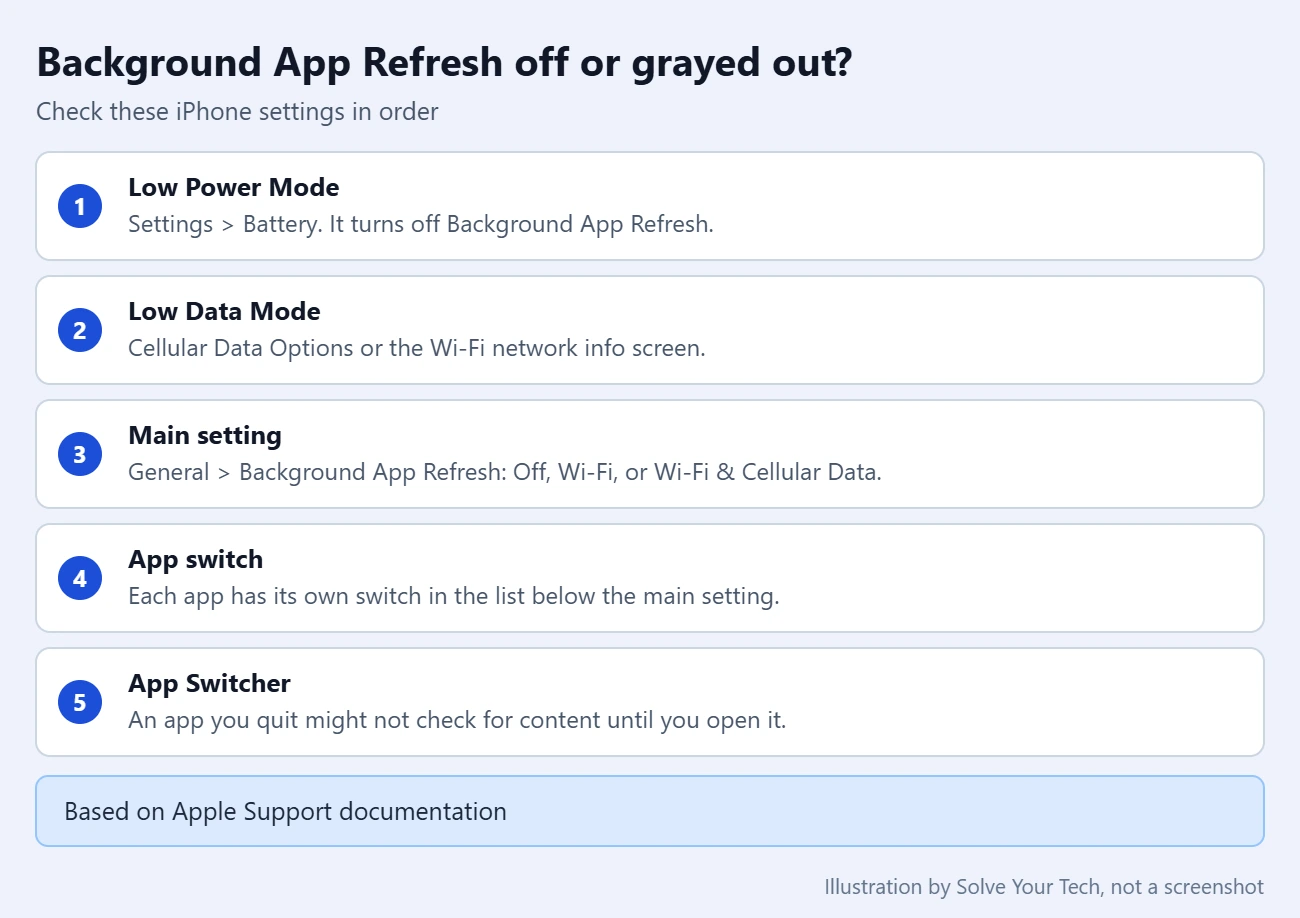
- Low Power Mode is on. This is the most common reason the setting is off and cannot be changed. On iPhone 15 and later, open Settings > Battery > Power Mode and turn off Low Power Mode. On iPhone 14 and earlier, the switch is directly under Settings > Battery. Apple notes that Low Power Mode also turns off by itself once the iPhone charges to 80% or higher.
- Low Data Mode is on. Apple says Low Data Mode turns off Background App Refresh too. Check Settings > Cellular > Cellular Data Options (on a 5G plan, look under Data Mode). For Wi-Fi, open Settings > Wi-Fi and tap the Info button next to your network.
- The main setting is Off. App switches only work when the main setting is Wi-Fi or Wi-Fi & Cellular Data.
- The main setting is Wi-Fi and you are on cellular. Apps will not refresh in the background until the iPhone joins a Wi-Fi network again.
- You quit the app. Swiping an app away in the App Switcher can stop it from checking for content until you open it.
- The iPhone is managed or restricted. A work or school profile, or Screen Time restrictions set by a parent, may lock some settings. If none of the items above apply, ask whoever manages the device.
- An app still seems out of date. iOS decides when background refreshes happen, so turning the switch on does not mean an app updates at a set time. Open the app on a good connection and let it finish loading.
Frequently asked questions
Should Background App Refresh be on or off?
For most people, leaving the main setting on and switching off the apps you rarely open is the best balance. You keep fresh content in the apps you rely on and stop the rest from refreshing in the background. Choose Off only if you want the maximum saving from this setting and do not mind apps loading new content after you open them.
Why is Background App Refresh grayed out?
Low Power Mode is probably on. Turn it off in the Battery section of Settings and the setting becomes available again. If Low Power Mode is already off, check Low Data Mode and whether the iPhone has restrictions.
Does turning off Background App Refresh stop notifications?
Background App Refresh and notifications are separate settings. Apple describes Background App Refresh as letting suspended apps check for updates and new content, and notifications have their own controls in Settings > Notifications. Some apps may show less current content when you tap an alert, because the app has to load it after it opens.
Does Background App Refresh use cellular data?
Only when the main setting is Wi-Fi & Cellular Data. Choose Wi-Fi to keep background refreshes off your data plan. To stop one app from using cellular data at all, Apple says to open Settings > Cellular and turn off that app in the list.
Does Low Power Mode change my Background App Refresh setting?
Low Power Mode turns Background App Refresh off while it is active. It is a temporary limit, and you cannot change the setting until Low Power Mode is off.
How do I change this on an iPad?
The steps are the same. See how to change Background App Refresh on iPad.
Next step
Open the app list and switch off three or four apps you rarely use, then use the iPhone normally for a few days before changing anything else. Battery almost gone in the meantime? Find out whether one iPhone can charge another.

Matthew Burleigh has been writing tech tutorials since 2008. His writing has appeared on dozens of different websites and been read hundreds of millions of times.
After receiving his Bachelor’s and Master’s degrees in Computer Science he spent several years working in IT management for small businesses. However, he now works full time writing content online and creating websites.
His main writing topics include iPhones, Microsoft Office, Google Apps, Android, and Photoshop, but he has also written about many other tech topics as well.