To create an app folder on iPhone, touch and hold an empty part of the Home Screen until the apps jiggle, then drag one app onto another. The two apps go into a new folder. Add more apps by dragging them into it, and tap Done when finished.
A Home Screen folder groups app icons. It does not combine their data or uninstall anything. If you mean a folder for documents, use the Files app instead; those instructions are separate near the end of this guide.
Before you start
Choose two apps that belong together, such as two games or two travel apps. Start on a Home Screen page where you can see both icons, which makes the first drag easier.
Apple's app-folder guide documents the same basic method on current iOS. The position of Done and other editing controls can vary by version and phone model. Older tutorials may tell you to press a Home button after arranging apps; a newer iPhone may not have that button.
If an app is only in App Library, first locate it there and move or add it to the Home Screen using the available app controls. You create your own folders on the Home Screen; App Library's automatic categories are a different organization system.
Create your first app folder
- Go to the Home Screen and find the apps you want to group.
- Touch and hold the background until the icons begin to jiggle. This opens the layout editing mode.
- Keep a finger on the first app and drag it onto the center of the second app.
- Pause over the second icon until the folder appears, then release your finger. Both apps should be inside it.
- Check the folder's default name. You can keep it for now or rename it using the method below.
- Tap Done, or finish editing with the control offered on your version.
- Tap the folder, then tap one of its apps to confirm that it still opens normally.
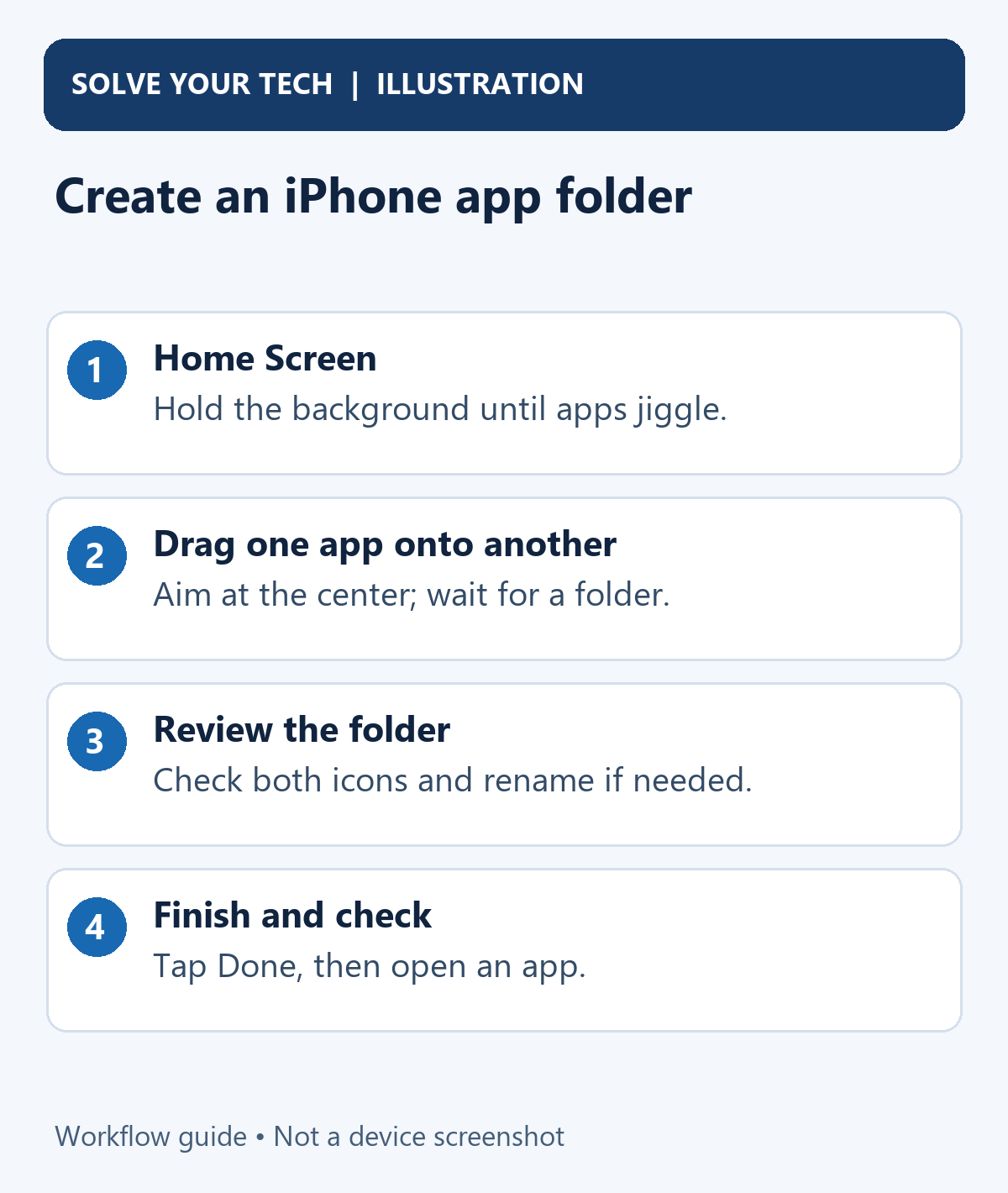
If the second icon only moves out of the way, aim more directly at its center and wait for the folder to form before releasing. Dragging an icon into a gap rearranges the page instead of grouping two apps.
Holding the background is a convenient way to enter editing. If you hold an app and see its shortcut menu, choose Edit Home Screen when offered, or dismiss the menu and hold an empty area instead. Do not choose Remove App when your goal is organization.
Rename a folder
- Finish Home Screen editing if the icons are still jiggling.
- Touch and hold the folder until its menu appears.
- Tap Rename.
- Replace the current name with a label you will recognize, such as Travel, Reading, or Utilities.
- Finish with the keyboard or screen's Done control, then check the name beneath the closed folder.
Apple notes that if holding the folder simply makes apps jiggle, tap the background and try again. A sustained touch can lead to a menu or editing mode depending on where and how you hold it.
Pick a name based on how you look for the apps. A folder called Travel can hold an airline, hotel, and transit app even though the App Store classifies them differently.
Add and arrange more apps
Enter Home Screen editing again, drag another app onto the folder, and release it when the folder opens or accepts the icon. Open the folder and confirm the app is there before moving on to the next one.
Folders can contain multiple pages of apps. Swipe inside an open folder to inspect another page if you do not see every icon at once. A dot or page indicator can help show that there is more than one page.
You can rearrange icons inside the folder while editing, just as you arrange icons on a Home Screen page. Keep frequently used apps on its first page so you do not have to swipe each time.
To move the whole folder, enter editing and drag its icon to the desired Home Screen position or page. Our guide to moving apps on iPhone explains the page-changing gesture and the separate Home Screen reset option.
Move an app out or remove the folder
Removing an app from a folder is a layout change. Keep it on the Home Screen if you still want easy access.
- Open the folder containing the app.
- Touch and hold the app until editing begins.
- Drag it outside the folder and onto the Home Screen.
- Release it in the desired position and finish editing.
- Check both the page and the folder to confirm the move.
To remove the folder itself, drag every app out onto the Home Screen. Apple says an empty folder is deleted automatically. That procedure does not delete its apps.
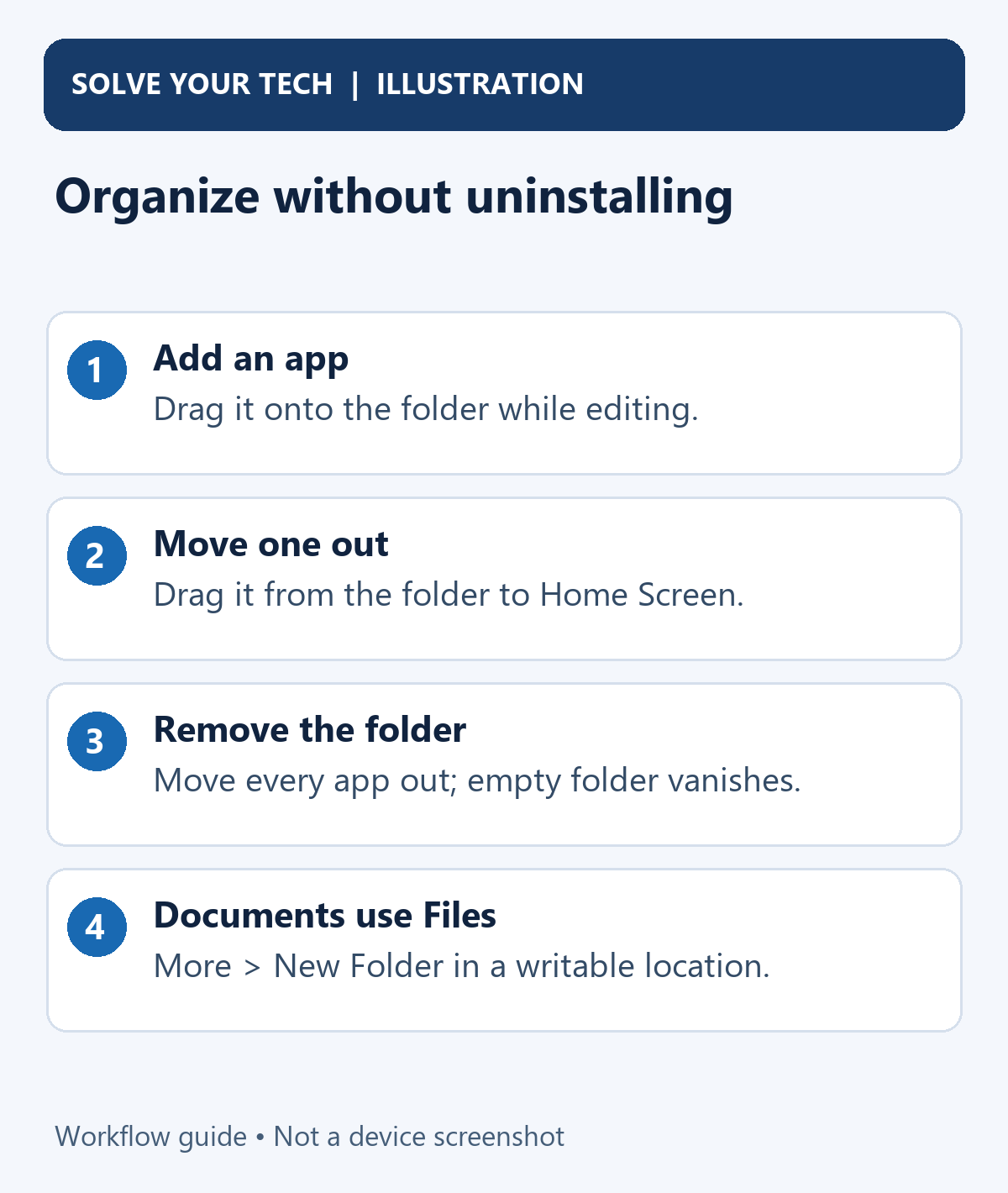
You can keep a folder with one app after removing the others. Creating a new folder starts by putting two apps together; leaving a single app inside an existing folder is a different situation.
Avoid resetting the entire Home Screen just to remove one folder. That broader reset changes your arrangement. Emptying the particular folder is easier to review and reverse: drag two apps together again if you change your mind.
Folders and App Library are different
App Library appears after your last Home Screen page and organizes apps automatically. Apple says creating Home Screen folders does not change App Library's organization.
You can name and arrange a Home Screen folder yourself. You cannot assume that its layout will duplicate an App Library category, including the large icons that can open selected apps directly from that category.
A normal folder is also not a privacy lock. Someone who can use your unlocked Home Screen can open it. If your goal is to restrict access to an app rather than organize it, see how to hide or lock apps on iPhone. Those features have their own app and version limitations.
If you meant a document folder in Files
Open Files, browse to the location or existing folder where you want the new folder, open the More menu, and select New Folder. Enter a name and finish with the displayed confirmation control.
Apple's Files organization guide notes that if New Folder is missing, you cannot create one in that location. Check whether you are viewing a writable storage location rather than assuming the Home Screen app-folder gesture applies.
A Files folder holds documents, images, or other files. It does not appear as the same kind of Home Screen app group, and creating one does not rearrange your app icons.
Common questions
Why is a missing app still in search?
An app can be on another Home Screen page, another folder page, or in App Library. Search for it, then check its location. An organizational move is not proof that the app was deleted.
Does a folder free storage space?
Grouping icons does not reduce the storage used by the apps or their data. Use iPhone Storage when you want to manage device space.
Can I put website shortcuts near my apps?
You can add a Safari website link to the Home Screen first. Adding the shortcut and arranging its icon are separate actions.
Start with one small folder, give it a useful name, and check that its apps open. You can expand the arrangement after that first group works the way you want.

Matthew Burleigh is the founder, head writer, and editor of Solve Your Tech, which he launched in 2012. He has written technology tutorials since 2008 and worked in IT since 2003, including small-business support, IT management, and consulting. He holds Bachelor’s and Master’s degrees in Computer Science from Arizona State University.
Matthew writes practical guides for Windows, iPhone and iPad, Microsoft Office, Outlook, Google apps, and Android. Solve Your Tech’s guides are tested on current devices or checked against official product documentation, with clear steps, sources, and update dates.
Read more about Matthew and how Solve Your Tech writes and updates its guides, or report a correction.