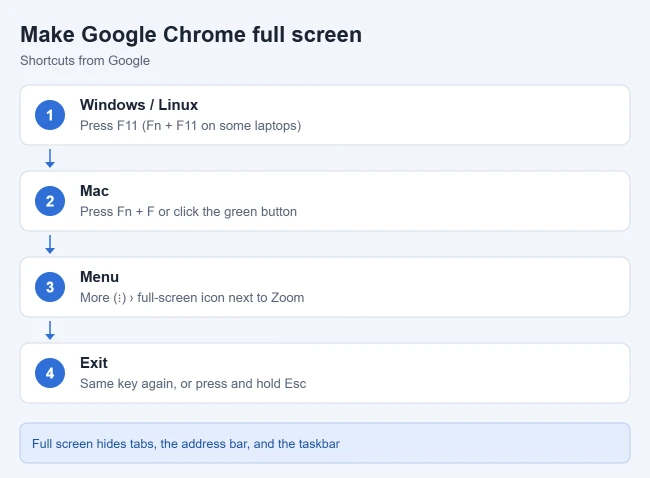
To make Google Chrome full screen on Windows, press F11. On a Mac, press Fn + F or click the green button at the top left of the window. You can also open the three-dot More menu and click the full-screen icon next to Zoom. To leave full screen, press the same keys again or press and hold Esc.
This guide covers the current version of Chrome on Windows, Mac, Linux, and Chromebook computers. The shortcuts come from Google’s Chrome keyboard shortcuts page. Below you will also find how to exit, how to make Chrome open in full screen every time, and what to do when the shortcut doesn’t work.
What full screen mode does
Full screen mode stretches the current page across your whole display. It hides the tabs, the address bar, the bookmarks bar, and the Windows taskbar or Mac menu bar, so you only see the page. It’s handy for reading, watching video, presenting, or showing a page on a second monitor. Nothing about the page changes, and your other tabs stay open in the background.
How to make Chrome full screen on Windows
- Open Chrome and go to the page you want to view.
- Press F11. On many laptops the F keys control brightness or volume, so press Fn + F11 instead.
- Or click the three-dot More menu at the top right and click the full-screen icon (a square) at the end of the Zoom row.
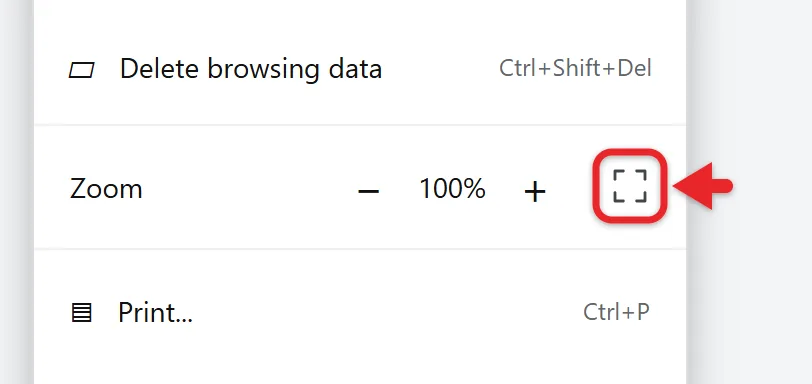
The page fills the screen and Chrome briefly shows a message telling you how to exit. The same steps work on Linux.
How to make Chrome full screen on a Mac
- Open Chrome and go to the page you want.
- Press Fn + F. Control + Command + F, which Apple lists as the macOS shortcut for using an app in full screen, also works.
- Or click the green button in the top-left corner of the Chrome window. You can also hold the pointer over the green button and choose Full Screen > Entire Screen, or choose View > Enter Full Screen from the menu bar.
Chrome moves into its own full-screen space. Move the pointer to the top of the screen to show the menu bar again. In the View menu, you can turn Always Show Toolbar in Full Screen on or off to keep the tabs and address bar visible.
If you want the macOS menu bar to stay visible in every full-screen app, Apple’s use apps in full screen on Mac page explains the Automatically hide and show the menu bar setting. Set it to Never.
Want the page on your TV instead? Here’s how to cast a Chrome tab to a Chromecast from a Mac.
How to make Chrome full screen on a Chromebook
- Open Chrome and go to the page you want.
- Press the Full screen key in the top row of the keyboard. It usually shows a rectangle with corner marks.
- Or open the three-dot More menu and click the full-screen icon next to Zoom.
Press the Full screen key again to exit. If you want a bigger window but still need the tabs, press Alt + = to maximize the window instead.
How to exit full screen in Chrome
- Press the same shortcut again: F11 on Windows and Linux, Fn + F or Control + Command + F on a Mac.
- Press and hold Esc. This works on both Windows and Mac. A quick tap of Esc may not work, so keep holding it for a second.
- On Windows, move the pointer to the top center of the screen and click the X that appears.
- On a Mac, move the pointer to the top of the screen, hold the pointer over the green button and choose Exit Full Screen, or choose View > Exit Full Screen.
Chrome returns to its normal window with your tabs and address bar.
Make Chrome open in full screen every time (Windows)
Chrome doesn’t have a setting for this, but you can add a launch option to a shortcut.
- Right-click a Chrome shortcut on your desktop and choose Properties.
- On the Shortcut tab, click at the end of the Target box, after the closing quotation mark.
- Type a space, then
--start-fullscreen. You can add a web address after it to open that site. - Click Apply, then OK.
Chrome opens in full screen when you use that shortcut. Shortcuts on the taskbar or Start menu need the same change. Press F11 to exit as usual. To undo it, delete --start-fullscreen from the Target box.
Full screen vs. maximized vs. zoom
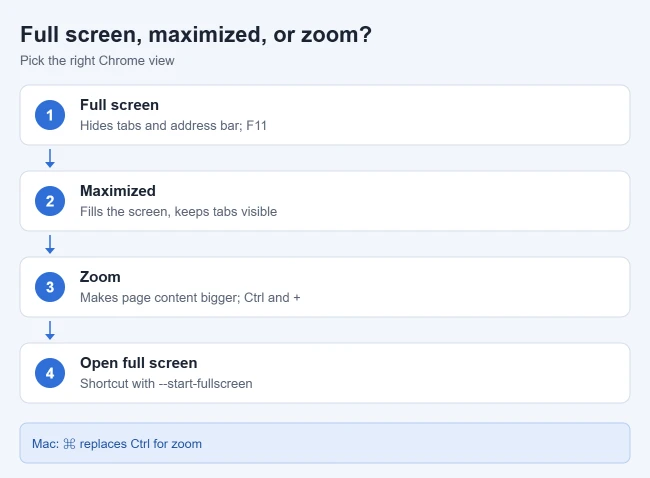
| Option | What you still see | How to do it |
|---|---|---|
| Full screen | Only the page | F11 (Windows), Fn + F (Mac), Full screen key (Chromebook) |
| Maximized | Tabs, address bar, and taskbar | Windows key + Up arrow or double-click the title bar (Windows) |
| Zoom | Everything, with bigger text and images | Ctrl and + (Command and + on a Mac) |
Pick full screen when you want nothing but the page. Pick maximized when you still need to switch tabs or type web addresses. Pick zoom when the text is too small to read, in or out of full screen. Press Ctrl + 0 (Command + 0 on a Mac) to reset zoom to the default size.
Troubleshooting
- F11 changes brightness or volume: hold Fn while you press F11, or turn on your laptop’s Fn Lock.
- Fn + F does nothing on a Mac: use Control + Command + F, the green button, or View > Enter Full Screen. Check System Settings > Keyboard > Keyboard Shortcuts for a conflicting shortcut.
- Stuck in full screen: press and hold Esc, or move the pointer to the top of the screen and click the X.
- The full-screen icon is missing or does nothing on a work or school computer: your administrator can turn off full screen mode for Chrome through a managed policy. Ask your IT team.
- A video won’t go full screen: use the full-screen button in the video player. On YouTube you can also press F.
If a full screen video flickers or shows a black box, turning off hardware acceleration in Chrome often fixes it.
Frequently asked questions
Can Chrome go full screen on iPhone or Android?
Chrome for phones doesn’t have the same full-screen mode. The address bar usually hides as you scroll, and videos can go full screen with the player’s button. Turning the phone sideways also gives the page more room.
Why can’t I see my tabs in full screen?
That is how full screen works. Exit full screen to switch tabs, or on a Mac turn on View > Always Show Toolbar in Full Screen.
Does full screen work with more than one monitor?
Yes. Chrome goes full screen on the monitor where its window is. Drag the window to the other display first, then press F11 or use the Mac shortcut.
Do I need an extension to make Chrome full screen?
No. The keyboard shortcuts and the More menu icon are built into Chrome on every desktop platform.
Related: How to Go Full Screen on Windows 11, How to use a bigger default font size in Chrome, and How to reopen a closed tab in Chrome.

Matthew Burleigh is the founder, head writer, and editor of Solve Your Tech, which he launched in 2012. He has written technology tutorials since 2008 and worked in IT since 2003, including small-business support, IT management, and consulting. He holds Bachelor’s and Master’s degrees in Computer Science from Arizona State University.
Matthew writes practical guides for Windows, iPhone and iPad, Microsoft Office, Outlook, Google apps, and Android. Solve Your Tech’s guides are checked step by step against the device or app maker’s own documentation and tested on his own devices whenever he has the hardware or software, with clear steps, sources, and update dates.
Read more about Matthew and how Solve Your Tech writes and updates its guides, or report a correction.