To make Chrome’s default webpage text bigger on a computer, open More > Settings > Appearance > Font size, then choose Large or Very large. If a website’s text does not change, increase Page zoom instead, which enlarges the whole page and works on sites that control their own text size.
These steps are for desktop Google Chrome on Windows, Mac, Linux, and ChromeOS, checked against Google’s Chrome help in October 2026. Chrome on Android and iPhone uses different zoom controls, covered in their own section below.
Choose font size or zoom first
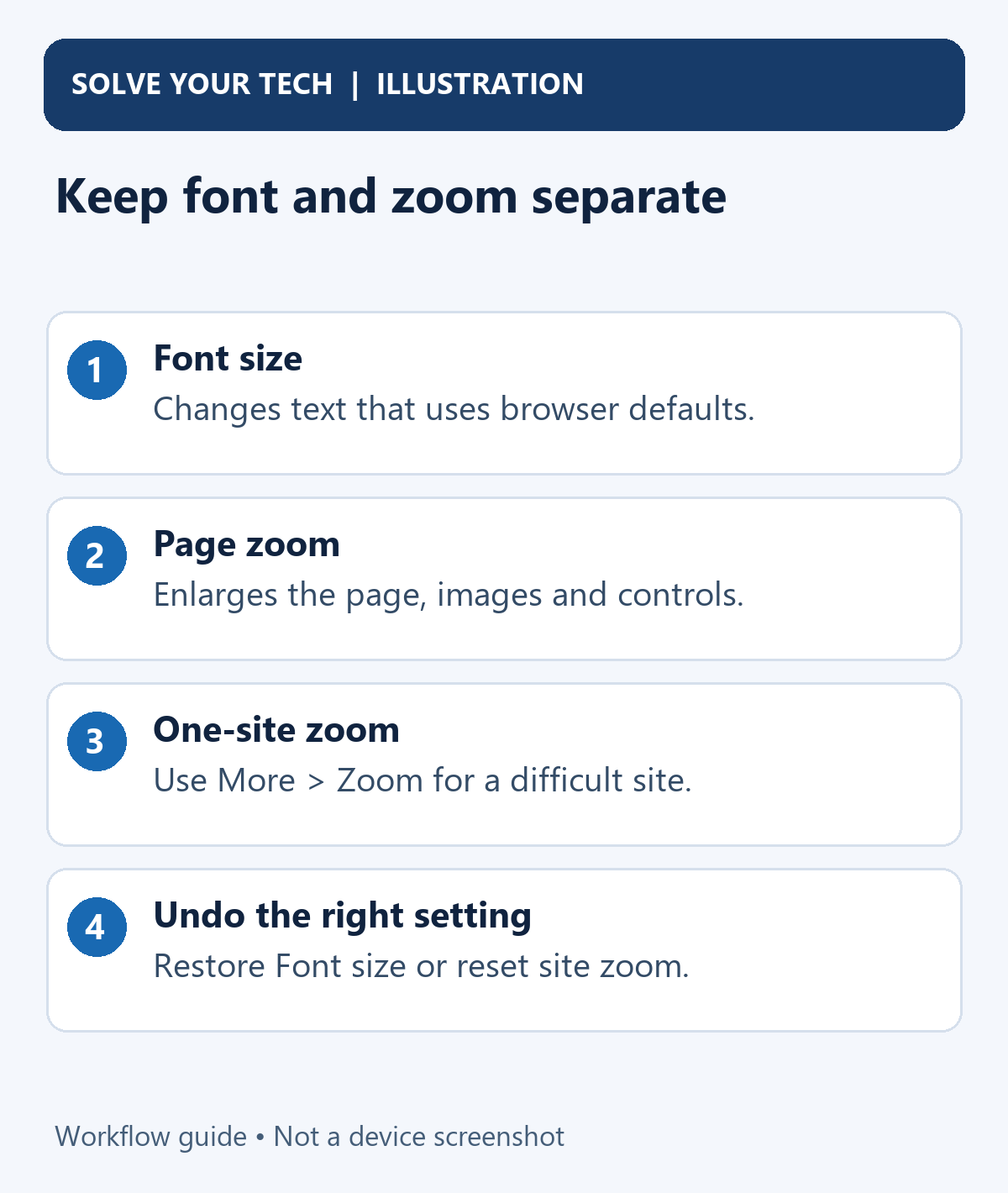
Changing the default font size and enlarging a webpage solve slightly different problems. Decide what you want to change before adjusting several settings at once.
| Setting | When it helps |
|---|---|
| Font size | Make webpage text that follows Chrome’s default size easier to read. |
| Page zoom | Enlarge text, images, and the layout across websites. |
| One-site zoom | Enlarge a difficult site without choosing a larger default for everything. |
| Full screen | Give the page more space by hiding browser controls. |
Full screen hides browser controls but doesn’t make text bigger. If you want more room for a page, enter full screen in Chrome.
Change Chrome’s default font size
Use this method when you want larger default webpage text without enlarging every image.
- Open Google Chrome on your computer.
- Select the three-dot More menu near the top right of the window, then select Settings. Chrome opens its settings page in a new tab.
- Select Appearance in the settings navigation. If the navigation is collapsed in a narrow window, open the settings menu at the top left to find it.
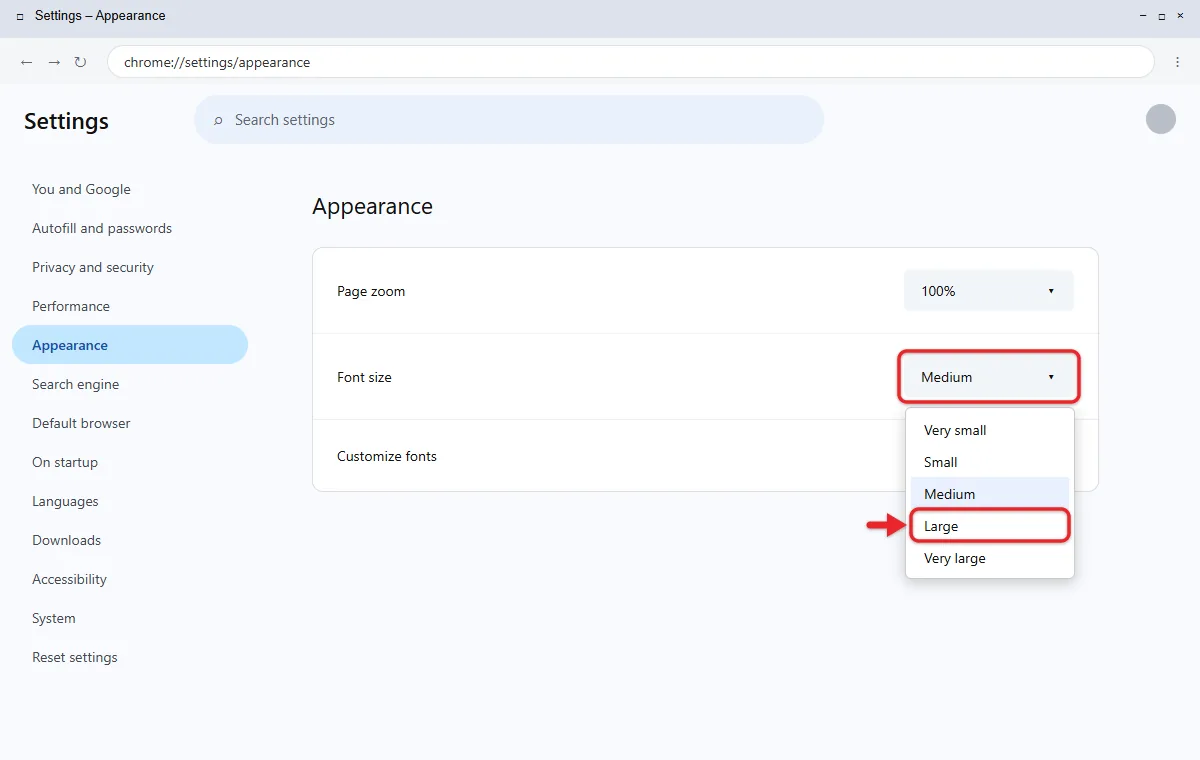
- Find Font size and open its list. The choices are Very small, Small, Medium, Large, and Very large.
- Choose Large as a starting point, or Very large if you need a stronger increase. Note your previous value so you can undo the change later. Chrome saves the choice right away; there is no Save button.
- Go back to a page you read often and compare its text. If an open page has not changed, save any unfinished form and reload the page.
What should change?
Some websites define their own text sizes, so the effect is not universal. Google’s font-size and zoom help notes that some sites don’t allow the browser to change text size alone, and Chrome can’t adjust the font on those sites. If your test site stays small, use the zoom methods below instead.
Fine-tune with Customize fonts
Below the Font size list, Customize fonts opens finer controls. Use them when Large is too big and Medium is too small.
- In Settings > Appearance, select Customize fonts.
- Drag the Font size slider to set the base size that pages use. The sample text grows as you drag.
- Drag the Minimum font size slider to the right if tiny print, such as footnotes, is the problem. Chrome then refuses to draw text smaller than that size.
- Leave the typeface lists alone unless you have a reason to change them. A different typeface is not automatically easier to read.
Those typeface lists show the fonts installed on your computer; to add more on a PC, follow the steps for changing fonts in Windows 11.
The same Appearance page has the theme control. Here’s how to remove a theme in Google Chrome.
These Chrome settings change how pages look to you, not the font in emails you send. To set that, change the default font in Gmail.
Make pages larger by default with Page zoom
Use Page zoom when you want the whole webpage enlarged, including images and controls, or when a site’s own styling blocks the font-size preference.
- Open Chrome’s More > Settings menu.
- Select Appearance in the settings navigation.
- Open the Page zoom list and note its current percentage.
- Choose a larger percentage. 125% is a good starting point if the current default is 100%.
- Visit several familiar websites and compare their text, images, and controls. If a site has its own saved zoom level, it keeps that level, so check it separately.
- Return to Appearance and choose a smaller or larger value if you need a different balance between readability and the amount of content on screen.
At higher zoom levels, some sites switch to a narrower layout or need more scrolling. If one site gets awkward, give it its own zoom level.
If Windows menus and other apps are hard to read as well, you can turn on Magnifier in Windows to enlarge the whole screen instead.
Enlarge just one website
For a single hard-to-read site, adjust zoom while viewing it. Chrome remembers that level for the site, and this is also a quick way to test whether zoom works better than a larger default font.
- Open the website you want to enlarge in Chrome.
- Open the three-dot More menu and find Zoom.
- Select + to enlarge the page or – to reduce it. Watch the percentage shown between those controls.
- Close the menu and check the article text, navigation, and any forms. Repeat with a smaller change if the layout becomes awkward.
While a site is zoomed, a small magnifying glass icon appears in the address bar. Select it to see the level, change it, or select Reset to return the site to your default.
Keyboard shortcuts offer the same adjustments. On Windows, Linux, and ChromeOS, use Ctrl + + to zoom in and Ctrl + – to zoom out. On a Mac, use Command + + and Command + –.
To return to the default zoom, use Ctrl + 0 on Windows, Linux, or ChromeOS, or Command + 0 on a Mac. The last key is the number zero. Google’s Chrome keyboard shortcuts page and its Chrome tips page list these combinations.
Google Docs has its own zoom box that works separately from Chrome’s zoom, so if a document looks too big or too small, change the zoom level in Google Docs.
Bigger text in Chrome on Android or iPhone
Chrome’s phone apps don’t have the desktop Appearance screen. Google documents these controls instead.
- Android: tap More > Settings > Accessibility, then drag the Default zoom slider until the preview text is comfortable. If a page blocks pinch zoom, turn on Force enable zoom. For one site only, tap More > Zoom and drag the slider.
- iPhone: open the page, tap More, tap Zoom text, then tap the zoom in or zoom out control at the top of the screen.
On an iPhone, the steps to change the font on iPhone also cover making text bigger or bolder across the whole phone.
Undo a font or zoom change
Undo the setting you actually changed. A keyboard zoom reset does not reverse your Font size selection.
- Default font: return to Settings > Appearance > Font size and choose your previous value. Medium is the usual default.
- Customize fonts: return to Customize fonts and move the sliders back, or drag Minimum font size fully to the left.
- Default page zoom: return to Settings > Appearance > Page zoom and restore the original percentage.
- Current site’s zoom: use Ctrl + 0 or Command + 0. If you changed your default Page zoom, “default” won’t mean 100%.
You can also remove saved site zoom levels through Settings > Privacy and security > Site settings > Additional content settings > Zoom levels. Select the X next to a site to delete its separate choice so the default applies again.
If the text is still too small
Only one website ignores Font size
Use that site’s Zoom controls instead. If other sites respond to Large but this one does not, the site sets its own text sizes, and choosing Very large will not change that.
The address bar or tabs are too small
Font size only changes webpage text. To enlarge the address bar, tabs, and menus, use your operating system’s display scaling or text size settings. On a PC, you can increase text size in Windows 11.
The setting is locked or keeps changing back
Look at the bottom of the three-dot menu. If it says Managed by your organization, a school or employer may control these settings, so ask that administrator for help.
Appearance does not match the instructions
Confirm that you are using desktop Chrome, not Edge, Safari, or a phone’s Chrome app. In a narrow desktop window, check whether the settings navigation needs to be expanded.
If you need to identify the release before asking for help, check your Chrome version and record the full number and your operating system. Do not reinstall Chrome or do a broad browser reset just to choose a larger font. If other settings changed without your permission, that is when it makes sense to reset Chrome to its default settings.
Frequently asked questions
Does Large make every website’s text bigger?
No. Websites can specify their own sizing, and text inside images is not controlled by the font list. Try page zoom when a site’s content remains too small.
Why does one site stay the same after I change Page zoom?
That site probably has its own saved zoom level from an earlier + or – change. Press Ctrl + 0 or Command + 0 on that site, or remove it from the Zoom levels list, and the new default applies.
What is the difference between Font size and Minimum font size?
Font size sets the normal text size pages start from. Minimum font size only stops text from becoming smaller than a set point, so it helps with tiny print without enlarging everything.
Can someone else’s settings stop me from changing the font?
Yes. On a work or school computer, an administrator can manage Chrome. If the menu shows Managed by your organization and the setting won’t stick, ask that person.
Next, if you read a few sites every day, set their zoom once and leave the default at a size that suits everything else.

Matthew Burleigh is the founder, head writer, and editor of Solve Your Tech, which he launched in 2012. He has written technology tutorials since 2008 and worked in IT since 2003, including small-business support, IT management, and consulting. He holds Bachelor’s and Master’s degrees in Computer Science from Arizona State University.
Matthew writes practical guides for Windows, iPhone and iPad, Microsoft Office, Outlook, Google apps, and Android. Solve Your Tech’s guides are checked step by step against the device or app maker’s own documentation and tested on his own devices whenever he has the hardware or software, with clear steps, sources, and update dates.
Read more about Matthew and how Solve Your Tech writes and updates its guides, or report a correction.