To hide the most visited Chrome links that appear when you right-click the Chrome icon in Windows 10, open Settings, choose Personalization, select Start, and turn off Show recently opened items in Jump Lists on Start or the taskbar. This is a Windows setting, not a Chrome setting, so you will not find it inside the browser.
That right-click menu is called a Jump List. Microsoft describes a Jump List as the menu each taskbar app offers for quickly opening a recent file or reaching a frequently used feature. For Chrome, that usually means a short list of websites, which is handy for some people and a privacy concern for others, especially on a shared or work computer.
Quick Steps: Hide Chrome Sites in the Right-Click Menu
- Click the Start button.
- Type start into the search field.
- Choose Start settings from the results.
- Turn off Show recently opened items in Jump Lists on Start or the taskbar.
The sections below explain each step in more detail, what else this switch changes, how to turn it back on, and how to hide the separate list of most visited sites on the Chrome New Tab page.

Before You Change the Setting
Read this first, because the switch does more than its name suggests.
- It is Windows-wide. The setting controls Jump Lists in general, so recent items disappear from the right-click menus of your other apps too, such as recent documents under a word processor or recent folders under File Explorer. Windows does not offer a version of this switch for Chrome alone.
- It does not delete anything. Your Chrome browsing history, bookmarks, and saved passwords stay exactly as they were. Only the list in the right-click menu is hidden.
- It does not change the New Tab page. The site shortcuts under the search box on a new Chrome tab are controlled inside Chrome. Those steps are covered later in this article.
- It applies to your Windows user account. If other people sign in to the same computer with their own accounts, check the setting on each account you care about.
The steps here were written for Windows 10. Microsoft documents the same Settings > Personalization > Start location for Windows 11, although the exact wording of the switch can vary between Windows versions and updates.
How to Remove Most Visited Sites from the Chrome Right-Click Menu in Windows 10
You do not need to close Chrome before you start.
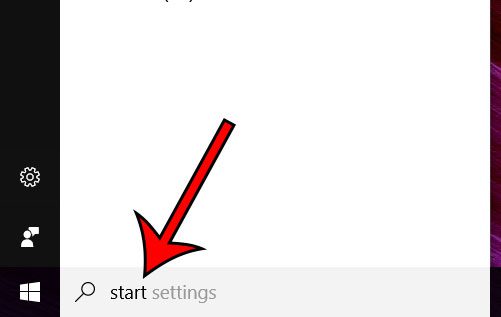
Step 1: Click inside the search field at the bottom-left corner of the screen and type “start.”
If you do not see a search field on your taskbar, click the Start button and begin typing. Windows starts searching as soon as you type.
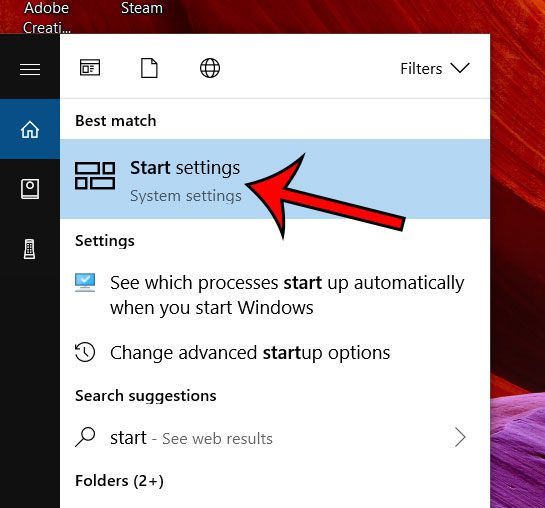
Step 2: Select the Start settings option from the list of search results.
This opens the Settings app directly on the Start page of the Personalization section. You can reach the same page by pressing the Windows key + I to open Settings, clicking Personalization, and then choosing Start in the left column.
Step 3: Click the button under Show recently opened items in Jump Lists on Start or the taskbar.
The switch should move to the Off position. It is normally the last on/off switch on the page, so scroll down if you do not see it. On some Windows 10 versions the label is longer and also mentions File Explorer, but it always includes the words Jump Lists.
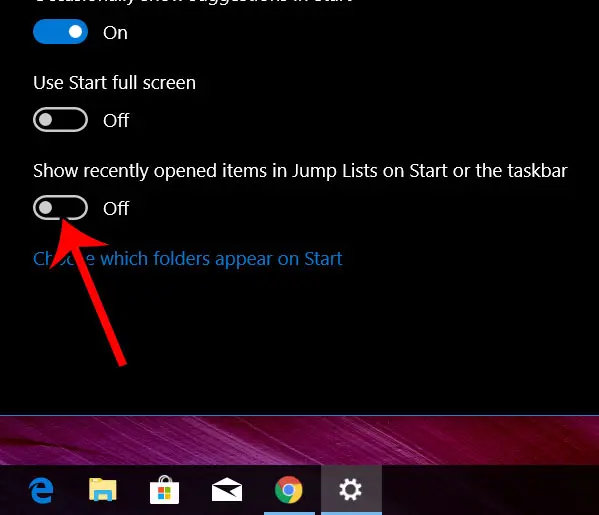
There is no Save button. The change applies as soon as you flip the switch, and you can close the Settings window.
Microsoft covers this switch in its guide to customizing the taskbar in Windows, which is worth a look if the options on your computer are arranged differently.
How to Confirm It Worked, and How to Undo It
Right-click the Chrome icon on your taskbar. The list of websites should be gone. You should still see the basic commands, such as the options to open a new window and to pin or unpin Chrome from the taskbar, because those are not recently opened items.
If the sites are still listed, close Chrome completely, open it again, and check once more. Restarting the computer is a reasonable next step if the menu has not refreshed.
To bring the lists back, return to Settings > Personalization > Start and turn the same switch back on. Expect the lists to start out empty and fill in again as you use your apps, since turning the switch off is generally understood to clear the stored recent items rather than just hide them.
Hide One Site Instead of the Whole List
If only one entry bothers you, you may not need to turn off Jump Lists at all. In Windows 10 you can usually right-click a single entry inside a Jump List and choose Remove from this list. That keeps the rest of the list, and the lists for your other apps, intact.
Keep in mind that this is not permanent. Chrome builds the list from the sites you visit, so a removed site can return if you keep going to it.
How to Hide Most Visited Sites on the Chrome New Tab Page
Many people who search for this topic are actually thinking of the row of site icons under the search box on a new Chrome tab. That is a different feature with its own control, and the Windows switch above has no effect on it.

- Open Chrome on your computer and open a new tab.
- Click Customize Chrome at the bottom right of the New Tab page. A panel opens at the side of the window.
- Find the Shortcuts section.
- Turn off Show shortcuts to hide the row completely.
If you would rather keep the row but decide what is in it, select My shortcuts instead of Most visited sites in the same section. Chrome then shows only the sites you add yourself.
To remove a single site, point to its icon, click More (the three dots at the top right of the icon), and select Remove.
Google notes that customizing the New Tab page requires being signed in to your Google Account and using Google as your default search engine. If the Customize Chrome button is missing, that is the first thing to check. The full instructions are in Google’s help article on how to customize your New Tab page in Chrome.
Troubleshooting
The Jump Lists switch is missing or grayed out
On a work or school computer, an administrator can manage personalization settings, which may lock this switch or hide it. In that case you will need to ask your IT department. On a home computer, make sure you are on the Start page of Personalization, not the Taskbar page, and scroll to the bottom.
Searching for “start” does not show Start settings
Skip the search and open the page manually: press Windows key + I, click Personalization, then click Start.
The sites disappeared from the taskbar but still show in Chrome
That is expected. The Windows switch only affects the right-click menu. Use the Customize Chrome steps above for the New Tab page.
You want the sites gone from Chrome history too
Hiding a list is not the same as erasing history. To erase it, open Chrome, click More at the top right, and choose Delete browsing data. Pick a time range, check the items you want to remove, and confirm.
Warning: if you are signed in to Chrome, Google says deleting this data also removes it from your other devices and your Google Account. Read Google’s page on how to delete browsing data in Chrome before you confirm.
Frequently Asked Questions
Can I turn off the Jump List for Chrome only?
Not with a standard Windows or Chrome setting. The Windows switch for recently opened items applies to every app, and Chrome does not include its own option for the taskbar right-click menu. Removing individual entries from the list is the closest alternative.
Does turning off Jump Lists delete my Chrome history?
No. The switch changes what Windows displays when you right-click an app icon. Your browsing history stays in Chrome until you delete it there.
Will this remove the sites from the Start menu too?
Yes. The setting covers Jump Lists on both the Start menu and the taskbar, so right-clicking Chrome in either place shows the same reduced menu.
Does this work in Windows 11?
The setting lives in the same place, Settings > Personalization > Start, but the switch may be worded differently and may also control recent files shown in other parts of Windows 11. Look for the option that mentions Jump Lists.
Why are websites listed when I right-click Chrome in the first place?
Windows lets apps add shortcuts to their Jump Lists, and Chrome uses that space for sites you visit often and tabs you closed recently. It is meant as a shortcut, but anyone who can use your Windows account can see it.
Next Steps
With the right-click menu cleaned up, you may want to adjust a few related settings. If Chrome is not on your desktop yet, this guide shows how to add a Chrome shortcut to the desktop. You can also change your startup page in Google Chrome or reduce predictions in the Chrome address bar so fewer past sites are suggested as you type.
If you have moved to a newer computer, see how to clear recent files in Windows 11, how to make Chrome the default browser in Windows 11, or how to turn on dark mode in Windows 11, which gives Settings the darker look shown in the images above.

Matthew Burleigh is the founder, head writer, and editor of Solve Your Tech, which he launched in 2012. He has written technology tutorials since 2008 and worked in IT since 2003, including small-business support, IT management, and consulting. He holds Bachelor’s and Master’s degrees in Computer Science from Arizona State University.
Matthew writes practical guides for Windows, iPhone and iPad, Microsoft Office, Outlook, Google apps, and Android. Solve Your Tech’s guides are tested on current devices or checked against official product documentation, with clear steps, sources, and update dates.
Read more about Matthew and how Solve Your Tech writes and updates its guides, or report a correction.