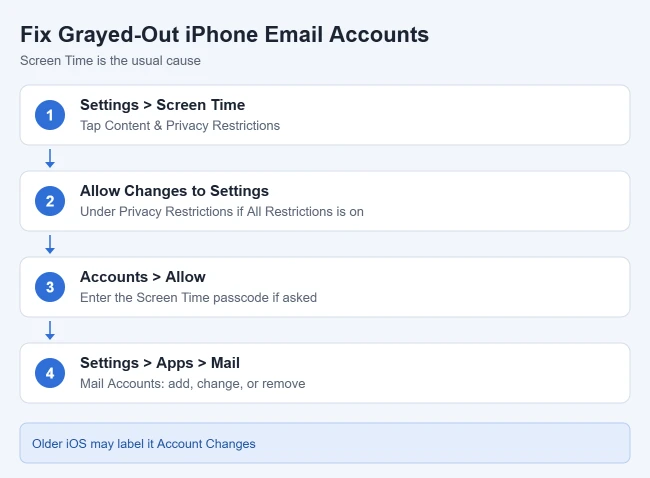
If email accounts or your Apple Account are grayed out on your iPhone, Screen Time restrictions are the most likely cause. Go to Settings > Screen Time > Content & Privacy Restrictions, tap Allow Changes to Settings, tap Accounts, and choose Allow. You may need to enter your Screen Time passcode.
These steps follow Apple’s support articles on grayed-out Apple Account settings and resetting a Screen Time passcode, plus the iPhone User Guide page on adding and removing email accounts. Labels match iOS 27; older versions may say Account Changes instead.
How to Fix Grayed-Out Email Accounts on iPhone
- Open Settings and tap Screen Time.
- Tap Content & Privacy Restrictions.
- If All Restrictions is on, scroll down to Privacy Restrictions.
- Tap Allow Changes to Settings.
- Tap Accounts and choose Allow. Enter your Screen Time passcode if asked.
- Go back to Allow Changes to Settings and check for anything else set to Don’t Allow. Tap it and choose Allow if you need to change it.
Result: Account settings are no longer grayed out. Go to Settings > Apps > Mail > Mail Accounts, where you can now tap Add Account, open an account to change it, or tap Sign Out or Delete Account.
Why Does Screen Time Gray Out Accounts?
When Accounts is set to Don’t Allow in Screen Time, iOS blocks account changes, which is why the options appear grayed out. Apple says the same restriction can gray out your Apple Account at the top of Settings. A related message, “Sign out is not available due to restrictions,” usually means a Screen Time passcode is turned on, according to Apple.
How to Turn Off the Screen Time Passcode
- Open Settings and tap Screen Time.
- Scroll down and tap Manage Screen Time.
- Tap Change Screen Time Passcode.
- Tap Turn Off Screen Time Passcode, then enter the passcode.
Result: Screen Time settings no longer ask for a passcode, so you can change restrictions freely. Apple notes the Screen Time passcode is not the same as the passcode that unlocks your iPhone.
Forgot the Screen Time Passcode?
- Open Settings > Screen Time > Manage Screen Time.
- Tap Change Screen Time Passcode, then tap it again.
- If asked, enter the Apple Account email address and password that were used to set up the Screen Time passcode.
- Enter a new Screen Time passcode twice.
Result: You have a new Screen Time passcode. Apple warns that the Apple Account you need may be different from the one signed in on the phone, such as a family member’s account. Apple recommends setting up Screen Time Passcode Recovery for exactly this reason, since it is what lets your Apple Account reset a forgotten passcode (Apple’s iPhone guide covers setting it up).

Is This a Child’s iPhone?
If the iPhone belongs to a child in a Family Sharing group, a parent or guardian set the restriction and needs to change it. Apple says changes to a child’s Screen Time passcode must be made on the family organizer’s or parent’s device: open Settings > Screen Time, tap the child’s name under Family, then tap Manage Screen Time.
Other Possible Causes
- Work or school management: Configuration profiles from a school or employer can block account changes. Check Settings > General > VPN & Device Management, and ask your IT department before removing anything.
- A restore in progress: The Apple Account banner can stay grayed out while an iCloud restore finishes on a new iPhone. If you just set up the phone, give the restore time to complete.
Frequently Asked Questions
Will allowing account changes remove my other Screen Time limits?
Changing only the account setting leaves your other Screen Time rules, such as App Limits and Downtime, in place. Apple’s steps only ask you to change Accounts and any other items you need.
Can I just turn off an email account instead of deleting it?
Yes, once accounts are no longer grayed out. Apple says to go to Settings > Apps > Mail > Mail Accounts, tap the account, and turn off Mail (or Use on this iPhone for iCloud). You can turn it back on later.
Related Guides

Matthew Burleigh has been writing tech tutorials since 2008. His writing has appeared on dozens of different websites and been read hundreds of millions of times.
After receiving his Bachelor’s and Master’s degrees in Computer Science he spent several years working in IT management for small businesses. However, he now works full time writing content online and creating websites.
His main writing topics include iPhones, Microsoft Office, Google Apps, Android, and Photoshop, but he has also written about many other tech topics as well.