To share an Amazon product from your iPhone, open the product page in the Amazon Shopping app, tap the Share icon in the top-right corner of the main product photo, and pick Messages, Mail, Copy, or another app. The person you send it to gets a short link that opens that product page.
These steps are for the current Amazon Shopping app on iOS 26 and the US store. They also work on an iPad and on older iPhones that run iOS 16 or later.
This post contains affiliate links. As an Amazon Associate, solveyourtech.com earns from qualifying purchases, at no extra cost to you.
- Open the Amazon Shopping app. You don’t need to be signed in to share a product.
- Find the product. Search for it, or open it from Your Orders, your cart, or a list, and tap the product you want to show someone.
- If the product comes in different sizes, colors, or styles, select the one you mean first. The page updates to that option.
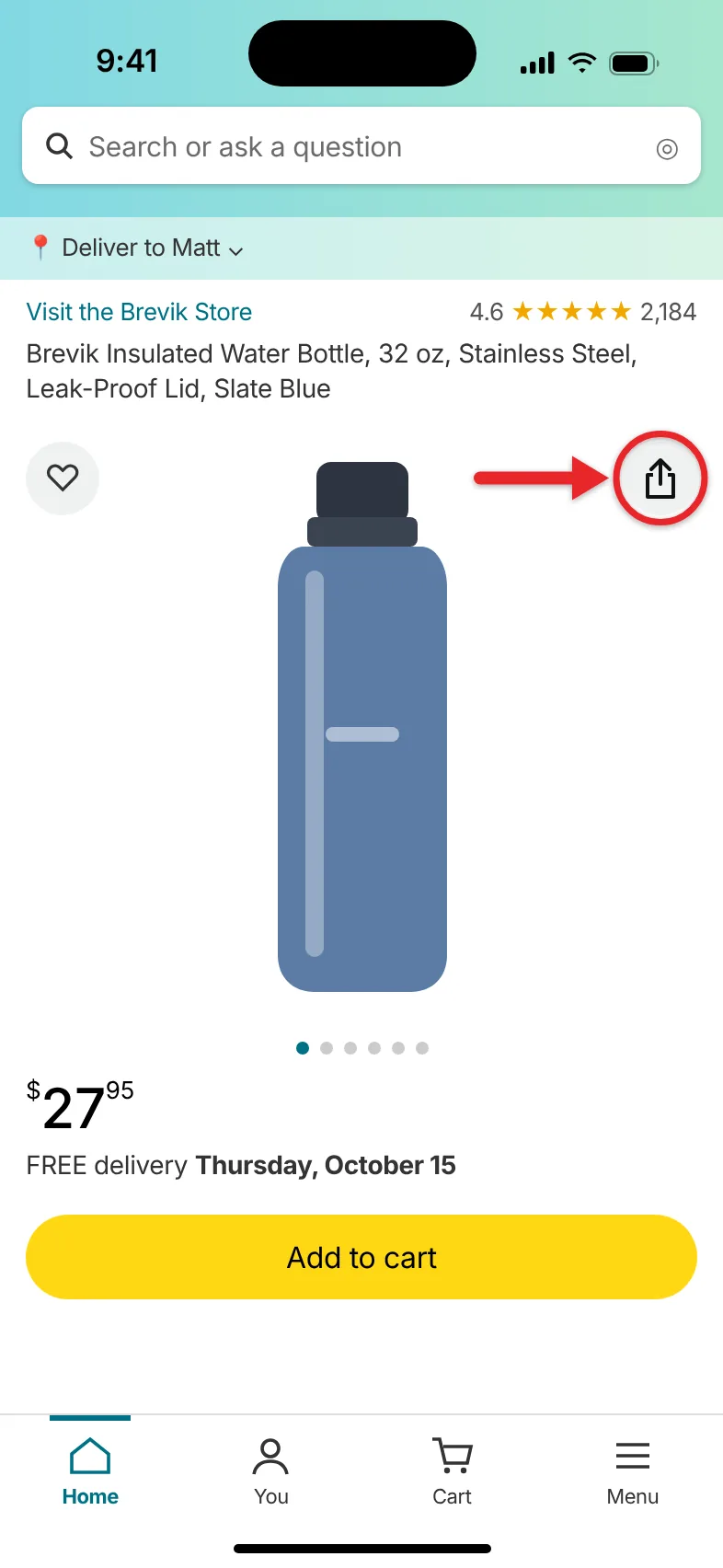
- Tap the Share icon in the top-right corner of the large product photo at the top of the page. The iPhone share sheet slides up from the bottom of the screen with a preview of the product.
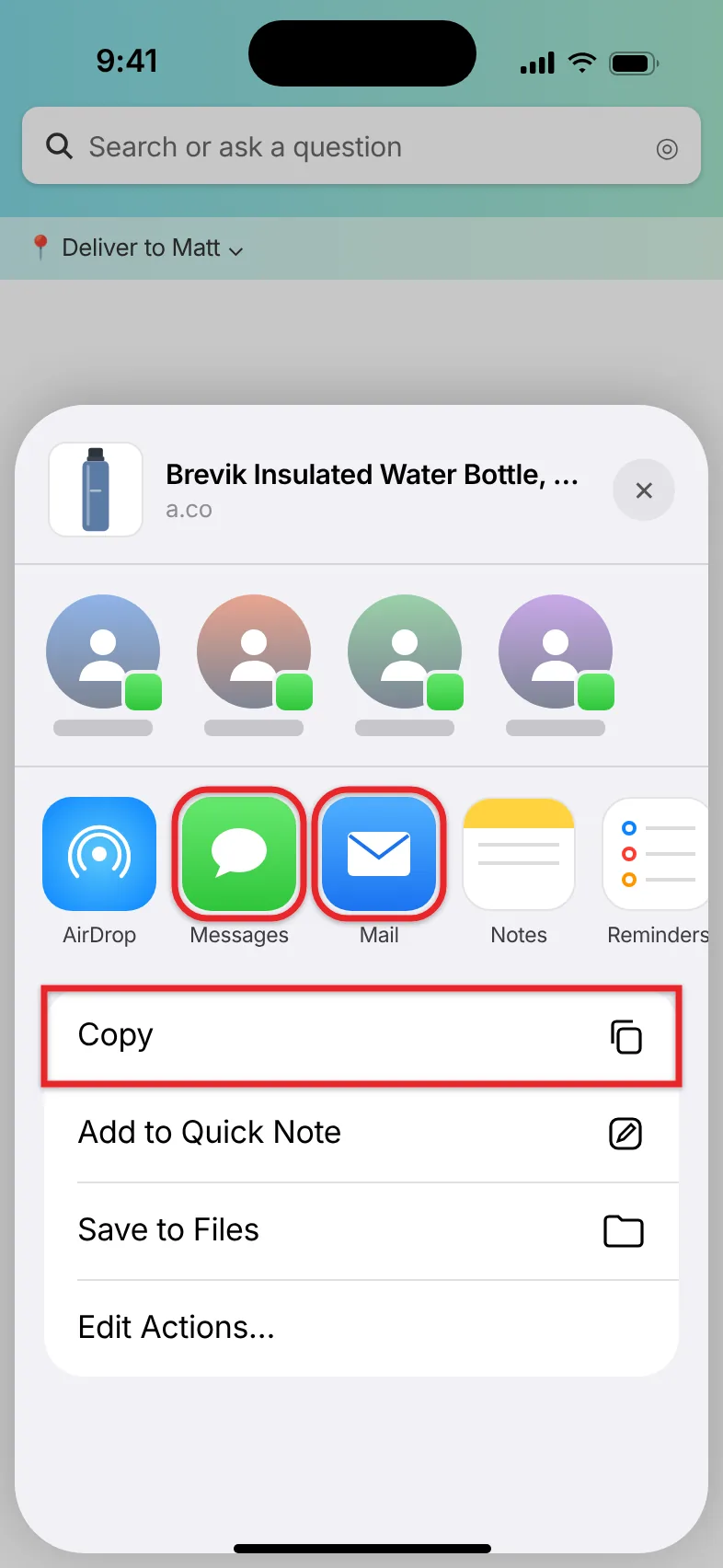
- Tap Messages in the row of app icons. A new message opens with the product link already in the text field. If you don’t see Messages, swipe the app row to the left and tap More.
- In the To field, type the person’s name, phone number, or email address, and tap their name when it appears.
- Add a note if you like, such as “This is the one I was talking about,” and tap the blue send arrow.
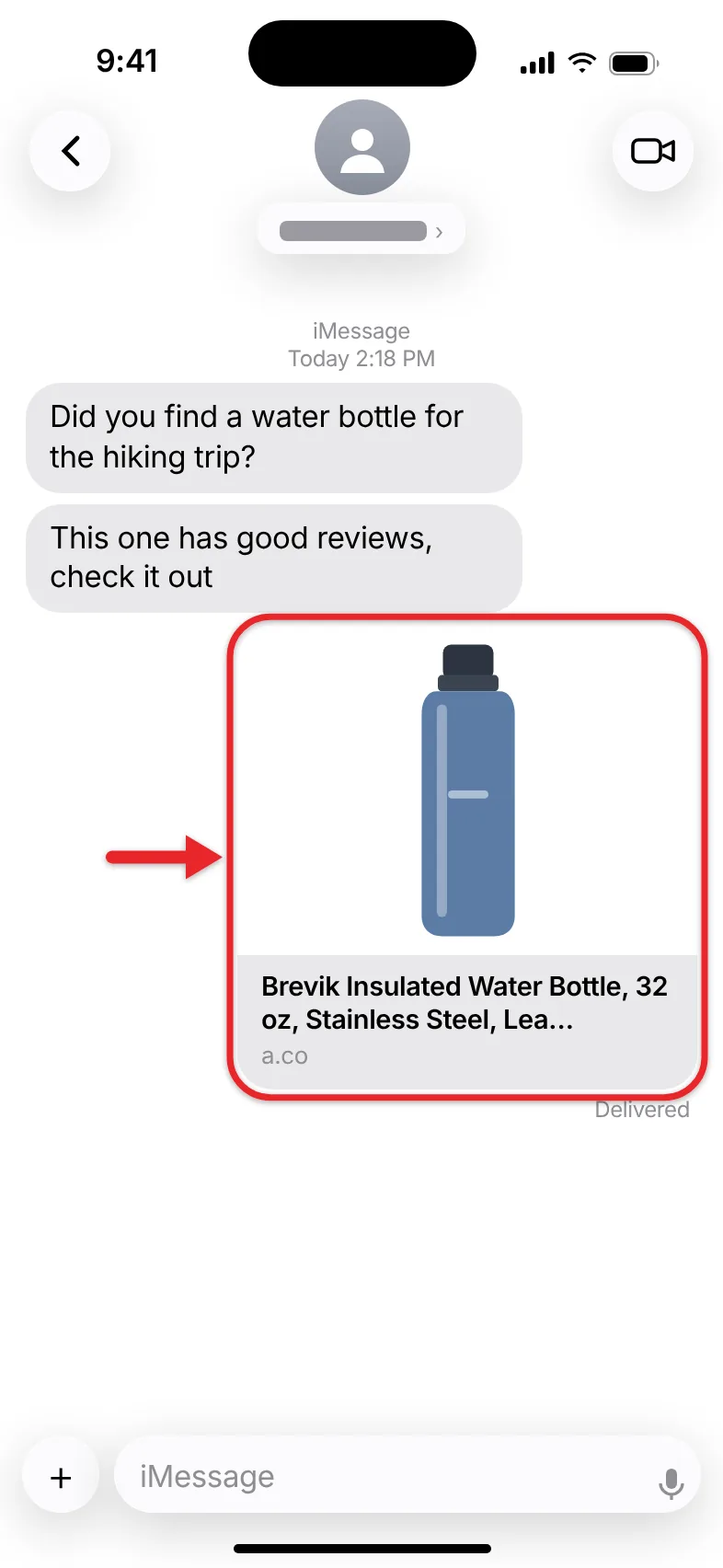
The recipient sees a link that usually starts with a.co/d/. That’s Amazon’s own short link, and it goes to the same product page you were looking at. On an iPhone with the Amazon app installed, it usually opens in the app. Otherwise it opens in their web browser.
To send the link by email instead, tap Mail in step 5. Mail opens a new message with the link in the body. Enter an address in the To field and tap the send arrow. Other apps in the share sheet, such as WhatsApp, Slack, or Facebook Messenger, work the same way: tap the app, pick a person or chat, and send.
Copy the Link to Paste Somewhere Else
Copying the link is the easiest way to drop it into an app that isn’t in the share sheet, a group chat, a note, or a gift list website.
- On the product page, tap the Share icon on the product photo.
- Tap Copy in the list of actions below the app icons. Some versions label it Copy Link. Nothing seems to happen, but the link is now on your iPhone’s clipboard.
- Open the app where you want the link, touch and hold in the text field, and tap Paste.
- Check that the link looks complete, then send or save it.
Copying is also handy when you want to share several items. Copy one link, paste it into a note or message, go back to Amazon, and repeat for the next product.
Other apps use the same share sheet, so you can also share a Spotify song in a text message.
Send It With AirDrop
If the other person is standing next to you with an iPhone, iPad, or Mac, AirDrop is faster than typing their number.
- Tap the Share icon on the product photo.
- Tap AirDrop.
- Tap the person’s name or device under People.
They need to tap Accept on their device. If they aren’t in your contacts, they may need to set AirDrop to Everyone for 10 Minutes first, and newer iOS versions can ask for a one-time AirDrop code. Apple explains both cases in its AirDrop guide for iPhone and iPad.
You don’t need the app to share a product. If you’re browsing Amazon in Safari on your iPhone:
- Open the product page.
- Tap Safari’s Share button (a square with an arrow pointing up). With the Bottom or Top tab layout, it’s in the toolbar. With the Compact layout in iOS 26, tap the More button (three dots) first, then Share.
- Choose Messages, Mail, Copy, or AirDrop, and send it the same way as above.
Amazon’s mobile website also shows its own Share icon on the product photo, which works like the one in the app. You can also touch and hold the address bar and tap Copy.
On a computer, open the product on amazon.com and look for the Share icon near the top-right corner of the product images. It offers a Copy Link option and an email option. You can also copy the address from the browser’s address bar.
The same steps apply in the Amazon Shopping app on Android. Tap the Share icon on the product photo, and Android’s share panel opens with your messaging apps and a copy option.
Make a Shorter, Cleaner Link
A link copied from Safari’s address bar is often long, because it carries search terms and tracking codes. You can trim it to https://www.amazon.com/dp/ followed by the product’s 10-character ASIN.
The ASIN (Amazon Standard Identification Number) appears in the long link right after /dp/, and it’s also listed under Product information or Product details on most product pages. The short a.co/d/ link from the app’s Share icon is already compact, so you don’t need to change it.
If you’re an Amazon Associate, signing in to the Amazon app with your Associates account adds a Copy Associates Link option when you tap Share, as described on Amazon’s page about building affiliate links. Don’t trim tags off an Associates link, because that removes the part that credits you.
Members of the Amazon Influencer Program also get a storefront page to share. Here’s how shoppers can find an Amazon influencer storefront.
If Sharing Doesn’t Work
- You can’t find the Share icon. Scroll back to the very top of the product page so the large photo is showing. The icon sits on the photo itself, not in the bottom menu bar. If it still isn’t there, update the app from the App Store, since older versions placed the button elsewhere.
- Messages or Mail isn’t in the share sheet. Swipe the app row to the end and tap More. To keep an app near the front, tap Edit on that screen and add it to Favorites.
- The link opens the wrong size or color. Go back, pick the exact option on the product page, and share again. If the product has many variations, mention the one you mean in your message too.
- The link opens in a browser instead of the Amazon app. That depends on the recipient’s phone. On an iPhone, they can touch and hold the link and choose to open it in the Amazon app if that option appears. Updating or reinstalling the Amazon app can fix links that keep opening in Safari.
- The recipient sees a different price. Prices, deals, and stock can change after you share, and some prices depend on Prime membership or location. The link shows the current listing, not the price you saw. If you’re watching a price, the article on checking Amazon price history can help you judge whether a deal is real.
- The link shows a search page or “Page not found.” You probably copied from a search results page, or the listing was removed. Open the product itself and share again from there.
Amazon App Sharing Questions
Does sharing an Amazon link show the recipient my account or order?
No. A product link opens the public product page. It doesn’t include your name, address, cart, or order details. Links to order pages or your cart only work for someone signed in to your account, so share the product page instead.
Can I share my whole cart or several products at once?
The Share icon sends one product at a time. To send several, copy each link into one message, or add the items to a list and share the list. The article on viewing and sharing an Amazon wish list walks through the list option.
What is an a.co link, and is it safe?
a.co is a short web address that Amazon uses for shared links. It sends the person to a normal amazon.com page. As with any link, check that it actually comes from someone you know before you tap it, and be wary of messages claiming to be from Amazon that ask you to sign in.
Can I share from the Amazon app without signing in?
Yes. You can browse products and tap Share while signed out. You only need to sign in to buy, see your orders, or use features tied to your account.
Will the person I send it to need the Amazon app?
No. If they don’t have the app, the link opens in their web browser on any phone or computer.

Matthew Burleigh is the founder, head writer, and editor of Solve Your Tech, which he launched in 2012. He has written technology tutorials since 2008 and worked in IT since 2003, including small-business support, IT management, and consulting. He holds Bachelor’s and Master’s degrees in Computer Science from Arizona State University.
Matthew writes practical guides for Windows, iPhone and iPad, Microsoft Office, Outlook, Google apps, and Android. Solve Your Tech’s guides are checked step by step against the device or app maker’s own documentation and tested on his own devices whenever he has the hardware or software, with clear steps, sources, and update dates.
Read more about Matthew and how Solve Your Tech writes and updates its guides, or report a correction.