On an iPhone 13 or newer, you don’t need to turn anything on: open Camera, stay in Photo mode, and take the picture. HDR is built into the camera’s processing and runs automatically. On an iPhone 11, iPhone 12, or iPhone SE (2nd generation), you can choose HDR yourself by turning off Smart HDR in Settings > Camera and then tapping the HDR button in the Camera app.
These steps are written for iOS 26 and iOS 27. Which method you use depends only on your iPhone model, so check the table below first. Apple explains the model differences in its HDR camera settings guide.
What HDR Does
HDR stands for high dynamic range. When you take a photo, the iPhone captures several frames at different exposures and blends them, so a bright sky and a shaded face can both keep their detail in one picture. Without HDR, one of them usually ends up blown out to white or lost in shadow.
Which iPhones Have an HDR Button
| iPhone model | How HDR works | Can you turn it on or off? |
|---|---|---|
| iPhone 11, 11 Pro, 11 Pro Max | Smart HDR is on by default | Yes. Turn off Smart HDR to get a manual HDR button |
| iPhone 12, 12 mini, 12 Pro, 12 Pro Max | Smart HDR is on by default | Yes. Same as iPhone 11 |
| iPhone SE (2nd generation) | Smart HDR is on by default | Yes. Same as iPhone 11 |
| iPhone 13 and every later model, including the iPhone 16e | Always automatic | No. There’s no Smart HDR switch and no HDR button |
| iPhone SE (3rd generation) | Always automatic | No |
The iPhone XS and iPhone XR use the same Smart HDR switch as the iPhone 11, but they can’t run iOS 26. The iPhone 8, iPhone 8 Plus, and iPhone X have an older Auto HDR switch in the same place.
Take an HDR Photo on an iPhone 13 or Newer
- Open the Camera app.
- Swipe to Photo mode if you’re in Video, Portrait, or another mode. Portrait mode uses HDR too, but Photo mode is the standard choice.
- Frame a scene with both bright and dark areas, such as a person standing in front of a sunny window.
- Tap your subject on the screen to set focus and exposure there. A yellow box appears where you tapped.
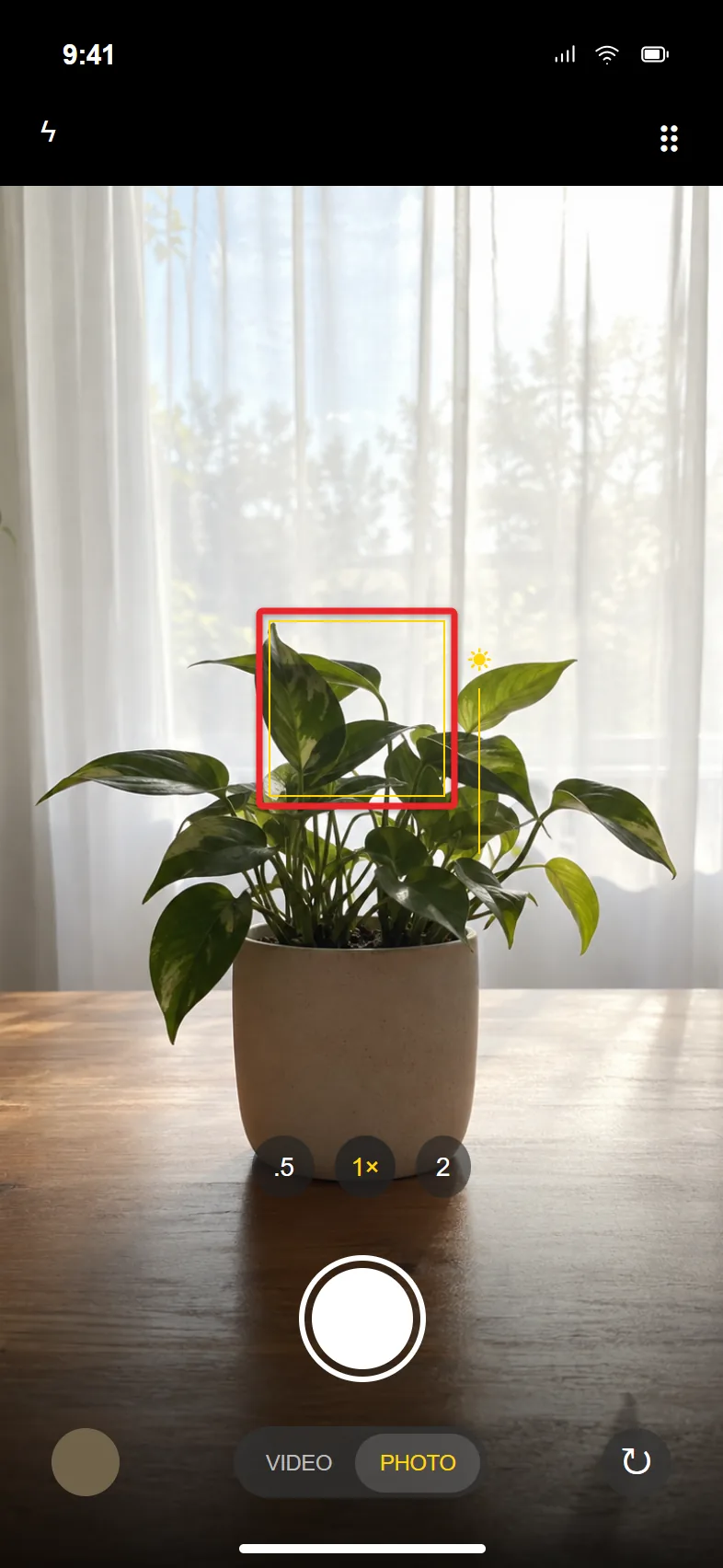
- Hold the phone still and tap the shutter button. The photo saves to the Photos app with HDR already applied.
There’s no HDR label on the photo or in the Camera app. The processing happens every time the iPhone decides the scene benefits from it, and you can’t switch it off on these models.
If you want a different look after the shot, you can add a filter to the picture in the Photos app.
Take an HDR Photo on an iPhone 11, iPhone 12, or iPhone SE (2nd Generation)
With Smart HDR on, these models also apply HDR automatically, so you can follow the steps above. If you want to decide shot by shot, switch to manual HDR.
- Open Settings and tap Camera.
- Scroll down and turn off Smart HDR. The switch turns gray.
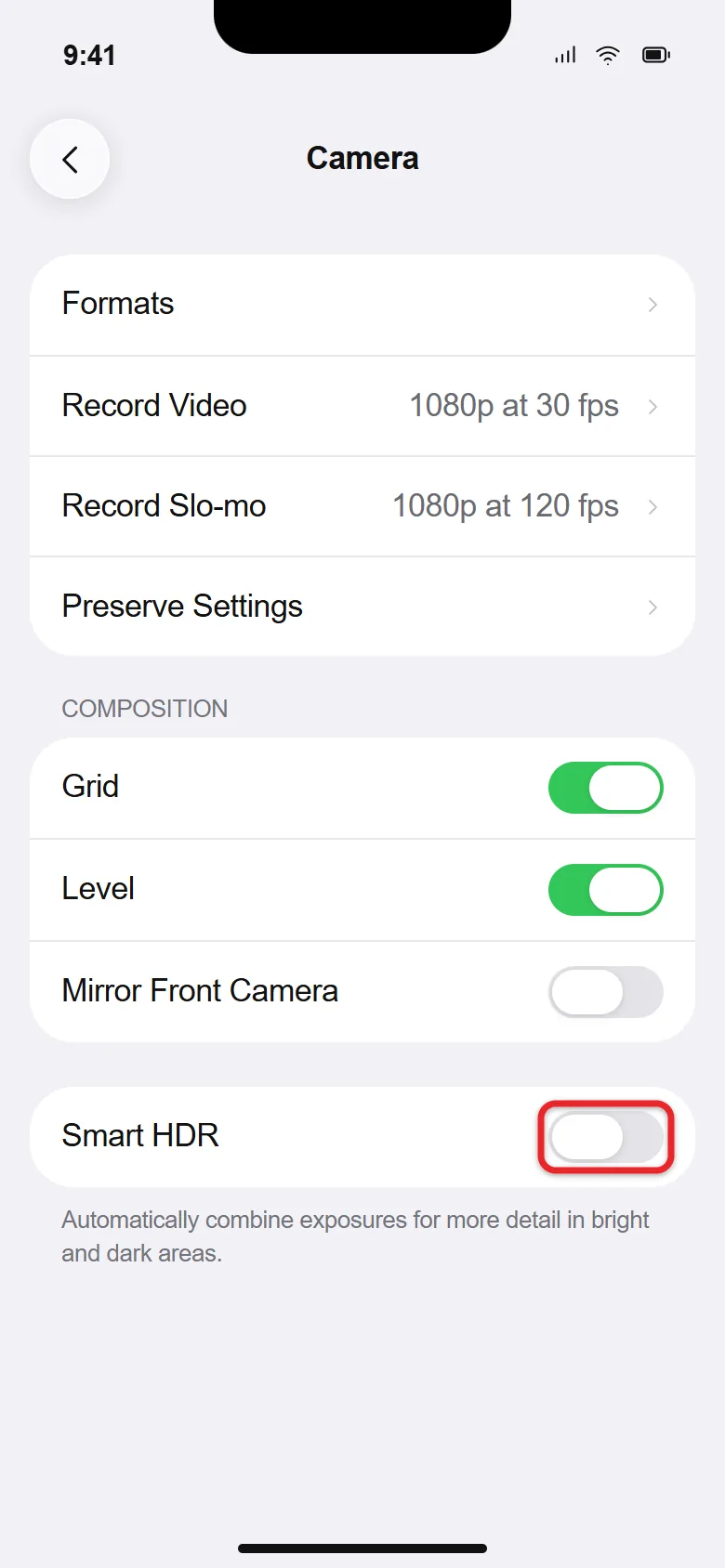
- Open the Camera app in Photo mode. An HDR button now appears at the top of the screen.
- Tap HDR and choose On. The button stays visible so you can change it for the next shot.
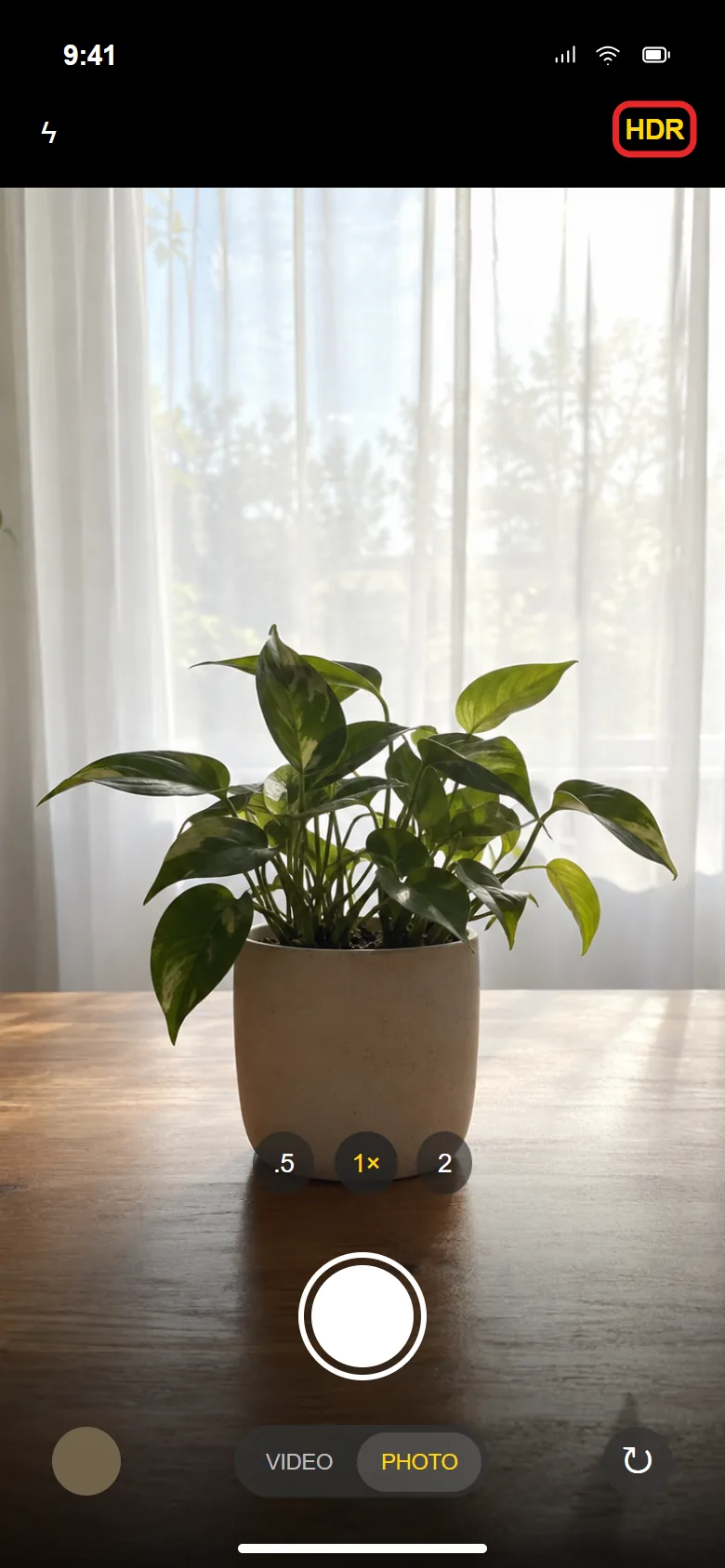
- Frame your scene, tap your subject to set exposure, and take the photo.
To go back to automatic HDR, return to Settings > Camera and turn Smart HDR on again. The HDR button disappears from the Camera app.
Get Better HDR Results
- Keep the phone and subject still. HDR blends frames taken a split second apart, so fast movement can cause ghosting or blur. Brace your elbows or lean on something.
- Use it for high-contrast scenes. Backlit portraits, sunsets, landscapes with a bright sky, and indoor rooms with windows show the biggest difference.
- Drag the exposure slider if the shot looks too bright. After you tap the subject, drag the sun icon next to the yellow box down to darken the image before you take it.
- Try ProRAW on Pro models. On an iPhone 12 Pro or later Pro model, turning on Apple ProRAW (labeled ProRAW & Resolution Control on newer Pro models) in Settings > Camera > Formats gives you a RAW file with extra highlight and shadow information you can edit later. The files are much larger than regular photos.
HDR Video Is a Separate Setting
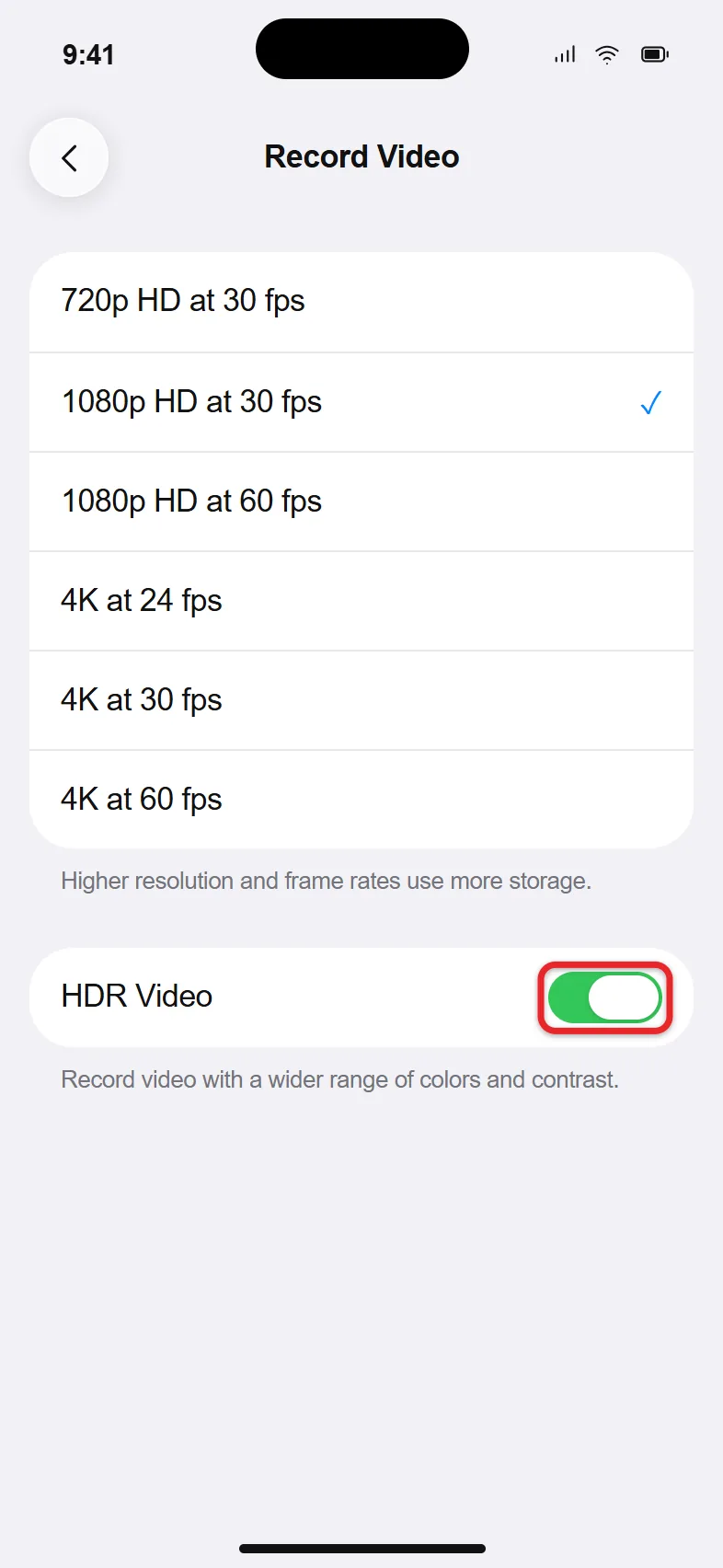
Photo HDR and HDR video have their own controls. On an iPhone 12 or later, go to Settings > Camera > Record Video and turn HDR Video on or off. This only affects videos you record after the change. It doesn’t touch photo HDR, and it doesn’t convert videos you’ve already taken.
Turn it off if your videos look washed out or too bright when you share them to an older TV, computer, or editing app. For other recording options, read about recording 4K video on an iPhone.
The same Record Video screen also has Lock Camera, which keeps the iPhone from switching camera lenses while you record.
If Your HDR Photos Don’t Look Right
I can’t find the Smart HDR switch. Your iPhone is an iPhone 13 or newer, or an iPhone SE (3rd generation). These models don’t have the switch. Nothing is wrong with your phone.
The HDR button isn’t in the Camera app. On an iPhone 11, iPhone 12, or iPhone SE (2nd generation), the button only appears after you turn off Smart HDR. Check that you’re in Photo mode as well.
Photos look too bright on my screen. iPhones with HDR displays can show HDR photos brighter than standard ones. If that bothers you, open Settings > Photos and turn off View Full HDR. The photo itself doesn’t change, only how it’s shown.
My HDR photo has ghosting. Something moved while the frames were captured. Take another shot while holding steadier, or wait for the subject to stop moving.
A bright moon in a dark sky is a different challenge. Here’s how to take pictures of the moon with iPhone.
If you want motion blur on purpose, you can turn a Live Photo into a long exposure photo on iPhone instead.
If you want straight horizons and evenly framed landscapes, turn on the camera grid and level in the same Camera settings screen.
iPhone HDR Questions
Is HDR on by default on iPhone?
Yes. Every iPhone that runs iOS 26 applies HDR automatically to photos. On the iPhone 11, iPhone 12, and iPhone SE (2nd generation), that comes from the Smart HDR switch, which is on out of the box.
Can I turn off HDR on an iPhone 15, 16, or 17?
No. On the iPhone 13 and every newer model, Apple handles photo HDR automatically and doesn’t offer a switch. You can turn off View Full HDR in Settings > Photos if photos look too bright, or turn off HDR Video for videos.
Can I remove HDR from a photo I already took?
No. HDR is applied when the photo is captured, so changing settings later only affects new photos. You can lower brightness or highlights with Edit in the Photos app, but that isn’t the same as a photo taken without HDR.
Portrait mode blur works differently: you can turn off the Portrait effect on an iPhone photo at any time.
Why did my iPhone 12 Pro get the HDR button but my iPhone 13 didn’t?
The manual HDR option covers every iPhone 12 model, including the Pro and Pro Max. Apple removed it starting with the iPhone 13 lineup.
Does HDR use more storage?
Not in a noticeable way. HDR photos are saved as a single image at a similar size to a regular photo. ProRAW files and HDR video use far more space.

Matthew Burleigh is the founder, head writer, and editor of Solve Your Tech, which he launched in 2012. He has written technology tutorials since 2008 and worked in IT since 2003, including small-business support, IT management, and consulting. He holds Bachelor’s and Master’s degrees in Computer Science from Arizona State University.
Matthew writes practical guides for Windows, iPhone and iPad, Microsoft Office, Outlook, Google apps, and Android. Solve Your Tech’s guides are checked step by step against the device or app maker’s own documentation and tested on his own devices whenever he has the hardware or software, with clear steps, sources, and update dates.
Read more about Matthew and how Solve Your Tech writes and updates its guides, or report a correction.