To turn on the camera on a Windows 11 laptop, open the privacy shutter or press the camera key if your laptop has one, then open the Camera app from Start. If you don’t see a picture, go to Settings > Privacy & security > Camera and turn on Camera access, then check Settings > Bluetooth & devices > Cameras to make sure the camera isn’t disabled.
Laptop cameras don’t have an on switch in Windows. They turn on when an app uses them, as long as nothing is blocking them. Work through the steps below in order.
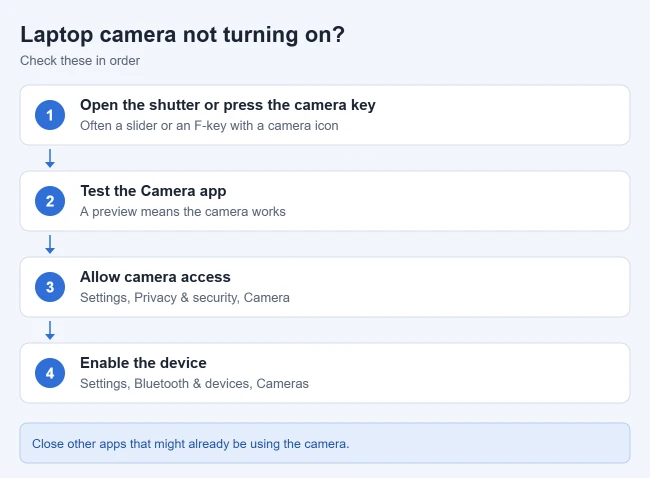
Step 1: Open the Shutter or Press the Camera Key
- Shutter: look for a small sliding cover above the screen and slide it open.
- Camera key: many laptops have a key with a camera icon, often on the function row, such as F8 or F10. Press it once. On some keyboards you need to hold Fn while pressing it.
- Side switch: a few models have a camera switch on the side of the laptop.
If the laptop shows a “camera off” or “camera on” message when you press the key, that’s the one.
Step 2: Test the Camera in the Camera App
- Select Start and type Camera.
- Open the Camera app.
- Wait a few seconds for a preview.
If you see yourself, the camera works, and the problem is limited to another app or website. Skip to Step 4 or Step 5.
Step 3: Turn On Windows Camera Access
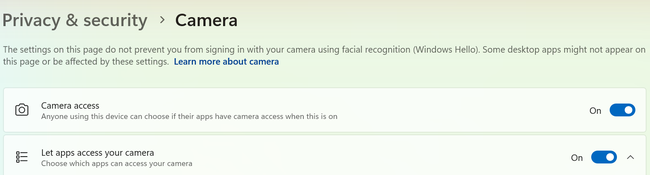
- Open Settings > Privacy & security > Camera.
- Turn on Camera access.
- Turn on Let apps access your camera, then turn on the specific app in the list below.
- For programs not from the Microsoft Store, such as Zoom or some browsers, turn on Let desktop apps access your camera.
Step 4: Choose the Camera Inside the App
- Open the app that needs the camera, such as Teams or Zoom. If you’re hosting, see how to set up a Zoom meeting. To hide your room, see how to add and change Zoom backgrounds.
- Go to its video or device settings.
- Select the built-in camera from the camera list, especially if you also have an external webcam.
- Close other apps that might already be using the camera, then test again.
For exact camera-selection steps in Teams, Google Meet, and the Camera app, see how to choose your default camera in Windows 11. Each app can use a different webcam.
Step 5: Allow the Camera for a Website
- Open the meeting site and select Allow when the browser asks for camera permission.
- If you blocked it before, select the site information icon to the left of the address.
- Change Camera to Allow.
- Reload the page.
Step 6: Make Sure the Camera Isn’t Disabled
- Open Settings > Bluetooth & devices > Cameras.
- If your camera is listed under Disabled cameras, select it and select Enable. This needs an administrator account.
- If it’s under Connected cameras, select it to see a live preview.
Microsoft explains this page in its camera settings guide. If there’s no Disabled cameras section, no cameras are disabled.
If the Camera Still Won’t Turn On
- Restart the laptop.
- Open Device Manager, expand Cameras (or Imaging devices), and check for a disabled device or warning symbol. Right-click it and select Enable device if that’s offered.
- Right-click the camera and select Update driver, or install the camera driver from your laptop maker’s support site.
- If it stopped working after an update, select Properties > Driver > Roll Back Driver.
- Reset the Camera app in Settings > Apps > Installed apps > Camera > Advanced options > Reset.
The Camera troubleshooter in Get Help can also check for common problems; see how to run a troubleshooter in Windows 11.
Frequently Asked Questions
What are the camera settings in Windows 11?
Settings > Privacy & security > Camera controls which apps can use the camera. Settings > Bluetooth & devices > Cameras manages the device itself. Select your camera there to see a live preview and adjust brightness, contrast, rotation, and, on supported cameras, video HDR or Windows Studio Effects.
Why is my laptop camera black?
A black preview often means a physical shutter is closed, another app is using the camera, or the wrong camera is selected. Check those items first, then review the Windows camera permissions.
Why can’t I find my camera in Device Manager?
The camera may be turned off with a privacy key or switch, missing a driver, or disabled in the laptop’s BIOS or UEFI settings. Start with the privacy key and Windows Update, then check your laptop maker’s support instructions if it remains missing.
How do I know when the camera is on?
Most laptops have a small light next to the camera that turns on while it’s in use. Windows also shows a camera icon in the taskbar corner while an app is using it.

Matthew Burleigh has been writing tech tutorials since 2008. His writing has appeared on dozens of different websites and been read hundreds of millions of times.
After receiving his Bachelor’s and Master’s degrees in Computer Science he spent several years working in IT management for small businesses. However, he now works full time writing content online and creating websites.
His main writing topics include iPhones, Microsoft Office, Google Apps, Android, and Photoshop, but he has also written about many other tech topics as well.