To rename a sheet tab in Google Sheets, double-click the tab name at the bottom of the screen, type a new name, and press Enter. To add a sheet, click the + (Add sheet) button in the bottom-left corner or press Shift + F11. To hide one, click the tab’s Down arrow and choose Hide sheet.
These steps follow Google’s Protect, hide & edit sheets help article and its keyboard shortcuts for Google Sheets list.
In this article:
- Rename a sheet tab
- Add a new sheet tab
- Hide or unhide a sheet tab
- Copy, move, color or delete a tab
- Rename a tab in the iPhone or iPad app
- FAQs
How to Rename a Worksheet in Google Sheets
Clear tab names make a spreadsheet much easier to move around, especially when it has a sheet for each month, team or project.
- Find the sheet tabs at the bottom of the spreadsheet.
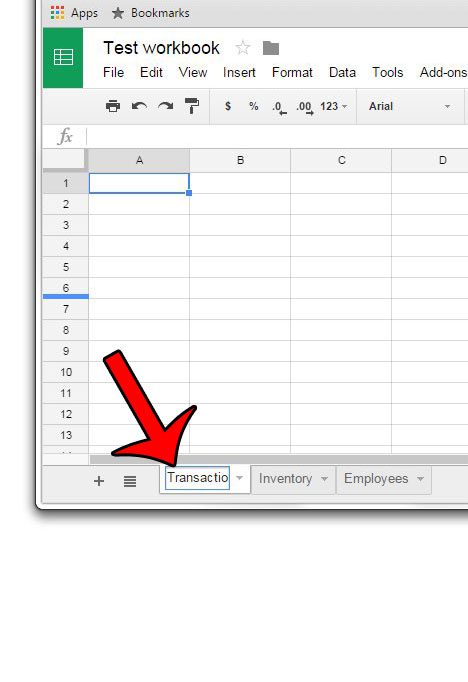
- Double-click the text on the tab you want to rename.
- Type the new name.
- Press Enter, or click anywhere in the sheet.
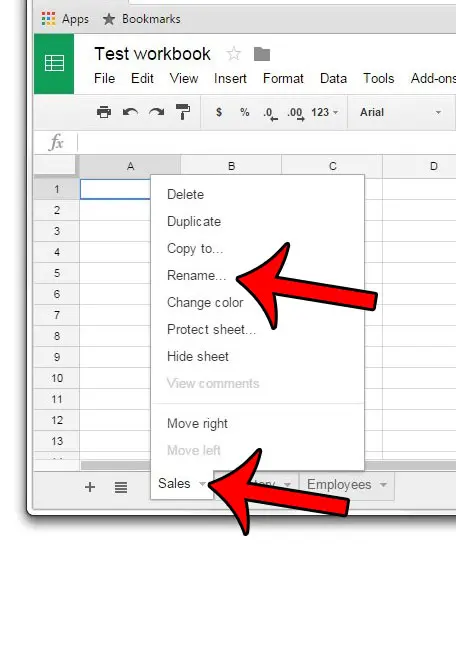
You can also click the Down arrow on the tab and choose Rename, which is handy if double-clicking keeps selecting the wrong tab.

Result: The new name shows on the tab right away for everyone who has the file open.
3 Ways to Add a Sheet Tab
- Click the + (Add sheet) button in the bottom-left corner.
- Click Insert > Sheet in the menu.
- Press Shift + F11 on Windows, or Shift + Fn + F11 on a Mac. Google lists this as the “Insert new sheet” shortcut.
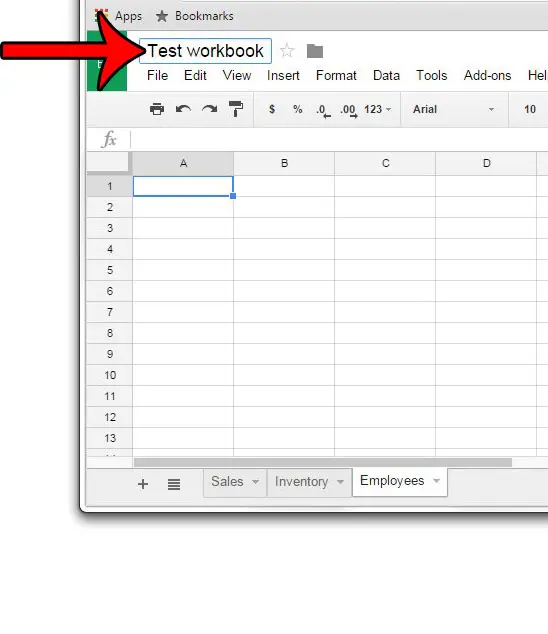
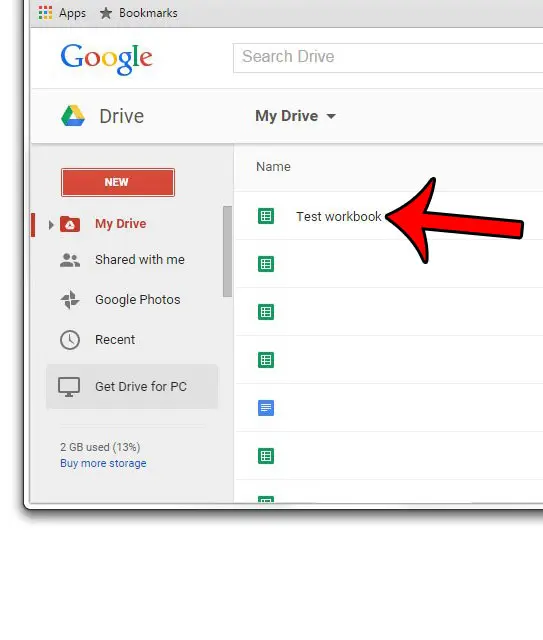
Adding a sheet tab keeps your data inside the same spreadsheet file. If you need a separate file with its own name and sharing settings, create a new Google Sheets spreadsheet in Drive instead. The title at the top names the file; the tabs at the bottom name its individual sheets. On an iPhone, you can rename the file itself in the Google Docs, Sheets, or Slides app.
Once you have several tabs, Google’s shortcuts help you jump between them. Press Alt + Down Arrow for the next sheet and Alt + Up Arrow for the previous one on Windows, or use Option instead of Alt on a Mac.
Result: A new, blank sheet tab appears and opens so you can start typing.
How to Hide or Unhide a Sheet Tab
Hiding is useful for old sheets or helper sheets that hold calculations other sheets depend on.
- Click the tab you want to hide.
- Click the Down arrow on the tab.
- Click Hide sheet. Google says this option won’t show unless the spreadsheet has two or more sheets.
To bring a sheet back, click View > Show [sheet name], then click the sheet you want to see again. If nothing is hidden, the option is grayed out.

Important: Google notes that hiding a sheet is not the same as protecting it. All editors can unhide hidden sheets, and viewers can still get to the content, for example by making a copy and unhiding the sheets there. To limit who can edit a sheet, use Data > Protect sheets and ranges, or see how to change worksheet permissions in Google Sheets.
Hidden sheets stay hidden if you export the file as a PDF, .xls or .ods file, import it in .xls, .xlsx or .ods format, or publish the spreadsheet.
Result: The tab disappears from the bottom of the screen, but its data and any formulas that use it still work.
How to Copy, Move, Color or Delete a Sheet Tab
The same Down arrow menu on each tab has the other tab tools Google documents:
- Duplicate: makes a copy in a new tab next to the original.
- Copy to: copies the sheet into another spreadsheet you choose, then click Select.
- Change color: adds a color to the tab so you can tell sheets apart.
- Delete: removes the sheet after you click OK.
To change the order, drag a tab left or right. For bulk changes, Google says you can hold Shift, select several tabs, and then copy, delete, duplicate, hide or move them together.
How to Rename a Sheet Tab in the iPhone or iPad App
Google’s iPhone and iPad steps use the tab menu instead of a double-click:
- Open the spreadsheet in the Google Sheets app.
- On the sheet tab, tap the Down arrow.
- Tap Rename.
- Enter the new name, then tap OK.
The app can also duplicate, reorder and delete tabs. Google says you need a computer to hide or unhide a sheet, add a tab color, or protect a sheet.
Frequently Asked Questions
Why can’t I hide my only sheet?
Google only shows the Hide sheet option when the spreadsheet has two or more sheets. Add a second sheet first, then hide the one you don’t need to see.
Does renaming a tab break my formulas?
Formulas that point to another sheet by name, such as =Sales!A1, update automatically when you rename the tab inside Google Sheets.
Can I hide columns instead of a whole sheet?
Yes. See how to hide columns in Google Sheets. To keep header rows or columns in view while you scroll, see how to freeze columns in Google Sheets.
Related Guides

Matthew Burleigh is the founder, head writer, and editor of Solve Your Tech, which he launched in 2012. He has written technology tutorials since 2008 and worked in IT since 2003, including small-business support, IT management, and consulting. He holds Bachelor’s and Master’s degrees in Computer Science from Arizona State University.
Matthew writes practical guides for Windows, iPhone and iPad, Microsoft Office, Outlook, Google apps, and Android. Solve Your Tech’s guides are tested on current devices or checked against official product documentation, with clear steps, sources, and update dates.
Read more about Matthew and how Solve Your Tech writes and updates its guides, or report a correction.