To stop your iPhone from sending money through Messages, open Settings, tap Wallet & Apple Pay, and turn off Apple Cash. Apple Cash is the service behind the money option in Messages, so switching it off on your iPhone means that device can no longer use it to send, request, or receive payments.
The switch only affects the iPhone you change it on. Your Apple Cash account, your balance, and any recurring payments stay in place. This guide covers the main switch, the smaller changes you can make if you only want fewer accidental payments, the controls a family organizer has over a child’s account, and how to close Apple Cash completely.
What the money option in Messages is
The option to send money in Messages is Apple Cash, Apple’s person-to-person payment service. Older versions of iOS called it Apple Pay Cash, and you may still see that name in older guides. Apple Cash is one of the iMessage apps that Apple installs automatically. An iMessage app is a small tool that runs inside the Messages app, and you reach these tools by tapping the plus button next to the text field in a conversation.
According to Apple, Apple Cash is only available in the United States, and you must be at least 18 and a U.S. resident to send and receive money with your own account. Someone under 18 can only use it if a family organizer sets it up through Apple Cash Family. If Apple Cash was never set up on your iPhone, there is no account to send money from, although you may still see a prompt to set it up when someone sends you a payment.
Before you turn off Apple Cash
Read these points first, because the switch does less than some people expect and more than others expect.
- It is per device. Apple says that if you turn off Apple Cash on one device, you can still use it on other devices where you are signed in to the same Apple Account. Repeat the steps on an iPad or Apple Watch if you want it off there too.
- Your account stays open. Turning off Apple Cash in Settings does not close the account, and your balance is not removed.
- Recurring payments keep running. Apple states that turning off Apple Cash in Settings does not stop recurring payments you have set up. Cancel or pause those separately in the Wallet app.
- It affects more than Messages. The same switch controls Apple Cash in the Wallet app on that iPhone, so you will not be able to pay with your Apple Cash card from that device while it is off.
- Other cards are not touched. Credit and debit cards you added to Apple Pay remain in Wallet. If you want to remove one of those as well, see our guide on how to remove a card from Apple Pay on an iPhone.
How to turn off Apple Cash on an iPhone
These steps follow Apple’s current instructions for iPhone. The same menu path works on an iPad.
- Open the Settings app.
- Scroll down and tap Wallet & Apple Pay.
- Find the Apple Cash switch and turn it off.
- If your iPhone asks you to confirm, tap the option to turn it off. The Apple Cash card is then removed from Wallet on this iPhone.
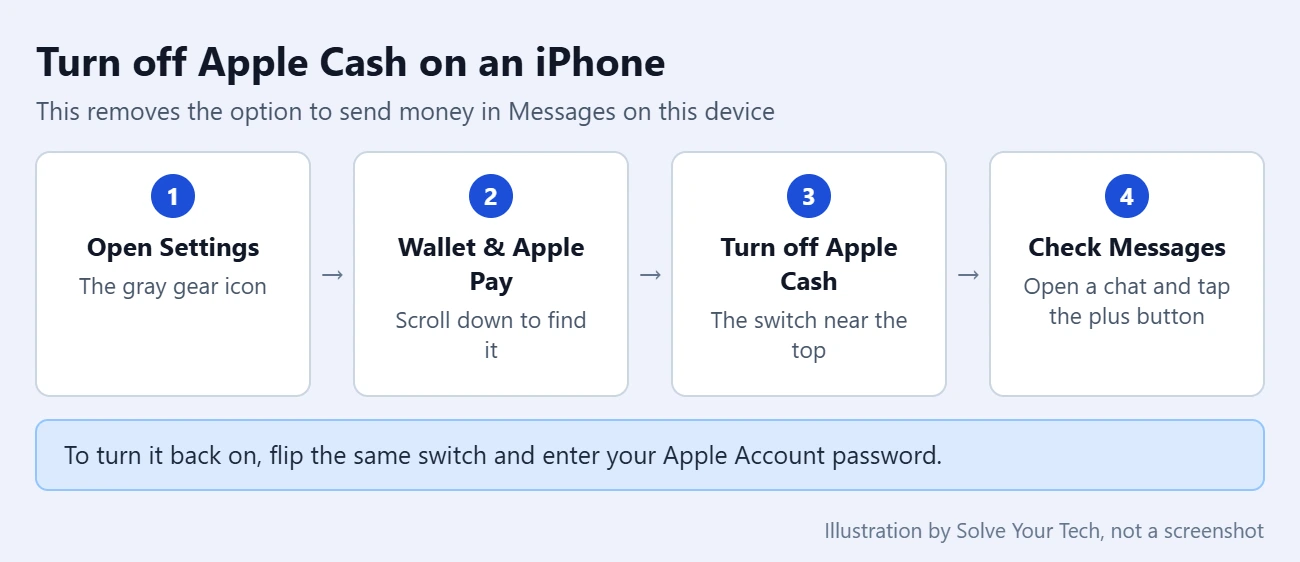
Apple documents this switch on its page about how to close your Apple Cash account or turn it off on a device. The exact wording of the confirmation message can differ between iOS versions, so read what is on your screen before you confirm.
Turn it off on an Apple Watch
An Apple Watch has its own switch. Open the Watch app on your iPhone, tap Wallet & Apple Pay, then turn off Apple Cash. This matters if you want to be sure money cannot be sent from the Messages app on your wrist either.
How to confirm the change and undo it
To check the result, open Messages, open any conversation, and tap the plus button. With Apple Cash turned off, your iPhone should no longer be able to send a payment from that list. Apple does not say whether the Apple Cash entry disappears completely or stays in the list and asks you to set it up again, so do not be concerned if you still see the name there. You can also open the Wallet app and confirm that the Apple Cash card is gone from this iPhone.
To undo the change, go back to Settings > Wallet & Apple Pay and turn Apple Cash on again. Apple notes that you need to enter your Apple Account password to turn it back on. That password requirement is useful if your goal is to stop someone else who uses your iPhone from sending money.
Smaller changes that reduce accidental payments
If you want to keep Apple Cash but make a mistaken payment less likely, these options are less drastic.
Turn Apple Cash off in the iMessage apps list
Apple lets you switch individual iMessage apps on or off. Go to Settings > Apps > Messages > iMessage Apps, then tap an app to turn it on or off. On older iOS versions, Messages is in the main Settings list instead of under Apps. Apple’s instructions for this menu are on its iMessage apps support page. Apple does not confirm that Apple Cash appears in this list on every iPhone, so if you do not see it there, use the main switch in Wallet & Apple Pay instead.
Move Apple Cash out of the way
In a conversation, tap the plus button, then touch and hold an app icon until it shrinks slightly and drag it to a new position. Moving Apple Cash lower in the list keeps it away from the options you tap most often. This does not disable anything.
Rely on the payment confirmation
A payment does not leave your account from a single tap. Apple’s steps for sending money end with a double-click of the side button and confirmation with Face ID, Touch ID, or your passcode. If someone asks you for money in Messages, you can simply ignore the request to decline it.
Accept incoming payments manually
If your concern is money arriving rather than leaving, open Wallet, tap your Apple Cash card, tap the More button, tap Card Details, then choose Manually Accept Payments. Incoming payments then wait for you to tap Accept in the conversation. Apple says you have 7 days to accept, and that this setting updates on all your devices.
Limit or lock Apple Cash for a child
If the iPhone belongs to your child or teen and their Apple Cash account was set up through Apple Cash Family, the family organizer controls it from the organizer’s own iPhone. This is the right tool for a child’s device, because a child cannot simply switch it back on.
- On the organizer’s iPhone, open Wallet and tap the Apple Cash card.
- Tap the More button, then tap Apple Cash Family.
- Tap the child’s or teen’s name.
- Choose who they can send money to: Everyone, Contacts Only, or Family Members Only.
- To stop all activity, turn on the option to lock Apple Cash. Apple says a locked account cannot make purchases or send and receive money.
Only the organizer can change these limits. A parent or guardian who is not the organizer can view the balance and transactions and turn on transaction notifications. Apple lists these controls on its page about how to view and limit your child or teen’s Apple Cash activity.
Turning it off compared with closing the account
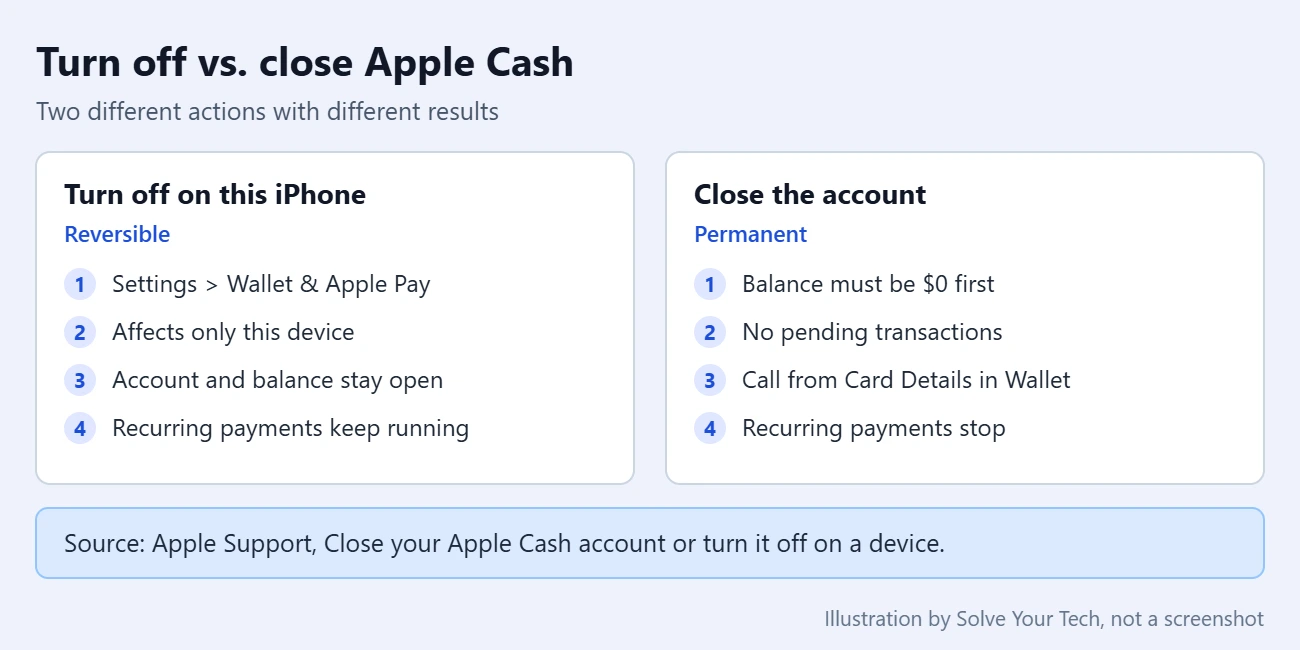
Turning off Apple Cash on a device and closing the Apple Cash account are different actions. Use the table to decide which one you need.
| Question | Turn off on this iPhone | Close the account |
|---|---|---|
| Where do you do it? | Settings > Wallet & Apple Pay | By phone, from Card Details in Wallet |
| Which devices are affected? | Only the device you change | All of them |
| What happens to the balance? | It stays in your account | It must be $0 before you close |
| Do recurring payments stop? | No | Yes |
| Can you reverse it? | Yes, with your Apple Account password | The account is closed |
How to close the Apple Cash account
Warning: closing the account is a bigger step than flipping a switch. Apple says your balance must be $0 and you must have no pending transactions first. If you are a family organizer, closing your account also closes the Apple Cash Family accounts you set up, after their balances are transferred to you.
- Bring the balance to $0. You can transfer the money to your bank, spend it, or send it to someone.
- Open Wallet and tap your Apple Cash card.
- Tap the More button, then tap Card Details.
- Tap Call to reach an Apple Cash Specialist at Green Dot Bank, the bank that provides Apple Cash, and ask to close the account.
Troubleshooting
- There is no Apple Cash switch. Apple Cash is limited to the United States, so the switch may not appear if your region is set elsewhere. It also needs a compatible device and two-factor authentication on your Apple Account. If the feature is not available to you, there is nothing to turn off.
- You only see Apple Pay Cash. That is the older name for the same switch on early versions of the feature. The steps are the same.
- Messages still offers Apple Cash on another device. The switch is per device. Turn it off on each iPad and Apple Watch as well.
- Money still left your account. A recurring payment keeps running when Apple Cash is turned off. In Wallet, tap the Apple Cash card, tap More, tap Recurring Payments, then cancel or pause the payment.
- A child’s switch keeps coming back on. Use the Apple Cash Family lock from the organizer’s iPhone instead of the switch on the child’s device.
- You sent a payment by mistake. In your Apple Cash transaction history, a payment that shows as pending has not been accepted yet and can be canceled. Apple explains this on its page about how to send and receive money with Apple Cash. Once a payment is accepted, Apple treats it like any private transaction between two people.
Frequently asked questions
Does turning off Apple Cash delete my balance?
No. Apple states that turning off Apple Cash in Settings does not close your account. Your balance stays with the account, and you can still reach it on another device signed in to the same Apple Account or by turning Apple Cash back on.
Can people still send me money after I turn it off?
Turning off Apple Cash on one iPhone does not close the account, so the account itself still exists and still works on your other devices. If you do not want incoming money to be added automatically, set the account to Manually Accept Payments before you turn the switch off, or close the account if you never want to receive payments.
Will turning off Apple Cash turn off Apple Pay?
No. Apple Cash is one card inside Wallet. The credit and debit cards you added for Apple Pay are separate and remain available for purchases in stores, in apps, and on websites.
Can I block payments to just one person?
There is no per-contact switch for your own Apple Cash account in Apple’s documentation. The per-person limits Apple describes apply to Apple Cash Family, where an organizer can restrict a child or teen to contacts or family members only.
Does turning off iMessage remove the money option?
That is not the setting Apple documents for this purpose, and it changes much more than payments. With iMessage off, your texts go out as SMS or MMS and features such as editing and unsending messages are unavailable. Our guide on turning iMessage on or off explains what that switch does. Use the Apple Cash switch instead.
Next step
Turn off Apple Cash in Settings > Wallet & Apple Pay, then check the Wallet app for any recurring payments you also want to stop. If you use Messages on more than one Apple device, you may also want to review text message forwarding on your iPhone so you know which devices can send messages from your number.

Matthew Burleigh is the founder, head writer, and editor of Solve Your Tech, which he launched in 2012. He has written technology tutorials since 2008 and worked in IT since 2003, including small-business support, IT management, and consulting. He holds Bachelor’s and Master’s degrees in Computer Science from Arizona State University.
Matthew writes practical guides for Windows, iPhone and iPad, Microsoft Office, Outlook, Google apps, and Android. Solve Your Tech’s guides are tested on current devices or checked against official product documentation, with clear steps, sources, and update dates.
Read more about Matthew and how Solve Your Tech writes and updates its guides, or report a correction.