To customize the toolbar in Outlook.com, select Settings (the gear icon) at the top of the page, choose Mail, then Customize actions. Select the check boxes for the buttons you want, clear the ones you do not want, and select Save.
That one page controls three sets of buttons: the actions in the message list, the actions at the top corner of a message you are reading, and the actions on the message toolbar when you are composing an email. The steps below come from Microsoft’s own help page, Customize actions on your messages in Outlook.com.
This Guide Is for Outlook.com
This guide is for Outlook.com, the free Microsoft email service that you use in a web browser such as Chrome, Edge, Firefox, or Safari. You need to be signed in to your Microsoft account on a computer. The setting lives in the browser version of Outlook.com, so use a desktop or laptop browser, not the Outlook phone app.
A few terms used in this guide:
- Actions: Microsoft’s name for the small buttons that do something to a message, such as delete, flag, attach a file, or insert an emoji.
- Message list: the column that lists the emails in a folder.
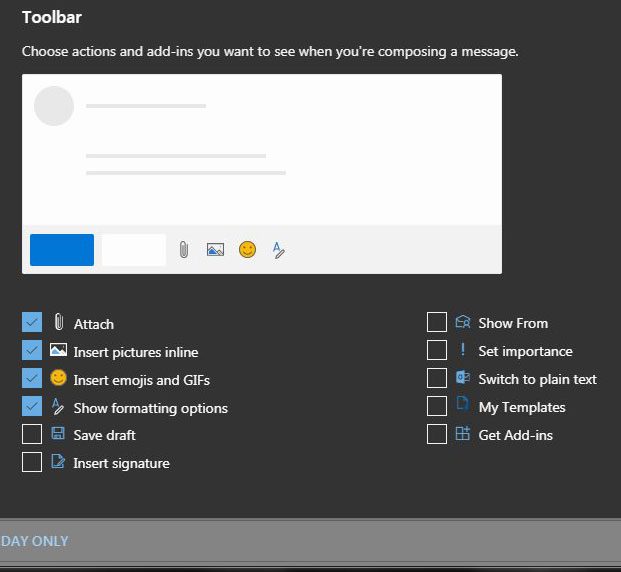
- Message toolbar: the row of buttons you see while you are writing an email.
- Ribbon: the wider strip of commands across the top of Outlook, sorted into groups such as Insert and Format text.
Nothing in these steps deletes mail or changes how messages are sent. You are only choosing which buttons are shown, and you can change your mind at any time.
How to Customize the Toolbar in Outlook.com

- Sign in to Outlook.com. Open your browser, go to outlook.com, and sign in. Your inbox opens.
- Select Settings. It is the gear icon at the top of the page. A Settings window opens.
- Select Mail. A second column of mail options appears.
- Select Customize actions. The page lists the actions you can show, grouped by where they appear.
- Go to the type of actions you want to change. Microsoft describes three places: the message list, the top corner of a message you are reading, and the message toolbar you see when composing. Scroll until you reach the group for the area you care about.
- Select the check boxes for the actions you want. They appear in the example on the page as you select them, so you can preview the result before you commit.
- Clear the check boxes for actions you do not want. Some actions are selected by default, and you can clear them if you prefer.
- Select Save. Your choices are not applied until you do this.

If the page won’t let you add another action, clear one you don’t need, then try again.
How to Change the Order of the Buttons
There are no arrows to move a button left or right. According to Microsoft, the order depends on the order in which you select the actions. To rearrange them:
- Open Settings > Mail > Customize actions.
- Clear the check boxes for the actions you want to reorder.
- Select them again in the order you want them to appear. Start with the button you want first.
- Check the example on the page, then select Save.
What Each Group of Actions Controls
The three groups affect different parts of the screen, so it helps to know which one you are changing.
| Where the buttons appear | When you see them | Good reason to change it |
|---|---|---|
| Message list | While you browse the emails in a folder | You want a quick way to act on an email without opening it |
| Top corner of a message | While you read an email | You use the same reply or cleanup actions on most messages |
| Message toolbar | While you compose a new email or a reply | You want fewer or different buttons next to the message you are writing |
The actions on offer can change. Some, such as a report abuse action, roll out gradually, so your list may differ from someone else’s.
How to Confirm the Change Worked
After you select Save, close the Settings window and look at the area you changed.
- Message list: go to your inbox and look for the buttons you picked on an email in the list. They may only show when you point at or select a message.
- Reading a message: open any email and look at the top corner of the message.
- Composing: select New mail and look at the buttons around the message you are writing.
If the buttons look the same as before, refresh the browser tab and check again. If they still have not changed, go back to Customize actions and make sure your check boxes are still selected. Leaving the page without selecting Save is the most likely reason a change does not stick.
How to Undo Your Changes
There’s no reset button. To undo your changes, return to Settings > Mail > Customize actions, clear the actions you added, select the ones you removed, and select Save. Note which boxes are checked before you start so you can go back.
The Compose Toolbar and the Ribbon
Outlook.com has changed since the Customize actions page was introduced. Microsoft’s current guide to customizing an email message in Outlook.com describes the compose buttons as part of a ribbon. For example, it places Attach file, Pictures, Emoji, and Table in the Insert group, font and list buttons in the Format text group, and importance in the Tags group.
So if a compose button you want isn’t on the Customize actions page, check the ribbon. It may already be there in a different group. Use the check boxes on your own screen as the final list.
If a ribbon button seems to be missing, make the browser window wider. A narrow window hides commands that don’t fit, and some are tucked behind the three-dot button at the right end of the ribbon.
Outlook.com Is Not the Same as the Outlook Desktop App
Many guides about customizing the Outlook toolbar are written for the Outlook program installed on a Windows PC. Those steps do not apply to Outlook.com in a browser.

Classic Outlook for Windows has a Quick Access Toolbar, a small row of shortcut buttons that stays visible no matter which ribbon tab is open. Microsoft’s Quick Access Toolbar guide explains that you right-click a command and choose Add to Quick Access Toolbar, or manage the full list under File > Options > Quick Access Toolbar. Outlook.com has no File tab, so if a guide tells you to open File > Options, it is describing the desktop app.
Classic Outlook can also show a slimmer ribbon called the Simplified Ribbon. Microsoft’s page on customizing the Simplified Ribbon says you can right-click a button and choose Pin to Ribbon or Remove from Ribbon. That page applies to Outlook for Microsoft 365 and Outlook 2016, not to Outlook.com.
Not sure which one you have? If you opened your email by typing a web address into a browser, you are using Outlook.com or Outlook on the web. If you opened a program from the Start menu or taskbar, you are using a desktop app.
When Customize Actions or the Gear Is Missing
Customize actions is not in the list
Make sure you selected Mail in the first column of the Settings window. Customize actions is a Mail option, so it doesn’t appear under other categories. If the Settings window has a search box, type customize to find it.
The gear icon is missing
The Settings icon sits at the top of the page. In a narrow browser window, the icons at the top can be hidden. Make the window wider, or set the browser zoom back to 100%, then look again.
A check box cannot be selected
An area may only hold so many actions. Clear another action first, then select the one you want. A grayed-out check box can’t be changed for your account.
The action I want is not offered
You can only choose from the actions on the page. There is no documented way to add a custom button to Outlook.com. Check the ribbon groups described above, because the command may be there already.
My changes did not save
Select Save before you close the Settings window. If the button does nothing, refresh the page, sign in again if asked, and repeat the steps. A browser extension that blocks scripts can also interfere, so try a private window or another browser to rule that out.
I use a work or school account
Microsoft’s help page is written for Outlook.com personal accounts. Outlook on the web for work or school looks similar, but your organization manages it, and the available settings can differ. Ask your IT department if an option is missing. Personal accounts have other Mail settings too, such as the option to block attachments, pictures, and links from unknown senders.
Settings is also where you can turn on a new email sound in Outlook.com under General > Notifications.
Once your buttons are where you want them, a few other Outlook.com settings are worth a look. If keyword suggestions get in your way while you write, you can turn off quick suggestions in Outlook.com. To show each email on its own in the message list, stop grouping messages by conversation. To finish every message the same way, learn how to add a signature in Outlook.
Outlook.com Toolbar Questions
Where is the Customize actions setting in Outlook.com?
Select Settings (the gear icon) at the top of the Outlook.com page, then select Mail, then Customize actions. That page holds the check boxes for the message list, the message you are reading, and the message toolbar.
Can I remove buttons I never use?
Yes. Some actions are selected by default, and you can clear them. Open Settings > Mail > Customize actions, clear the check box for each action you do not want, and select Save.
Can I rearrange the buttons?
Yes, but not by dragging. The order follows the order in which you select the actions. Clear the check boxes, then select them again in the order you want, and select Save.
Does Outlook.com have a Quick Access Toolbar?
No. The Quick Access Toolbar is part of the classic Outlook desktop app and other Office desktop programs. In Outlook.com, the closest equivalent is the Customize actions page in the Mail settings.
Will my toolbar changes affect the Outlook phone app?
Customize actions is documented only for Outlook.com in a browser. The Outlook mobile app has its own settings, so do not expect the same buttons to appear there.
Does customizing the toolbar change my emails?
No. The setting only controls which buttons are displayed. Your messages, folders, and signature stay the same.

Matthew Burleigh is the founder, head writer, and editor of Solve Your Tech, which he launched in 2012. He has written technology tutorials since 2008 and worked in IT since 2003, including small-business support, IT management, and consulting. He holds Bachelor’s and Master’s degrees in Computer Science from Arizona State University.
Matthew writes practical guides for Windows, iPhone and iPad, Microsoft Office, Outlook, Google apps, and Android. Solve Your Tech’s guides are checked step by step against the device or app maker’s own documentation and tested on his own devices whenever he has the hardware or software, with clear steps, sources, and update dates.
Read more about Matthew and how Solve Your Tech writes and updates its guides, or report a correction.