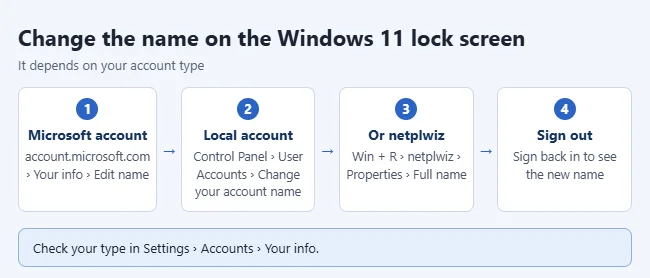
The name on the Windows 11 lock and sign-in screen is your account’s display name. For a Microsoft account, change it at account.microsoft.com under Your info › Edit name, then restart. For a local account, open Control Panel › User Accounts › Change your account name. Both need you to sign out and back in before the new name shows.
Not sure which you have? Open Settings › Accounts › Your info. A Microsoft account shows an email address under your name; a local account says Local account.
Change the name for a Microsoft account
- Go to account.microsoft.com and sign in.
- Select Your info.
- Select Edit name, enter your first and last name, and save.
- Restart the PC or sign out and back in. The new name can take a little while to sync.
If you change the name on the PC instead, Windows may switch it back to the online name after the next sync, as users report on Eleven Forum.
Change the name for a local account
- Open Control Panel and select User Accounts, then User Accounts again.
- Select Change your account name.
- Type the new name and select Change Name.
- Sign out and back in.
Or use netplwiz
- Press Windows key + R, type
netplwiz, and press Enter. - Select your account and choose Properties.
- Change the Full name field and select OK.
- Sign out and back in.
You need administrator rights for these steps. Changing the display name doesn’t rename your user folder in C:\Users.
Hide your email address on the sign-in screen
Windows 11 doesn’t show the email address by default. If yours appears, open Settings › Accounts › Sign-in options and turn off Show account details such as my email address on the sign-in screen.
Frequently asked questions
Can I show a nickname instead of my real name?
Yes. With a local account, type any name. With a Microsoft account, the name you enter online is what Windows shows, and it also appears in Outlook and other Microsoft services. You could switch to a local account if you want a different name only on the PC.
How do I find my username?
See how to find your computer username in Windows 11.

Matthew Burleigh has been writing tech tutorials since 2008. His writing has appeared on dozens of different websites and been read hundreds of millions of times.
After receiving his Bachelor’s and Master’s degrees in Computer Science he spent several years working in IT management for small businesses. However, he now works full time writing content online and creating websites.
His main writing topics include iPhones, Microsoft Office, Google Apps, Android, and Photoshop, but he has also written about many other tech topics as well.