You don’t need to enable IMAP in a personal Gmail account anymore. Google says that since January 2025, IMAP access is always on, and the Enable IMAP and Disable IMAP options were removed from Gmail’s settings. To use Gmail in another email app, add your account in that app and choose Sign in with Google. Work and school accounts are different: your administrator controls whether IMAP is available.
That’s why older guides, including an earlier version of this one, send you to a button that no longer exists. Below you’ll find how to connect Gmail to the most common email apps, the server settings for apps that ask for them, what to do when your password is rejected, and how work and school accounts differ. Details follow Google’s Gmail and Workspace help pages, checked October 1, 2026.
What Changed With Gmail IMAP
IMAP is the technology that lets email apps like Outlook, Apple Mail, and Thunderbird show your Gmail and keep it in sync. For years, you had to turn it on under Settings > See all settings > Forwarding and POP/IMAP.
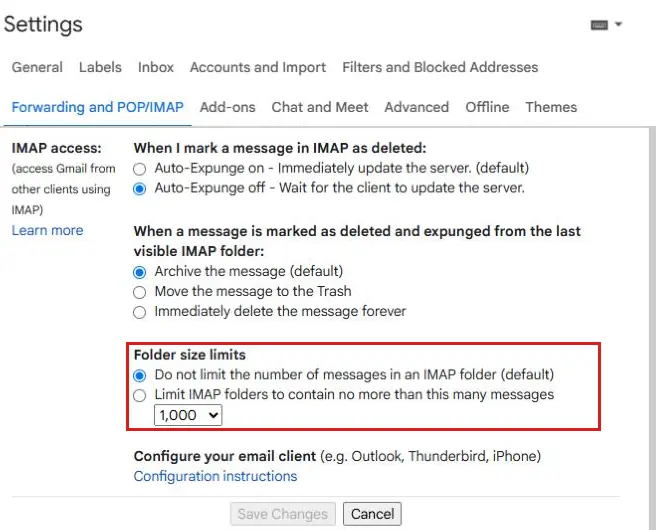
Starting in January 2025, Google made IMAP always on for Gmail. The Forwarding and POP/IMAP tab is still there, but the Enable IMAP choice isn’t. You can skip straight to adding your account.
How to Add Gmail to Another Email App
Most modern email apps connect to Gmail automatically. The general steps are:
- Open your email app and find the option to add an account.
- Enter your Gmail address.
- If the app shows Google or Sign in with Google, choose it.
- Sign in on Google’s page and select Allow to give the app access.
- Finish the prompts. Result: Google says your messages and labels sync with the app.
Classic Outlook for Windows
- Select File > Add Account.
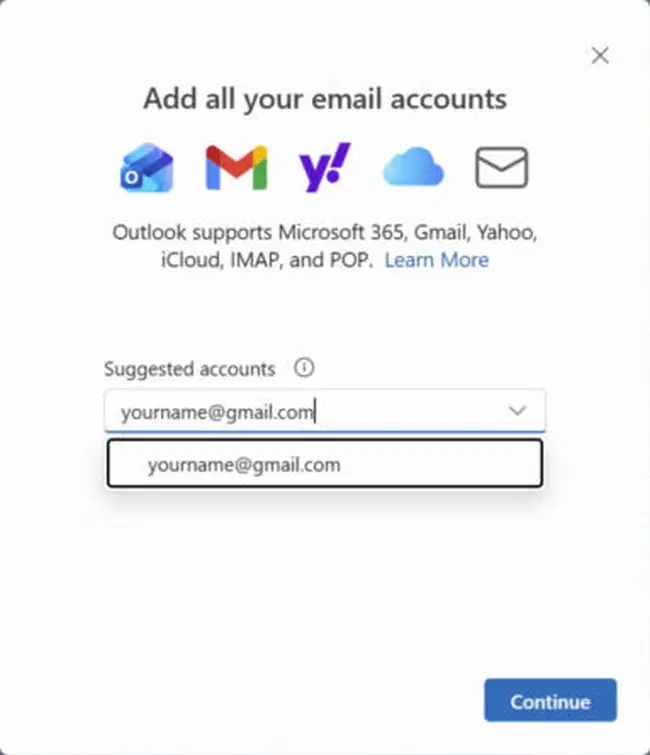
- Enter your Gmail address and select Connect.
- Confirm the address in the Gmail sign-in window and select Next.
- Enter your password and follow the prompts.
- On the Google permissions window, select Allow, then select Done. Result: Gmail appears in Outlook’s folder pane and starts downloading mail.
New Outlook for Windows
- On the View tab, select View settings.
- Select Accounts > Your accounts.
- Select Add account, enter your Gmail address, and select Continue.
- Follow the prompts, and select Allow on the Google permissions window. Result: the Gmail account is listed under Your accounts.
iPhone or iPad Mail app
- Open Settings and tap Apps.
- Tap Mail, then Mail Accounts.
- Tap Add Account, then choose Google or enter your Gmail address.
- Sign in and follow the prompts. If you see Save, tap it. Result: the account appears in the Mail app’s mailbox list.
For more detail, see our guide on adding a Gmail account to your iPhone. On Android, the Gmail app uses your Google account directly, so it doesn’t need any IMAP setup.
Gmail IMAP and SMTP Server Settings
If your app asks you to enter settings yourself, use these from Google:
- Incoming mail (IMAP) server: imap.gmail.com
- IMAP port: 993, with SSL
- Outgoing mail (SMTP) server: smtp.gmail.com
- SMTP port: 587 with TLS, or 465 with SSL
- User name: your full Gmail address
If sending fails on your iPhone after setup, our fix for “The connection to the outgoing server failed” may help.
What to Do If Gmail Rejects Your Password
Older email apps that don’t support Sign in with Google often reject your regular Gmail password. Try these fixes in order:
- Update the email app to its newest version, then try adding the account again and look for a Google sign-in option.
- If the app still can’t use Google sign-in, turn on 2-Step Verification for your Google Account.
- Create an app password from your Google Account’s App passwords page.
- Enter that app password in the email app instead of your regular password.
Google says app passwords aren’t recommended and usually aren’t needed, so use one only as a last resort. You won’t see the app password option if your account uses 2-Step Verification with security keys only, has Advanced Protection, or is a work or school account.
Other Common Gmail IMAP Problems
- Work or school account won’t connect. Google Workspace administrators turn IMAP on in the Admin console under Apps > Google Workspace > Gmail > End User Access, and can limit which email apps are allowed. Google also says that since May 1, 2025, Workspace accounts no longer accept apps that sign in with just a username and password. Ask your IT department.
- Too many connections. Gmail allows up to 15 IMAP connections to one account at a time. Close email apps on devices you aren’t using.
- Syncing is slow or your app freezes on big folders. Limit how many messages each folder shows over IMAP (steps below).
- Sent or deleted messages act strangely. Google recommends turning off your app’s options to save sent and deleted messages on the server. Gmail already copies sent mail to your Sent folder, and messages you delete in an app stay in All Mail.
How to limit IMAP folder sizes
- Open Gmail on a computer.
- Click Settings (the gear), then See all settings.
- Click the Forwarding and POP/IMAP tab.
- Under Folder size limits, select Limit IMAP folders to contain no more than this many messages.
- Choose a number from the menu. Google suggests syncing only folders with 10,000 emails or fewer if your app crashes or downloads slowly.
- Click Save Changes. Result: your email app shows only the most recent messages in each folder.
How to stop certain labels from syncing
Google also suggests not syncing folders you don’t need. In Gmail on a computer, go to Settings > See all settings > Labels and uncheck Show in IMAP next to any label you don’t want in your email app, such as All Mail. Result: that label disappears from your app on the next sync, but stays in Gmail.
Frequently Asked Questions
How do I know if IMAP is enabled in Gmail?
For a personal Gmail account, it always is. Google removed the switch in January 2025. For a work or school account, your administrator decides.
Should I use IMAP or POP for Gmail?
IMAP is the better choice for most people. It keeps your mail in sync, so a message you read or delete on your phone is read or deleted in Gmail too. That also means a synced app is not a separate backup; our guide on backing up Gmail covers that. POP is an older method that downloads messages to a device and doesn’t keep your apps in sync the way IMAP does.
Can I turn IMAP off in Gmail?
Not in a personal account. The Disable IMAP option was removed. To stop an app from getting your mail, remove the account from that app.
Sources: Google’s help pages on adding Gmail to another email client, IMAP client settings, server settings for third-party clients, and app passwords; Microsoft’s guide to adding Gmail to Outlook; and Apple’s guide to adding email accounts to iPhone.
More Gmail Guides

Matthew Burleigh is the founder, head writer, and editor of Solve Your Tech, which he launched in 2012. He has written technology tutorials since 2008 and worked in IT since 2003, including small-business support, IT management, and consulting. He holds Bachelor’s and Master’s degrees in Computer Science from Arizona State University.
Matthew writes practical guides for Windows, iPhone and iPad, Microsoft Office, Outlook, Google apps, and Android. Solve Your Tech’s guides are tested on current devices or checked against official product documentation, with clear steps, sources, and update dates.
Read more about Matthew and how Solve Your Tech writes and updates its guides, or report a correction.