To set an out of office reply in Gmail, click Settings > See all settings, scroll to Vacation responder on the General tab, and select Vacation responder on. Add the dates, subject and message, then click Save Changes. Check the box under the message to reply only to people in your contacts.
This guide covers Gmail on a computer and the Gmail app on iPhone, iPad and Android. It shows how to turn on the vacation responder, limit it to contacts, how the automatic reply behaves, how to turn it off early, and gives sample messages you can copy. The steps come from Google’s Send an automatic reply when you’re out of office help article, checked in October 2026.
How to Set an Out of Office Reply in Gmail on a Computer
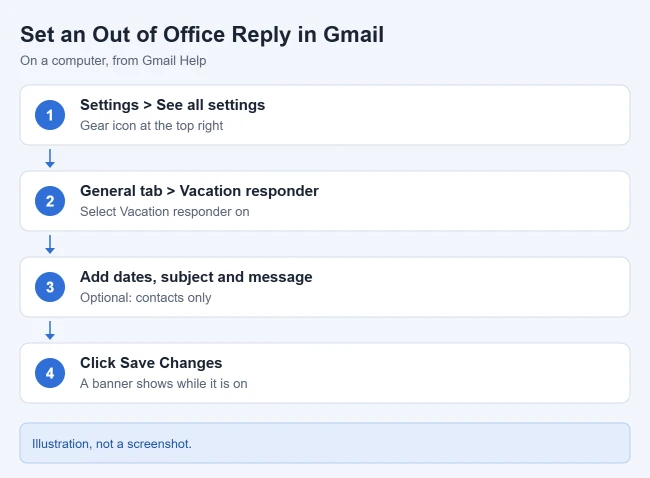
- Open Gmail on your computer. Result: your inbox appears.
- At the top right, click Settings (the gear icon), then See all settings. Result: the full settings page opens on the General tab.
- Scroll down to the Vacation responder section. Result: the auto-reply options appear.
- Select Vacation responder on. Result: the date and message fields become active.
- Enter the first day, last day, subject and message. Result: your reply is ready.
- Optional: check the box under the message to send the reply only to people in your contacts. Result: strangers and newsletters won’t get your reply.
- Click Save Changes at the bottom of the page. Result: the vacation responder is on, and a banner appears at the top of your inbox.
How to Set It Up in the Gmail App
On iPhone or iPad
- Open the Gmail app and tap Menu at the top left, then Settings. Result: your settings open.
- Under Compose and Reply, tap Vacation responder. Result: the responder settings appear.
- Turn on Vacation Responder, then enter the date range, subject and message. Result: your reply is ready.
- Optional: tap Send only to my Contacts. Then tap Save at the top right. Result: the reply is active.
On Android
- Open the Gmail app, tap Menu, then Settings, and choose your account. Result: the account settings open.
- Tap Vacation responder and turn the switch on at the top. Result: the responder fields appear.
- Fill in the date range, subject and message. Optionally check the box to reply only to contacts, then tap Done. Result: the reply is active.
How the Automatic Reply Works
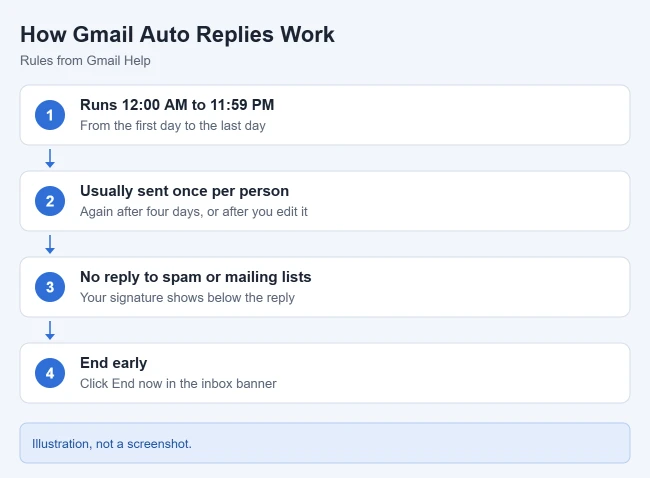
- Timing: it starts at 12:00 AM on the first day and ends at 11:59 PM on the last day, unless you end it earlier.
- Usually once per person: Google says most people only get your reply the first time they write. They get it again if they email you after four days and the reply is still on, or if you edit the reply.
- Not sent to everyone: emails that go to your spam folder or are addressed to a mailing list you subscribe to don’t get a reply.
- Your signature is added: if you have a Gmail signature, it appears below the reply. See how to create a signature in Gmail.
- Separate thread tip: Google says adding a subject line to your reply sends it as a separate email instead of inside the conversation.
How to Turn It Off Early
- On a computer: while the responder is on, a banner appears at the top of your inbox. Click End now.
- In the app: go back to Vacation responder in Settings and turn it off.
Out of Office Message Examples
Keep it short: when you’re back, who to contact for urgent matters, and nothing you wouldn’t want a stranger to read. Copy and edit any of these:
Simple
“Thanks for your email. I’m out of the office until Monday, June 9, with limited access to email. I’ll reply when I’m back.”
With a Backup Contact
“Hi, I’m away until June 9. For anything urgent, please contact Jordan at jordan@example.com. Otherwise, I’ll get back to you when I return.”
Personal Account
“I’m on vacation and checking email only occasionally. I’ll catch up after June 9.”
For safety, avoid giving exact travel details in a reply that anyone can receive. Using the contacts-only option helps.
Other Ways to Manage Email While You’re Away
- Forward mail to a colleague: see how to automatically forward emails in Gmail.
- Look professional: see how to change the default font in Gmail.
- Add tools: see how to install a Gmail add-on.
Frequently Asked Questions
Can I schedule an out of office reply in advance?
Yes. Set the first day to a future date. Google says the reply starts at 12:00 AM on that day.
Why didn’t someone get my automatic reply?
They may have already received it in the past four days, their email went to spam, or it was sent to a mailing list. If you chose contacts only, people not in your contacts won’t get it.
Can I have a different reply for different people?
Not with the vacation responder. It sends the same message to everyone who qualifies.

Matthew Burleigh is the founder, head writer, and editor of Solve Your Tech, which he launched in 2012. He has written technology tutorials since 2008 and worked in IT since 2003, including small-business support, IT management, and consulting. He holds Bachelor’s and Master’s degrees in Computer Science from Arizona State University.
Matthew writes practical guides for Windows, iPhone and iPad, Microsoft Office, Outlook, Google apps, and Android. Solve Your Tech’s guides are tested on current devices or checked against official product documentation, with clear steps, sources, and update dates.
Read more about Matthew and how Solve Your Tech writes and updates its guides, or report a correction.