To change the Microsoft account on Windows 11, first switch to a local account in Settings > Accounts > Your info, then select “Sign in with a Microsoft account instead” and sign in with the new account. Windows doesn’t have a single button to swap one Microsoft account for another. If someone else needs their own Microsoft account on the PC, add them as a new user instead.
These steps apply to Windows 11 Home and Pro on a PC you sign in to with a personal Microsoft account (an Outlook.com, Hotmail, Live or other email address you use with Microsoft). Work and school accounts are controlled by the organization and are covered only in the troubleshooting section.
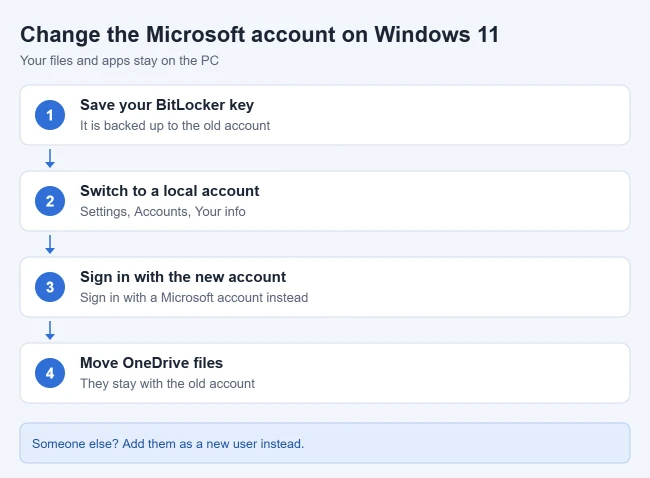
Pick the Right Method
“Changing the Microsoft account” can mean four different things. Choose the row that matches what you want.
| What you want | Method | What happens to your files |
|---|---|---|
| Sign in to your own Windows profile with a different Microsoft account | Switch to a local account, then to the new Microsoft account | Your desktop, documents, apps and settings stay |
| Give another person their own sign-in | Add the account as a new user | The new user starts with an empty profile |
| Use a different account only in Outlook, the Store or another app | Change the app account in Email & accounts | Nothing changes in your Windows profile |
| Keep the same account but sign in with a new email address | Add an email alias online and make it primary | Nothing changes on the PC |
Before You Switch
- Save your BitLocker recovery key. If device encryption or BitLocker is on, the recovery key is usually backed up to your current Microsoft account. Sign in at account.microsoft.com and note the key, or turn off BitLocker in Windows 11 before you switch. Microsoft’s BitLocker recovery key page explains that its support staff can’t recover or recreate a lost key, so keep your own copy with its key ID.
- Move OneDrive files you need. Files in OneDrive stay with the old account. Make sure anything you want to keep is downloaded to the PC, or move the files from OneDrive to your PC.
- Have both passwords ready, plus a password for the temporary local account. If the new account does not exist yet, create a free Outlook email account first.
- Keep your phone nearby. If the new account uses two-step verification, Microsoft sends a code by text, email or the Authenticator app during sign-in.
- Stay connected to the internet. Windows needs a connection to sign in with the new Microsoft account.
Replace the Microsoft Account You Sign In With
Your files, apps, and settings stay on the PC. Only the account linked to your sign-in changes. Save any open work first, because Windows signs you out partway through.
If you only want a new sign-in address on the same account, you can change the administrator email on Windows 11 without switching accounts.
- Press Windows key + I to open Settings.
- Select Accounts, then Your info. Your name and current Microsoft account email appear at the top.
- Under Account settings, select Sign in with a local account instead.
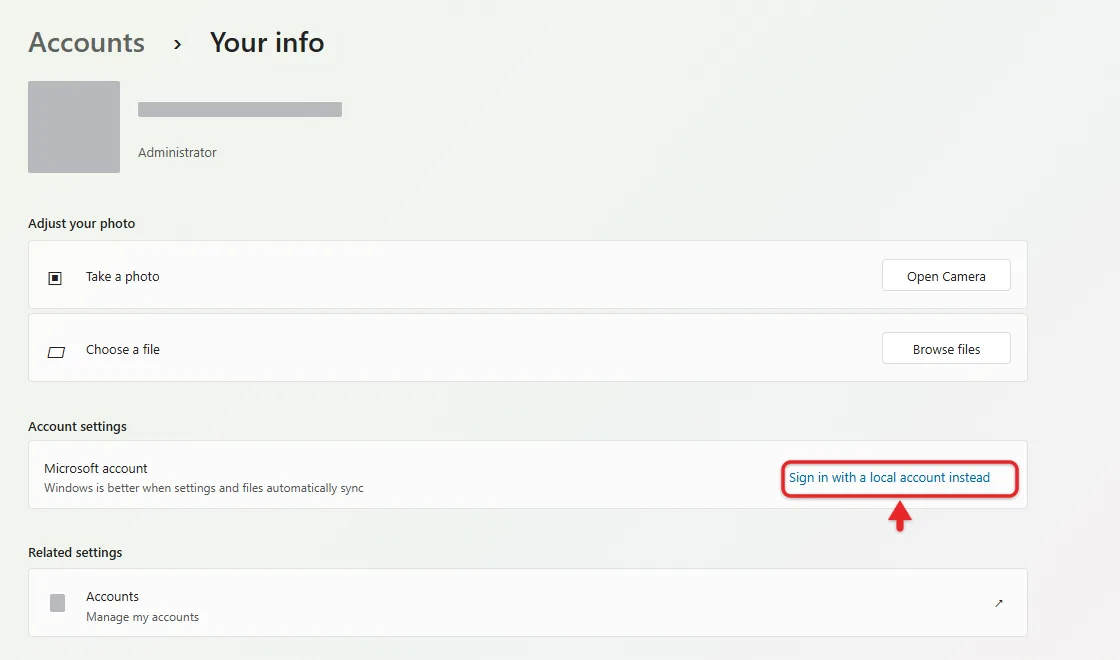
- Select Next on the confirmation screen, then enter your current PIN or Microsoft account password when Windows asks you to verify it.
- Type a user name, a password and a password hint for the local account, then select Next. The user name can’t match another account on the PC.
- Select Sign out and finish, then sign back in on the sign-in screen with the local account you just created.
- Go back to Settings > Accounts > Your info. Your name now shows Local account under it.
- Select Sign in with a Microsoft account instead.
- Enter the email address or phone number of the new Microsoft account, select Next, then enter its password. If a verification code is sent, enter it.
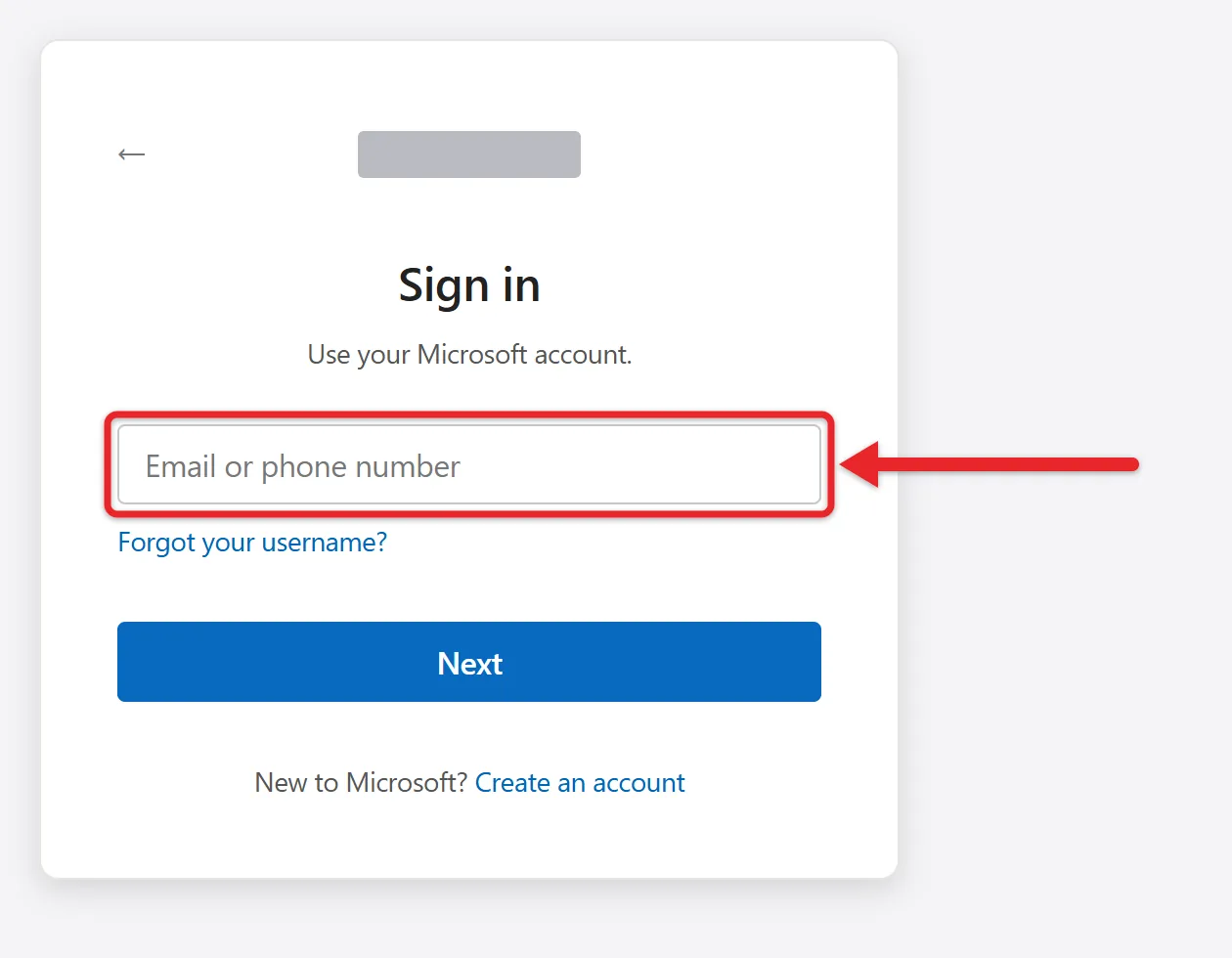
- If Windows asks for your current Windows password, enter the local account password from step 5. This links the new Microsoft account to your existing profile.
- Set up a PIN when prompted, or enter your existing PIN, and finish the remaining prompts.
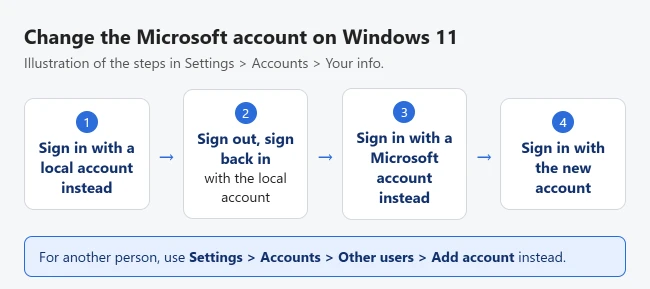
Microsoft covers both halves of this process in its guide to switching to a Microsoft account. For more detail on the first part, read how to switch to a local account in Windows 11.
Confirm the Change Worked
- Open Settings > Accounts > Your info. The new Microsoft account’s email address should appear under your name.
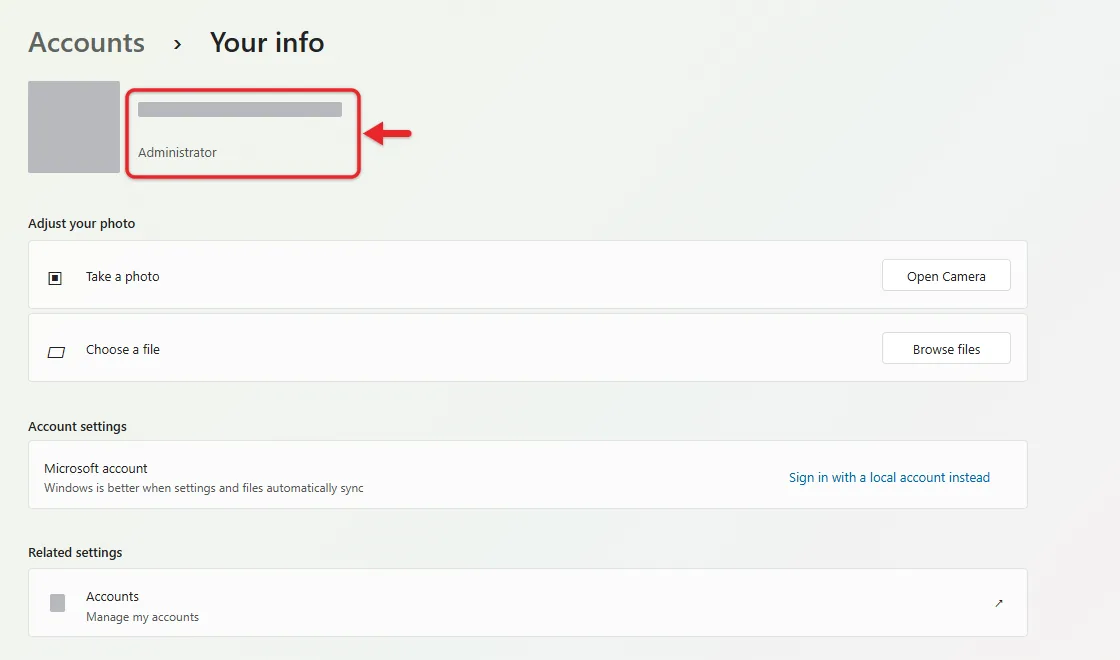
- Open OneDrive from the system tray. If it still shows the old account, sign out of OneDrive and sign in with the new one so your files sync to the right place.
- Check the recovery key again. On another device, go to aka.ms/myrecoverykey, sign in with the new Microsoft account, and look for this PC’s key ID. If it isn’t listed, keep the copy you saved earlier somewhere safe.
What Moves and What Stays
| Item | After the switch |
|---|---|
| Documents, desktop, pictures and installed desktop apps | Stay exactly where they were |
| OneDrive files | Stay in the old account online until you move them |
| Microsoft Store apps, Xbox games and Microsoft 365 | Tied to the account that bought them |
| Synced Windows settings such as your theme | Start syncing from the new account |
| Old Microsoft account | Still exists online; it is only unlinked from this PC |
If “Sign in With a Local Account Instead” Is Missing
- You’re using a work or school account. Organizations control those, so ask your IT department. Check Settings > Accounts > Access work or school to see whether the PC is connected to an organization.
- You’re already on a local account. Look for Sign in with a Microsoft account instead and use that.
- The PC is managed by family settings or a device policy. Use the new-user method below instead.
- You signed in with a different account than you think. The link only changes the account you’re signed in with right now. To change another user’s account, sign in as that user first.
If Sign-In Fails During the Switch
- Your password is rejected. Check Caps Lock and the keyboard language. If you normally use a PIN, try the PIN at the verification step.
- You forgot the old account’s password. Reset it on Microsoft’s website from another device first, then start again.
- No verification code arrives. Choose another verification method on the sign-in screen, such as email instead of text.
- The new account is already a separate user on this PC. Sign in to that profile instead, or back up that user’s files and remove that user first if you want your current profile to use the account. Removing a user deletes its files from the PC.
Add a Different Microsoft Account as a New User
Use this when the new account belongs to another person, or you want a separate desktop and files.
- Open Settings > Accounts > Other users.
- Select Add account.
- Enter the email address or phone number for the Microsoft account and follow the prompts.
- Sign out, then sign in with the new account from the sign-in screen.
The new user starts with an empty profile. If you want to move your files there, copy them from C:\Users\old name after signing in.
To give the new account full control of the PC, return to Other users, select the account, select Change account type, choose Administrator and select OK. Giving yourself administrator rights in Windows 11 has more detail. To move between the two profiles later, switch users in Windows 11.
Change the Account Used Only in Certain Apps
- Open Settings > Accounts > Email & accounts.
- Under Accounts used by other apps, add the new account or remove the old one.
- Sign out and back in to Outlook, the Microsoft Store, or OneDrive inside each app if they still show the old account.
How to Undo the Change
Repeat the main steps: switch to a local account again, then select Sign in with a Microsoft account instead and sign in with the original account. Your files stay on the PC both times.
Frequently Asked Questions
Will I lose my files if I change Microsoft accounts?
No. Switching the account on your own user profile keeps your files. Files in OneDrive stay with the old Microsoft account, though, so move anything you need before you switch.
What happens to my apps and purchases?
Installed desktop apps keep working. Microsoft Store purchases, Xbox games, and Microsoft 365 subscriptions belong to the account that bought them, so you may need to sign in to the Store with the old account to keep using them.
Can I skip the local account step?
Not in the current Settings app. Microsoft only shows Sign in with a Microsoft account instead while you’re signed in with a local account, so the local account works as a short bridge between the two Microsoft accounts.
How do I remove the old Microsoft account?
If you no longer need it, follow the steps to remove a Microsoft account from Windows 11.
Can I change the email on my Microsoft account instead?
Yes. Sign in to your Microsoft account online, add the new address as an alias, and make it your primary one, as Microsoft describes in its guide to changing your Microsoft account email address. That keeps the same account and changes only the email you sign in with. Only the display name? Change your user name in Windows 11 instead.
After the switch, open the Microsoft Store and OneDrive once to make sure both use the account you expect.

Matthew Burleigh is the founder, head writer, and editor of Solve Your Tech, which he launched in 2012. He has written technology tutorials since 2008 and worked in IT since 2003, including small-business support, IT management, and consulting. He holds Bachelor’s and Master’s degrees in Computer Science from Arizona State University.
Matthew writes practical guides for Windows, iPhone and iPad, Microsoft Office, Outlook, Google apps, and Android. Solve Your Tech’s guides are checked step by step against the device or app maker’s own documentation and tested on his own devices whenever he has the hardware or software, with clear steps, sources, and update dates.
Read more about Matthew and how Solve Your Tech writes and updates its guides, or report a correction.