The easiest way to get help in Windows 11 is the Get Help app. Click Start, type Get Help, open the app, and describe your problem. It suggests fixes and troubleshooters, and can connect you with Microsoft support.
Microsoft lists a few other ways to get help, and Windows 11 has more. You can search for a setting directly from the taskbar, run troubleshooting tools, visit Microsoft’s support site, ask the Microsoft community, or use Quick Assist to let someone you trust help with the computer remotely.
The best option depends on the type of problem you’re trying to solve.
How to Use the Get Help App in Windows 11
Get Help is the best place to start for most Windows problems. It suggests fixes, runs troubleshooters, and links to Microsoft support articles.
- Click the Start button.
- Type Get Help in the search field.
- Select Get Help from the search results.
- Enter a description of the problem you’re having.
- Follow the troubleshooting suggestions that appear.
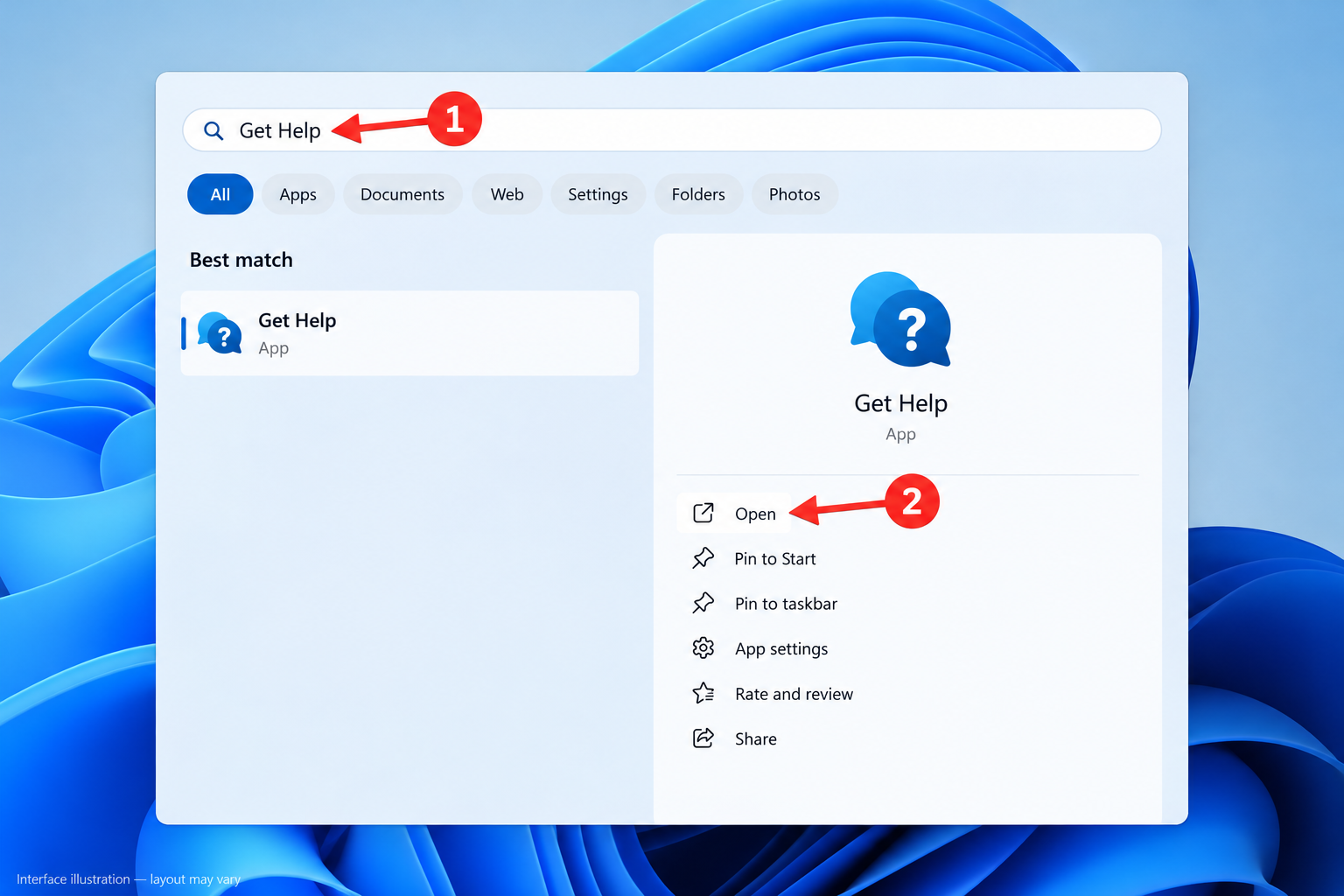
Try to describe the actual problem instead of entering something broad like “Windows doesn’t work.” For example, you might enter Bluetooth headphones connected but no sound or Windows Update error 0x80070002.
Specific descriptions and exact error codes make it much easier to find relevant troubleshooting information.
Search for Help From the Windows 11 Taskbar
Windows Search is often faster than a support app when you can’t find a setting or feature.
- Click the Search box or Search icon on the taskbar.
- Type the setting, feature, or problem you’re looking for.
- Review the results.
- Select the appropriate setting, app, or help result.
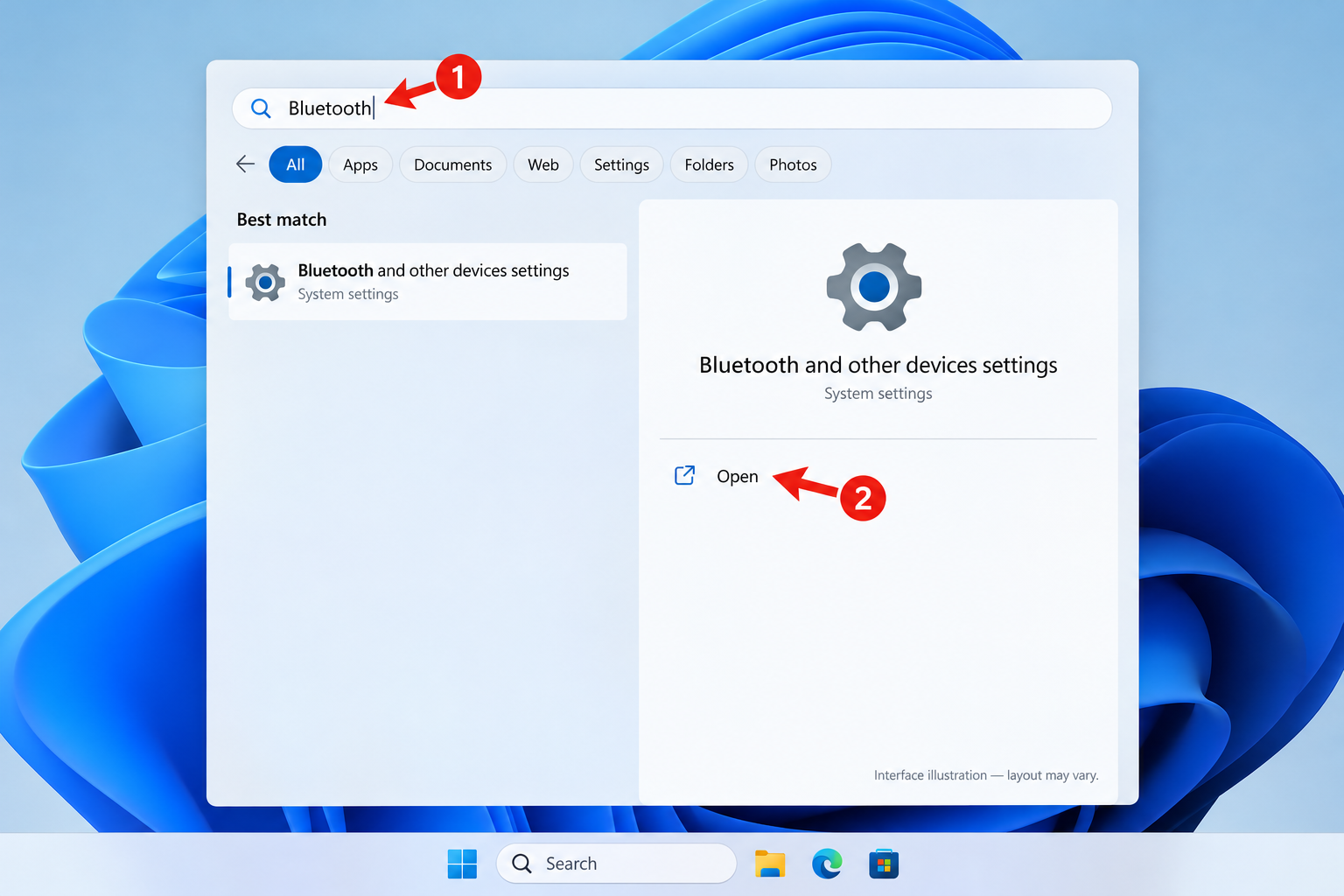
You can also press the Windows key and start typing. Search is usually the fastest approach when nothing is actually broken and you just need to find something.
Get Help From the Windows 11 Settings App
You can also find help while you’re using the Settings app.
- Press Windows + I to open Settings.
- Open the page for the feature that’s giving you trouble.
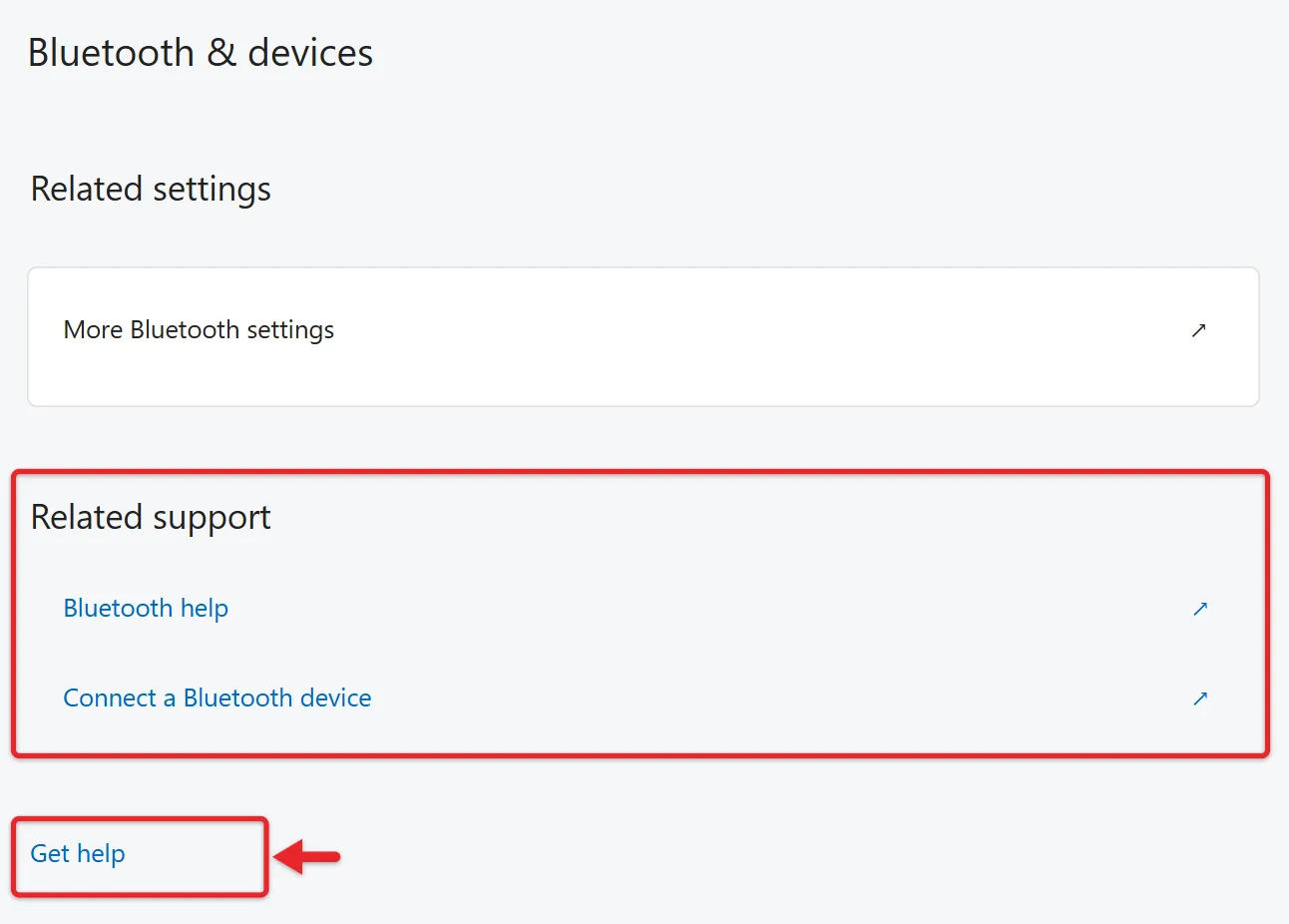
- Scroll to the bottom and select Get help, or open a topic under Related support.
- Read the Microsoft help article that opens.
Many Settings pages have a Get help link near the bottom, and some show a Related support area with Microsoft help topics for that page. Start in the section that matches the problem. For Wi-Fi trouble, open Settings > Network & internet. For update problems, open Settings > Windows Update.
For a network that keeps failing with an old password, forget the Wi-Fi network and reconnect before trying bigger fixes.
Run a Windows 11 Troubleshooter
If something isn’t working properly, Windows may be able to diagnose the problem for you. Microsoft keeps a list of the available troubleshooters.
- Press Windows + I.
- Select System.
- Select Troubleshoot.
- Select Other troubleshooters.
- Select Run next to the troubleshooter that matches your problem, such as Audio or Network and Internet. Get Help opens and walks you through the checks.
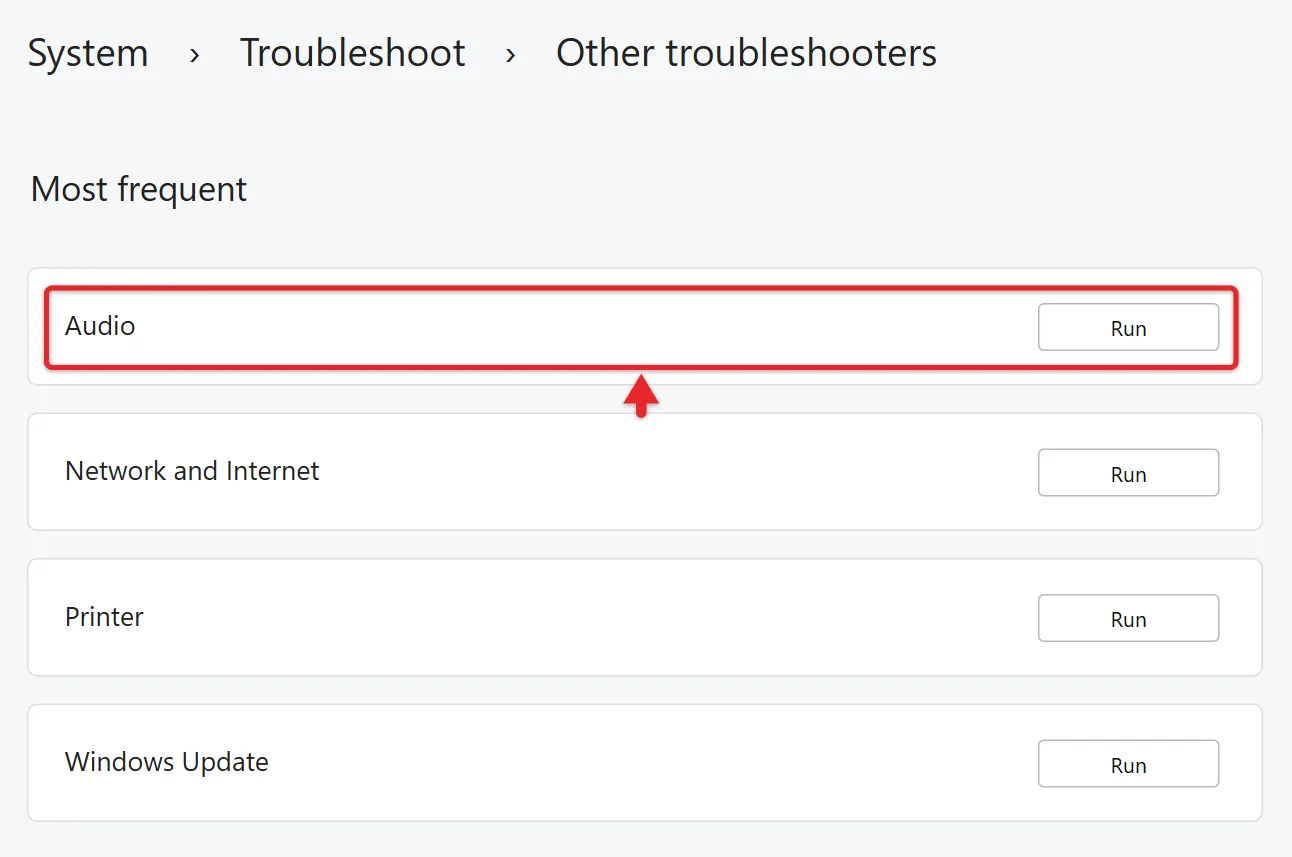
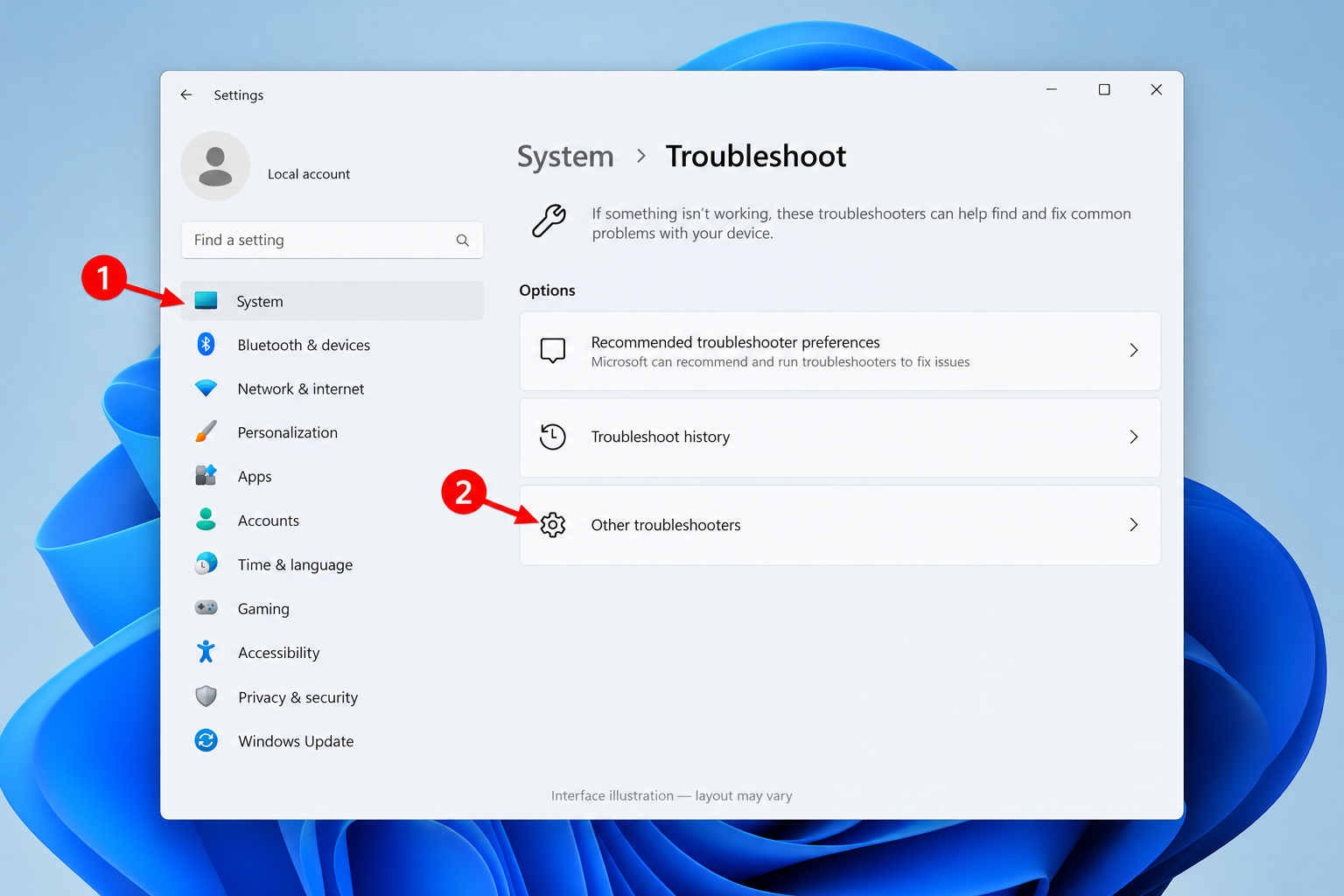
Microsoft has been moving many of its older troubleshooters into the Get Help system, so don’t be surprised if Windows opens Get Help instead of the traditional troubleshooting window.
Troubleshooting tools are particularly useful for problems involving network connections, audio, printers, Bluetooth, Windows Update, and other common Windows features.
Search Microsoft Support
For a specific error or more complicated problem, Microsoft’s support site is another good place to look. The Windows section of Microsoft Support contains instructions for Windows Update, networking, accounts, drivers, security, activation, recovery, and many other features.
When searching, include the exact error message whenever possible. For example, searching for Windows Update error 0x80070002 will usually give you better results than searching for Windows won’t update.
Contact Microsoft Support
If the normal troubleshooting options don’t solve the problem, you may be able to get additional assistance from Microsoft. Start with the Get Help app or Microsoft’s Contact Support page and describe your issue.
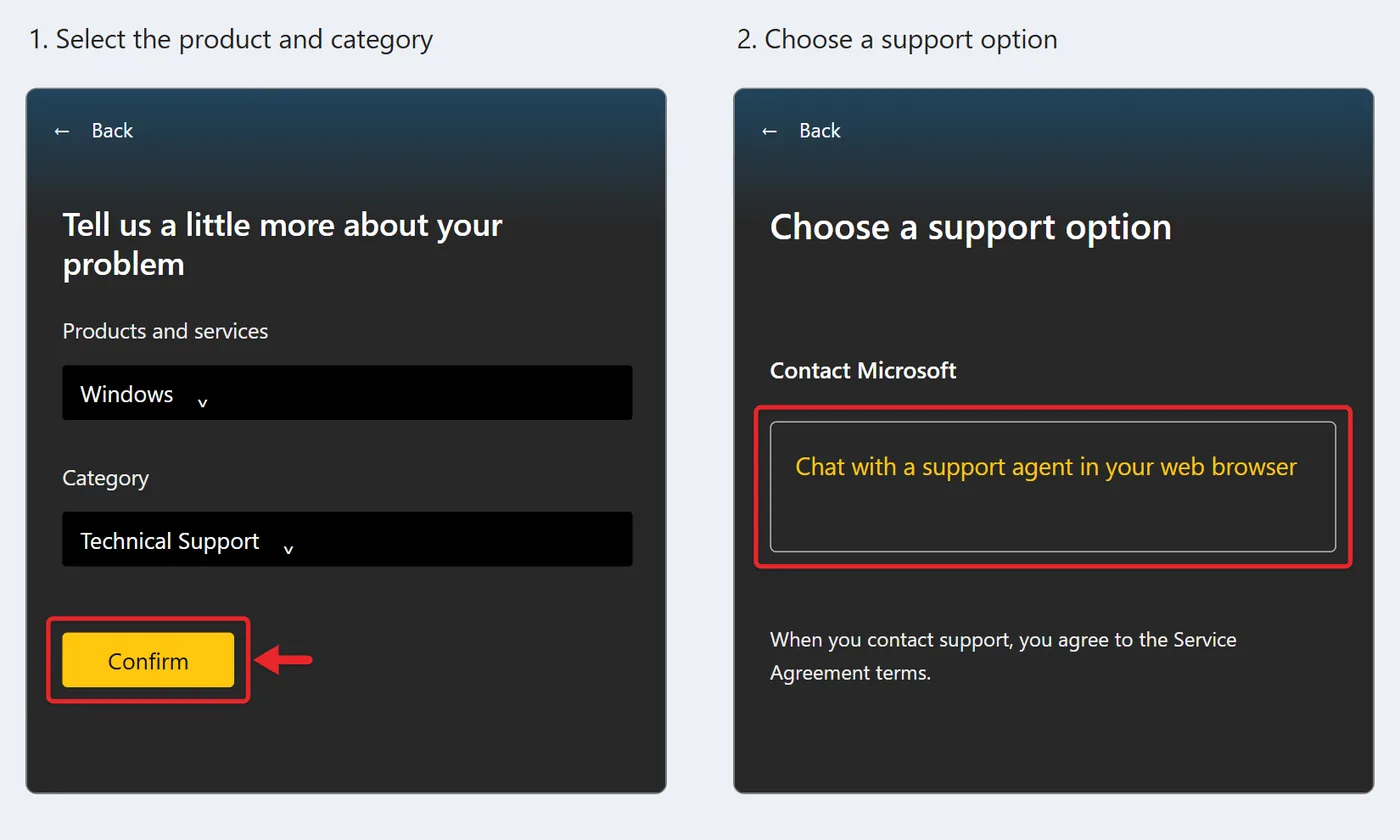
The contact options depend on the product, your account, and the problem you describe. If Get Help doesn’t offer the option you need, use the Microsoft Support website instead.
To reach a person, follow our steps to live chat with Microsoft Support.
Use Quick Assist to Get Help From Another Person
If you know someone who can fix the problem, Windows 11 includes a remote assistance tool called Quick Assist. For ongoing access to your own PC instead, set up the computer for remote access.
- Select Start, type Quick Assist, and open the app.
- Ask the person helping you to open Quick Assist on their PC and select Help someone. They get a security code.
- Under Get help, type that code and select Submit.
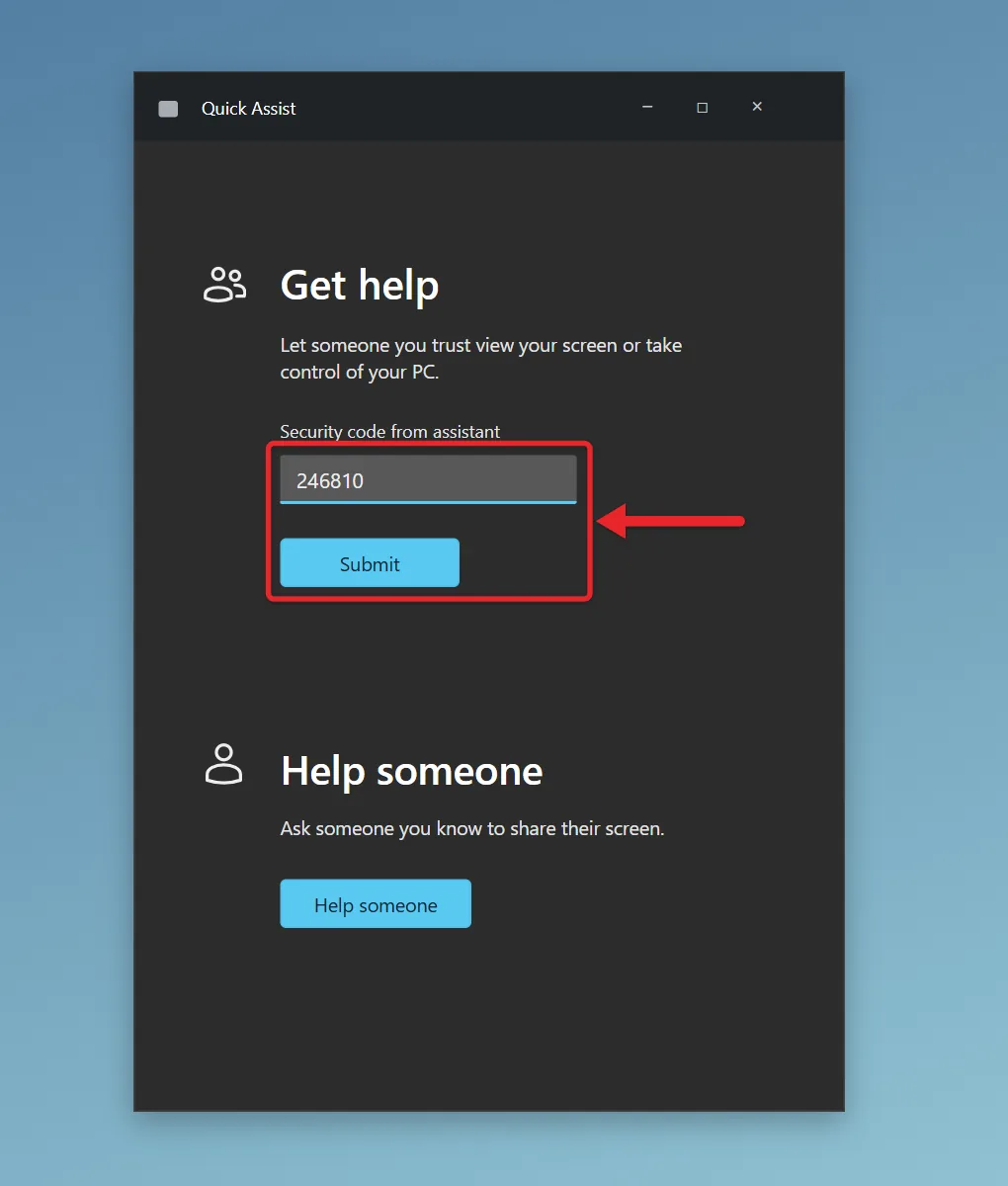
- Check the helper’s name in the request, then select Allow to share your screen.
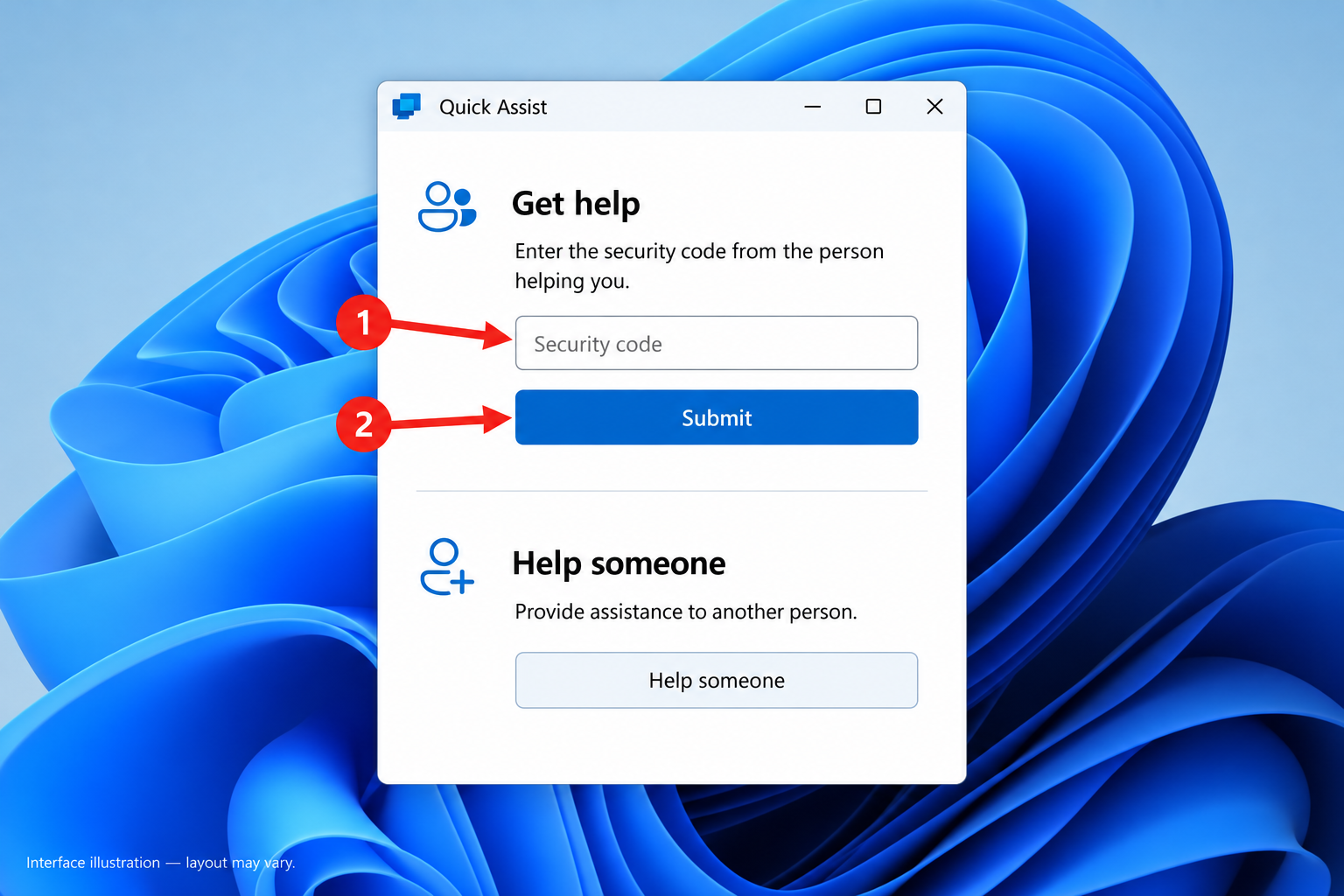
Only use Quick Assist with someone you trust, such as a friend, family member, coworker, or support technician.
If an unexpected caller tells you that your computer has a virus and asks you to open Quick Assist, don’t give them access. Remote-access scams often rely on convincing someone to voluntarily give a stranger control of the computer.
Ask the Microsoft Community
Microsoft Q&A community forums can be helpful when you’re dealing with a problem that isn’t covered by a standard support article. Before creating a new question, search for the exact error message or symptom. There’s a good chance someone else has already encountered it.
If you need to create your own question, include your Windows 11 version, the exact error message, what you were doing when the problem occurred, whether it happens every time, and what troubleshooting you’ve already tried. Don’t post passwords, product keys, recovery keys, verification codes, or other private information.
Report a Windows 11 Problem With Feedback Hub
If Windows is behaving unexpectedly and you want to report the problem to Microsoft, use the Feedback Hub. This is different from Get Help: Feedback Hub is meant for bug reports and product suggestions, while Get Help and Microsoft Support are better choices when you need an immediate solution.
- Press Windows + F or search for Feedback Hub from Start.
- Select the option to report a problem.
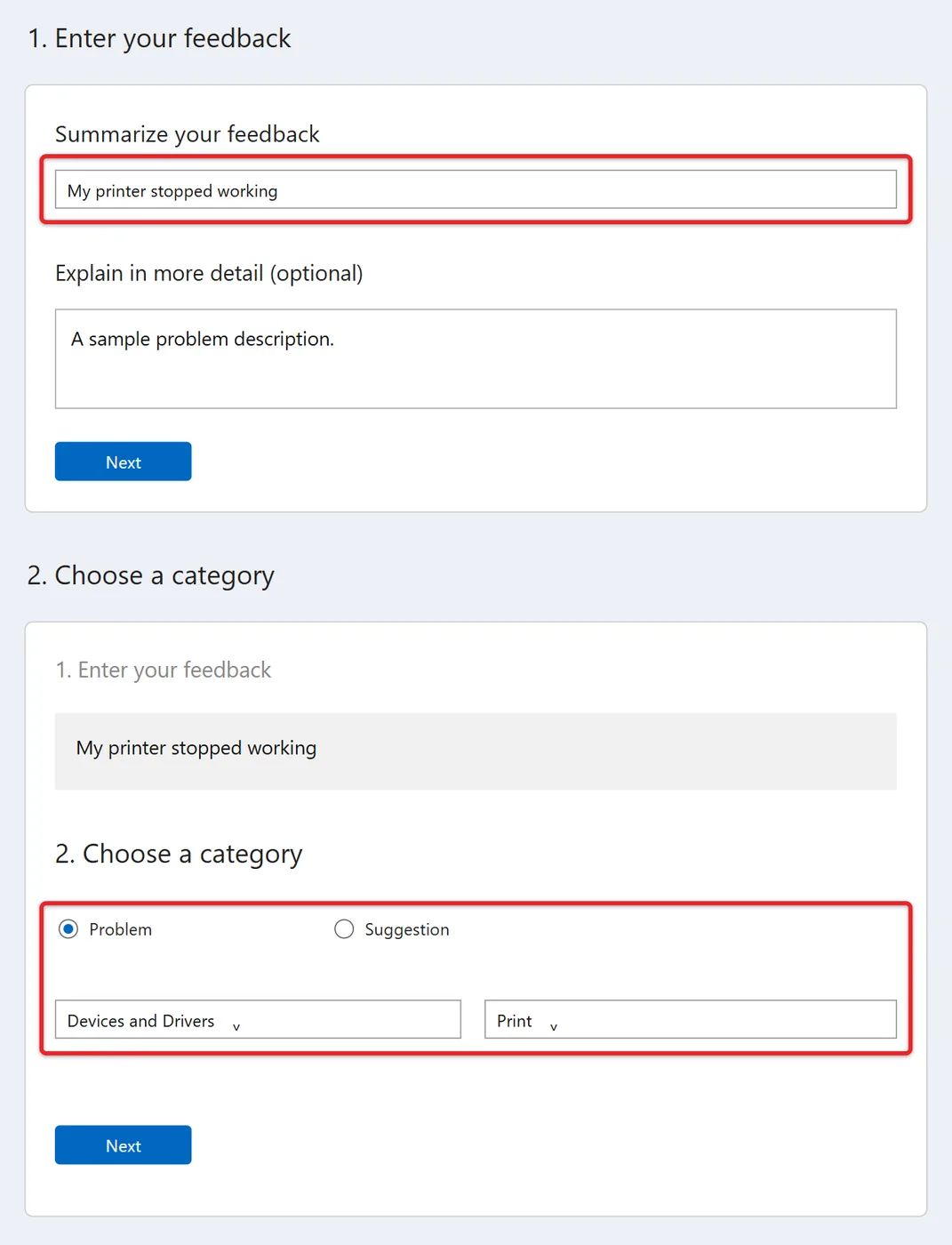
- Describe what happened and add screenshots or a recording if they help show the issue.
- Submit the report to Microsoft.
Feedback Hub is especially useful for repeatable Windows bugs, update problems, or unexpected behavior that you think Microsoft should investigate.
Find Your Windows 11 Version Before Asking for Help
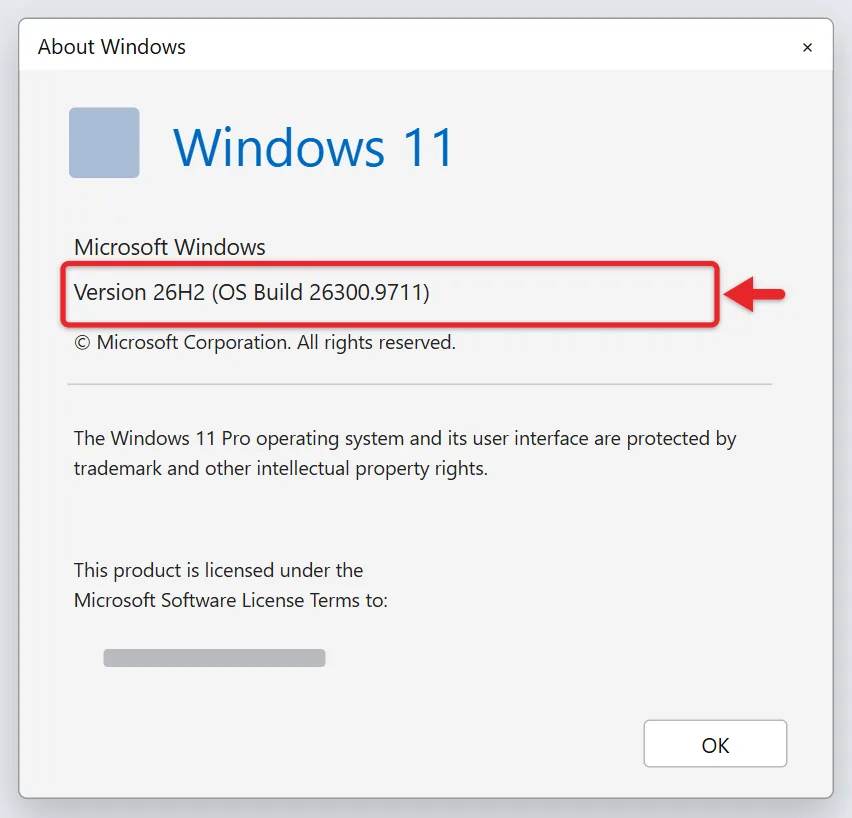
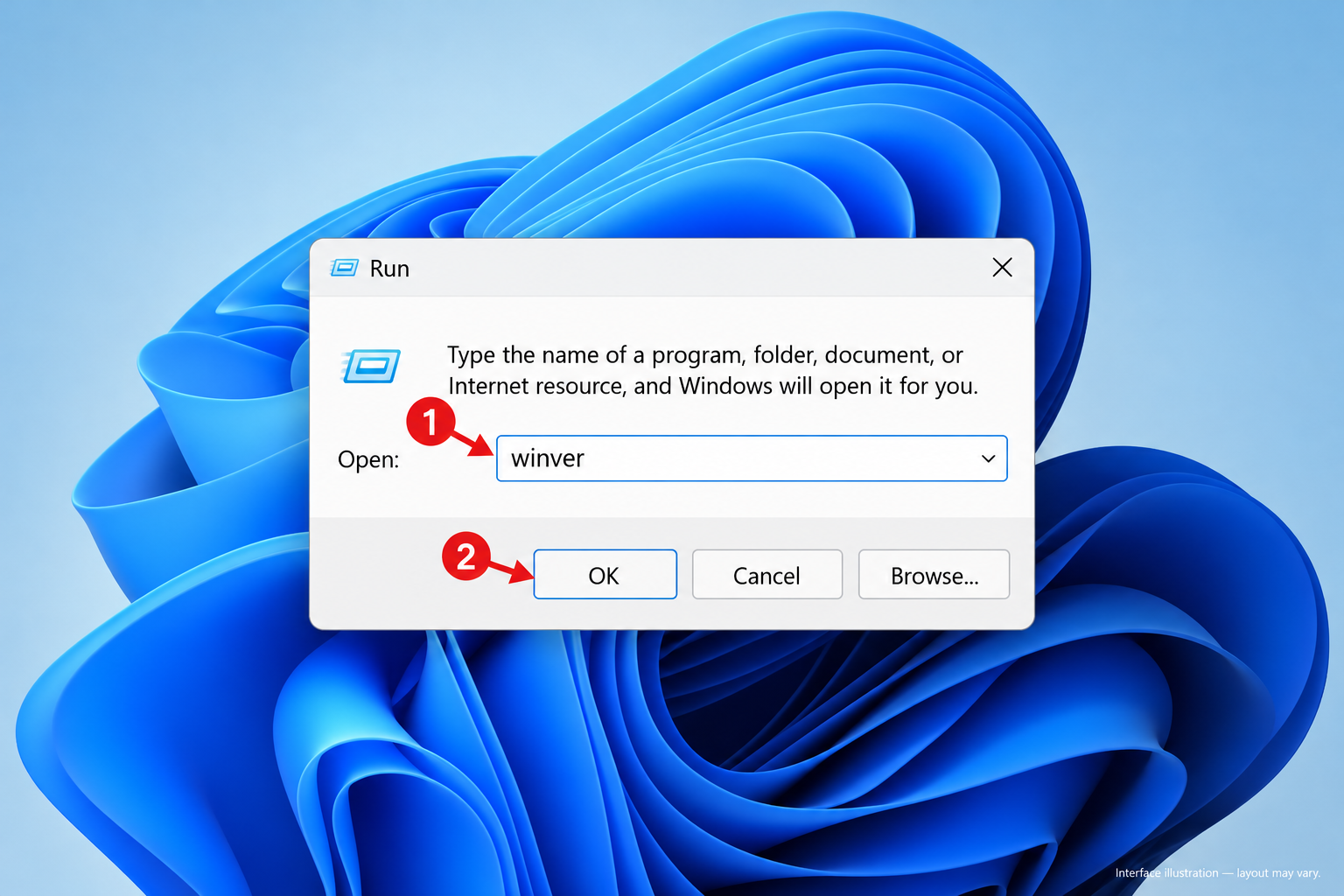
Knowing your Windows version and build number can make troubleshooting easier. The quickest way to find it is with the winver command.
- Press Windows + R.
- Type winver.
- Click OK or press Enter.
- Check the Windows version and OS build shown in the window.
You can also find system information by going to Settings > System > About. The About page shows useful details such as your processor, installed RAM, system type, Windows edition, version, and OS build.
What to Do If Windows 11 Won’t Start
The methods above assume you can sign in to Windows. If Windows won’t start, you’ll need to use its recovery tools instead.
After repeated startup failures, Windows may automatically enter the Windows Recovery Environment, where you’ll find advanced troubleshooting options.
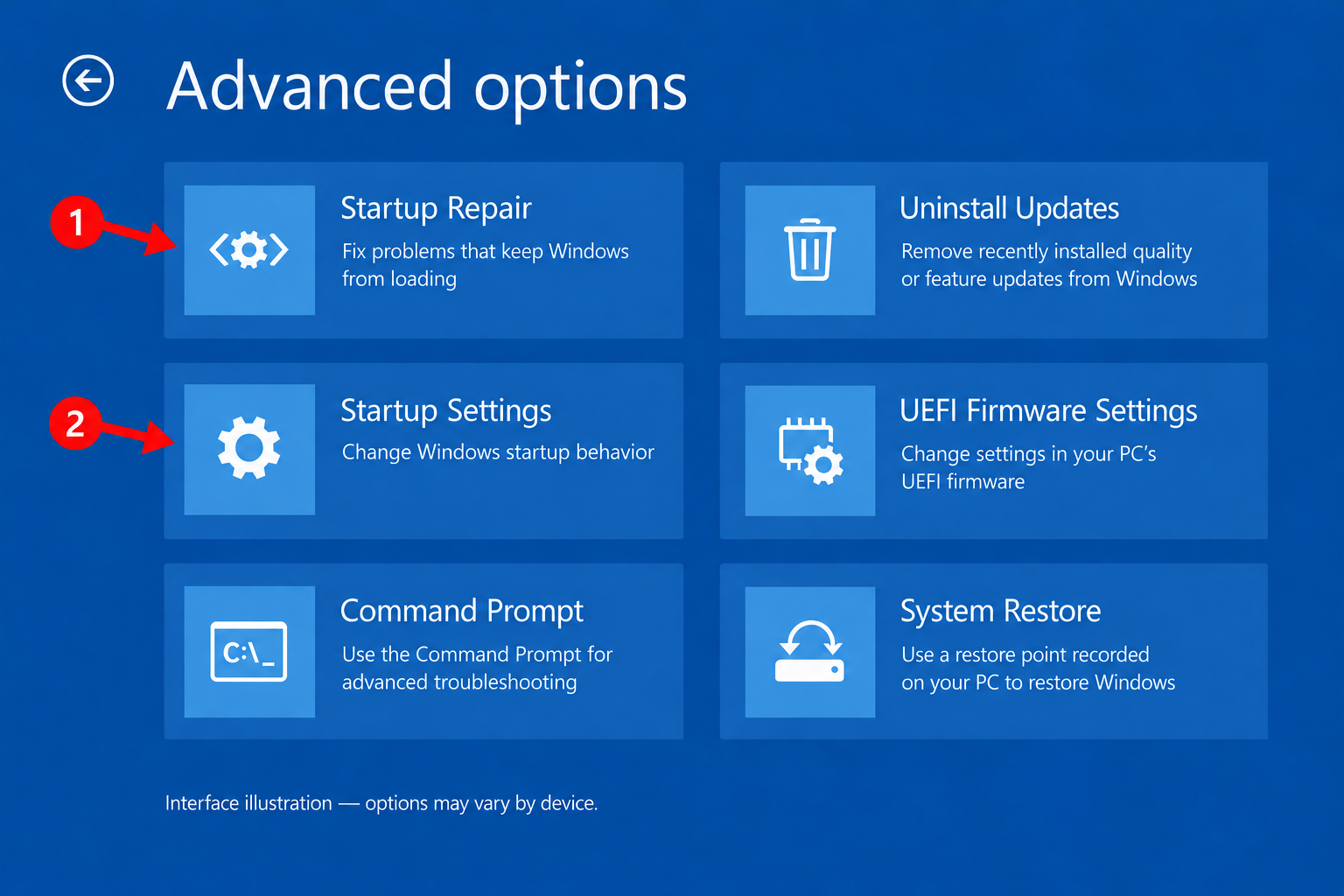
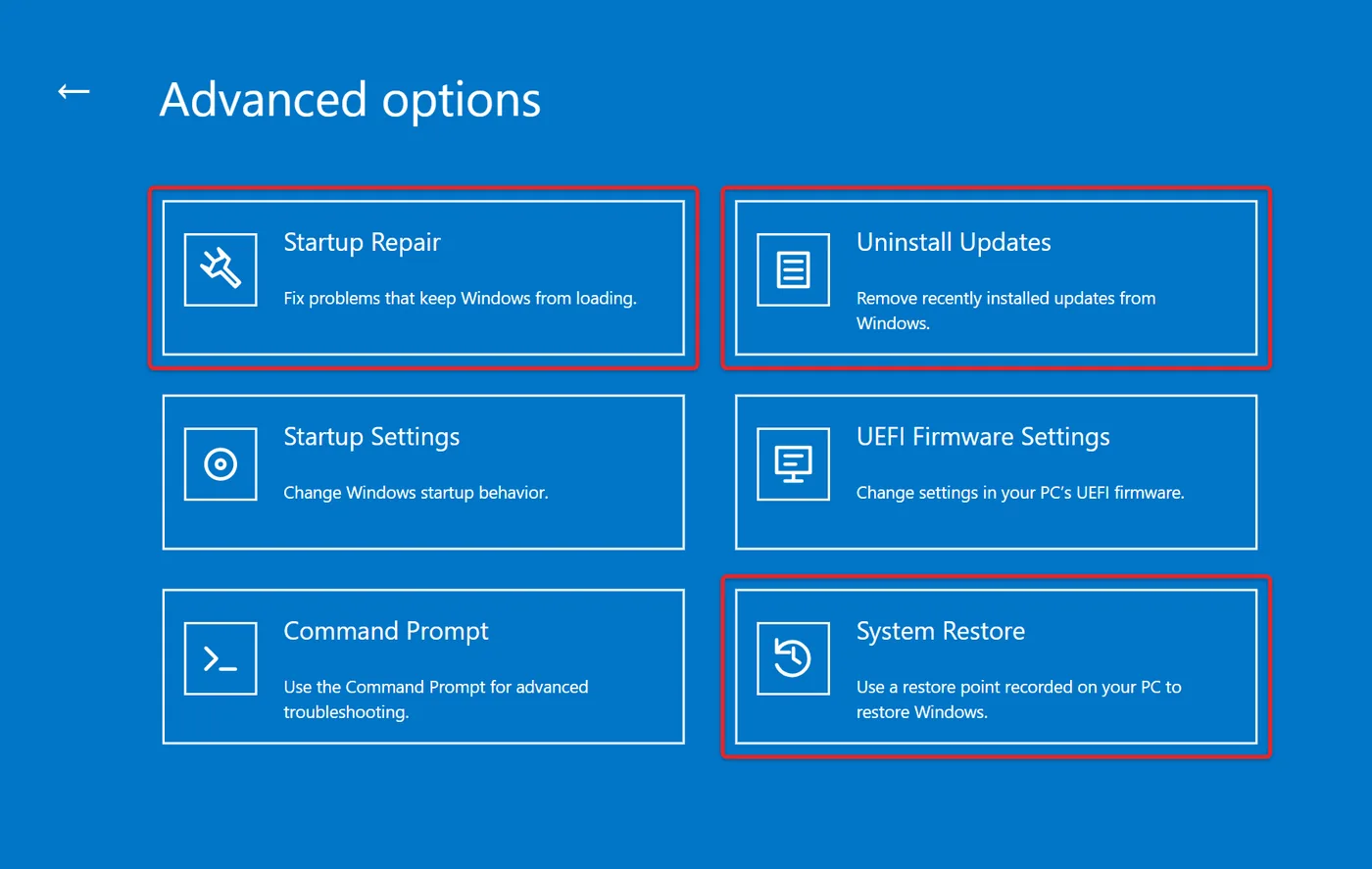
Depending on your PC and the problem, these can include Startup Repair, Startup Settings, System Restore, Uninstall Updates, Command Prompt, and Reset this PC.
Startup Repair is a reasonable place to begin if Windows suddenly stops booting. If the problem began immediately after an update, you may also want to investigate the update-related recovery options.
Be more cautious with options that reset or reinstall Windows. Those changes can affect installed programs, settings, and, depending on the option you select, your files.
Try Deeper Windows Diagnostic Tools for Repeated Problems
If the same crash or Windows error keeps coming back, two built-in tools can provide more information than a basic troubleshooter.
Reliability Monitor gives you a timeline of application failures, Windows failures, updates, and other system events. Open Start and search for View reliability history. Look around the date the problem first appeared for a failure or update that may explain what changed.
System File Checker checks protected Windows system files for corruption. Open Command Prompt as administrator and run DISM.exe /Online /Cleanup-image /Restorehealth first, then sfc /scannow. Use these when normal troubleshooting hasn’t fixed Windows itself, not as the first step for every problem.
What to Do If the Get Help App Isn’t Working
If the Get Help app itself won’t open or respond, restart the computer and try again.
You can also check for Windows and Microsoft Store updates. If it still fails, open Settings > Apps > Installed apps, select the three dots next to Get Help, choose Advanced options, and select Repair or Reset.
In the meantime, you don’t need the app to access Microsoft’s online Windows support resources. Open your web browser and use Microsoft Support directly.
Does the F1 Key Open Windows 11 Help?
F1 is traditionally the Help key in Windows, but its behavior isn’t consistent enough to make it the best way to get Windows 11 assistance.
What happens when you press F1 depends on the application you’re using. It might open the program’s help page, launch a browser, perform another function, or do nothing. Some laptops also require you to press Fn + F1.
If you need general Windows help rather than help with a specific application, searching for Get Help from the Start menu is more reliable.
Which Windows 11 Help Option Should You Use?
You don’t need to try every method in this article. If you’re looking for a setting, use Windows Search. If a Windows feature isn’t working, start with Get Help or the appropriate Windows troubleshooting tool.
If you have an error code, search for that exact code on Microsoft Support. If someone you trust needs to see the problem remotely, use Quick Assist. If Windows won’t boot, use the Windows Recovery Environment.
If you think the computer itself has a hardware problem, check the support resources provided by the PC manufacturer. And if you’re using a work or school computer, contact your IT department before making major system changes.
Useful Windows 11 Help and Troubleshooting Shortcuts
| Shortcut | What it opens or does |
|---|---|
| Windows + S | Windows Search |
| Windows + I | Settings |
| Windows + F | Feedback Hub |
| Ctrl + Shift + Esc | Task Manager |
| Windows + X | Power User menu |
| Windows + R | Run dialog |
These shortcuts do not replace Get Help, but they can get you to the right Windows tool faster when a program freezes or you need to reach system settings.
Related guides: how to run system diagnostics on Windows 11, how to use System Restore, and how to make a Windows 11 recovery USB.

Matthew Burleigh is the founder, head writer, and editor of Solve Your Tech, which he launched in 2012. He has written technology tutorials since 2008 and worked in IT since 2003, including small-business support, IT management, and consulting. He holds Bachelor’s and Master’s degrees in Computer Science from Arizona State University.
Matthew writes practical guides for Windows, iPhone and iPad, Microsoft Office, Outlook, Google apps, and Android. Solve Your Tech’s guides are checked step by step against the device or app maker’s own documentation and tested on his own devices whenever he has the hardware or software, with clear steps, sources, and update dates.
Read more about Matthew and how Solve Your Tech writes and updates its guides, or report a correction.