This post contains affiliate links. As an Amazon Associate, solveyourtech.com earns from qualifying purchases, at no extra cost to you.
To make a Windows 11 recovery USB, search Start for Recovery Drive, open it, keep “Back up system files to the recovery drive” checked, pick your USB drive, and select Create. Use an empty drive, because everything on it gets erased, and plan on 15 minutes to over an hour. The finished drive can repair or reinstall Windows on that PC if it won’t start, but it doesn’t back up your personal files.
These steps work on Windows 11 Home and Pro, including version 26H2, and on Windows 10, which reached end of support on October 14, 2025. If you need a USB drive that can install Windows on a different PC, you want Windows installation media instead, covered below. For the full setup process, read about installing Windows 11.
What You Need
- A USB flash drive you can erase. The Recovery Drive tool tells you the minimum size it needs before it copies anything. It’s often 16GB or 32GB when you include system files.
- A drive with some room to spare. A “32GB” drive usually holds only about 28 to 29GB. If the tool asks for 32GB and grays out Next, use a 64GB drive instead.
- An administrator account. Windows asks for permission before the tool opens. On a standard account, an administrator has to enter their password.
- A plugged-in PC. Keep a laptop on its charger so it doesn’t shut down partway through.
- A separate backup of your files, because the recovery drive doesn’t include them. Follow the steps for backing up Windows 11 to an external hard drive.
- Your BitLocker recovery key, if the PC is encrypted. Some recovery tools ask for it. If you sign in with a Microsoft account, the key is usually saved at aka.ms/myrecoverykey. Microsoft’s guide to finding your BitLocker recovery key lists the other places it can be. Learn more about turning on BitLocker in Windows 11.
If the drive holds old files you want gone first, here’s how to delete files or erase a flash drive.
Need a drive? A 64GB drive like the SanDisk Ultra USB 3.0 flash drive has plenty of room. Remember that the tool erases everything on it.
How to Create the Recovery USB
- Plug in the USB drive and copy off anything you want to keep. Close any AutoPlay or File Explorer windows that pop up. You don’t need to format the drive yourself.
- Select Start, type Recovery Drive, and open it. You can also press Windows key + R and run
recoverydrive.exe. Select Yes when Windows asks for permission. - Make sure Back up system files to the recovery drive is checked, then select Next. Windows spends a minute or two working out how much space it needs.
- Select your USB drive under Available drive(s) and select Next. Check the size and drive letter if more than one drive is plugged in.
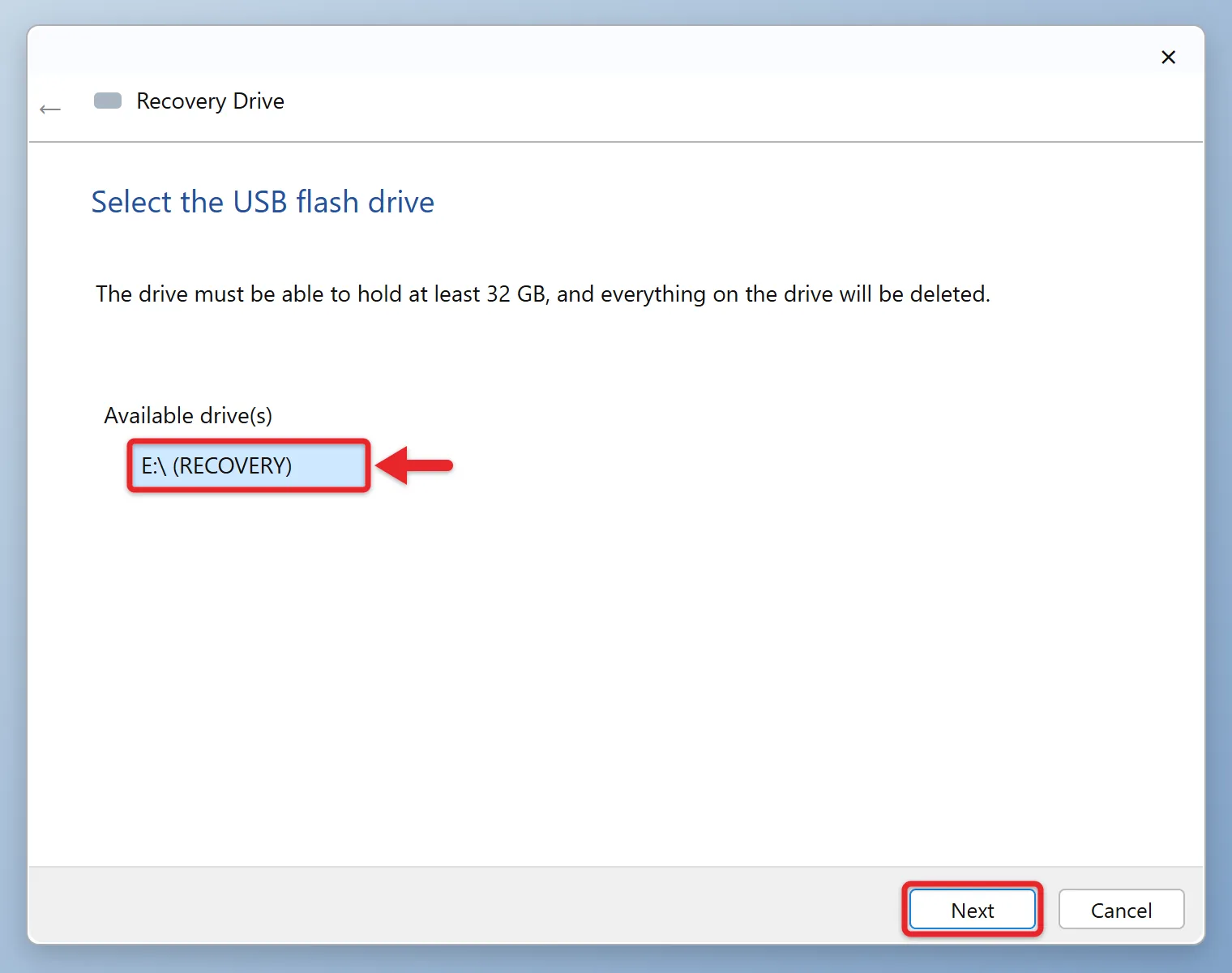
- Read the warning that everything on the drive will be deleted, then select Create.
- Wait while Windows formats the drive and copies the recovery files. The progress bar can sit still for several minutes. Don’t unplug the drive or shut down the PC.
- When it says The recovery drive is ready, select Finish.
- Eject the drive from the Safely Remove Hardware and Eject Media icon in the taskbar corner, then label it so no one reuses it.
Can’t find it in Start? Open Control Panel, go to Recovery, and select Create a recovery drive.
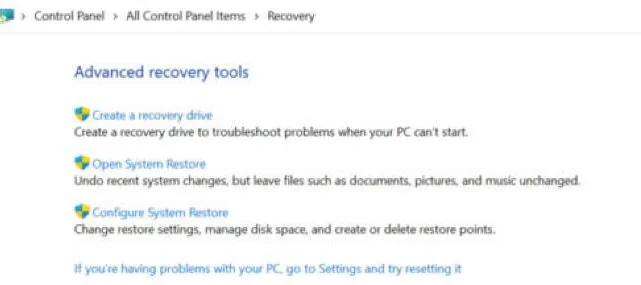
Microsoft’s Recovery Drive page says the drive includes built-in Windows files, updates installed when you made it, and your PC maker’s customizations. It recommends making a new one about once a year.
Some PCs offer to delete the recovery partition at the end. Skip that unless you badly need the disk space. The partition is a second copy of the recovery tools.
What if you uncheck “Back up system files”?
The drive becomes much smaller and only contains the repair tools, such as Startup Repair and System Restore. System Restore only helps if restore points exist, so create a restore point in Windows 11 before big changes. This smaller drive can’t reinstall Windows, so leave the box checked unless you only want the repair tools. If the box is grayed out, the PC has no recovery image to copy, and you’ll get the repair-tools version only.
How to Use It to Repair or Reinstall Windows
Try the repair options first. They don’t erase your files. Reinstalling from the drive does.
- Plug the recovery USB into the PC and turn it on.
- Boot from the USB drive. Most PCs show a boot menu when you press a key like F12, F11, F9, or Esc at startup. Check your PC maker’s manual or the startup screen for the right key.
- Choose your keyboard layout. The Choose an option screen appears.
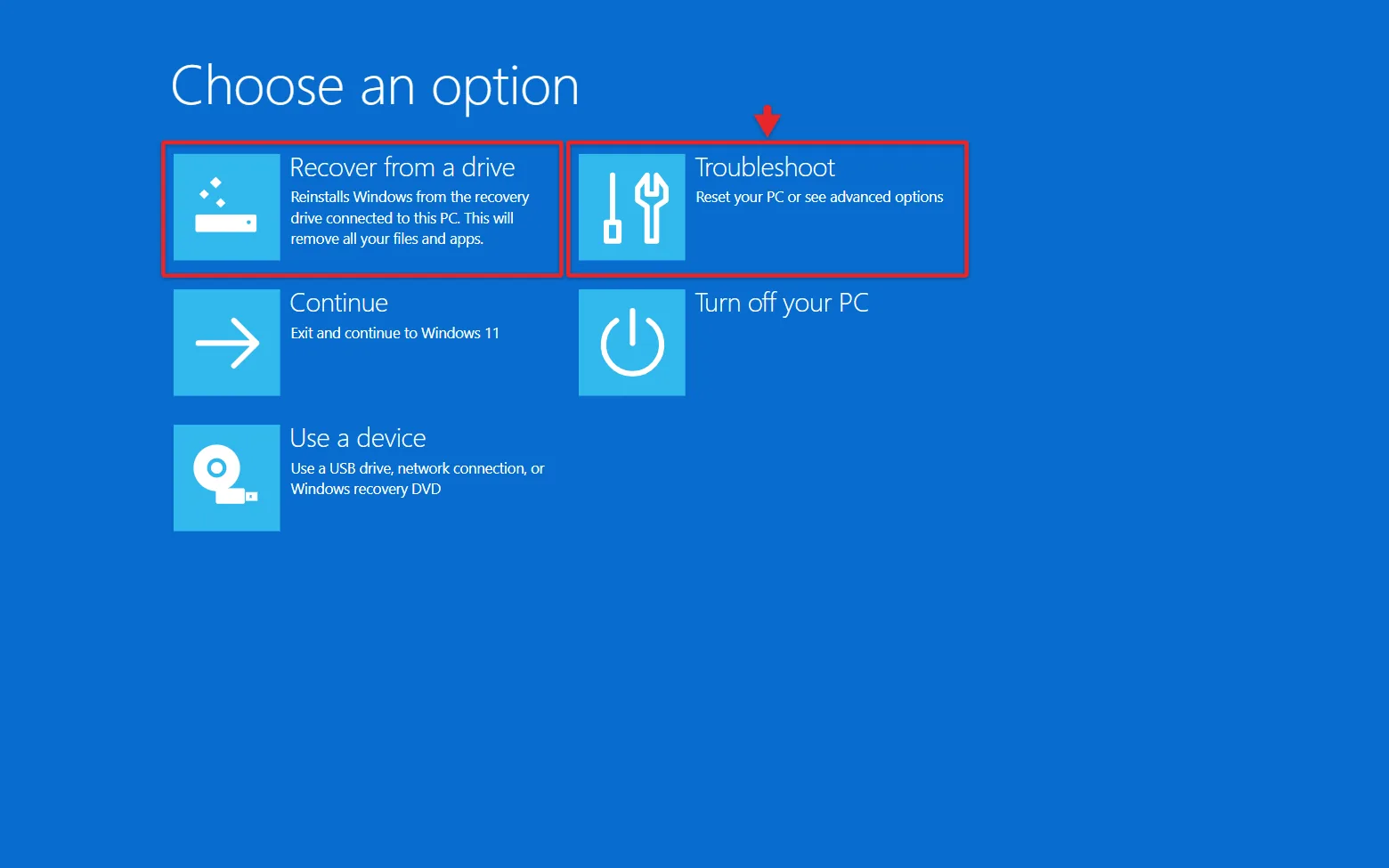
- To repair Windows, select Troubleshoot > Advanced options, then choose Startup Repair or System Restore. System Restore uses restore points saved on your PC and doesn’t affect personal files. To start in Safe Mode instead, follow the steps to start Windows in Safe Mode while booting.
- To reinstall Windows, select Recover from a drive, choose Just remove my files or Fully clean the drive, and select Recover.
Recovering from the drive erases your files, apps, and settings. Fully clean the drive takes longer but makes old data harder to recover, which is useful if you’re giving the PC away. If Windows still starts, resetting it from Settings is usually easier.
Before you erase anything, try to run System Restore on Windows 11 from the same recovery menu, since it leaves your personal files alone.
If Windows still starts and System Restore doesn’t help, you can reset all settings in Windows 11 from Settings and keep your personal files.
Other tools on the Advanced options screen
Microsoft’s Windows Recovery Environment page lists these tools. The exact list depends on your Windows version.
| Tool | Use it when |
|---|---|
| Uninstall Updates | Problems started right after a Windows update |
| Command Prompt | You want to run CHKDSK or other repair commands on a drive that won’t boot |
| UEFI Firmware Settings | You need to change the boot order or Secure Boot settings |
| System Image Recovery | You made a full system image backup earlier |
| Startup Settings | You want Safe Mode or other startup options |
Recovery Drive or Installation USB?
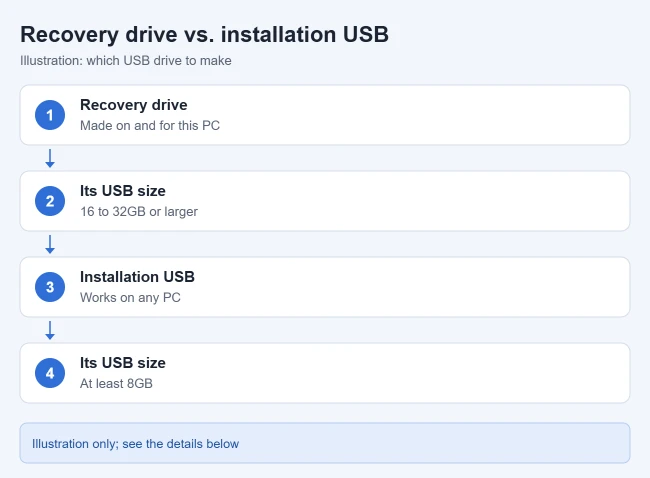
- Recovery drive: made with the Recovery Drive tool on the PC you want to protect. It’s meant for that PC only and includes the maker’s drivers and customizations.
- Installation USB: made with Microsoft’s Media Creation Tool. It works on any compatible PC, needs a blank drive of at least 8GB, and is what you want for a clean install or a PC that has no working Windows to make a recovery drive from. It also reaches the same repair tools through Repair my PC.
To make an installation USB, go to Microsoft’s Download Windows 11 page, select Download Now under Create Windows 11 Installation Media, and run MediaCreationTool.exe. Microsoft covers this in its installation media guide.
Troubleshooting
- The Next button stays grayed out. The drive is too small. Windows needs the full size it lists, and a drive’s real capacity is less than the number on the label. Try a larger drive.
- Your USB drive isn’t listed. Unplug it, try a different port (a rear port on a desktop is often more reliable than a front port or a hub), and reopen the tool. If Windows doesn’t see the drive at all, try the fixes for getting a USB drive to show up.
- “We can’t create the recovery drive” error. Try a different USB drive and port, run Windows Update, and try again. Some PCs can create the drive only with Back up system files unchecked. If so, make an installation USB for full reinstalls.
- The PC won’t boot from the USB drive. Try another USB port, and check the boot order in your PC’s firmware settings.
- Windows asks for a BitLocker recovery key. Look up the key at aka.ms/myrecoverykey from another device and match the key ID shown on screen. Never share the key in a public support post.
- An older recovery drive won’t boot. Microsoft warns that recovery drives can be affected by Secure Boot security updates released since April 2024. Install the latest updates, then make a new recovery drive. Details are in the Secure Boot boot manager revocation notice (KB5025885).
Frequently Asked Questions
How long does it take to make a recovery drive?
It depends on your PC and USB drive. Expect 15 minutes to more than an hour with system files included. A USB 3.0 drive in a USB 3.0 port is faster, and you can keep using the PC while it works.
Can I use the drive for other files afterward?
Not without erasing the recovery files. Keep it as a dedicated recovery drive and store it somewhere safe.
Can I make a recovery drive for a different PC?
It’s meant for the PC it was made on, because it carries that PC’s drivers and recovery image. For another computer, make a Windows 11 installation USB instead, which works on any compatible PC.
Does a recovery drive need a product key?
Usually not. PCs that came with Windows have a digital license or a key built into the firmware, so Windows activates on its own after recovery.
How often should I make a new one?
Once a year is a good schedule, so the drive includes recent updates. Also make a new one after a major Windows version update or if an old drive stops booting.

Matthew Burleigh is the founder, head writer, and editor of Solve Your Tech, which he launched in 2012. He has written technology tutorials since 2008 and worked in IT since 2003, including small-business support, IT management, and consulting. He holds Bachelor’s and Master’s degrees in Computer Science from Arizona State University.
Matthew writes practical guides for Windows, iPhone and iPad, Microsoft Office, Outlook, Google apps, and Android. Solve Your Tech’s guides are checked step by step against the device or app maker’s own documentation and tested on his own devices whenever he has the hardware or software, with clear steps, sources, and update dates.
Read more about Matthew and how Solve Your Tech writes and updates its guides, or report a correction.