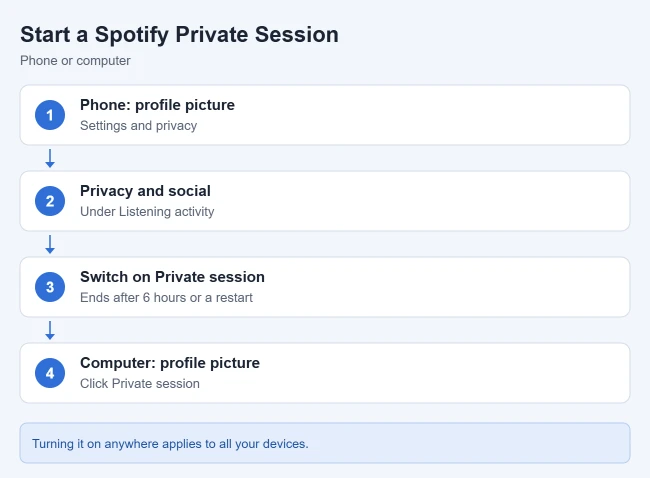
To keep your Spotify listening private, turn on a Private Session. On your phone, tap your profile picture, go to Settings and privacy › Privacy and social, and switch on Private session. On a computer, click your profile picture and choose Private session. It hides what you play from friends until it turns off after six hours or when you restart the app.
This guide covers starting and ending a Private Session on a phone, tablet or computer, what it hides, and the other privacy settings that hide your listening, recently played artists, followers and playlists for good. Steps follow Spotify’s support articles, checked October 1, 2026.
Start a Private Session on a Phone or Tablet
- Open Spotify and tap your profile picture at the top.
- Tap Settings and privacy.
- Tap Privacy and social.
- Under Listening activity, switch Private session on. Result: what you play stops showing in your friends’ Friend Activity.
To end it early, repeat the steps and switch it off. These steps come from Spotify’s How to enable private listening article.
Start a Private Session on a Computer
- Open the Spotify desktop app or web player.
- Click your profile picture at the top.
- Click Private session. Result: Private session shows as on in that menu until you turn it off or it times out.
You can also turn it on in Settings under Social with Start a private session.
What a Private Session Does
- Friends won’t see what you play in Friend Activity.
- Your recently played artists won’t update on your profile.
- Spotify won’t use that listening to shape your recommendations.
- Spotify says listening during a Private Session won’t appear in your Wrapped.
It’s an account-level setting, so turning it on from one device applies it across all your devices, including TVs and speakers. Spotify says it turns off automatically after six hours, or when you restart the app.
Other Spotify Privacy Settings

A Private Session is temporary. For permanent changes, use these toggles in Settings and privacy › Privacy and social on a phone, or Settings › Social on a computer. Spotify’s Privacy and social controls page lists them:
- Listening activity (desktop: Share my listening activity on Spotify): turn it off so followers never see what you play.
- Recently played artists: turn it off to hide them from your profile.
- Followers & following: turn it off to hide who you follow and who follows you.
- Blocked users: review or unblock accounts you’ve blocked.
Spotify notes these settings are on by default for adults and off by default for listeners under 18.
Make Your Playlists Private
Spotify says new playlists are public by default. A private playlist can’t be opened by anyone, even with a link or a search.
- Open the playlist.
- Tap or click the three dots at the top.
- Choose Make private. Result: the playlist disappears from your public profile and search.
To stop new playlists from appearing on your profile, turn off Public playlists in Privacy and social on mobile, or Publish my new playlists on my profile in desktop Settings. More detail is in Spotify’s Playlist privacy and access article. Shared links to a private playlist expire after seven days.
See What You’ve Played
Tap Home, tap your avatar, then Recents. On desktop, open the play queue and click Recents.
Frequently Asked Questions
Why did my Private Session turn off?
Spotify ends it automatically after six hours or when you restart the app. Turn it on again, or switch off Listening activity if you want privacy all the time.
Can I make my whole Spotify profile private?
There’s no single switch. Turn off Listening activity, Recently played artists and Followers & following, and make your playlists private.
Does a Private Session stop ads or tracking?
No. It only hides your listening from other people and from recommendations. Ads and Spotify’s own data collection follow your account and privacy settings.
Related: how to log out of Spotify.

Matthew Burleigh has been writing tech tutorials since 2008. His writing has appeared on dozens of different websites and been read hundreds of millions of times.
After receiving his Bachelor’s and Master’s degrees in Computer Science he spent several years working in IT management for small businesses. However, he now works full time writing content online and creating websites.
His main writing topics include iPhones, Microsoft Office, Google Apps, Android, and Photoshop, but he has also written about many other tech topics as well.