To turn off hardware acceleration in Google Chrome on a computer, select the three-dot More menu, open Settings, select System, and turn off Use graphics acceleration when available. Then restart Chrome. Older Chrome versions, and some of Google’s own help pages, call the same switch Use hardware acceleration when available.
These steps cover current desktop Chrome on Windows 11, Windows 10, macOS, and Linux. The Chrome apps for iPhone, iPad, and Android do not have this switch. Turning it off is one of Google’s fixes when Chrome crashes, freezes, or draws pages incorrectly, as described in Fix Chrome if it crashes or won’t open.
What Hardware Acceleration Does in Chrome
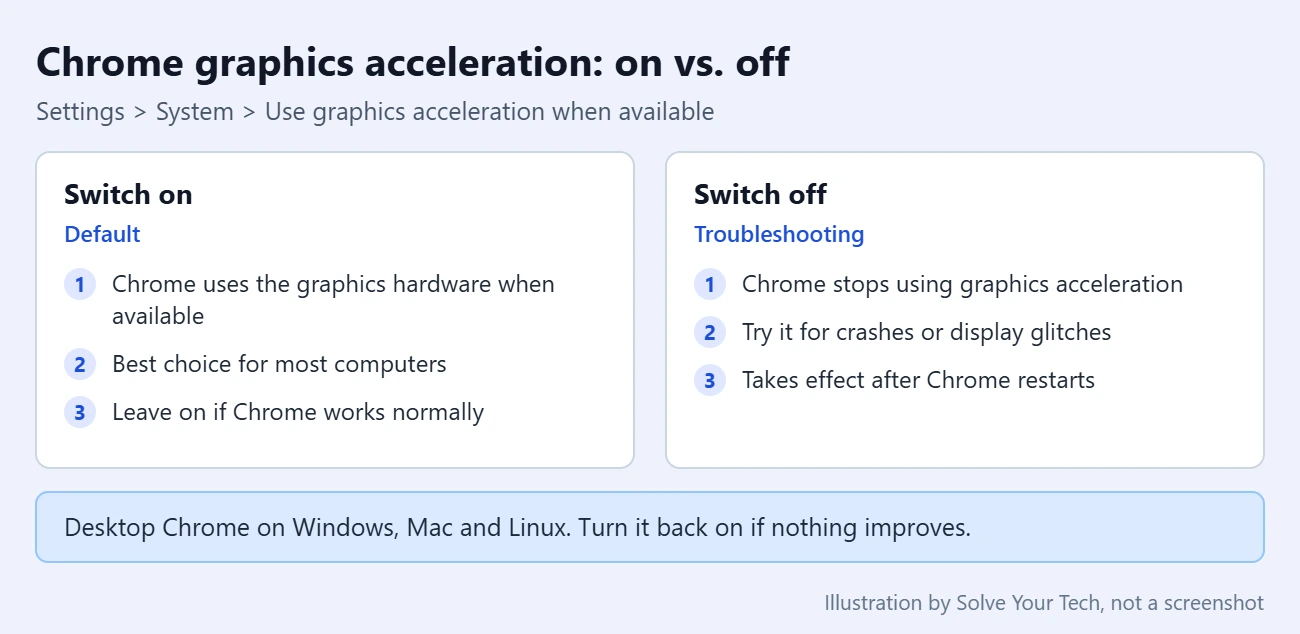
Hardware acceleration, which Chrome now labels graphics acceleration, lets the browser pass graphics work to your computer’s graphics hardware (the GPU, or graphics processing unit) instead of doing all of it on the main processor (the CPU). Video playback, animations, scrolling, and 3D web content such as browser games use it most. It’s on by default.
Most people should leave it on. It is worth turning off as a test when the graphics hardware or its driver (the software that lets your computer talk to that hardware) does not work well with Chrome.
When Turning It Off Is Worth Trying
- Chrome crashes or freezes, and the same page works in another browser.
- Videos or web games show a blank, black, or gray box, flicker, or freeze the browser.
- Parts of pages or menus are drawn incorrectly, such as black boxes, garbled areas, or menus that do not appear.
- The problem began after a graphics driver or operating system update.
Treat the change as a test. If nothing improves, turn the setting back on and move to the fixes below.
Before You Start
- Devices: the switch is in desktop Chrome on Windows, Mac, and Linux. The steps here do not apply to the Chrome app on a phone or tablet.
- Save your work first. The change needs a Chrome restart. Google says Chrome reopens your tabs and windows after a relaunch, but Incognito windows do not reopen, and anything you were typing into a web page may not be kept.
- Try the quick fixes first. Close extra tabs and apps, restart Chrome, and restart the computer before changing this setting. It also helps to check your Chrome version and install any update.
- Nothing is deleted. Turning the switch off does not remove bookmarks, passwords, history, or extensions. It only changes how Chrome draws pages.
How to Turn Off Hardware Acceleration in Chrome
- Open Chrome on your computer.
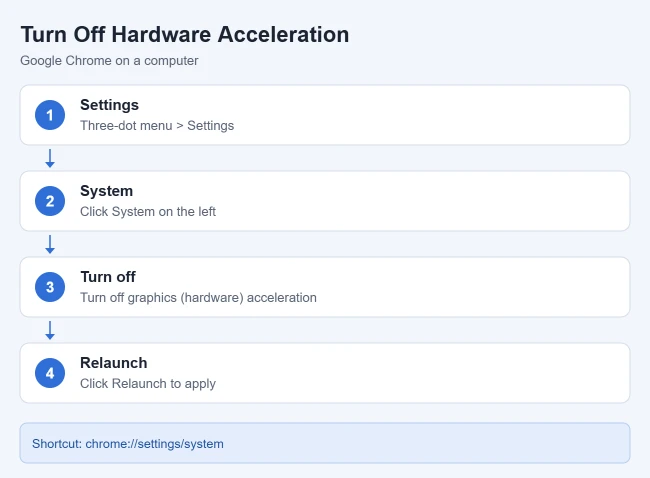
- At the top right, select the three-dot More menu, then select Settings. The Settings page opens in a new tab.
- Select System near the bottom of the left menu. If the window is narrow and the left menu is hidden, select the menu icon at the top left of Settings first.
- Find Use graphics acceleration when available and select the switch so it is off. On an older version the label reads Use hardware acceleration when available. A Relaunch button appears next to the switch.
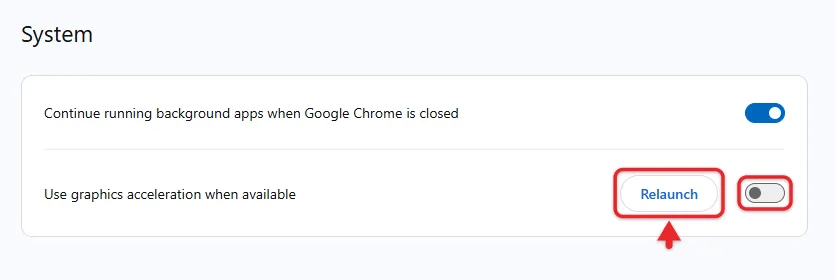
- Select Relaunch. Chrome closes and opens again with your tabs. If you would rather restart later, close the Settings tab; the change applies the next time Chrome fully restarts.
Chrome now runs without graphics acceleration. Go back to the page, video, or game that was causing trouble and see whether it behaves.
Shortcut: type chrome://settings/system in the address bar and press Enter to open the System page directly. You can also type acceleration into the Search settings box at the top of Settings.
Make sure Chrome really restarted
On Windows, closing every Chrome window does not always close Chrome. If Continue running background apps when Google Chrome is closed is on (it sits on the same System page), Chrome can keep running in the background, and the new setting waits. Use the Relaunch button, or type chrome://restart in the address bar and press Enter to close and reopen Chrome in one step.
How to Confirm It Is Off
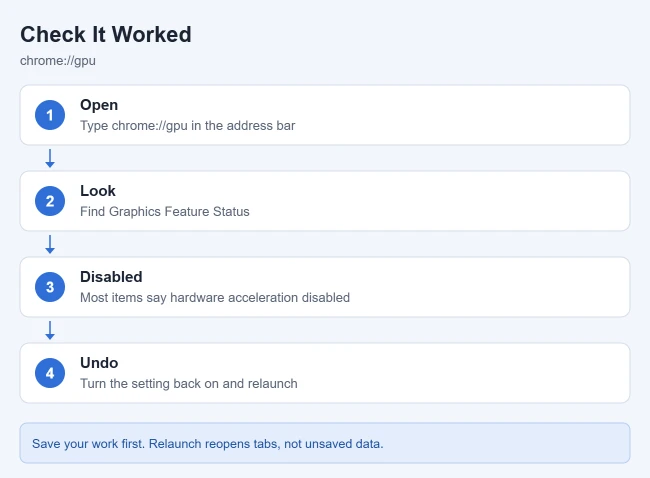
Open Settings > System again after Chrome restarts. The switch is still off.
For a second check, type chrome://gpu in the address bar and press Enter. With acceleration off, many entries in the Graphics Feature Status list show Software only or Disabled, often with a note that hardware acceleration is disabled. With it on, most entries read Hardware accelerated.
If Chrome Crashes Before You Can Reach Settings
When Chrome freezes or goes blank as soon as it opens, you may not be able to reach the switch. You can start Chrome once with its graphics hardware turned off by adding a command-line switch, an extra instruction added to the program’s launch command. This changes only that launch, not the saved setting.
On Windows:
- Close Chrome. If it will not close, end Google Chrome in Task Manager (press Ctrl + Shift + Esc).
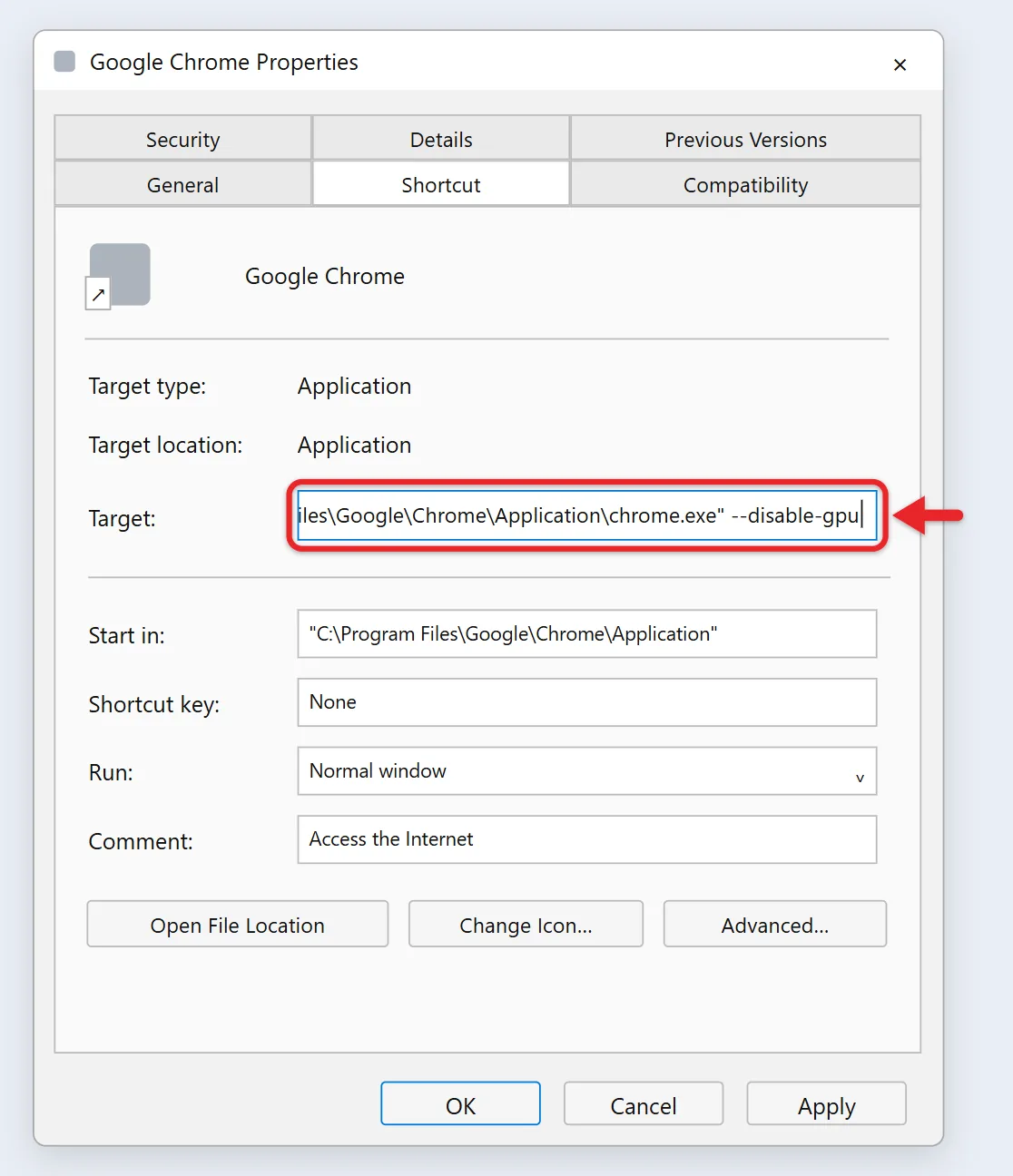
- Right-click a Chrome shortcut on your desktop and select Properties. If you do not have one, make a copy of an existing shortcut first so your normal one stays unchanged.
- On the Shortcut tab, click at the end of the Target box, after the closing quotation mark, type a space, and then type –disable-gpu.
- Select OK and open Chrome from that shortcut.
- Go to Settings > System, turn off the graphics acceleration switch so the fix sticks, and relaunch.
On a Mac, quit Chrome, open Terminal, and run /Applications/Google\ Chrome.app/Contents/MacOS/Google\ Chrome –disable-gpu. On Linux, run google-chrome –disable-gpu from a terminal. The Chromium project’s Run Chromium with flags page explains how launch switches work, including the need to fully close Chrome first. Once the setting is off, remove –disable-gpu from the shortcut.
How to Turn It Back On
Return to Settings > System, turn Use graphics acceleration when available back on, and select Relaunch. Do this if turning it off did not fix anything, or if video and animation became choppy afterward. Leaving it off only makes sense while it is solving a problem.
Troubleshooting
The switch is missing or has a different name
Search Settings for acceleration. Older versions show Use hardware acceleration when available, and some placed System under an Advanced section at the bottom of Settings. Updating Chrome brings the current layout. The steps here are for desktop Chrome, not the mobile apps.
The switch is locked or turns itself back on
On a work or school computer, an administrator can control this setting with a Chrome policy that Google calls HardwareAccelerationModeEnabled. When that policy is set, Chrome shows a building icon or a “managed by your organization” note and you cannot change the switch yourself. Ask your IT administrator to change it.
Nothing changed after you turned it off
Make sure Chrome fully restarted, as described above. If the problem remains, graphics acceleration is probably not the cause. Google’s next suggestions are to scan for malware, remove Chrome extensions and add them back one at a time, or to uninstall and reinstall Chrome. You can also reset Chrome to its default settings.
Chrome feels slower with it off
That can happen, because the main processor now does the drawing. High-resolution video may stutter, and on a laptop the battery can drain faster or slower depending on the computer. Turn the switch back on. If the original glitch returns on a Windows 11 PC, try to update your graphics driver, then test again. For general slowness, Google’s Speed up Google Chrome guide recommends updating Chrome, closing unused tabs, and stopping unwanted tasks, which you can do in the Chrome Task Manager.
Frequently Asked Questions
Is hardware acceleration the same as graphics acceleration in Chrome?
Yes. Current Chrome labels the switch Use graphics acceleration when available, while older versions and some Google help pages say Use hardware acceleration when available. Both names refer to the same setting in Settings > System.
Is it safe to turn off hardware acceleration in Chrome?
Yes. Chrome keeps working and your data stays where it is. The trade is that the main processor does more of the drawing, so some video and animation can be less smooth. You can turn it back on at any time.
Do I have to restart Chrome after turning off hardware acceleration?
Yes. The setting only takes effect after Chrome restarts. Until then, Chrome keeps running the way it started.
Can I turn off hardware acceleration for just one website?
No. The switch applies to all of Chrome. If only one site has trouble, check that site in another browser and contact the site owner if the problem follows it.
Will turning off hardware acceleration in Chrome affect other apps?
No. The switch belongs to Chrome only. Other browsers and apps have their own controls, and Windows has its own separate hardware acceleration settings in Windows 11. Some Excel versions have their own graphics acceleration box, covered in how to fix a slow cursor in Excel, and Firefox has its own checkbox, covered in how to fix delayed typing in Firefox.
Can I turn off hardware acceleration in Chrome on a phone?
No. The switch is only in desktop Chrome on Windows, Mac, and Linux. The Chrome apps for Android and iPhone don’t have it.
Next Step
Turn the switch off, relaunch Chrome, and retest the page that was failing. If the problem is gone, leave the setting off for now and try turning it back on after your next Chrome or graphics driver update.

Matthew Burleigh is the founder, head writer, and editor of Solve Your Tech, which he launched in 2012. He has written technology tutorials since 2008 and worked in IT since 2003, including small-business support, IT management, and consulting. He holds Bachelor’s and Master’s degrees in Computer Science from Arizona State University.
Matthew writes practical guides for Windows, iPhone and iPad, Microsoft Office, Outlook, Google apps, and Android. Solve Your Tech’s guides are checked step by step against the device or app maker’s own documentation and tested on his own devices whenever he has the hardware or software, with clear steps, sources, and update dates.
Read more about Matthew and how Solve Your Tech writes and updates its guides, or report a correction.