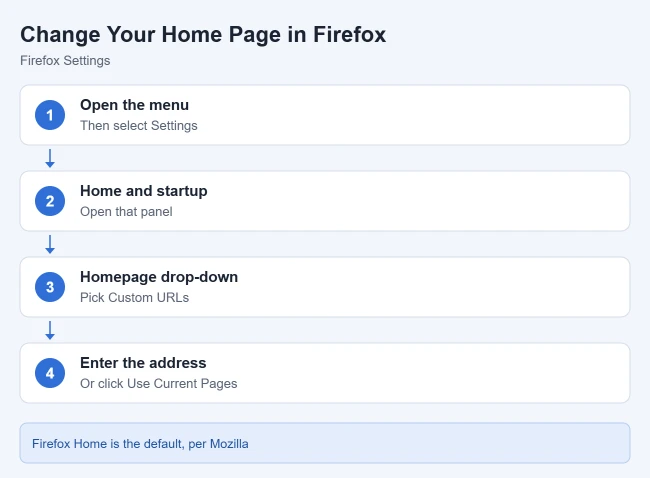
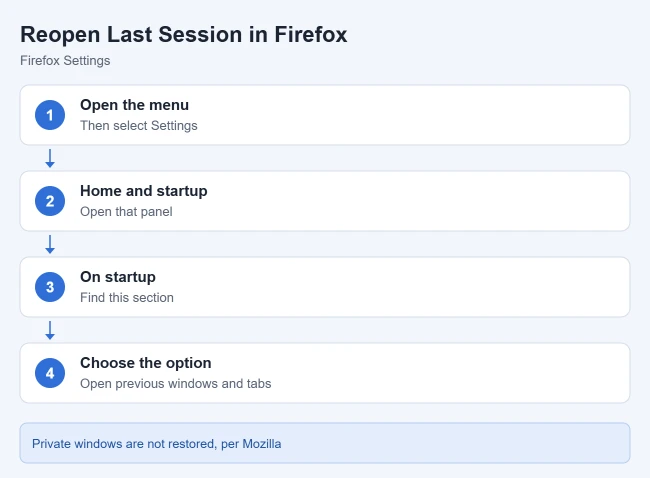
To change your home page in Firefox, click the menu button, choose Settings, open the Home and startup panel, and in the Homepage drop-down choose Custom URLs. Type the web address, or click Use Current Pages. To have Firefox reopen your windows and tabs from last time instead, select Open previous windows and tabs under On startup on the same page.
These steps come from Mozilla’s How to set the home page and Restore previous session support articles, both updated recently. Older guides and versions of Firefox label the panel Home and put the startup option in General.
How to Change Your Home Page in Firefox
- Click the menu button (three lines) and choose Settings.
- Click the Home and startup panel.
- Click the drop-down menu next to Homepage and choose Custom URLs….
- Type the address, or click Use Current Pages to use your open tabs.
Result: Firefox shows that page when it starts, when you open a new window, and when you click the Home button. Mozilla says settings changes save automatically when you close the Settings page.
Other home page choices
- Firefox Home (Default) is selected by default and shows Firefox’s own start page.
- Blank page shows an empty page. Mozilla suggests it if you see ads or unwanted content.
Shortcut: drag a tab to the Home button
Open the page you want, drag its tab onto the Home button in the toolbar, and click Yes. Mozilla notes the Home button isn’t shown by default, but it’s added to the toolbar automatically when you set a custom home page.
How to Open Firefox With Several Pages
- Open each page you want in its own tab.
- Go to Settings > Home and startup.
- Choose Custom URLs…, then Choose a specific site.
- Click Use Current Pages, or enter the addresses one at a time.
Result: each page opens in its own tab when Firefox starts. You can also type several addresses separated by a pipe character (|).
How to Show Windows and Tabs From Last Time
- Click the menu button and select Settings.
- Select the Home and startup page.
- Below On startup, select Open previous windows and tabs.
Result: Firefox restores your last session every time it starts, instead of opening your home page.
Restore your last session just once
Click the menu button, click History, and select Restore Previous Session. To get back a single tab, Mozilla says to press Ctrl + Shift + T (Command + Shift + T on a Mac), or use History > Recently Closed Tabs.
What session restore won’t bring back
- Private windows are never restored, by design.
- Pinned tabs are restored.
- Sign-ins: Mozilla warns that session restore may keep you signed in to sites. If others use your computer, consider leaving it off.
Mozilla also notes that if you close windows one at a time, only the last window you closed is restored. Mozilla recommends closing Firefox with Exit in the menu.
If the Wrong Home Page Keeps Opening
Mozilla lists a few common causes: an extension may be controlling your home page, the desktop shortcut you use to open Firefox may have a web address in it, or a toolbar may have taken over your settings. Check your add-ons and your Firefox shortcut first.
Frequently Asked Questions
Is the home page the same as the new tab page?
By default, yes. Mozilla says Firefox uses the New Tab page as your home page. Choosing a custom home page changes what you see at startup, in new windows and when you click the Home button.
Can I use both a home page and session restore?
When Open previous windows and tabs is on, Firefox restores your last session at startup instead of opening the home page. Your home page still opens when you click the Home button.
Related Guides
- How to use private browsing in Firefox
- How to remove or disable add-ons in Firefox
- How to set the home page in Firefox on iPhone
If you’re setting up Firefox on a new computer, see how to back up and restore your bookmarks in Firefox to bring your saved sites with you.

Matthew Burleigh is the founder, head writer, and editor of Solve Your Tech, which he launched in 2012. He has written technology tutorials since 2008 and worked in IT since 2003, including small-business support, IT management, and consulting. He holds Bachelor’s and Master’s degrees in Computer Science from Arizona State University.
Matthew writes practical guides for Windows, iPhone and iPad, Microsoft Office, Outlook, Google apps, and Android. Solve Your Tech’s guides are tested on current devices or checked against official product documentation, with clear steps, sources, and update dates.
Read more about Matthew and how Solve Your Tech writes and updates its guides, or report a correction.