To stop Google Docs from saving files on your computer for offline use, open the Google Docs home screen, click Menu (three lines) > Settings, and turn off Offline. To turn it back on, use the same switch, or the Offline setting in Google Drive. On a phone or tablet, the offline options are in the Docs app menu.
This guide covers Google Docs in Chrome or Edge on a computer, plus the Docs, Sheets and Slides apps on iPhone, iPad and Android. It follows Google’s help page on working offline, checked in October 2026. One setting controls all three apps: Google says turning offline off in Docs, Sheets or Slides turns it off for the rest too.
How to Turn Off Google Docs Offline
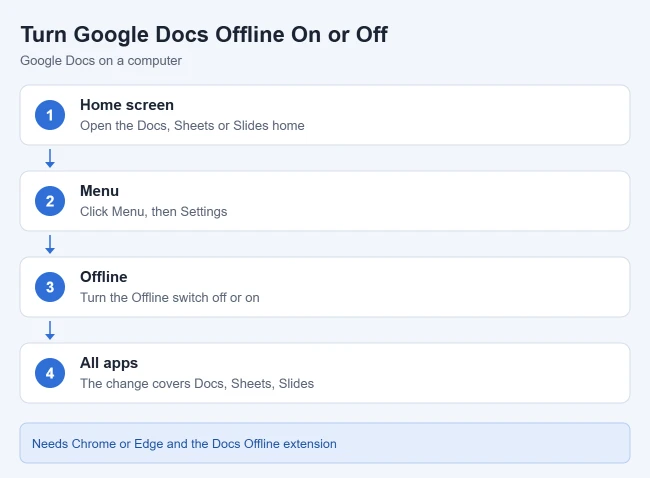
- Open the Google Docs, Sheets, or Slides home screen in your browser. Result: you see your list of files.
- Click Menu (three lines) at the top left, then click Settings. Result: the Settings window opens.
- On the right, turn off Offline. Result: Docs, Sheets and Slides stop keeping files available offline on this computer.
Your files are not deleted. They stay in Google Drive, and you can open them whenever you are online.
Offline Turned Itself Back On?
Google says offline is turned on automatically if you use a Chromebook, if you chose to sync Docs and Drive when you created your Chrome profile, or if you have Drive for desktop installed. If one of those applies, you may need to turn the switch off again.
How to Turn On Google Docs Offline
Before you start, Google lists a few requirements:
- You must be connected to the internet.
- You must use Google Chrome or Microsoft Edge, and not private or incognito browsing.
- Install and turn on the Google Docs Offline extension.
- Make sure your device has enough free space for the files.
- Open Google Drive. Result: your Drive files appear.
- At the top right, click Settings (gear) > Settings. Result: the Drive settings page opens.
- Turn on Offline. Result: your recent files start saving for offline use.
If you use Edge, Google sends you to the Chrome Web Store to get the Docs Offline extension. You can also turn offline on from any open file: click the See document status icon next to the file title, then click Turn on. To use offline with a different Google account, sign in to the right Chrome or Edge profile first.
Make One File Available Offline
With offline turned on, Google saves some of your most recent files automatically if you have space. To pick a specific file:
- Open the Google Docs, Sheets, or Slides home screen. Result: your files are listed.
- Click More (three dots) on the file you want. Result: a menu opens.
- Click Available offline. Result: a check mark appears at the bottom left of the file.
You can also open the file and click File > Make available offline. To stop saving that one file, click the same option again so the check mark goes away. To see whether a file is ready, open it and click See document status next to the title.
Offline on iPhone, iPad, and Android
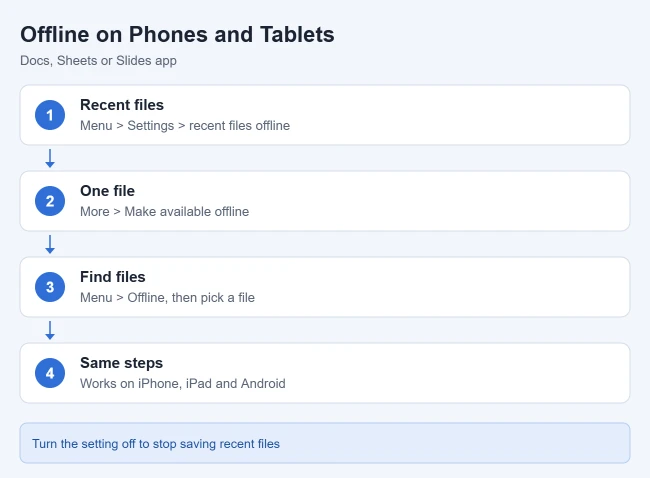
The steps are the same on iPhone, iPad, and Android phones and tablets:
- Recent files: open the Docs, Sheets, or Slides app, tap Menu > Settings, and turn Make recent files available offline on or off.
- One file: tap More next to the file, then tap Make available offline.
- Find offline files: tap Menu > Offline, then select a file.
Need to rename something on your phone first? See how to rename a file in the Google Docs iPhone app.
Fix Offline Sync Problems
- Offline sync is disabled by your administrator: you cannot use offline with this work or school account. Contact your admin.
- Another user has already enabled offline access: only one account per browser profile can use offline. Use a separate Chrome or Edge profile for each account.
- Checking offline sync status. Please wait: reload the page. If it continues, clear the site data for docs.google.com in your browser settings.
- Offline setup failed: turn offline off, turn it back on, and clear the site data if needed.
- Could not sync document: check your connection, then click File > Make available offline twice to reset it. If it still fails, the file may be too large. Copy parts of it into smaller documents.
Google also says to keep your browser up to date and make sure the Docs Offline extension is turned on.
Frequently Asked Questions
Does turning off offline access delete my documents?
No. Your files stay in Google Drive. Turning off offline only stops your computer from keeping copies you can open without internet.
Why can I not turn on offline access?
Check that you are using Chrome or Edge, not a private window, that the Docs Offline extension is installed and on, and that your device has free space. A work or school admin can also block it.
Does this setting affect Google Sheets and Slides?
Yes. Google says turning offline on or off in Docs, Sheets, Slides, or Drive applies to all of them.
Related Guides

Matthew Burleigh is the founder, head writer, and editor of Solve Your Tech, which he launched in 2012. He has written technology tutorials since 2008 and worked in IT since 2003, including small-business support, IT management, and consulting. He holds Bachelor’s and Master’s degrees in Computer Science from Arizona State University.
Matthew writes practical guides for Windows, iPhone and iPad, Microsoft Office, Outlook, Google apps, and Android. Solve Your Tech’s guides are tested on current devices or checked against official product documentation, with clear steps, sources, and update dates.
Read more about Matthew and how Solve Your Tech writes and updates its guides, or report a correction.