To lock the camera lens while recording video on an iPhone, go to Settings > Camera > Record Video and turn on Lock Camera. Apple says this setting prevents switching between cameras while you record, so the iPhone stays on the lens you started with instead of jumping to another one when the light or distance changes.
These steps match Apple’s Change video recording settings page for iOS 27 and recent earlier versions. Lock Camera is available “on supported models,” meaning iPhones with two or more rear cameras. iOS 10, which the iPhone 7 Plus shipped with, used a different name, covered below.
How to Turn On Lock Camera on iPhone
- Open the Settings app.
- Scroll down and tap Camera. The Camera settings screen opens.
- Tap Record Video. You see the resolution and frame rate list, with more switches below it.
- Turn on Lock Camera. The switch turns green.

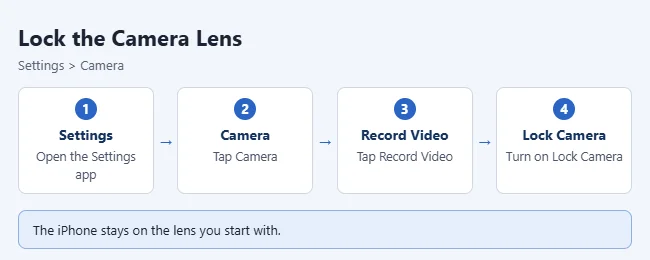
From now on, the iPhone keeps the lens you start recording with. Lock Camera is off by default and stays on until you turn it off.
Which iPhones show Lock Camera
Apple doesn’t publish a full model list. It matters on iPhones with more than one rear camera, such as iPhone 7 Plus, iPhone 8 Plus, iPhone X, iPhone XS, and iPhone 11 and later models with dual or triple rear cameras. Single rear-camera models, such as iPhone SE, iPhone XR, iPhone 16e, and iPhone Air, have no other rear lens to switch to.
On older versions of iOS
In iOS 10 and earlier, the same switch was called Lock Camera Lens under Settings > Photos & Camera > Record Video. If you see that wording, it’s the same setting.
Why the iPhone Switches Lenses
Because the lenses differ in aperture and position, a lens change in the middle of a clip shows up as a brief jump or flicker. Common reasons for a switch:
- Low light: The telephoto lens gathers less light, so the iPhone may move to the Main lens and crop digitally to match your zoom.
- Close subjects: If a subject is closer than the telephoto lens can focus, the iPhone may use the Main lens instead.
- Scene analysis: The iPhone may decide another lens gives a better picture and use it without any on-screen notice.
Locking the camera keeps interviews, product videos, and tripod shots consistent.
When you edit those clips together, you can also add background music to the video in Apple’s free iMovie app.
Pick Your Lens Before You Press Record
Because Lock Camera holds the lens you start on, choose it first:
- Open Camera and swipe to Video.
- Tap a zoom button, such as 0.5x, 1x, or 2x, to pick the lens. The buttons you see depend on your model.

- Tap the Record button.
Zooming during the clip then uses digital zoom on that lens, which gets softer the further you go. Start on telephoto and you can’t zoom back out to the Main lens until you stop.
For the sharpest footage, record 4K video on iPhone and pick the frame rate before you start. If the phone is on a tripod, turning on the camera grid helps you frame the shot first.
Things to Know Before You Lock the Lens
- The setting only applies while you record video. It doesn’t change how photos are taken.
- In dim light, a locked telephoto lens can look grainier than the Main lens would. Add light or start on 1x.
- It doesn’t control the front and rear camera switch, or close-up macro switching on supported Pro models, which has its own Macro Control switch in Settings > Camera.
Other Settings on the Record Video Screen
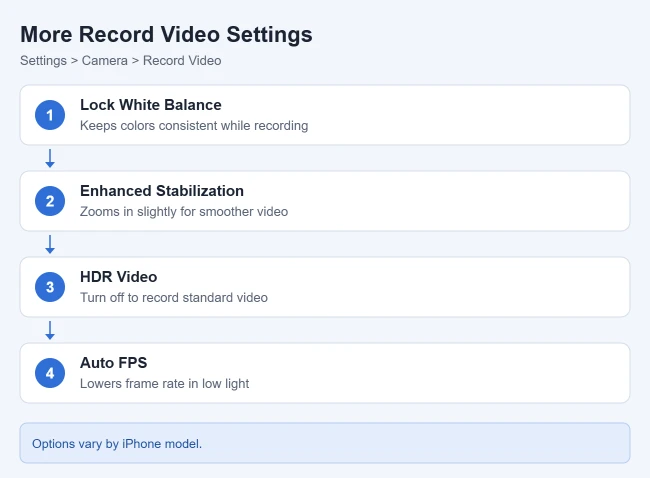
Several other options sit next to Lock Camera. Availability varies by model:
- Lock White Balance: Locks white balance while you record for more accurate color capture.
- Enhanced Stabilization: Zooms in slightly for smoother video. It’s on by default.
- HDR Video: Records in HDR on supported models. Devices that can’t play HDR receive a standard (SDR) version when you share.
- Auto FPS / Auto Low Light FPS: Lowers the frame rate to 24 fps in low light to improve quality.
How to Check That It Worked
Record a test clip indoors, starting at 1x, and slowly pinch to zoom past 2x. With Lock Camera on, the picture enlarges smoothly without a jump in color or angle. To undo the change, go back to Settings > Camera > Record Video and turn off Lock Camera.
If the Picture Still Changes While You Record
- The image gets soft when you zoom. That’s digital zoom on the locked lens. Zoom less, move closer, or start on a longer lens.
- The frame shifts or crops slightly. Enhanced Stabilization or Action mode can crop the frame. Try a clip with them off.
- The camera zooms by itself on a tripod. Turn on Lock Camera, then install the latest iOS update from Settings > General > Software Update.
Frequently Asked Questions
Why don’t I see Lock Camera in my settings?
It’s only on supported models. A single rear-camera iPhone, such as iPhone SE, iPhone XR, iPhone 16e, or iPhone Air, has no other lens to switch to. On iOS 10 and earlier, look for Lock Camera Lens.
Does Lock Camera also lock focus or exposure?
No. Lock Camera only prevents switching between cameras. White balance has its own switch on the same screen, and you can hold focus and exposure by touching and holding the subject until AE/AF Lock appears.
Will Lock Camera make my videos worse?
Only in low light or at long zoom, where the iPhone can’t move to a better lens. Turn it off for casual clips.
Related Guides
- How to Make the iPhone Camera Keep Your Last Settings
- How to Record Stereo Sound on an iPhone
- How to turn off the camera flash on an iPhone
- How to keep the video light off on iPhone
- How to turn off the flipped selfie camera
- How to control your iPhone camera from Apple Watch
For still photos with motion blur, you can take a long exposure photo on iPhone.

Matthew Burleigh is the founder, head writer, and editor of Solve Your Tech, which he launched in 2012. He has written technology tutorials since 2008 and worked in IT since 2003, including small-business support, IT management, and consulting. He holds Bachelor’s and Master’s degrees in Computer Science from Arizona State University.
Matthew writes practical guides for Windows, iPhone and iPad, Microsoft Office, Outlook, Google apps, and Android. Solve Your Tech’s guides are checked step by step against the device or app maker’s own documentation and tested on his own devices whenever he has the hardware or software, with clear steps, sources, and update dates.
Read more about Matthew and how Solve Your Tech writes and updates its guides, or report a correction.