To fit more files on the screen in Google Drive, click the Settings gear at the top right of Drive, choose Settings, find Density on the General page, and select Compact. Compact shrinks the space between rows, so more of your files and folders show up before you have to scroll.
These steps are for Google Drive on the web at drive.google.com, in Chrome, Edge, Safari, or Firefox on a Windows PC, Mac, or Chromebook. They work the same way for personal Google accounts and work or school accounts. The Drive app for iPhone, iPad, and Android doesn’t have a Density setting, but it does let you switch between list and grid layouts, which is covered below.
What the Three Density Options Do
Density controls how much empty space Drive puts around each file, folder, and menu item. It doesn’t change the size of your text or remove any information. Drive offers three choices:
| Option | What it looks like | Good for |
|---|---|---|
| Comfortable | The most padding between rows and around buttons | Touchscreens and large monitors |
| Cozy | A middle ground with a little less padding | Laptops where you want some breathing room |
| Compact | The least padding, so rows sit closest together | Seeing the most files at once, especially on small laptop screens |
The difference is most obvious in list layout, where each file is a row. On a typical laptop screen, switching from Comfortable to Compact adds several extra rows to the visible part of the list.
Change Google Drive to Compact Density
- Go to drive.google.com and sign in with your Google account. Your files appear in the middle of the page, with the navigation panel (Home, My Drive, Shared with me, and so on) on the left.
- Click the Settings gear icon at the top right of the page, next to the question mark Support icon. A small menu opens.
- Click Settings in that menu. The Settings page opens on the General tab.

- Scroll down to the Density section. You’ll see Comfortable, Cozy, and Compact.
- Select Compact.

- Close Settings to go back to your files. The file list now shows tighter rows and more items per screen.
To undo the change, repeat the steps and choose Comfortable or Cozy. Nothing about your files changes; only the spacing does.
The same General page has a few related options. Appearance switches Drive between Light, Dark, and Device default themes, and Start page lets you pick whether Drive opens to Home or My Drive. If you mostly work in your own folders, setting the start page to My Drive takes you straight to the file list instead of the suggestions on Home.
Further down the General page, the Preview card section has a box labeled Show details card when hovering on a file or folder icon. Google’s help page says you can uncheck it to stop the small information card from popping up over your list every time your pointer rests on an icon. It doesn’t change how many files fit, but it keeps those cards from covering the rows below.
Use List Layout to See Even More Files
Density works best with list layout. Grid layout shows each file as a large thumbnail card, so even in Compact you only see a handful of files at a time. List layout shows one file per row, along with columns like owner, date modified, and file size.
- Open My Drive, Shared with me, or any folder.
- Look at the top right of the file area for a pair of icons: a list icon (horizontal lines) and a grid icon (squares).
- Click the list layout icon. Each file becomes a single row.
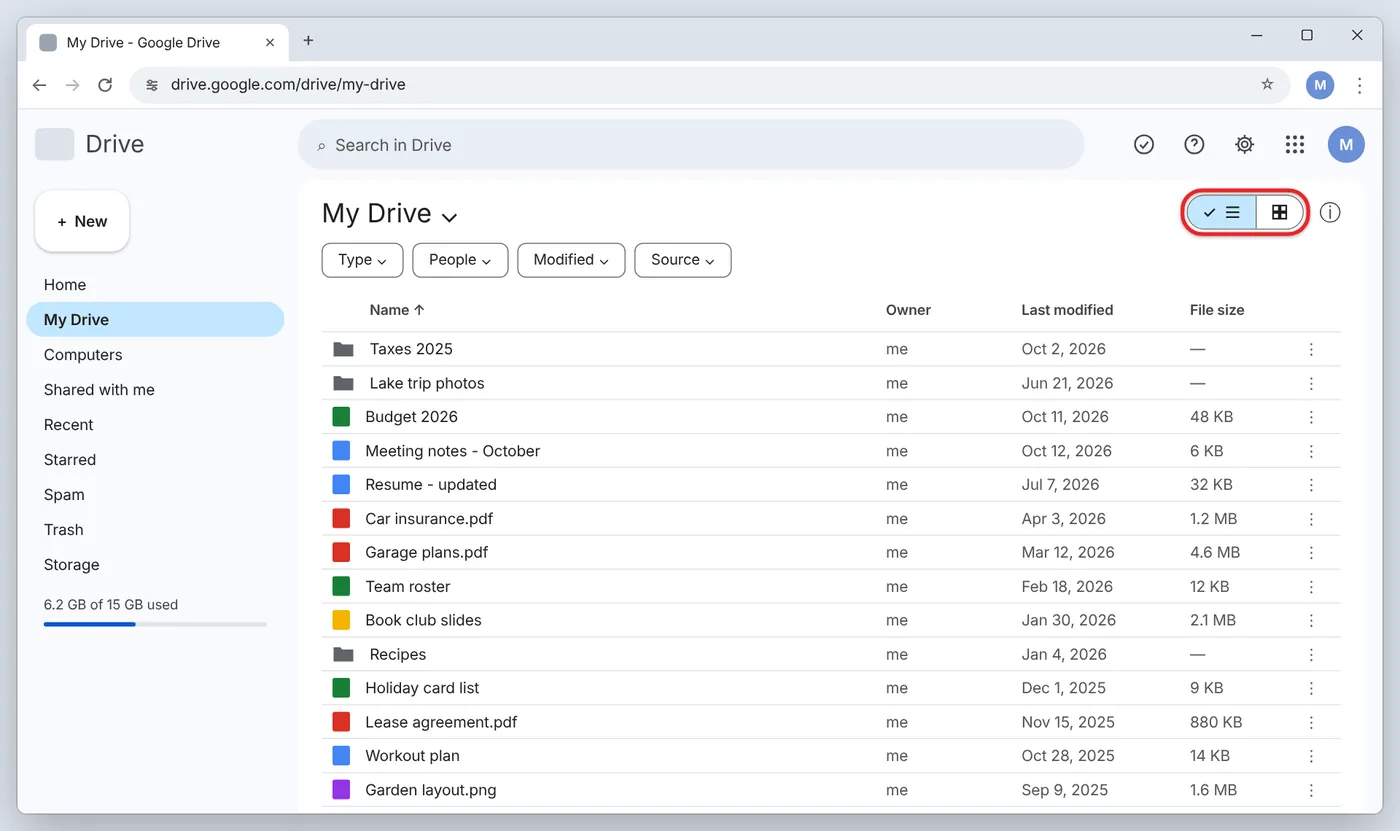
Google’s view and reorder your files help page notes that list is the standard layout, and you can switch back to grid with the same toggle at any time.
If you prefer the keyboard, press Alt + V, then L on Windows or a Chromebook, or Option + V, then L on a Mac. That switches between grid and list. The full set of keys is on Google’s Drive keyboard shortcuts page, or press Ctrl + / (Command + / on a Mac) inside Drive to see them.
Put Folders First or Mix Them In
Folders show up above files by default. In My Drive, Shared with me, and Starred, you can change that: click Sort on the far right, just above the file list, and choose Mixed with files. Choose On top to put folders back at the top. Drive remembers this choice.
To change the order of the files themselves in list layout, click a column title such as Name or Last modified, then click the up or down arrow next to it to reverse the order. You can’t sort the Home or Recent pages.
Other Ways to Fit More on the Screen
- Hide the details pane. If a panel with file information is open on the right side, click the View details icon (a small “i” in a circle) to close it. You can also press Alt + V, then D (Option + V, then D on a Mac). Closing it gives the file list the full width of the window.
- Zoom out in your browser. Press Ctrl and the minus key (Command and minus on a Mac) to make everything on the page smaller. Press Ctrl + 0 (Command + 0) to go back to normal size. This shrinks the text too, so it’s a trade-off between seeing more and reading comfortably.
- Maximize the browser window. Drive fits its layout to the window, so a full-screen window shows more rows than a half-screen one.
- Use search and filters instead of scrolling. When a folder has hundreds of files, typing part of the name in the Search in Drive box, or using the filter chips under it (Type, People, Modified), is usually faster than any layout change. For example, open My Drive, click Type, and choose Photos & images to see your pictures from every folder in one list.
See More Suggestions on the Drive Home Page
The Home page shows suggested folders and files instead of your full folder list, so it only shows a few at a time. According to a Google Workspace Updates post from 2024, Home shows up to 6 suggested folders and up to 10 suggested files. Click View more next to either group to expand it to up to 12 folders or up to 30 files. If you don’t see View more, Drive has no extra suggestions to show.

If you want every file instead of suggestions, click My Drive in the left panel, or set Start page to My Drive in Settings so Drive always opens there.
Show More Files in the Drive Mobile App
The Google Drive app on iPhone, iPad, and Android doesn’t include the Density setting, and changing density on the web doesn’t affect the app. You can still fit more files on a phone screen:
- Open the Google Drive app and tap Files at the bottom of the screen.
- At the top right of the file list, tap the layout icon to switch to the list layout if you’re in grid view. Each file becomes a single row with a small icon.
- Tap the Sort by label above the list to choose an order, such as Last modified, so the files you need are near the top.
For a bigger change on a phone, you can lower the text size in your phone’s display settings, but that affects every app, not just Drive.
If You Can’t Find the Density Setting
- I can’t find the Density setting. Make sure you’re on drive.google.com in a computer browser, not the mobile app. Density is on the General tab of Settings, below options like Storage, Language, and Convert uploads, so you may need to scroll.
- Compact didn’t seem to change much. You’re probably in grid layout. Switch to list layout for the biggest difference.
- The setting seems to have reverted. Drive settings belong to the account you change them in. If you use more than one Google account, check the profile picture at the top right to confirm you’re looking at the same account where you picked Compact.
- I can’t sort the list. Sorting doesn’t work on Home or Recent. Open My Drive or a folder first.
- Browser extensions promise a different layout. Chrome Web Store add-ons that change Drive’s layout are made by outside developers, not Google. Stick with Drive’s own Density and layout settings unless you trust the developer and the permissions the extension asks for.
- Compact feels too cramped to click accurately. Try Cozy. It still fits more rows than Comfortable while leaving a bit more room around each one, which helps on touchscreen laptops.
- Text is too small after zooming out. Press Ctrl + 0 (Command + 0 on a Mac) to reset the browser zoom. Density alone never changes text size.
Google Drive Density Questions
Which Google Drive density shows the most files?
Compact. It uses the least spacing between rows, so it fits the most files on the screen. Combine it with list layout for the best result.
Does changing density in Drive also change Google Docs or Gmail?
No. Drive’s Density setting only affects the Drive file list and menus. Gmail has its own density option, so you can switch to compact view in Gmail for the same tighter look in your inbox.
Will changing the density delete or move any of my files?
No. Density is a display setting only. Your files, folders, sharing settings, and storage use stay exactly the same.
Can I make Google Drive show file thumbnails bigger instead?
Yes. Switch to grid layout with the toggle at the top right of the file list. Grid shows a preview card for each file, which is useful for photos, but it fits far fewer files on the screen.
Why does Drive look different on my phone?
The mobile app has its own simpler layout options. It supports list and grid views and sorting, but not the Comfortable, Cozy, and Compact density choices from the web version.
If you’re trying to find a file so you can do something with it, you may want to download an entire folder in Google Drive or change the name of a file in Google Drive next.

Matthew Burleigh is the founder, head writer, and editor of Solve Your Tech, which he launched in 2012. He has written technology tutorials since 2008 and worked in IT since 2003, including small-business support, IT management, and consulting. He holds Bachelor’s and Master’s degrees in Computer Science from Arizona State University.
Matthew writes practical guides for Windows, iPhone and iPad, Microsoft Office, Outlook, Google apps, and Android. Solve Your Tech’s guides are checked step by step against the device or app maker’s own documentation and tested on his own devices whenever he has the hardware or software, with clear steps, sources, and update dates.
Read more about Matthew and how Solve Your Tech writes and updates its guides, or report a correction.