Have you ever dictated a text message on your Apple Watch, only for the translated text to be very wrong?
This can happen to a lot of people, and it can make it very difficult to use the watch for messaging.
You do have a way to improve this, however, by choosing to send audio messages instead of text ones.
Our tutorial will show you how to send an Audio Message when you dictate a message on Your Apple Watch by adjusting an option in the Watch app on your iPhone.
How to Speak and Send Audio Messages on an Apple Watch
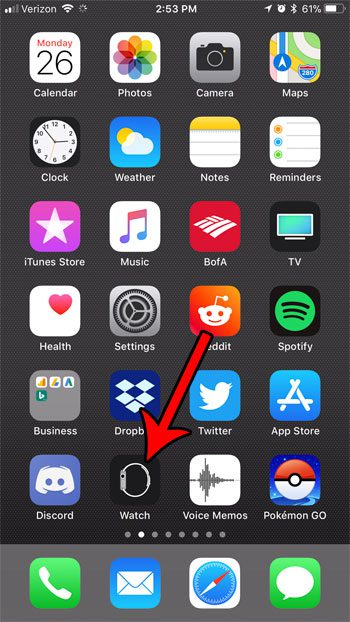
- Open the Watch app.
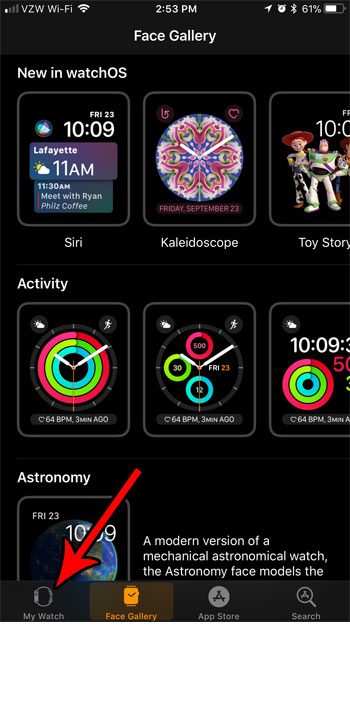
- Choose the My Watch tab.
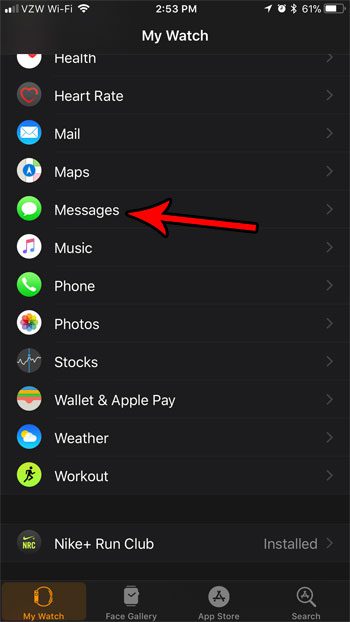
- Select Messages.
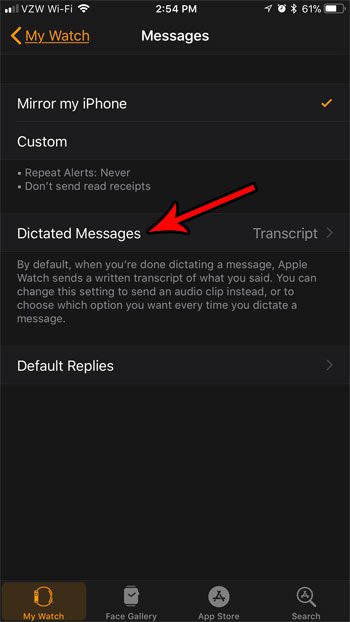
- Choose Dictated Messages.
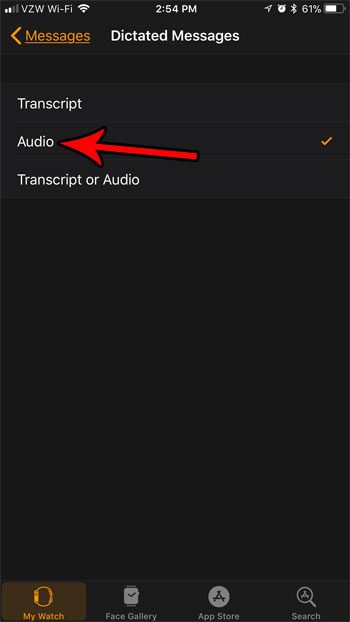
- Tap the Audio option.
Our guide continues below with additional information on how to send an Audio Message when you dictate a message on Your Apple Watch, including pictures of these steps.
This solveyourtech.com guide can help you figure out why iMessages get sent as text messages from time to time.
The iPhone messaging app has gotten really advanced and can even send fun effects for holidays or when certain words are typed.
The Apple Watch’s message-sending ability has improved, too, but it’s still not as easy or seamless as on a phone.
Typing or writing an iMessage or text message from your Apple Watch can be difficult (but it’s not too difficult on an iPad), so you may find that you avoid sending messages from the device.
However, there is an alternative that you can utilize that lets you speak your intended message into the watch.
If you have used this feature before, then it’s likely that the message was translated into text and that you actually sent a transcript of your spoken message.
However, if you find that this transcript is inaccurate, or if you simply prefer to send audio messages instead, then it’s possible to change that behavior.
Our tutorial below will show you how to change the manner in which your Apple Watch handles dictated messages.
How to Switch from Transcript to Audio for Messages on the Apple Watch (Guide with Pictures)
The steps in this article were performed on an Apple Watch using WatchOS 4.2.3. This is going to change the behavior on your watch so that it sends your dictated messages as an audio clip instead of a transcript of what you spoke into the watch.
Like to wear your watch when you swim? Find out more about the Apple Watch water lock.
Step 1: Open the Watch app on your iPhone.
Step 2: Choose the My Watch tab at the bottom of the screen.
Step 3: Scroll down and select the Messages option.
Step 4: Touch the Dictated Messages button.
Step 5: Tap the Audio option.
Now that you know how to send an Audio Message when you dictate a message on Your Apple Watch, you can use your watch to send accurate communications without worrying that it’s going to incorrectly translate something that you said.
Did you know that there’s a flashlight mode on your Apple Watch, too? Find out how to activate the watch’s flashlight if you would prefer to use that in a dark environment instead of the flashlight on your iPhone.

Matthew Burleigh has been writing tech tutorials since 2008. His writing has appeared on dozens of different websites and been read over 50 million times.
After receiving his Bachelor’s and Master’s degrees in Computer Science he spent several years working in IT management for small businesses. However, he now works full time writing content online and creating websites.
His main writing topics include iPhones, Microsoft Office, Google Apps, Android, and Photoshop, but he has also written about many other tech topics as well.