The “other” calculator on an iPhone is the scientific calculator built into the Calculator app. On iOS 18 and later, open Calculator, tap the Change Mode button (the calculator icon), and choose Scientific. On iOS 17 and earlier, open Calculator and turn your iPhone sideways to landscape. Either way you get square roots, exponents, parentheses, logarithms, trigonometry and memory keys without downloading another app.
The first method covers iOS 18, iOS 26 and iOS 27, the current version. The second covers iOS 17 and earlier. Apple describes both the mode switch and every scientific key in its iPhone User Guide article Use the scientific calculator on iPhone.
How to Open the Scientific Calculator on iOS 18 and Later
- Open the Calculator app. If it isn’t on your Home Screen, swipe down on the Home Screen and type “calculator” in Search, or check your Utilities folder. The basic keypad appears.
- Tap the Change Mode button (the calculator icon). A short menu of modes opens.
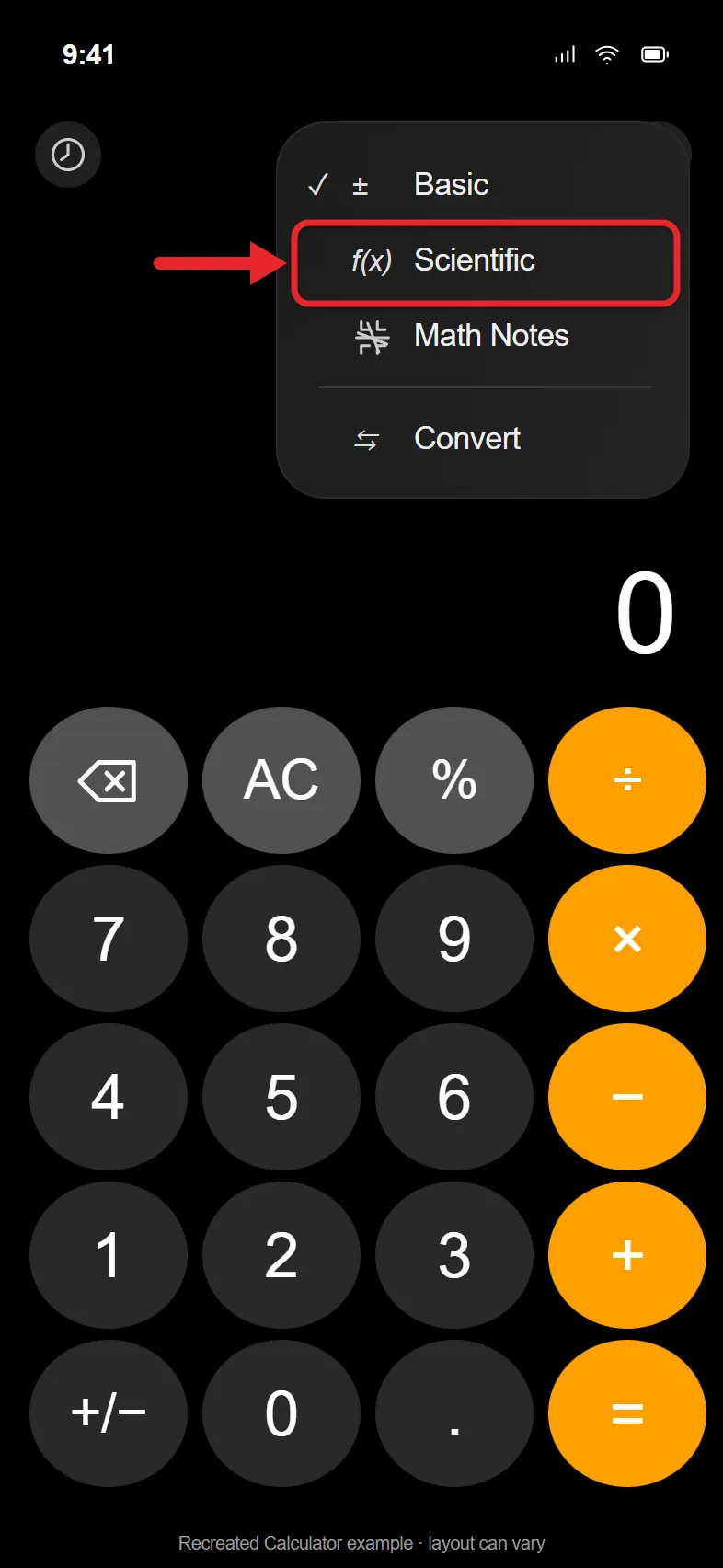
- Tap Scientific.
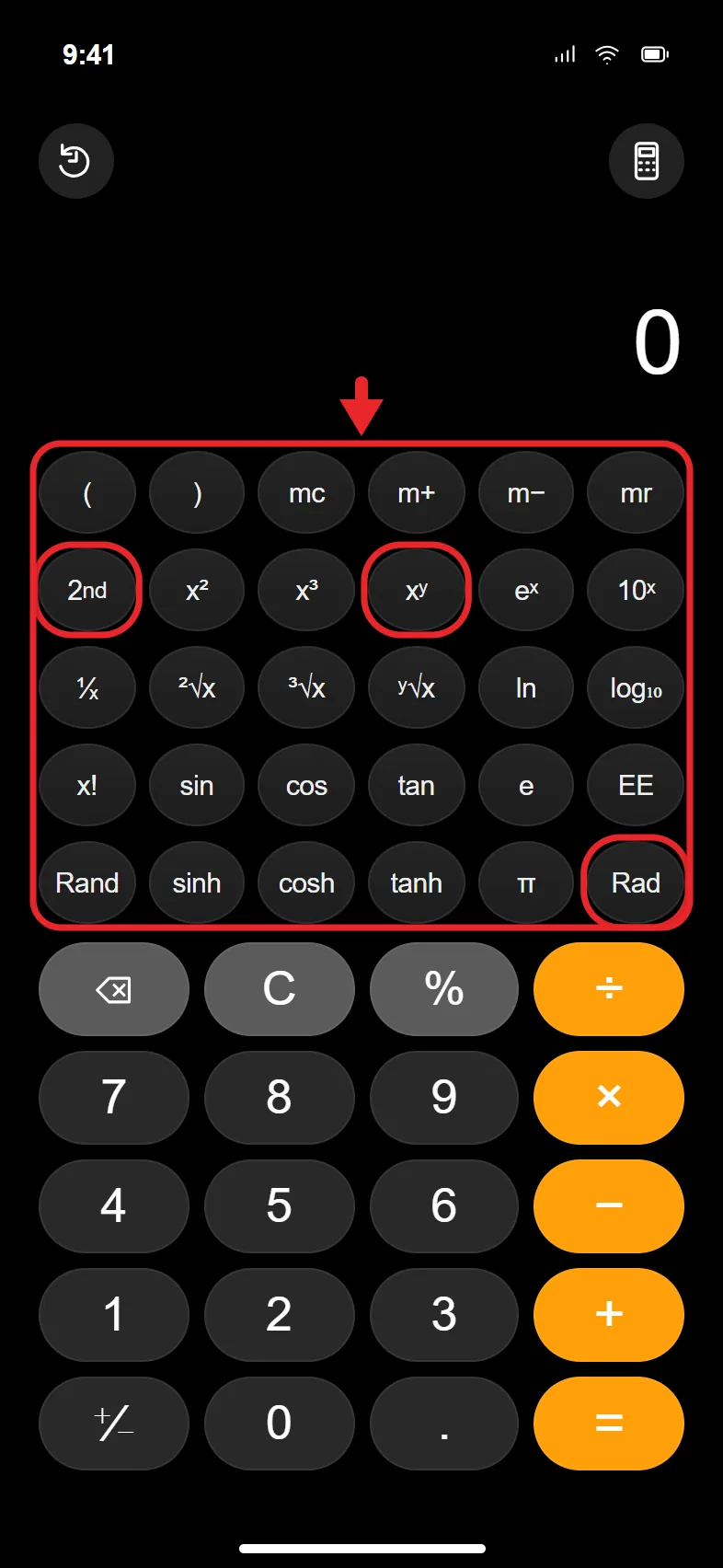
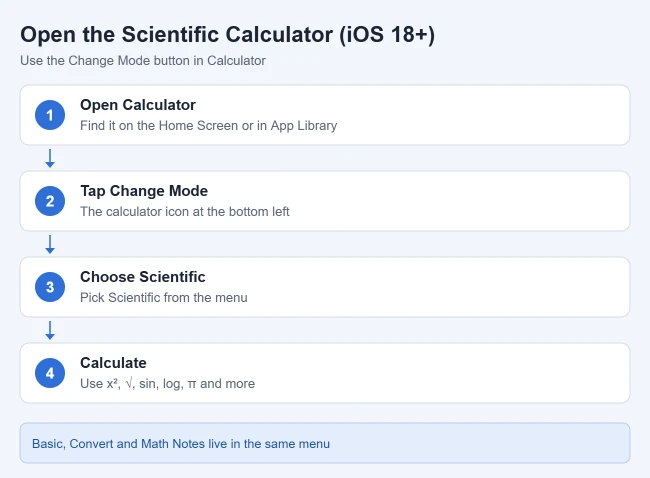
The scientific keypad appears in portrait, so this works even when rotation is locked. To switch back, tap Change Mode, then Basic.
How to Open the Scientific Calculator on iOS 17 and Earlier
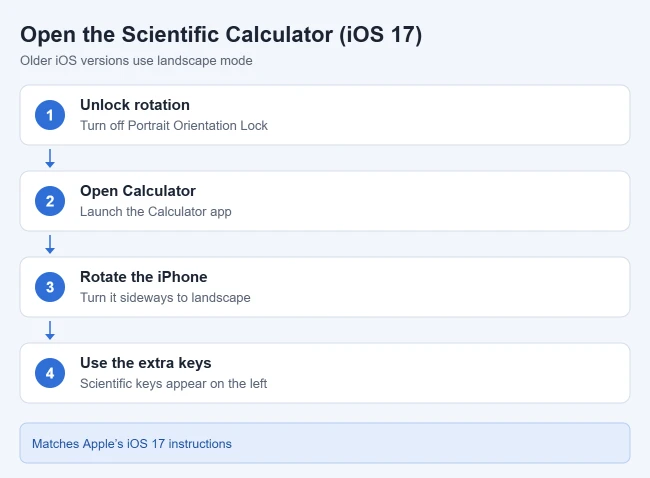
Older versions of iOS have no mode menu. On iOS 17, rotate the iPhone to landscape orientation. That only works if rotation isn’t locked, so first turn off Portrait Orientation Lock in Control Center.
- Open Control Center and make sure the Portrait Orientation Lock button is off. It is red or highlighted while the lock is on.
- Open the Calculator app.
- Turn your iPhone sideways.
The extra scientific keys appear to the left of the standard keypad. Rotate back to portrait to return to the basic calculator.
What the Scientific Calculator Keys Do
According to Apple, the scientific calculator handles these functions:
- Powers and roots: x², x³, xʸ, eˣ and 10ˣ, plus the square root, cube root and yth root keys below them.
- Logarithms: ln and log, with more functions behind the 2nd key.
- Trigonometry: sin, cos, tan and the hyperbolic versions; tap 2nd for the inverse functions such as arcsine.
- Memory: m+ adds to memory, m− subtracts, mr recalls and mc clears.
- Other keys: x! (factorial), 1/x (reciprocal), EE (scientific notation), π, ℯ and Rand (a random number between 0 and 1).
For example, to find 2 to the 10th power, tap 2, tap xʸ, tap 10, and tap =. The display shows 1024.
The scientific calculator uses degrees by default. Tap Rad to switch to radians, then Deg to switch back. Check this before trig problems, because sin 30 is 0.5 in degrees but about −0.988 in radians. You can also use parentheses on the iPhone calculator to control the order of operations.
To write an angle or temperature with the ° sign in a message or note, type a degree symbol on iPhone.
Other Calculator Modes on iOS 18 and Later
Apple’s Get started with Calculator on iPhone guide lists the other options in the same Change Mode menu:
- Basic: the standard keypad for everyday math.
- Convert: unit and currency conversion, such as miles to kilometers.
- Math Notes: handwrite or type expressions, assign variables and draw graphs.
For quicker access, you can add the Calculator to Control Center. It opens the same app with the same modes.
View Previous Calculations in iPhone Calculator
Calculator history arrived in iOS 18, so iOS 17 and earlier don’t have it. Choose Basic or Scientific with the Change Mode button, then tap the History button. Tap a saved calculation to reload it, or touch and hold it and choose Copy Expression or Copy Result. To delete one entry, swipe left on it. To clear the whole list, tap Edit > Clear All. Apple’s history controls help page has more detail.
If You Can’t Find the Calculator App
- It isn’t on the Home Screen. Swipe left past your last Home Screen page to the App Library and look in the Utilities group, or use Spotlight search on iPhone. You can drag the icon back to a Home Screen page.
- It doesn’t appear anywhere. Calculator is a built-in app you can delete, which also removes it from Control Center. To restore it, open the App Store, search for “Calculator,” and tap the download button on Apple’s app (the steps are in Delete built-in Apple apps). For the difference between removing and deleting, read about deleting apps on iPhone.
- There is no Change Mode button. Your iPhone is on iOS 17 or earlier. Use the rotation method above, or update iOS from Settings > General > Software Update if your model supports a newer version.
Frequently Asked Questions
Why doesn’t rotating my iPhone show the scientific calculator?
On iOS 18 and later, use the Change Mode button instead. On older versions, Portrait Orientation Lock is the usual cause; turn it off in Control Center.
Can I go back to the basic calculator?
Yes. Tap Change Mode and choose Basic, or on iOS 17 and earlier, turn the phone back to portrait.
How do I fix a typo without clearing everything?
On iOS 18 and later, tap the Delete key. On iOS 17, swipe left or right on the display to delete the last digit.
Do I need a separate scientific calculator app?
Not for most school and work math. The built-in calculator covers powers, roots, logs, trig and memory functions.

Matthew Burleigh is the founder, head writer, and editor of Solve Your Tech, which he launched in 2012. He has written technology tutorials since 2008 and worked in IT since 2003, including small-business support, IT management, and consulting. He holds Bachelor’s and Master’s degrees in Computer Science from Arizona State University.
Matthew writes practical guides for Windows, iPhone and iPad, Microsoft Office, Outlook, Google apps, and Android. Solve Your Tech’s guides are checked step by step against the device or app maker’s own documentation and tested on his own devices whenever he has the hardware or software, with clear steps, sources, and update dates.
Read more about Matthew and how Solve Your Tech writes and updates its guides, or report a correction.