To make iPhone messages easier to read, open Settings > Accessibility > Display & Text Size and use Larger Text or Bold Text. To change a conversation’s background instead, open an iMessage conversation, tap the name or icon at the top, and choose Backgrounds.
These steps are for iOS 27 and iOS 26. The text size and bold steps also work on iOS 18, but conversation backgrounds need iOS 26 or later, and Dark Mode sits in a different menu before iOS 27.
Text size, bold text, and Dark Mode only change what you see on your own iPhone. An iMessage background is shared with everyone in the conversation. The table below shows which setting does what.
Choose the Right Message-Display Setting
| What you want | Start here | Who sees the change? |
|---|---|---|
| Larger or thicker letters | Accessibility > Display & Text Size | You, in supported apps |
| A change limited to Messages | Accessibility > Per-App Settings | You |
| Bigger icons, buttons, and text together | Display Zoom (Appearance on iOS 27, Display & Brightness earlier) | You, across the phone |
| A dark screen color scheme | Appearance > Dark (iOS 27) | You, across the phone |
| A photo or colored conversation background | iMessage conversation > Backgrounds | Everyone in the iMessage conversation |
| Animated bubbles or screen effects | Touch and hold the Send button | The person you send it to |
What you can’t change: the color of the bubbles and the color of the text inside them. Blue and green bubbles show how a message was sent, not a theme setting. More on that below.
Make Message Text Larger or Bolder
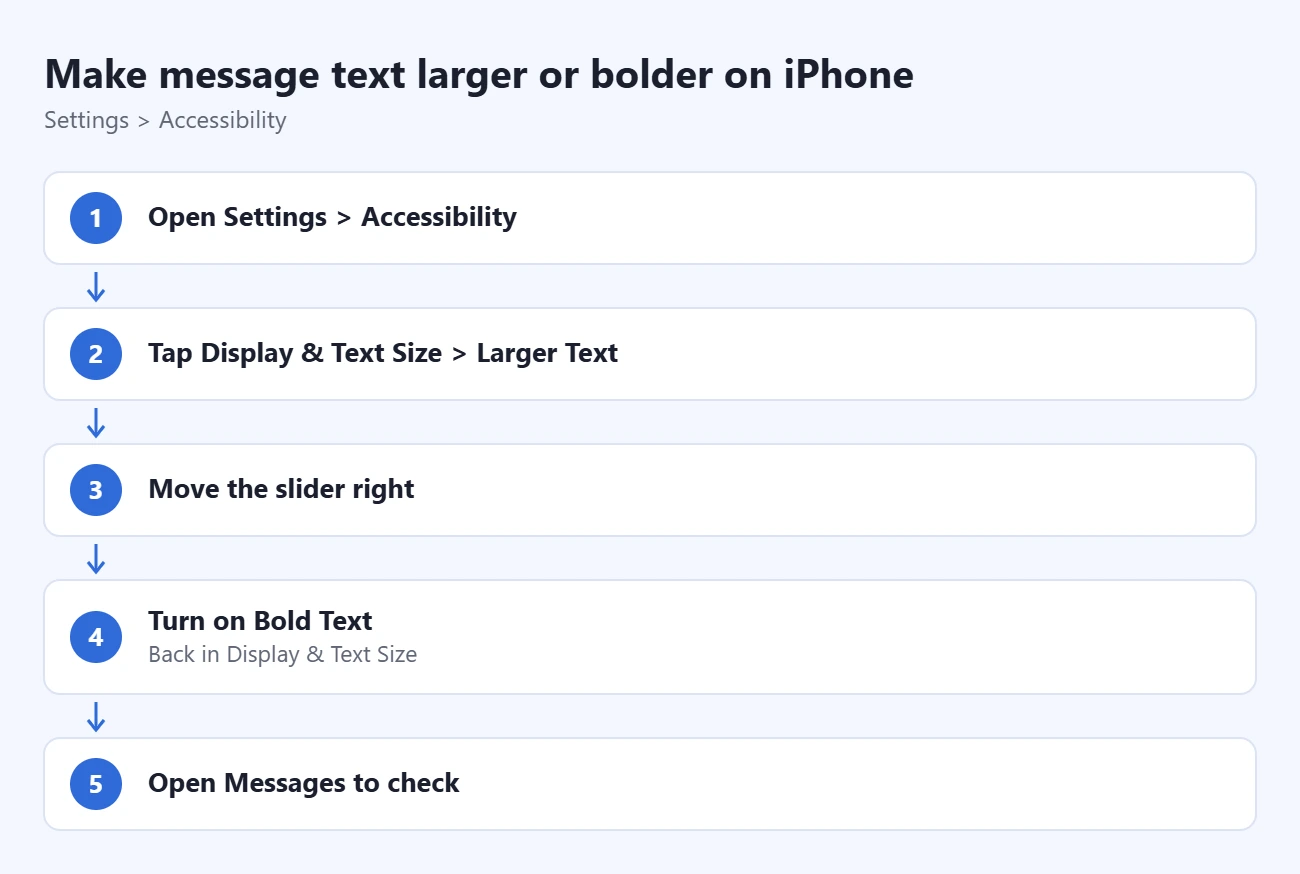
- Open Settings and tap Accessibility.
- Tap Display & Text Size, then Larger Text.
- Drag the slider to the right. The sample text at the top of the screen grows as you drag. Turn on Larger Accessibility Sizes if you need a wider size range.
- Tap Back to return to Display & Text Size and turn on Bold Text if thicker letters would help. The text on screen becomes heavier right away.
- Open Messages and read an existing conversation. Reduce the slider if the extra wrapping makes the screen awkward to use.
On iOS 27, Apple added an Appearance section to Settings, and it includes text size and bold text controls as a shorter route to the same result. The Accessibility path above still gives you the largest sizes.
These controls affect text that supports Apple’s Dynamic Type sizing (the system that lets apps follow your text size choice). Words inside a picture or screenshot remain part of that picture. Icons and buttons can be enlarged as well when you make apps bigger on iPhone.
For the standard slider, Display Zoom, and more fixes, read about making text bigger on iPhone. Apple documents the accessibility text controls and the display and text size preferences, including Button Shapes and Increase Contrast on the same Display & Text Size screen.
Adjust Messages Without Changing Every App
- Open Settings > Accessibility > Per-App Settings.
- Tap Add App and choose Messages.
- Tap Messages in the list, then tap Larger Text or Bold Text and change it from Default.
- Open Messages and check that the text looks the way you want.
Use this when the rest of the phone already looks comfortable. To undo an override, return to the same per-app setting and restore its default option. Apple’s per-app visual settings guide explains which kinds of adjustments are available.
Use Dark Mode for Your Screen
Dark Mode turns the white Messages background black and changes the gray incoming bubbles to dark gray. Your blue and green bubbles stay blue and green.
- Open Settings.
- On iOS 27, tap Appearance. On iOS 26 and earlier, tap Display & Brightness.
- Choose Dark. The screen switches right away.
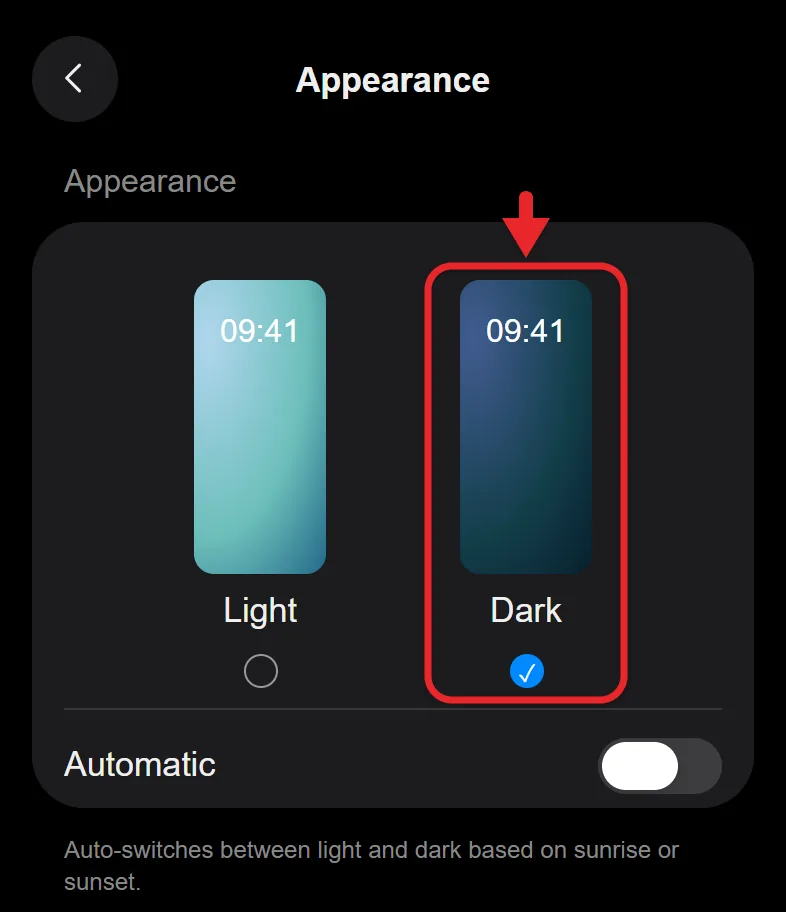
- To switch between light and dark on a schedule, choose Automatic, then tap Options to set the times.
To switch faster, open Control Center, touch and hold the brightness slider, and tap the Dark Mode button. Choose Light in Settings, or tap the button again, to reverse it. These options are listed in Use Dark Mode on your iPhone, and the Control Center and automatic scheduling options are in the iPhone User Guide. Here’s more on how to turn on Dark Mode on iPhone.
Dark Mode changes your display’s color scheme rather than sending a custom theme to a contact.
Change an iMessage Conversation Background
Before choosing a photo: the background is shared with other participants, who can change it too. Use a photo you intend to share. Backgrounds require iMessage and iOS 26 or later, and they don’t apply to SMS, MMS, or RCS conversations (the green-bubble ones).
- Open the conversation in Messages.
- Tap the contact or group icon at the top, then Backgrounds.
- Select a supplied background, such as a color or an animated sky or water style, or tap Photo and choose a picture. Adjust the crop or available style as needed.
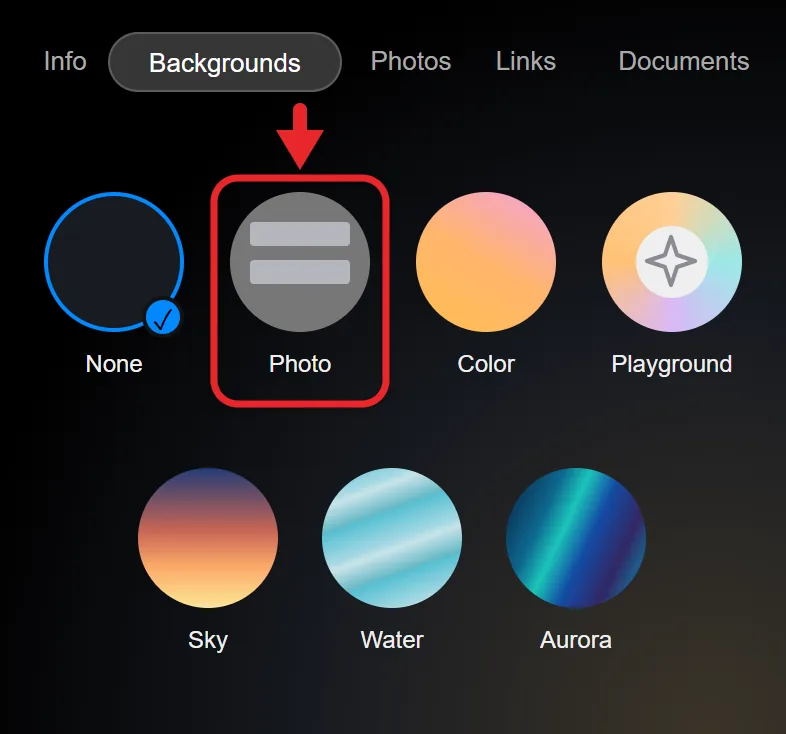
- Tap Done and return to the conversation. The background now fills the space behind the bubbles for everyone in the chat.
You can also touch and hold a photo someone sent in the conversation and choose Set as Background. On iPhones with Apple Intelligence turned on, the Backgrounds screen may offer an option to create an image from a description; the color, style, and photo options work on any iPhone with iOS 26 or later.
To remove the shared background, return to Backgrounds and choose None. That removes it for everyone. To hide conversation backgrounds only on your own phone, turn off Settings > Apps > Messages > Conversation Backgrounds. Others can still see them. Apple’s Messages backgrounds guide explains the supported options.
Each background belongs to one conversation. There’s no setting that applies one background to every chat, and changing your Lock Screen or Home Screen wallpaper doesn’t change Messages.
Why You Can’t Change Bubble Colors
Apple’s iMessage, RCS, and SMS/MMS comparison explains that messages sent with iMessage appear in blue bubbles, and RCS or SMS/MMS messages appear in green bubbles. The color tells you which service carried the message, so iOS doesn’t offer a setting to recolor bubbles or message text. If texts to another iPhone user are green, iMessage may be off on one of the phones. See what blue and green texts mean on iPhone.
Apps in the App Store that promise new bubble colors usually create an image or sticker of colored text that you paste into a message. They don’t change the Messages app itself.
Add Effects to a Message You Send
Message effects change how a single iMessage looks when it arrives. Apple’s message effects guide describes the steps:
- Type your message in an iMessage conversation.
- Touch and hold the Send button (the up arrow).
- Tap Bubble to preview bubble effects such as Slam or Gentle, or tap Screen and swipe left to see full-screen effects.
- Tap Send next to the effect you want.
Effects need iMessage. If effects don’t play on your iPhone, check the motion settings under Settings > Accessibility > Motion, because Reduce Motion settings can block them. Animations that bother you can be toned down when you turn on Reduce Motion on iPhone.
Format a Message You Are About to Send
Making your screen’s text bold is different from formatting an outgoing iMessage. For the latter, type a message, select the words, and tap the text-formatting button above the keyboard to choose bold, italic, underline, or strikethrough. Send when ready. Recipients need iOS 18 or the corresponding supported software on other Apple devices to see formatting; older software displays plain text. See Apple’s message formatting guide.
If you see a separate Subject box above your message, that is a different setting, and you can remove the subject line in iPhone Messages in Settings.
Messages can’t switch to a different typeface, but here is where you can change the font on iPhone.
See the Time of an Individual Message
Open a conversation in Messages, then drag a message bubble to the left to reveal the timestamps beside the messages. Hold the drag long enough to read the time of the message you want, then release to return to the normal view. Apple’s Messages guide documents this gesture. The date separator above a group of messages is different from each message’s timestamp, and neither is the same as a Read receipt.
If a Setting Is Missing or Doesn’t Work
- No Backgrounds option: the conversation is SMS, MMS, or RCS, or your iPhone runs iOS 18 or earlier. Check Settings > General > About for your version, back up your iPhone, then install updates from Settings > General > Software Update.
- No Appearance section in Settings: you’re on iOS 26 or earlier. Use Display & Brightness for Dark Mode and the Accessibility path for text size.
- Text didn’t get bigger in a conversation: the words may be part of an image, or a per-app setting for Messages is overriding your choice. Check Accessibility > Per-App Settings > Messages.
- Someone else’s background keeps showing: you can turn off Conversation Backgrounds on your phone without removing it for the group.
- Screen looks zoomed in everywhere: Display Zoom or the Zoom accessibility feature is on. See the text size guide linked above to turn it off.
Frequently Asked Questions
Can I change the font style in iPhone Messages?
No. Messages uses the system font. You can make it larger or bold, and you can format selected words as bold, italic, underline, or strikethrough in an iMessage you send.
Does the other person see my larger text or Dark Mode?
No. Both are display settings on your own iPhone. Only a conversation background, message effects, and text formatting reach the people you message.
Can I set one background for all my conversations?
No. Backgrounds are set one conversation at a time, and only in iMessage chats.
Why are some of my messages green?
Green bubbles are RCS, SMS, or MMS messages, usually to people without an Apple device or when iMessage is unavailable. You can’t change the color, but you can turn on iMessage in Settings > Apps > Messages for Apple contacts.
If You Meant Message Notifications
Lock Screen previews and banners are separate from the appearance of an open conversation. To change them, learn how to show or hide Lock Screen notifications. The photo circles in the conversation list go away once you hide contact pictures in the Messages app.

Matthew Burleigh is the founder, head writer, and editor of Solve Your Tech, which he launched in 2012. He has written technology tutorials since 2008 and worked in IT since 2003, including small-business support, IT management, and consulting. He holds Bachelor’s and Master’s degrees in Computer Science from Arizona State University.
Matthew writes practical guides for Windows, iPhone and iPad, Microsoft Office, Outlook, Google apps, and Android. Solve Your Tech’s guides are checked step by step against the device or app maker’s own documentation and tested on his own devices whenever he has the hardware or software, with clear steps, sources, and update dates.
Read more about Matthew and how Solve Your Tech writes and updates its guides, or report a correction.