To set a ringtone on an iPhone 11, open Settings, tap Sounds & Haptics, tap Ringtone, and tap the sound you want. The check mark moves to your choice, and incoming calls use it right away.
These steps match iOS 27 and iOS 26. The iPhone 11 runs iOS 27, so its menus look the same as on any newer iPhone. On iOS 18 and earlier the main steps are the same, but the Files shortcut for custom ringtones isn’t available. Apple’s article on using tones and ringtones covers the same settings.
Change Your iPhone Ringtone
- Open the Settings app.
- Tap Sounds & Haptics.
- Tap Ringtone. The current ringtone has a check mark next to it.
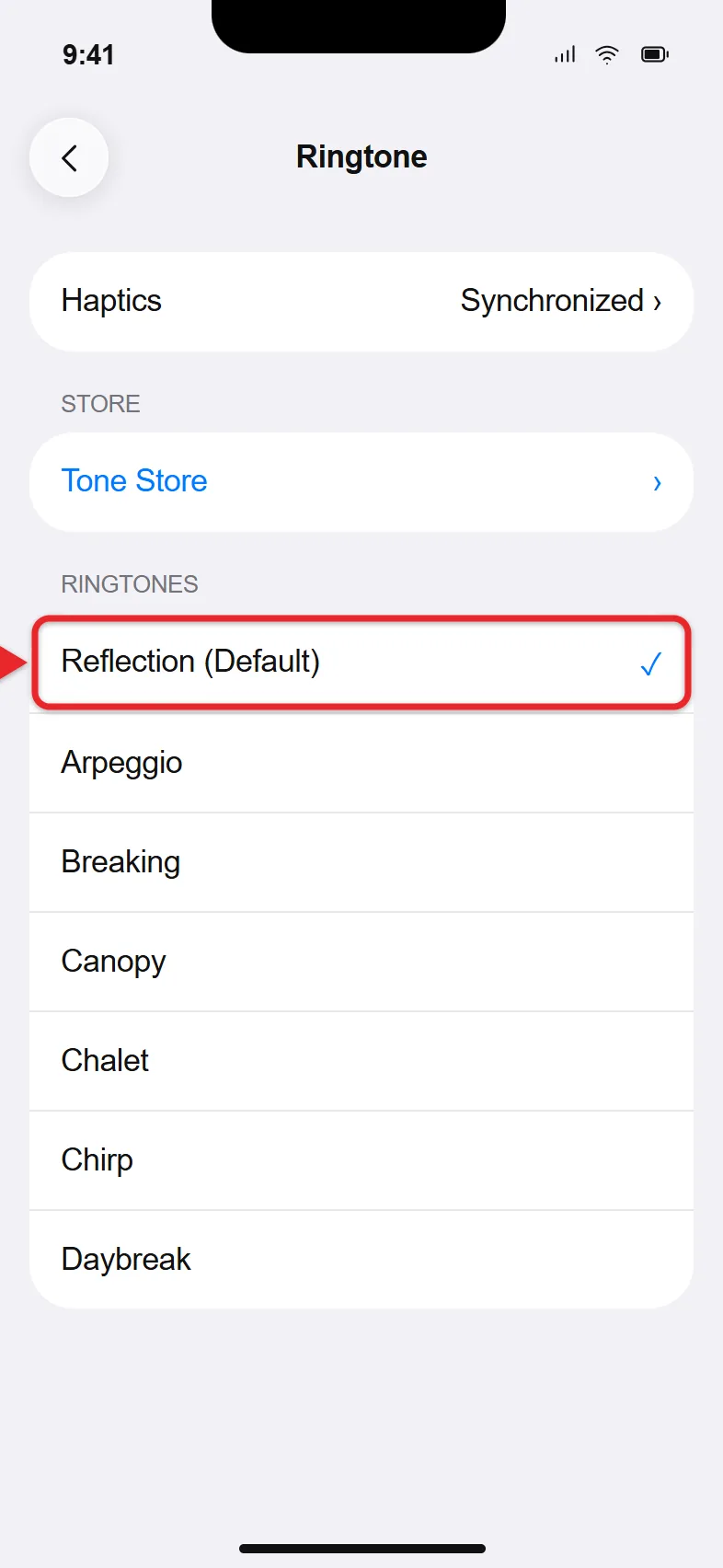
- Tap any ringtone to hear a preview. Tones you bought or added yourself appear at the top of the list, above Apple’s built-in ringtones.
- Tap Haptics at the top of this screen if you also want to change the vibration that plays with the ringtone.
- Tap Sounds & Haptics in the upper-left corner to go back. There’s no Save button; the last tone you tapped is your new ringtone.
To test it, ask someone to call you. If you hear a different sound, that caller probably has their own ringtone, which is covered next.
Text messages use a separate sound. Tap Text Tone on the same Sounds & Haptics screen and pick a tone the same way. For alerts from other apps, you can change an app’s notification sound.
Texts also have their own vibration pattern, so you can change text message vibrations if you want a different buzz. If a single text tone is easy to miss, you can have your iPhone repeat text message alerts a set number of times.
Changing the ringtone doesn’t change your alarm sound. Clock alarms have their own sound setting. To change it, set a custom alarm sound on iPhone.
Set a Different Ringtone for One Person
A contact ringtone tells you who’s calling without looking at the phone. It overrides your default ringtone for that person only.
- Open the Contacts app (or the Phone app and tap Contacts).
- Tap the person’s name.
- Tap Edit in the upper-right corner.
- Tap Ringtone, choose a sound, and tap Done on that screen.

- Tap Done again to save the contact. The Ringtone row on the card now shows the sound’s name.
You can set a Text Tone for the person on the same edit screen. The steps for setting a ringtone or text tone for a contact have more detail, including Emergency Bypass, which lets that person’s calls ring even when your iPhone is silenced. To undo a contact ringtone, set the field back to Default.
Use Your Own Song or Sound as a Ringtone
You can only use audio you own, such as an MP3 you bought or a clip you recorded. Songs from Apple Music, Spotify, or other streaming services are protected and can’t become ringtones. Ringtones can be up to 30 seconds long.
iOS 26 and Later: Share an Audio File
- Save the audio file to the Files app. An MP3 or M4A file that’s 30 seconds or shorter works best.
- Open Files, touch and hold the file, and tap Share.
- Tap Use as Ringtone. If you don’t see it, scroll down the share sheet or tap More.

- Go to Settings > Sounds & Haptics > Ringtone. The new tone appears at the top of the list. Tap it if it isn’t already checked.
If Use as Ringtone doesn’t appear, the file may be too long, protected, or in a format the iPhone can’t use. Trim it in GarageBand instead. The steps for setting a ringtone from Files walk through both methods.
Any iOS Version: Use GarageBand
The free GarageBand app works on every current iOS version, and it’s the only built-in way to make a ringtone on iOS 18 and earlier. Apple’s custom ringtone guide lists every screen. In short:
- In GarageBand, start a new audio recording, open the Loops Browser, and import your audio from Files or Music. Downloaded, unprotected songs only.
- Drag the clip to the start of the track and trim it to 30 seconds or less.
- Go to My Songs, select the project, tap Share, then tap Ringtone.
- Name it and tap Export. If it’s too long, GarageBand offers to shorten it.
- Tap Use sound as and pick Standard Ringtone, Standard Text Tone, or Assign to contact.
Buy a Ringtone From the Tone Store
- Go to Settings > Sounds & Haptics > Ringtone.
- Tap Tone Store at the top. The iTunes Store opens to its Tones section.
- Tap a tone to preview it, then tap its price and confirm with Face ID, Touch ID, or your password.
- When asked how to use the tone, pick Set as Default Ringtone, assign it to a contact, or tap Done to keep it in your list.
Purchases are tied to your Apple Account, and the Tone Store isn’t available in every country or region. On a new iPhone, go to the Ringtone screen and tap Download All Purchased Tones. Apple notes that this button doesn’t appear if everything is already downloaded, and that some older tones can’t be downloaded again.
Make Your Ringtone Louder or Quieter
The ringtone has its own volume, separate from music and videos.
- Go to Settings > Sounds & Haptics.
- Drag the Ringtone and Alerts slider. The iPhone plays a sample at the new level as you move it.
- Turn on Change with Buttons if you want the side volume buttons to adjust the ringer when nothing is playing. Leave it off if you keep bumping the volume down by accident.
The same slider sets the volume for text tones and other alerts. If the ringtone seems quiet even at full volume, try these fixes for iPhone volume that’s suddenly too low.
If Your iPhone Doesn’t Play the New Ringtone
- Silent mode is on. The iPhone 11 through iPhone 15 and iPhone 15 Plus have a Ring/Silent switch above the volume buttons; push it toward the screen so no orange shows. The iPhone 15 Pro and newer models, including the iPhone 16e, use the Action button instead, and you can also turn off Silent Mode in Settings > Sounds & Haptics. Apple’s Silent mode guide explains both controls.
- A Focus is on. Do Not Disturb or another Focus silences calls from people who aren’t on its allowed list. Open Control Center and turn off the Focus, or stop the Focus from silencing notifications.
- The caller has a contact ringtone. Open their contact, tap Edit, and set Ringtone to Default.
- The caller isn’t in your contacts. Check Settings > Apps > Phone for Silence Unknown Callers or Screen Unknown Callers, which can keep unknown numbers from ringing.
- Audio is going to another device. If AirPods or a Bluetooth speaker are connected, the ringtone may play there instead. Disconnect them and try again.
- The volume is all the way down. Raise the Ringtone and Alerts slider and test with another call.
- A custom tone disappeared. Make sure you’re signed in with the same Apple Account for bought tones, or add your own file again.
iPhone Ringtone Questions
Can I use any song as an iPhone ringtone?
Only songs you own as audio files, such as MP3s you bought or recorded. Share the file from Files and choose Use as Ringtone on iOS 26 or later, or use GarageBand. Apple Music and other streaming songs are copy-protected.
How long can an iPhone ringtone be?
Up to 30 seconds. GarageBand offers to shorten a longer clip when you export it, and longer files may not show the Use as Ringtone option.
Why don’t my bought ringtones show up on my new iPhone?
Tones don’t always download automatically. Go to Settings > Sounds & Haptics > Ringtone and tap Download All Purchased Tones, signed in with the Apple Account you used to buy them.
How do I make my iPhone vibrate without ringing?
Turn on Silent mode with the Ring/Silent switch or, on newer models, the Action button. Calls still vibrate as long as haptics are on. For more vibration settings, read about putting an iPhone on vibrate.
Does the iPhone 11 still get the latest ringtone features?
Yes. The iPhone 11 runs iOS 27, so it has the same Ringtone, Tone Store, and Use as Ringtone options as newer models.

Matthew Burleigh is the founder, head writer, and editor of Solve Your Tech, which he launched in 2012. He has written technology tutorials since 2008 and worked in IT since 2003, including small-business support, IT management, and consulting. He holds Bachelor’s and Master’s degrees in Computer Science from Arizona State University.
Matthew writes practical guides for Windows, iPhone and iPad, Microsoft Office, Outlook, Google apps, and Android. Solve Your Tech’s guides are checked step by step against the device or app maker’s own documentation and tested on his own devices whenever he has the hardware or software, with clear steps, sources, and update dates.
Read more about Matthew and how Solve Your Tech writes and updates its guides, or report a correction.