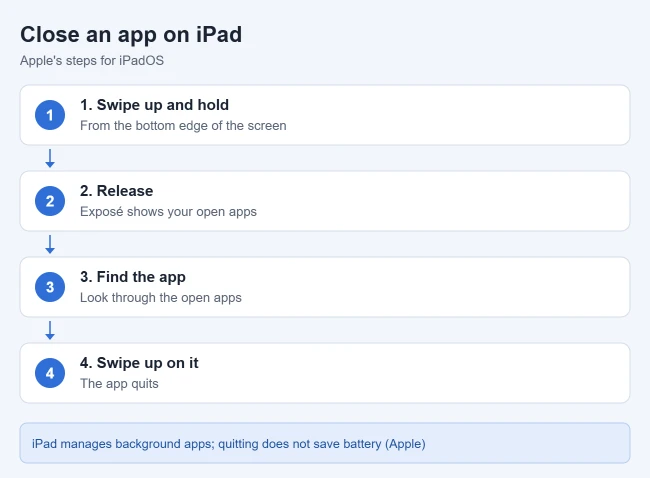
To close an unresponsive iPad app, swipe up from the bottom edge and pause, then swipe the app’s preview upward. On an iPad with a Home button, double-click that button to open the app previews instead. Reopen the app and check whether it responds. Save unfinished work and finish uploads first if the app still responds; closing is not an automatic-save guarantee.
The main steps come from Apple’s guide to quitting and reopening apps on iPad, and the restart steps come from Apple’s Restart your iPad page. Apple’s iPadOS 17 App Switcher instructions document the Home-button alternative. The current iPadOS 27 guide calls the overview Exposé; older guides call it the App Switcher. Window controls are a separate route when your current setup shows them.
How to Close an App on iPad
- Swipe up from the bottom edge of the screen and pause around the middle. If your iPad has a Home button, you can double-click it instead.
- Release when the app previews appear in Exposé or the App Switcher. A quick swipe that returns to the Home Screen has not closed an app.
- Look through the previews and find the unresponsive app.
- Swipe up on that app’s preview to dismiss it.
Check: Tap the app on the Home Screen, in App Library, or in the Dock to reopen it. Try the feature that failed. If it now responds, stop here; closing does not guarantee that an underlying problem is fixed.
How to Close Apps on an iPad With a Home Button
If your iPad has a physical Home button, use this documented App Switcher route:
- Double-press the Home button quickly.
- Swipe left or right to find the app.
- Swipe the app’s preview up and off the screen.
- Press the Home button once to go back to the Home Screen.
How to Close an App Running in a Window
On the current iPadOS 27 windowing system, use the controls when your app is in a window. If you do not see these controls, use the overview method above. Apple’s steps:
- Tap the window controls button at the top of the app window.
- Tap the close window button.
Result: That window closes. This is different from minimizing it or moving another window in front. Save your work first if possible. Reopen the app if you were troubleshooting it, and check whether the problem is resolved.
Closing a window versus leaving split screen
For multiple current iPadOS windows, select the window you want to remove and use its Close control, then repeat for another unwanted window. Minimize hides a window instead of closing it. When one app has several windows, touch and hold its icon in the Dock or on the Home Screen and choose Show All Windows, if available, to identify the right one. Apple’s multiple-windows guide explains this overview.
If you want one app to fill the screen, you may only need to change the layout. In the Split View layout documented for iPadOS 17, drag the center divider all the way to an edge, or use the multitasking controls on the app you want to keep and choose Full Screen. That leaves Split View; it does not mean the other app has been force-closed. For steps on each iPadOS version, see how to get rid of split screen on an iPad. To set that layout up again later, see how to use two apps side by side on iPad. See Apple’s Split View instructions or our iPad full-screen guide.
Slide Over is a floating panel, so it does not use the Split View center divider. Hiding the panel is different from quitting its app. If the app is unresponsive, use the app-preview closing steps above. Apple describes the older layout in its iPadOS 17 Slide Over guide.
Can You Close All iPad Apps at Once?
There is no built-in Close All button in the iPad app overview. To dismiss additional apps, repeat the swipe-up action for their previews. You do not need to empty the overview as a daily maintenance task; close the app that is unresponsive.
Should I Close Apps to Save Battery?
No. Apple says iPad manages how apps run in the background, so quitting apps you aren’t using doesn’t make the battery last longer. Close an app only when it freezes or misbehaves, then reopen it from the Home Screen, App Library or Dock.
What to Do if the App Still Doesn’t Work
If an app is still unresponsive after you close and reopen it, Apple recommends restarting your iPad:
- iPad without a Home button: press and hold either volume button and the top button until the power off slider appears, drag the slider, and wait 30 seconds.
- iPad with a Home button: press and hold the top button until the slider appears, drag it, and wait 30 seconds.
- From Control Center (Apple’s restart page lists this for version 18 and later): swipe down from the top-right corner, press and hold the Power button, then drag the slider.
Turn the iPad back on by pressing and holding the top button until you see the Apple logo. If the whole iPad is frozen and the normal power-off slider does not respond, follow Apple’s troubleshooting guidance and the force-restart link on its restart page. For an app that still fails, check for an app update in App Store > your profile > App Updates. If none is available, check Settings > General > Software Update. Reinstalling is a later option because deleting an app may lose local data; confirm that important data is recoverable first. Contact the developer if the issue continues.
Frequently Asked Questions
Is there a way to close all apps on iPad at once?
There is no single Close All control in the app overview. You can dismiss previews individually, but Apple says quitting unused apps does not prolong battery life. Use this for an unresponsive app rather than routinely clearing every preview.
What’s the difference between closing and switching apps?
Tapping a preview switches to that app; swiping a preview upward closes it. Neither action uninstalls the app. Saved app data is different from unfinished work, which may be lost when you close an app.
Related Guides
- How to delete apps on iPad
- How to change the apps in the iPad Dock
- How to check storage on your iPad

Matthew Burleigh is the founder, head writer, and editor of Solve Your Tech, which he launched in 2012. He has written technology tutorials since 2008 and worked in IT since 2003, including small-business support, IT management, and consulting. He holds Bachelor’s and Master’s degrees in Computer Science from Arizona State University.
Matthew writes practical guides for Windows, iPhone and iPad, Microsoft Office, Outlook, Google apps, and Android. Solve Your Tech’s guides are tested on current devices or checked against official product documentation, with clear steps, sources, and update dates.
Read more about Matthew and how Solve Your Tech writes and updates its guides, or report a correction.