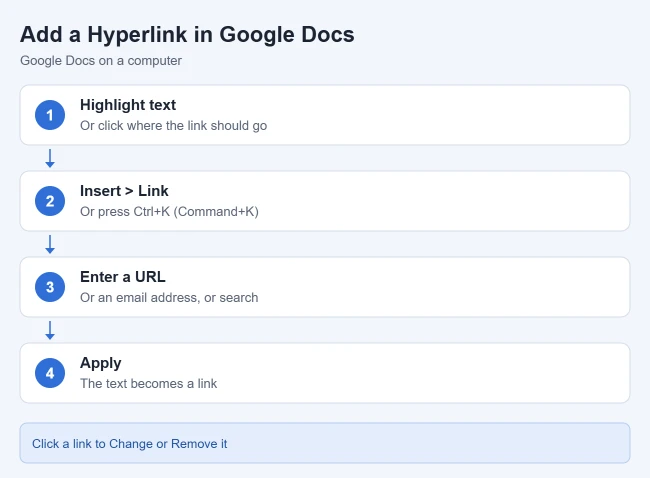
To add a hyperlink in Google Docs, highlight the text, click Insert > Link (or press Ctrl+K, Command+K on a Mac), enter a web address, and click Apply. To edit or remove a link later, click it and choose Change or Remove.
This guide covers Google Docs in a web browser on a Windows PC, Mac, or Chromebook, plus the Google Docs app for Android, iPhone, and iPad. A hyperlink (or just a link) is text that opens a web page, an email draft, another file, or another spot in the same document when someone clicks it. The steps and labels follow Google’s help page on working with links and bookmarks. Google updates its toolbar from time to time, so a button on your screen may show an icon instead of a word.
Before You Start
- You need edit access. If the document was shared with you as a viewer or commenter, you cannot add, change, or remove links. Ask the owner to make you an editor.
- Copy the address first. Open the page you want to link to, copy the full address from the browser’s address bar, and then return to your document.
- Check sharing for linked files. A link to a file in Google Drive does not give anyone access to that file. Readers can only open it if the file itself is shared with them.
How to Add a Hyperlink in Google Docs on a Computer
- Open your document in Google Docs.
- Highlight the words you want to turn into a link. You can also just click where the link should go and type the words in step 4.
- Click Insert in the menu at the top, then click Link. You can also press Ctrl+K on Windows or a Chromebook, or Command+K on a Mac. A small box opens next to your text.
- Under Text, check the words that will be linked, or type them if the field is empty.
- Under Link, paste or type a web address or an email address. You can also type a few words to search for a website and pick it from the results.
- Click Apply.
The words you selected are now a link. Click the link once and a small box shows where it goes, so you can confirm the address before you share the document. If the link is wrong, press Ctrl+Z (Command+Z on a Mac) right away to undo it, or use the change and remove steps below.
Use link text that says where the link goes, such as the name of the page, instead of “click here.” Readers can then tell what they will get before they click. If you used to add links from the old research sidebar, find out how the Google Docs Research feature works now.
In a long document, you can search for a word in Google Docs with Ctrl + F to find each spot where a page is mentioned.
How to Edit or Remove a Hyperlink on a Computer
Removing a link only takes away the link. Your words stay in the document as normal text.
- Click the linked text once. A small box appears with the link’s address.
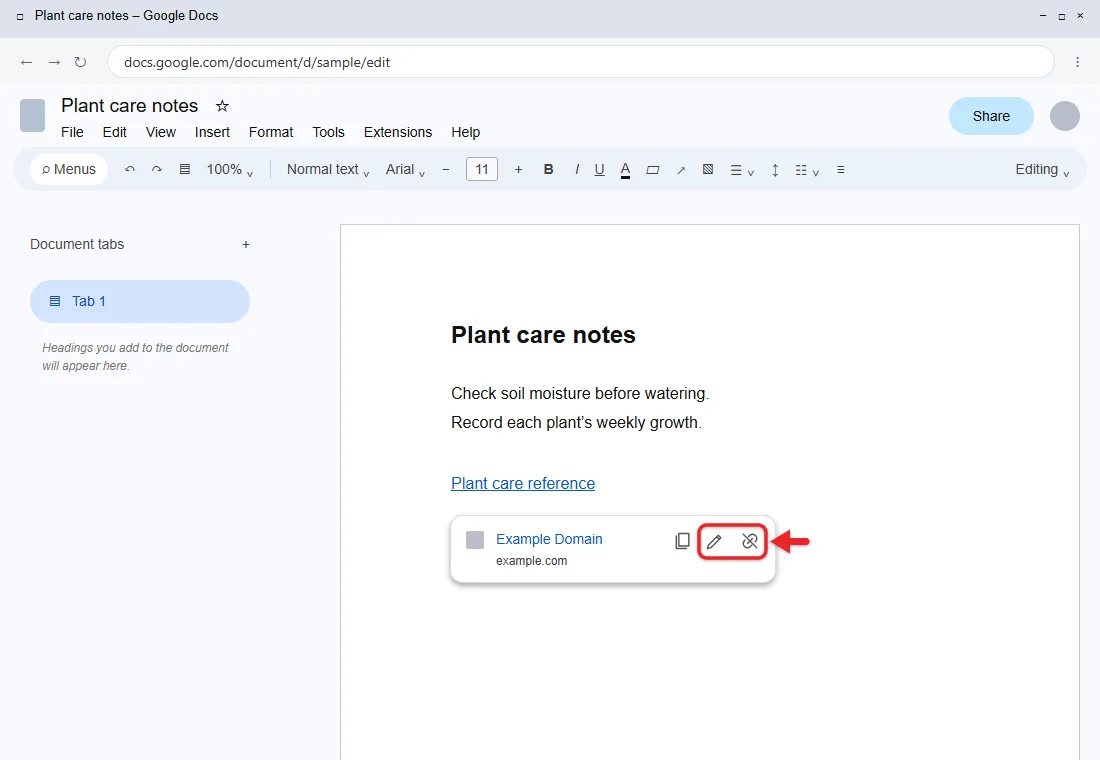
- To edit the link, click Change. Update the text, the address, or both, then click Apply.
- To remove the link, click Remove instead.
On some versions of Google Docs these two options appear as small icons in the box (a pencil for editing and a broken chain for removing) instead of the words Google’s help page uses. Hover over an icon to see its name. You can also put your cursor inside a link and press Ctrl+K or Command+K, which Google lists as the shortcut to insert or edit a link.
How to Add, Edit, or Remove a Link in the Google Docs App
The steps are nearly the same on Android, iPhone, and iPad. The main difference is the name of the button that opens the insert menu.
Add a link
- Open the document in the Google Docs app.
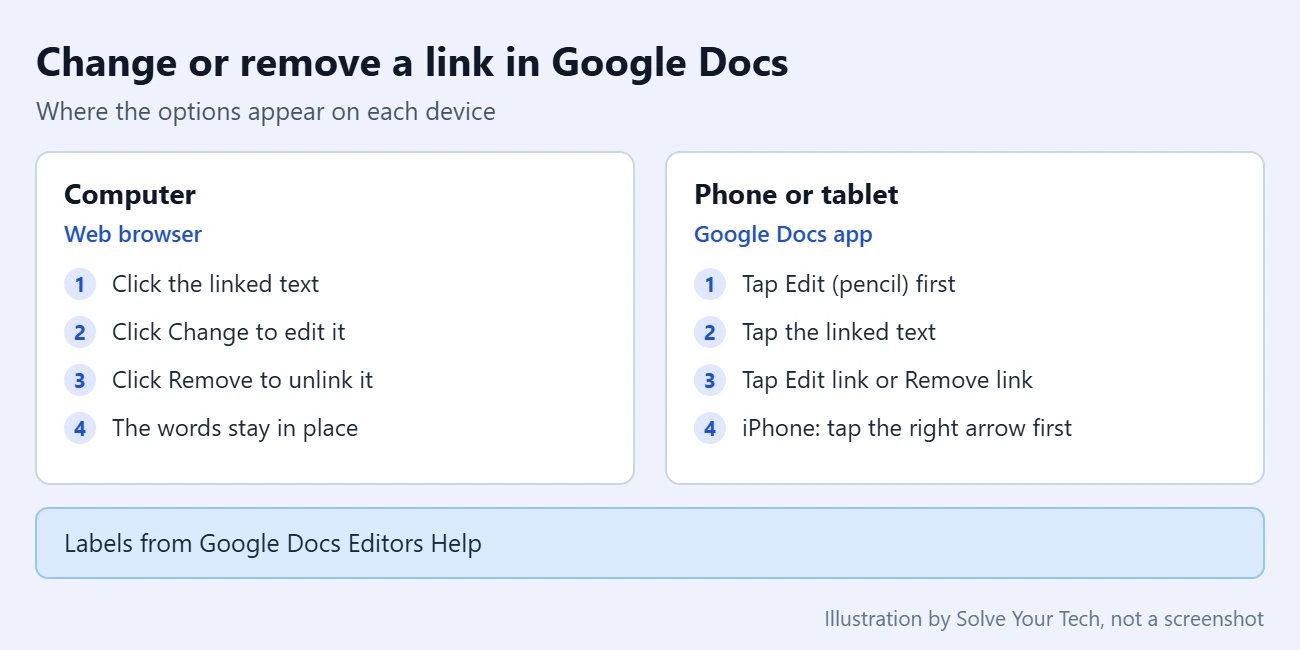
- Tap Edit (the pencil icon) so you can make changes.
- Highlight the text you want to link, or tap where the link should go.
- In the top right, tap the plus icon. Google calls it Create on Android and Insert on iPhone and iPad.
- Tap Link.
- In the Text field, type or check the words to be linked. In the Link field, enter a web address or email address, or search for a website.
- Tap Done (the check mark) to save.
Edit or remove a link
- Open the document and tap Edit.
- Tap the linked text.
- On Android, tap Edit link or Remove link. If you do not see Edit link, tap More first.
- On iPhone or iPad, tap the right arrow in the small menu, then tap Edit link or Remove link. Google’s iPhone and iPad instructions describe this menu in portrait view, so turn the device upright if you cannot find it.
How to Link to Another Spot in the Same Document
A bookmark is an invisible marker you place in a document so that a link can jump straight to it. Bookmarks are useful in long documents when you want to send readers to a certain paragraph, table, or page.
- Click where you want readers to land.
- Click Insert > Bookmark. A small bookmark marker appears at that spot.
- Go to the place you want to link from and highlight the text.
- Click Insert > Link.
- In the box that opens, click Bookmarks. A list shows the bookmarks in your document. In some versions this option is labeled Headings and bookmarks and also lists your headings.
- Click the bookmark you want, then click Apply.
Click the new link to confirm that it jumps to the right place. To delete a bookmark, click it and click Remove. Any link that pointed to it will no longer have a place to go, so remove or update that link as well.
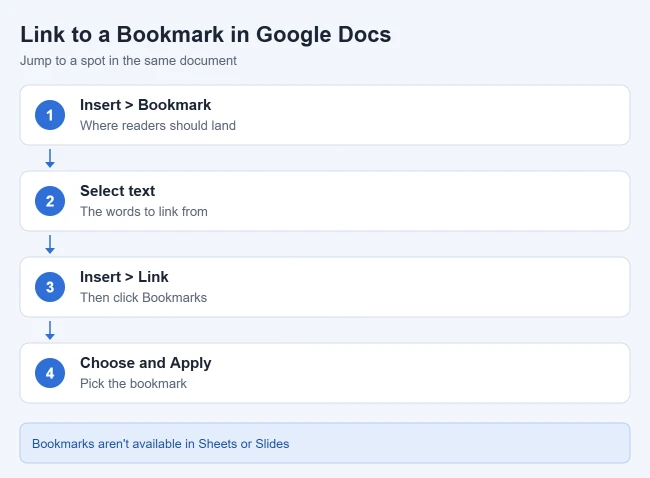
Bookmarks have a few limits. They are not available in Google Sheets or Google Slides. In the iPhone and iPad app you can add one with Insert > Bookmark, and tap a bookmark to see Copy link or Remove. Google’s Android instructions say bookmarks are not available in the Android app, so use a computer for that.
In Slides, you can still send people to one discussion with a link to a comment in Google Slides.
If you want a list of links to every section, you do not have to build it by hand. Click Insert > Page elements > Table of contents, and Docs creates one in which each item links to a heading in your document. Google’s headings and table of contents page covers the options.
Turn Link Previews On or Off
Google Docs can show a preview with a thumbnail and details when a link points to another Google file or a website. To control this on a computer, click Tools > Preferences, then check or uncheck Show link details. If you do not have access to a linked document, the preview gives you the option to request access.
Troubleshooting Hyperlinks in Google Docs
- The Link option is gray or missing. You probably have view-only or comment-only access. Check the button near the top right of the document. If it says Viewing, switch to Editing, or ask the owner for edit access. In the app, make sure you tapped Edit first.
- Clicking a link does not open it. In editing mode, the first click places your cursor and shows the small link box. Click the address in that box to open the page. You can also put your cursor in the link and press Alt+Enter (Option+Enter on a Mac), the keyboard shortcut to open a link.
- The link opens the wrong page or an error. Click the link, click Change, and paste the address again. Copy it from the browser’s address bar so that nothing is left out.
- Readers say they cannot open a linked file. The link works, but the file is not shared with them. Open the file in Google Drive and adjust its sharing settings.
- You cannot find Change or Remove. Look for the pencil and broken chain icons in the link box, or right-click the link and look for a link option in the menu.
- A bookmark link does nothing. The bookmark may have been deleted. Add a new bookmark and update the link.
Frequently Asked Questions
Can I link to an email address in Google Docs?
Yes. The Link field accepts a URL or an email address. Type the address into that field and click Apply. Clicking the link then starts a new message to that address in the reader’s email app.
Does removing a hyperlink delete the text?
No. Remove takes away only the link. The words stay in your document, and you can link them again at any time.
Can I remove all hyperlinks in a Google Doc at once?
Google’s help page only describes removing links one at a time, and Docs has no documented command that removes every link. A common workaround is to copy the text and paste it back with Ctrl+Shift+V (Command+Shift+V on a Mac), which is the shortcut for pasting without formatting. Be aware that this removes bold, font, and other formatting too, so try it on a copy of the document first.
Clear formatting is different: it removes link colors and underlines but keeps the link. Read more about how to clear formatting in Google Docs.
Can I link to another Google Doc, Sheet, or Slides file?
Yes. Open the other file, copy its address from the address bar, and paste it in the Link field like any other web address. Remember to share that file with your readers. For links inside a spreadsheet, read about how to add a hyperlink in Google Sheets.
Can I turn a picture into a link?
Google’s links page only describes linking text. The same Insert > Link command is generally available when a picture is selected, but check that the link works after you add it.
Can I stop Docs from changing what I type?
Docs has automatic correction settings you can adjust under Tools > Preferences. To change them, follow the steps to turn off AutoCorrect in Google Docs.
Next Step
After adding your links, click each one once to check its address before you share the document. Then you can keep tidying the document with these guides:
- How to add a video to Google Docs with a link
- How to turn off AutoCorrect in Google Docs
- How to change the default font in Google Docs

Matthew Burleigh is the founder, head writer, and editor of Solve Your Tech, which he launched in 2012. He has written technology tutorials since 2008 and worked in IT since 2003, including small-business support, IT management, and consulting. He holds Bachelor’s and Master’s degrees in Computer Science from Arizona State University.
Matthew writes practical guides for Windows, iPhone and iPad, Microsoft Office, Outlook, Google apps, and Android. Solve Your Tech’s guides are checked step by step against the device or app maker’s own documentation and tested on his own devices whenever he has the hardware or software, with clear steps, sources, and update dates.
Read more about Matthew and how Solve Your Tech writes and updates its guides, or report a correction.