If the menus disappeared from the top of Google Sheets, press Ctrl + Shift + F to bring them back. On a Mac, press Command + Option + R or Ctrl + Shift + F. You can also click the small arrow in the top-right corner of the sheet, just below your profile picture, to show or hide the menus.
Google lists these shortcuts as “Compact controls” and “Displays or hides the menus” on its Keyboard shortcuts for Google Sheets help page.
How to Unhide the Menu With a Keyboard Shortcut
- Click anywhere in the spreadsheet.
- Press Ctrl + Shift + F on Windows or a Chromebook.
- On a Mac, press Command + Option + R, or Ctrl + Shift + F.
Result: the File, Edit, View, and other menus appear again. Press the same shortcut to hide them. Google calls this view Compact controls.

How to Unhide the Menu With the Arrow Button
- Look at the top-right corner of the sheet, directly below your Google profile picture.
- Click the small arrow (caret) button.
Result: the menus come back. Hovering over the button shows its keyboard shortcut, and clicking it again hides the menus.
Why Did the Menu Disappear?
The most common cause is turning on compact controls by accident, often by pressing the shortcut without meaning to. Some people hide the menus on purpose to see more cells, such as when presenting a dashboard on a small screen.
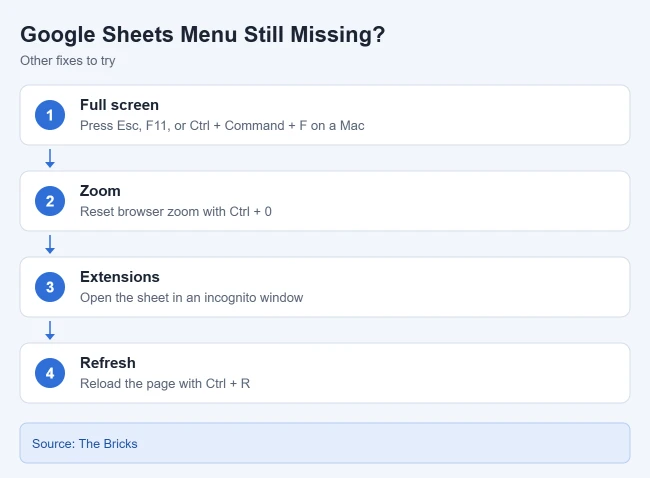
Menu Still Missing? Try These Fixes
Exit full screen
If your browser’s tabs and address bar are gone too, you’re probably in full screen mode. Try pressing Esc, or F11 on Windows (sometimes Fn + F11) and Control + Command + F on a Mac.
Reset your browser zoom
Zooming too far in or out can make pages display oddly. Press Ctrl + 0 (Command + 0 on a Mac) to return to 100%. Sheets has the same toolbar zoom box as Docs, so the steps to change the zoom level in Google Docs apply here too.
Check for a problem extension
Open the sheet in an incognito or private window, where most extensions don’t run. If the menus look right there, try turning extensions off one at a time to find the cause.
Refresh the page
Press Ctrl + R (Command + R on a Mac) to reload Google Sheets.
You only have view access
If you can view but not edit the file, you’ll see fewer menu options. Ask the owner for edit access.
What’s in Each Menu?
Once the menus are back, here’s a quick map:
- File: make a copy, download in other formats like Excel or PDF, and share.
- Edit: undo, redo, copy, paste, and find and replace.
- View: freeze rows, show or hide gridlines and the formula bar, and zoom. For the first of those, see how to freeze columns or rows in Google Sheets.
- Insert: add rows, columns, charts, images, links, and checkboxes.
- Format: number formats, text styles, wrapping, merging, and conditional formatting.
- Data: sort, filter, data validation, and split text to columns.
- Extensions: run or manage add-ons.
To see every keyboard shortcut, Google lists Ctrl + / (Command + / on a Mac).
FAQs
Is it Command + Shift + F on a Mac?
Some guides say so, but Google’s shortcut list gives Command + Option + R or Ctrl + Shift + F on a Mac for showing or hiding the menus.
Can I search the menus without showing them?
Google lists Alt + / (Option + / on a Mac) for the Tool finder, formerly called Search the menus, which lets you look up a command by name.
Related Guides
- How to show formulas in Google Sheets
- How to rename or add sheet tabs
- How to remove fill color in Google Sheets
- How to remove comments and notes in Google Sheets

Matthew Burleigh is the founder, head writer, and editor of Solve Your Tech, which he launched in 2012. He has written technology tutorials since 2008 and worked in IT since 2003, including small-business support, IT management, and consulting. He holds Bachelor’s and Master’s degrees in Computer Science from Arizona State University.
Matthew writes practical guides for Windows, iPhone and iPad, Microsoft Office, Outlook, Google apps, and Android. Solve Your Tech’s guides are tested on current devices or checked against official product documentation, with clear steps, sources, and update dates.
Read more about Matthew and how Solve Your Tech writes and updates its guides, or report a correction.