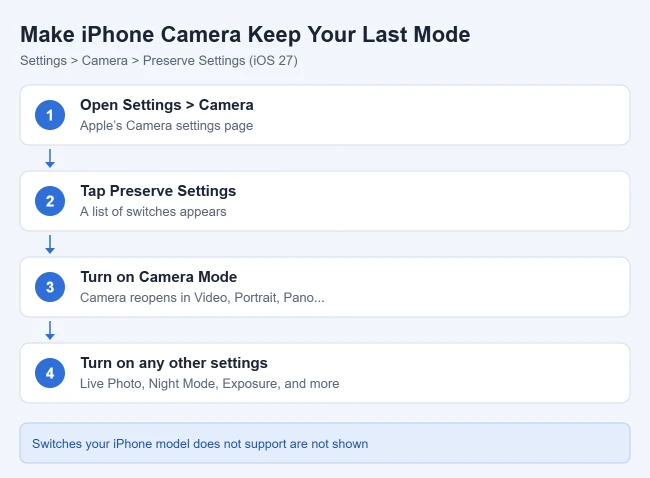
To make the iPhone Camera reopen in your last mode, go to Settings > Camera > Preserve Settings and turn on Camera Mode. Then choose a mode in Camera, such as Video or Portrait. The next time you open Apple’s Camera app, it should return to that mode. The same screen lets you keep other choices too, like Live Photo, Night mode and exposure.
This guide covers the built-in Camera app on iPhones running iOS 27. It explains what each Preserve Settings switch saves, which ones are on by default, how to fix a Camera that still resets, and how to go back to the default behavior. The list of settings comes from Apple’s Save camera settings on iPhone guide, checked in October 2026.
Why the Camera Forgets Your Settings
By default, Camera resets some choices each time you open it, so you start from a predictable place. Apple says Preserve Settings lets you save the last camera mode, filter, lighting, depth and Live Photo settings you used so they’re not reset the next time you open Camera.
Keep the Last Camera Mode
- Open Settings on your iPhone. Result: the Settings list appears.
- Tap Camera, then Preserve Settings. Result: a list of switches appears.
- Turn on Camera Mode. Result: Camera will remember the last mode you used.
- Open Camera, choose a mode such as Video or Portrait, leave Camera, and reopen it. Result: your last mode returns.
With Camera Mode off, Camera can return to its default mode the next time you open it. With it on, the last mode is remembered. This is about the mode selector, not every adjustment you make inside a mode; those have their own switches.
Every Preserve Settings Option, Explained
Turn on only the settings you want Camera to remember. Apple lists these for iOS 27; switches your model doesn’t support won’t appear.
| Switch | What it keeps |
|---|---|
| Camera Mode | The last mode you used, such as Portrait or Pano |
| Photographic Style | The last Photographic Style (supported models) |
| Creative Controls | The last filter or lighting setting |
| Depth Control | The last depth setting in Photo, Portrait and Cinematic modes |
| Macro Control | The Auto Macro setting, instead of switching to Ultra Wide automatically (supported models) |
| Exposure Adjustment | The exposure control setting (iPhone 11 and later) |
| Lens Aperture | The last aperture setting (iPhone 18 Pro models) |
| Night Mode | The Night mode setting, instead of resetting to Auto (supported models) |
| Portrait Zoom | The Portrait mode zoom, instead of the default lens (on by default) |
| Action Mode | Action Mode stays on instead of resetting to off (supported models) |
| ProRAW & Resolution Control | The Apple ProRAW setting (supported models) |
| Apple ProRes | The Apple ProRes setting (supported models) |
| Live Photo | Your Live Photo on/off choice (on by default) |
Two switches, Portrait Zoom and Live Photo, are on by default. That’s why Live Photos stay off once you turn them off, and why Portrait mode keeps your zoom.
Which settings are worth turning on?
- Mostly shoot video? Turn on Camera Mode so Camera opens in Video.
- Prefer no Live Photos? Leave Live Photo on in Preserve Settings, then turn Live Photos off in Camera; it stays off.
- Use a set exposure or style? Turn on Exposure Adjustment or Photographic Style so you don’t redo it every time.
- Want Night mode to stay the way you set it? Turn on Night Mode, then set it in Camera.
If Camera Still Opens in Photo Mode
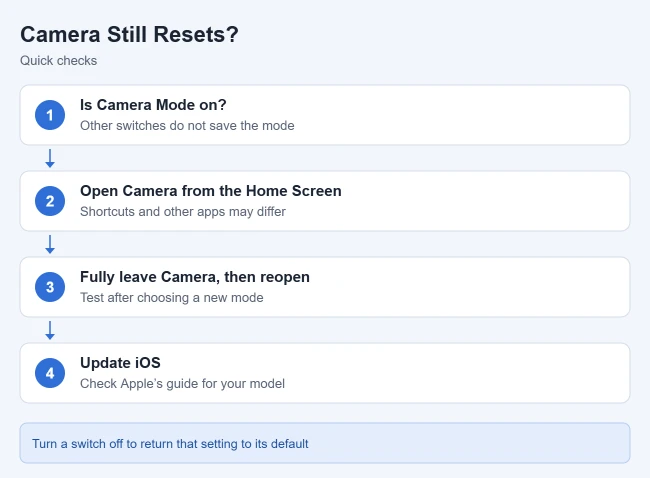
- Check the right switch. Make sure Camera Mode, not just another Preserve Settings switch, is on.
- Retest. Select a different mode in Apple’s built-in Camera app, fully leave it, and open it again.
- Open Camera directly. If you launched a camera from another app or a special shortcut, test by opening the Camera app from the Home Screen; that’s the best check of the built-in setting.
- Update iOS. If the control is missing or the app behaves differently, update iOS and check Apple’s current Camera guide for your model.
How to Go Back to Default Camera Behavior
Return to Settings > Camera > Preserve Settings and turn off any switch you no longer want. For Camera Mode, Camera goes back to opening in its default mode. For Live Photo or Portrait Zoom, turning them off means Camera resets those each time instead.
Frequently Asked Questions
Does Preserve Settings affect third-party camera apps?
No. Apple describes it as a setting for the Camera app. Other camera apps have their own settings.
Can I keep the grid turned on?
Yes. The grid is a separate Camera setting that stays on once you enable it. See how to turn on the camera grid.
How do I stop the lens from switching while recording?
See how to lock the camera lens when recording video on iPhone.
Keeping Live Photos on is useful if you want to take a long exposure photo on iPhone later.

Matthew Burleigh is the founder, head writer, and editor of Solve Your Tech, which he launched in 2012. He has written technology tutorials since 2008 and worked in IT since 2003, including small-business support, IT management, and consulting. He holds Bachelor’s and Master’s degrees in Computer Science from Arizona State University.
Matthew writes practical guides for Windows, iPhone and iPad, Microsoft Office, Outlook, Google apps, and Android. Solve Your Tech’s guides are tested on current devices or checked against official product documentation, with clear steps, sources, and update dates.
Read more about Matthew and how Solve Your Tech writes and updates its guides, or report a correction.