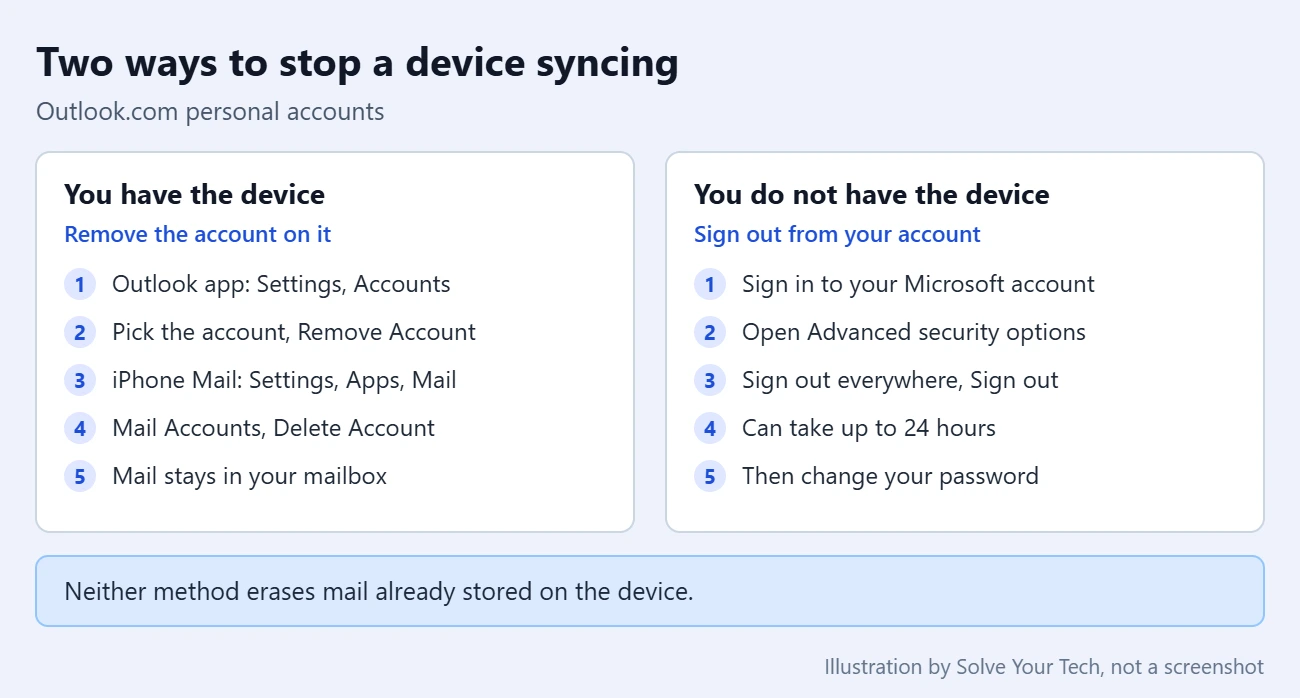
The most reliable way to remove a device that is syncing with your Outlook.com account is to remove the account on the device itself. In the Outlook app for iPhone or Android, open Settings > Accounts, tap the account, and tap Remove Account. If you no longer have the device, sign in to your Microsoft account, open Advanced security options, and choose Sign out everywhere.
Older instructions sent you to Settings > General > Mobile devices on the Outlook.com website. Microsoft has been retiring that page, so it may not be in your settings anymore. This guide covers what to do in each case, for personal Outlook.com, Hotmail, Live, and MSN addresses.
What Changed With the Mobile Devices Page
Outlook.com used to list every phone and tablet that synced with your mailbox, with a button to remove each one. Microsoft’s current Mobile devices options in Outlook on the web article says the page was removed in late 2025 from Outlook on the web and the new Outlook for Windows for Microsoft 365 work or school accounts. The same article now gives step-by-step instructions only for mailboxes on an organization’s own Exchange Server.
Microsoft’s older article about fixing sync problems by removing a device from your Outlook.com mailbox has also been retired. Its address now leads to a general page about sending and receiving problems. Microsoft does not currently publish steps for a Mobile devices page in a personal Outlook.com account, so treat it as something you may or may not see.
The methods below do not depend on that page. They use settings Microsoft and Apple currently document.
Before You Start
- Removing an account from a device does not delete the account or the mail in it. Your messages stay in your Outlook.com mailbox and on your other devices.
- You need the password for your Microsoft account, plus access to your security info (a phone number, email address, or authenticator app) for the account-level steps.
- These steps are for personal accounts. If your address comes from an employer or school, your organization manages devices. See the work or school section near the end.
- Menu names can differ slightly between app versions and phone models.
Remove the Account From the Outlook Mobile App
Use this when the device is in your hands and it uses the Outlook app for iPhone, iPad, or Android. These are the steps in Microsoft’s How do I remove my email account? article.
- Open the Outlook app.
- Open Settings, then Accounts.
- Tap the email account you want to stop syncing.
- Tap Remove Account. In some versions this appears as Delete Account, followed by Delete From This Device.
The account disappears from the app’s account list and its mail, calendar, and contacts stop updating on that device. Nothing is removed from the mailbox itself.
Remove the Account From the iPhone Mail App
If the iPhone uses Apple’s built-in Mail app instead of the Outlook app, remove the account in the iPhone’s settings. Apple lists these steps in Add and remove email accounts on iPhone.
- Open the Settings app.
- Tap Apps, then tap Mail.
- Tap Mail Accounts, then tap the Outlook.com account.
- Tap Sign Out or Delete Account.
Apple notes that this removes the account from Mail and from the other apps on the iPhone that use it, such as Calendar and Contacts. It does not close the account. To pause syncing instead of removing the account, turn off Mail on the same screen.
On an Android phone that uses a different mail app, look for an accounts section in the phone’s Settings app or in the mail app’s own settings, select the Outlook.com account, and choose the remove option. The exact names vary by manufacturer.
Stop a Device You No Longer Have
When a phone is sold, lost, or stolen, you cannot remove the account on it. Sign the account out from Microsoft’s side instead.
Warning: this signs you out on every device, including the ones you still use. You will need to sign in again on each of them. Microsoft says it does not sign you out of an Xbox console.
- Sign in to your Microsoft account in a web browser and open the security section.
- Open Advanced security options. You may be asked to verify your identity.
- Scroll down to Sign out everywhere and select Sign out.
- Change your password: go to Security and select Change Password, enter a new password, and select Save.
Microsoft’s sign out everywhere article says you are signed out of browsers and apps within 24 hours, so this is not instant. Changing the password as well means the old device cannot sign back in with the saved one. Our guide on changing your password in Microsoft Outlook has more detail.
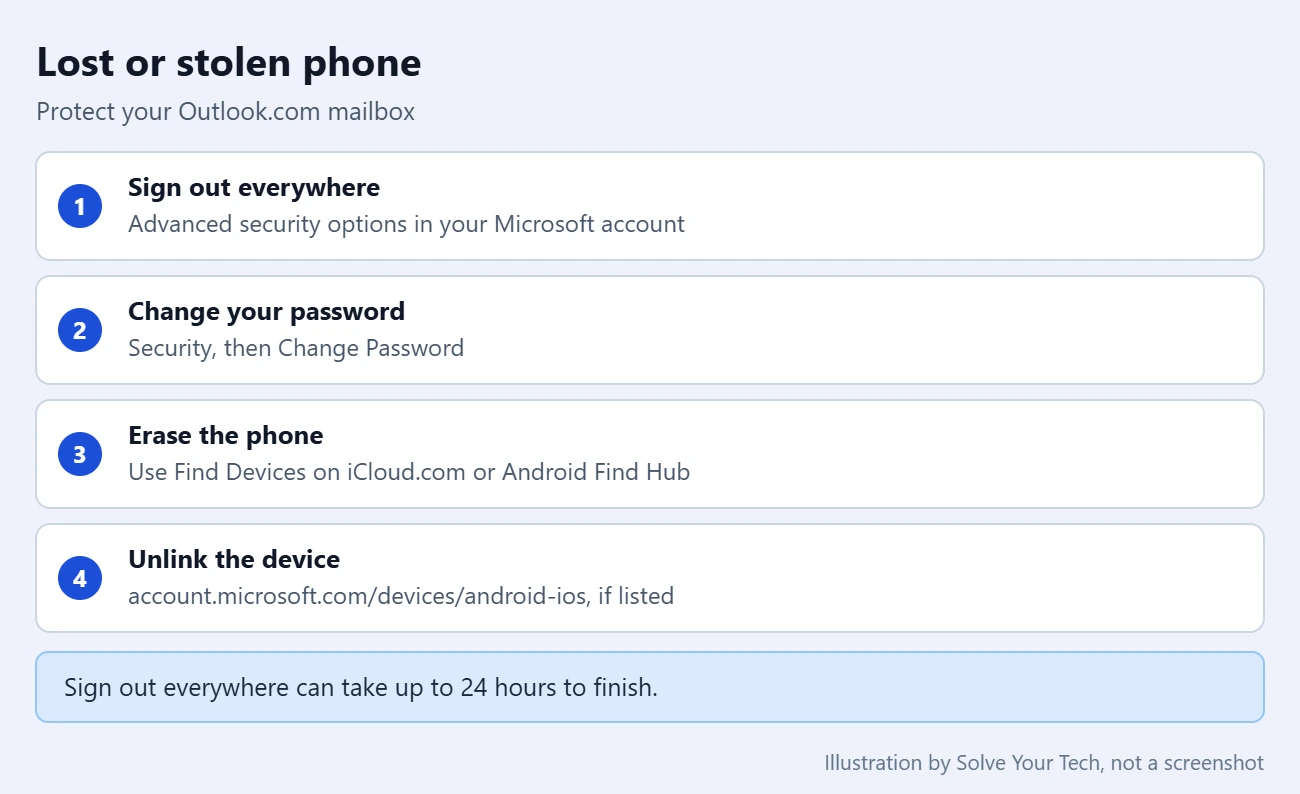
Signing out does not erase mail that was already downloaded to the phone. For a lost or stolen phone, Microsoft points to the tools built into the device: Find Devices on iCloud.com for an iPhone or iPad, and Google’s find and erase feature for an Android device.
Unlink a Device From Your Microsoft Account List
Your Microsoft account keeps its own device list. It is not the same as the old mail sync list, and Microsoft describes it mainly as a way to manage Microsoft Store downloads, warranty, and service. Still, it is worth clearing out a phone you no longer own.
- Sign in at account.microsoft.com/devices/android-ios.
- Find the phone or tablet you no longer use.
- Select Unlink.
For a Windows PC, go to account.microsoft.com/devices, select Remove device for that computer, check the box to confirm, and select Remove. Microsoft’s Manage devices used with your Microsoft account article does not say that unlinking stops mail from syncing, so do not rely on this step alone. Pair it with one of the methods above.
If You Still See Mobile Devices in Outlook.com
If Mobile devices does appear under Settings > General in your mailbox, Microsoft describes its options this way for Outlook on the web.
| Option | What it does |
|---|---|
| Details | Shows the device name, type, and the last time it connected to your mailbox |
| Remove | Removes the sync partnership and deletes the device from your mailbox list. It does not remotely wipe the device |
| Wipe all data | Clears all Outlook data from the device after you confirm |
| Start Logging | Emails you a log file for troubleshooting. It may be unavailable |
| Refresh | Updates the list of syncing devices manually |
A sync partnership is the saved connection between one device’s mail app and your mailbox. To end it, select the device and then select Remove.
Warning: do not select Wipe all data unless you mean to erase Outlook data on that device. It asks you to confirm first, and it is not the same as removing the device.
If the account is still set up on the phone, it can connect again and reappear in the list. That is why removing the account on the device, or changing your password, is the dependable fix.
How to Confirm It Worked and Undo It
- On the device: the account is gone from the Outlook app’s account list or from Mail Accounts, and new mail no longer arrives there.
- After signing out everywhere: your other devices ask you to sign in again. Allow up to 24 hours before deciding it failed.
- To undo it: add the account again. In the Outlook app, add it from Settings > Accounts. In iPhone Mail, go to Settings > Apps > Mail > Mail Accounts > Add Account. Your mail syncs back down from the mailbox.
Troubleshooting
Mobile devices is missing from Settings
This is expected for many accounts. Microsoft confirms it removed the page for work or school accounts, and it no longer documents the page for personal Outlook.com accounts. Use the device-side or account-side methods above instead.
The device keeps syncing after you removed it
Removing a list entry does not remove the account from the phone, and signing out everywhere can take up to 24 hours. Remove the account on the device if you can. If you cannot, change your Microsoft account password.
You were trying to fix a phone that stopped syncing
Removing and re-adding the device was the old fix. Microsoft’s current advice for the Outlook app is to open Settings, tap the account that is not syncing, and tap Reset Account. If that does not help, tap Delete Account > Delete From This Device, then add the account again. Microsoft also notes that since March 1, 2026, devices running Exchange ActiveSync versions lower than 16.1 can no longer connect to its services, so a very old phone or mail app may need an update or a newer app.
You use a work or school account
Microsoft’s instructions are to sign in to the My Account portal and select Devices to view or disable a device. To remove or wipe a device from the mailbox itself, contact your organization’s admin.
Frequently Asked Questions
Will removing a device delete my emails?
No. Removing the account from a phone, or removing a device entry, leaves your messages in your Outlook.com mailbox. Only the copy on that device is affected.
Can I add the device back later?
Yes. Add the Outlook.com account again in the Outlook app or in the phone’s mail settings and sign in. Mail, calendar, and contacts download again from the mailbox.
Does Remove wipe the phone?
No. Microsoft states that Remove ends the sync partnership and deletes the device from the list without remotely wiping it. Wipe all data is a separate option that clears Outlook data from the device.
Why can’t I find the Mobile devices page that older guides mention?
Microsoft has been retiring it. The company’s support article confirms the removal for Microsoft 365 work or school accounts in late 2025 and now documents the page only for Exchange Server mailboxes.
What should I do about a device I don’t recognize?
Treat it as a security issue rather than a sync issue. Use Sign out everywhere, change your Microsoft account password, and consider turning on two-step verification, which Microsoft recommends for extra protection.
Next Steps
Once the old device is disconnected, tighten up the rest of your mailbox. You can block attachments, pictures, and links from unknown senders in Outlook.com, or see how to customize the toolbar in Outlook.com. Setting up mail in classic Outlook instead? Here is how to find the SMTP port number in Outlook.

Matthew Burleigh has been writing tech tutorials since 2008. His writing has appeared on dozens of different websites and been read hundreds of millions of times.
After receiving his Bachelor’s and Master’s degrees in Computer Science he spent several years working in IT management for small businesses. However, he now works full time writing content online and creating websites.
His main writing topics include iPhones, Microsoft Office, Google Apps, Android, and Photoshop, but he has also written about many other tech topics as well.