In Outlook.com, select Settings > General > Notifications, turn Mail on under Notify me about, expand the Mail section, and enable or select its notification sound. Also check that your browser and computer are allowed to play it.
These steps apply to Outlook.com in a desktop web browser, including a personal Hotmail account using that interface. Classic Outlook for Windows uses File > Options > Mail instead. Pick the instructions for the program you are actually using.
Before you change the setting
Keep Outlook.com open in the browser and confirm you are signed in to the intended mailbox. Mail arriving in another account or another Outlook program is not a reliable test of this browser setting.
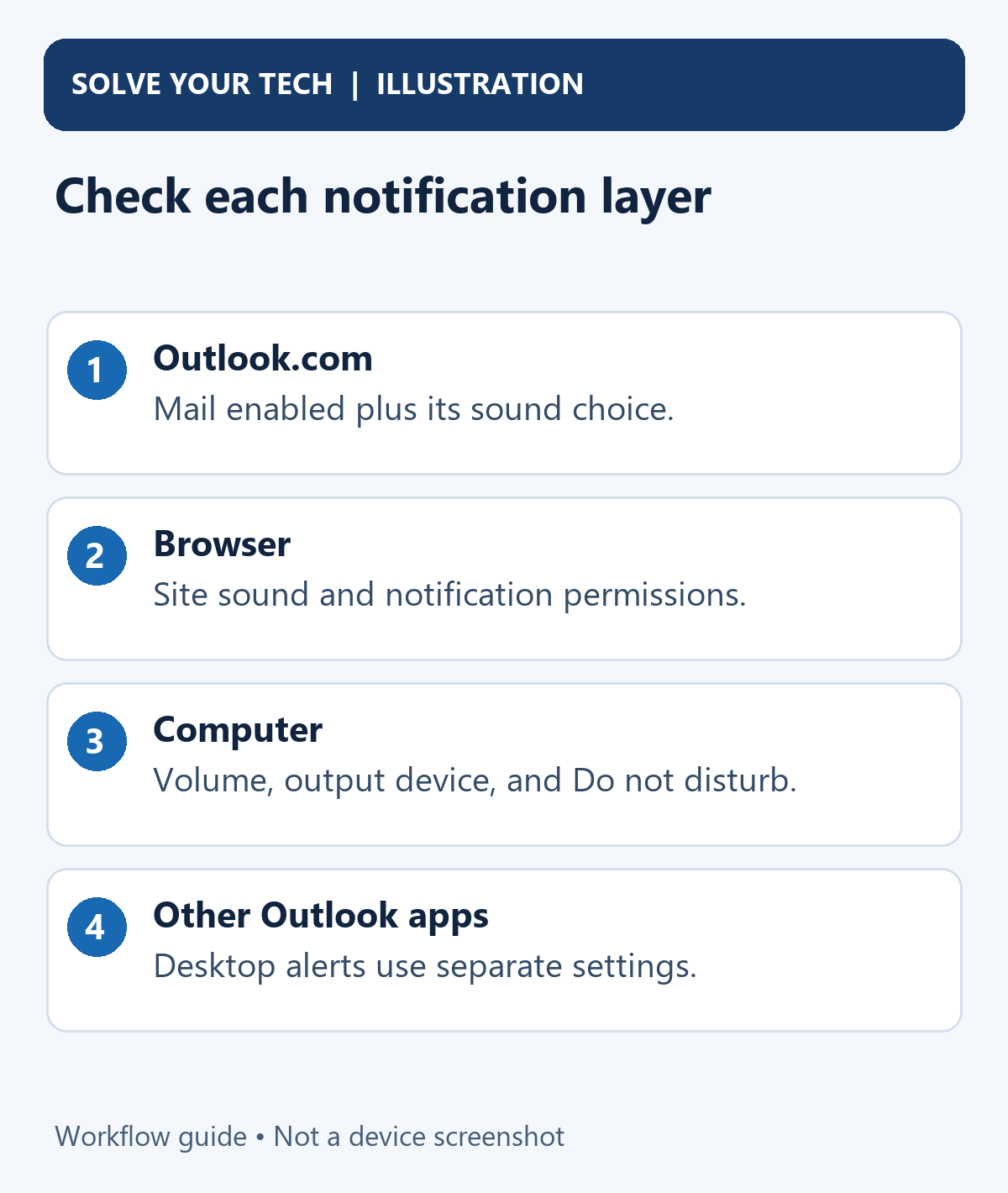
There are several layers to check: Outlook's Mail notification choice, the selected sound, browser permissions, and the computer's volume and notification delivery. A visible notification with no sound suggests a different problem from a message that never reaches the mailbox.
Microsoft's Outlook.com notification guide documents the current General > Notifications route and separate controls for Mail and Calendar. Labels within the expanded section can vary as the web interface changes.
Turn on the new-mail sound
- Open Outlook.com in your desktop browser and sign in.
- Select Settings, the gear icon near the top of the page.
- Select General, then Notifications.
- Under Notify me about, find Mail and turn its switch On.
- Expand Mail to see the delivery and sound options.
- Enable the notification sound, or choose an audible option under Play sound if your layout presents a sound menu. Avoid None when you want an alert.
- Review how notifications should appear. Select the available presentation option that fits your use.
- Select Save if shown, then reopen the section to confirm the choices remain selected.
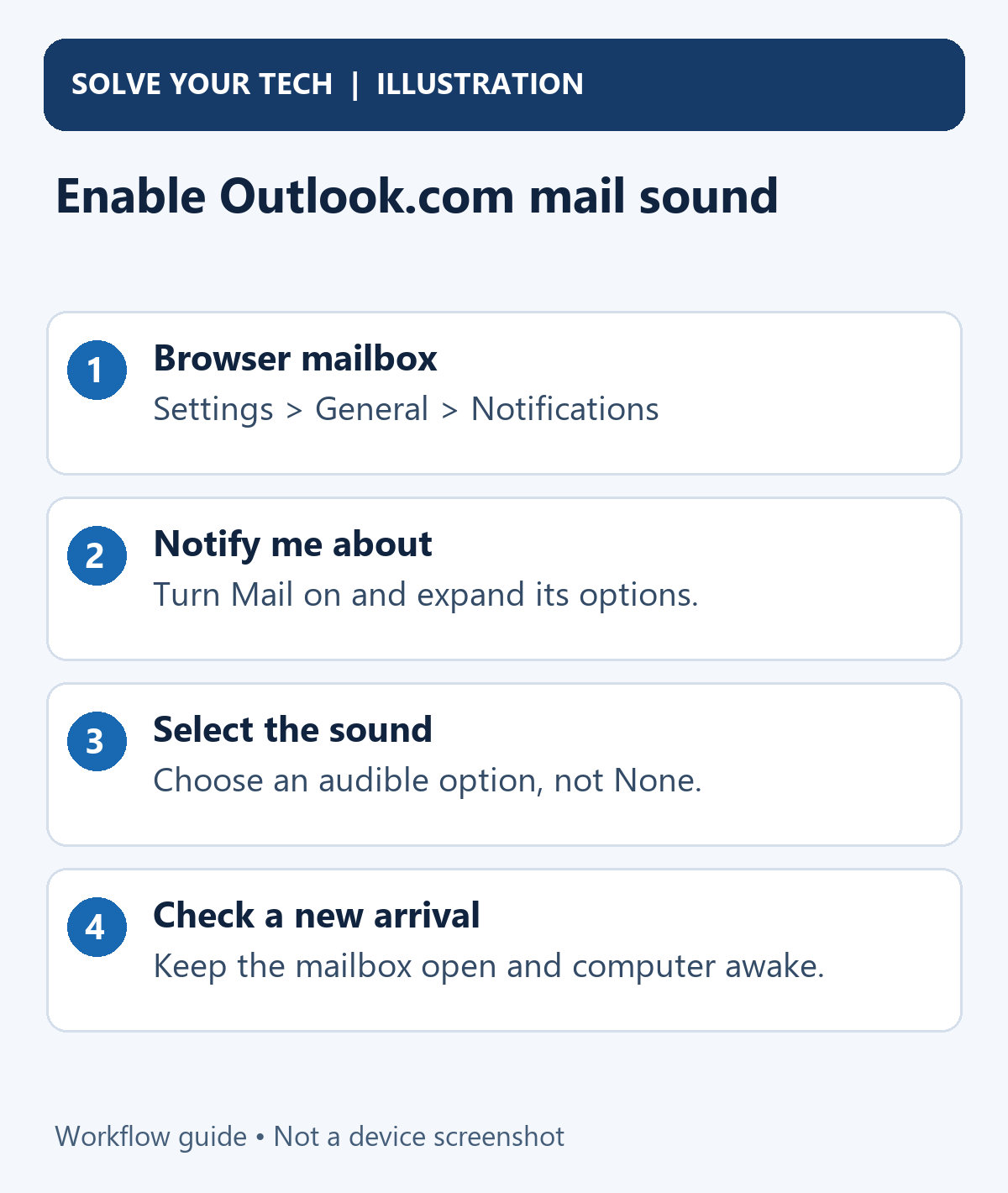
Turning the Mail switch on is not always the whole change. The expanded section determines whether a sound accompanies the notification. Check it when the screen shows Mail enabled but messages still arrive quietly.
Calendar has its own section on the same page. Enable its reminder sound separately if you want that too; changing Mail does not establish the Calendar preference.
Check the result with one new message
Leave the mailbox open, keep the computer awake, and have a new message sent to the account. Check whether it reaches the Inbox and whether a notification appears or sounds.
Use a genuinely new arrival. Opening an old unread message is not the same event as receiving mail, and refreshing a mailbox containing old messages does not prove that a new-message sound is configured.
If the message does not arrive, inspect the correct account, Junk Email, and any rules or filters. If it arrives but no notification appears, review the notification settings and permissions. If a notification appears silently, check the sound selection and audio controls.
Repeat the check after changing one setting at a time. That makes it easier to identify the cause than toggling every notification option at once.
Check browser sound and notification permissions
Browser sound and browser desktop notifications are separate permissions. The former affects audio from pages; the latter allows a website to deliver notifications through the browser.
If your browser shows that the Outlook tab or site is muted, use its tab menu to restore sound. Inspect any speaker or muted indicator rather than assuming the Outlook setting overrides a browser mute.
In Chrome, open Settings > Privacy and security > Site settings. Under Additional content settings > Sound, review the sound permissions and any site exceptions relevant to the Outlook page. Change only the exception you intend; allowing one trusted mailbox does not require allowing every site.
Google documents that path in Chrome sound controls.
For browser desktop alerts, open Site settings > Notifications and review whether the mailbox's site is allowed or blocked. If Outlook asks for notification permission, check the requesting site's address before allowing it. Google notes that Chrome does not provide site notifications while browsing privately.
Its notification permission guide also explains that permissions for unused sites can be removed. A previously working notification may therefore need a fresh permission check.
Other browsers provide equivalent website permission controls, but their menu names differ. Use your browser's settings for the current site instead of following Chrome's labels in a different browser.
Check computer volume and notification delivery
First confirm that the computer is not muted and that the correct speaker or headphones are selected. Test another ordinary sound. If no audio works, troubleshoot the computer output before changing Outlook again.
On Windows 11, check Settings > System > Notifications. Confirm notifications are enabled and review Do not disturb. Our guide on turning off Do not disturb in Windows shows where that control is. If the browser or installed Outlook web app appears in the sender list, inspect its notification and sound choices.
Check Settings > System > Focus if a focus session is running. Windows notification suppression can affect delivery even when Outlook itself is configured correctly. On Windows 10, related controls use names such as Notifications & actions and Focus assist.
Microsoft's notification troubleshooting guide also identifies power-saving behavior and Teams Do not disturb as possible interference. Apply the controls relevant to your setup. Its desktop Outlook sender instructions are not a reason to look for the same sender name when you use only Chrome.
If a work or school computer has locked notification controls, ask its administrator about the restriction. Avoid resetting the whole browser or changing organization policies merely to restore one email sound.
Understand which Outlook settings you are changing
The web mailbox, new Outlook for Windows, and classic Outlook can resemble one another in some places. Check the surrounding interface before using a desktop tutorial.
If you see File > Options > Mail > Message arrival, you are using classic Outlook instructions. That Play a sound checkbox belongs to the desktop program, not this Outlook.com Settings panel.
Likewise, choosing a Windows New Mail Notification .wav file is a desktop/system sound procedure. It does not establish a custom sound for every browser mailbox.
For that separate task, see controlling the new-email sound in Outlook for Windows. For how messages are grouped in this browser mailbox, see turning off conversation view in Outlook.com.
Common questions
Will the sound work after I close the browser?
Do not assume that an ordinary signed-in web tab provides alerts after it is closed. Browser background behavior, installed web apps, operating-system settings, and permission choices can differ. Start with the mailbox open and verify your intended setup.
Can I silence Mail but keep calendar reminders?
Yes. Review the Mail and Calendar sections separately under Notify me about. Disable the Mail sound while retaining the Calendar choice you want.
How do I undo the change?
Return to General > Notifications, expand Mail, and turn its sound off or choose None when offered. Turn Mail off entirely only if you also want to stop its notifications. Revoke a browser permission separately if you no longer want the site to have it.
Why do I hear more than one alert?
Check whether a desktop Outlook program and the browser mailbox are both notifying you. Decide which one you want to alert you, then change that program's controls. Do not assume that one Outlook.com switch governs every mail app on the computer.
Finish with a new message arriving in the correct account, while the browser remains open. Confirm both the saved sound selection and the actual audio result. For a security setting in the same mailbox, see how to block content from unknown senders in Outlook.com. For another Outlook.com setting you can adjust, see how to customize the toolbar in Outlook.com.

Matthew Burleigh is the founder, head writer, and editor of Solve Your Tech, which he launched in 2012. He has written technology tutorials since 2008 and worked in IT since 2003, including small-business support, IT management, and consulting. He holds Bachelor’s and Master’s degrees in Computer Science from Arizona State University.
Matthew writes practical guides for Windows, iPhone and iPad, Microsoft Office, Outlook, Google apps, and Android. Solve Your Tech’s guides are tested on current devices or checked against official product documentation, with clear steps, sources, and update dates.
Read more about Matthew and how Solve Your Tech writes and updates its guides, or report a correction.