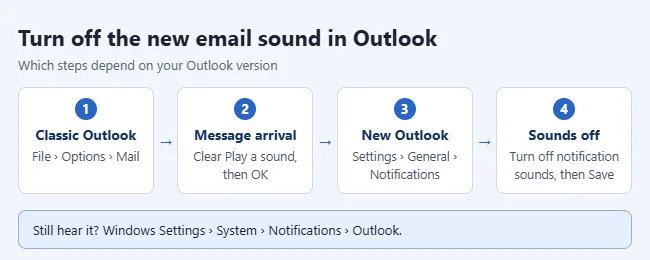
To stop Outlook from playing a sound when new mail arrives in classic Outlook for Windows, select File > Options > Mail and clear the Play a sound check box under Message arrival. In the new Outlook for Windows, open Settings > General > Notifications and change the sound setting in the Mail section.
Not sure which one you have? Classic Outlook has a File tab at the top left. The new Outlook has a Settings gear at the top right and no File tab.
Before you start
- These steps cover Outlook on a Windows PC. Microsoft lists the classic steps for Outlook for Microsoft 365, Outlook 2024, 2021, 2019, and 2016.
- The setting belongs to the Outlook app on that one computer. It does not follow you to another PC, to Outlook.com, or to your phone.
- Turning off the sound does not turn off the pop-up alert. You will still see new messages arrive unless you turn that off as well.
Classic Outlook (Outlook 2016, 2019, 2021, 2024, and Microsoft 365)
- Open Outlook and select the File tab at the top left.
- Select Options at the bottom of the left column. The Outlook Options window opens.
- Select Mail in the left column of that window.
- Scroll down to the Message arrival section and clear the Play a sound check box.
- Select OK to save the change.
The Message arrival section has three more check boxes: briefly change the mouse pointer, show an envelope icon in the taskbar, and Display a Desktop Alert. A Desktop Alert is the small pop-up that shows the sender and subject of a new message. Leave it checked if you want a silent, visual notice. Microsoft describes these options in Turn sound effects on or off in Outlook.
New Outlook for Windows
- Select Settings (the gear icon) at the top right. You can also select View, then View settings.
- Select General, then Notifications.
- Under Notify me about, select Mail to expand it.
- Find Play sound under the new email settings and choose the option you want. Depending on your version, you may be able to pick no sound here or clear a general option that lets notifications play sounds.
- Select Save if a Save button appears.
Warning: switching the whole Mail toggle to off stops every new mail notification from the new Outlook, not just the sound. Use it only if you want no alerts at all. Calendar has its own toggle, so meeting reminders can stay on. Microsoft covers this screen in Turn new message alert pop-up on or off in Outlook. The exact wording of the sound options can differ between app versions.
Turn off reminder sounds too
Calendar, task, and flag reminders use a separate setting in classic Outlook.
- Select File > Options > Advanced.
- Under Reminders, clear Play reminders sound.
- Select OK.
Change the sound instead of turning it off
Classic Outlook uses the Windows sound named New Mail Notification. You change it in Windows, not in Outlook.
- Close Outlook.
- Open Control Panel and type Sound in the search box at the top of the window. Open Sound.
- On the Sounds tab, under Program Events, select New Mail Notification.
- Select Browse and choose a different .wav file.
- Select OK and restart Outlook.
Microsoft notes that only .wav files work here, so an .mp3 needs to be converted first. See Change the sound played when an email message arrives. In the new Outlook, the Play sound setting in step 4 above is where you pick a custom sound.

How to confirm it worked and how to undo it
Send yourself a test message from another account or ask someone to email you. Classic Outlook should show the Desktop Alert with no sound. To bring the sound back, return to File > Options > Mail, check Play a sound, and select OK. In the new Outlook, go back to Settings > General > Notifications and restore the earlier choice.
Troubleshooting
The sound still plays
Work through these in order:

- Windows notification sound. Select Start > Settings > System > Notifications, select Outlook under Notifications from apps and other senders, and turn off Play a sound. Microsoft lists these per-app options in Notifications and Do Not Disturb in Windows.
- A rule. A rule is an automatic action Outlook runs on incoming mail, and one of the available actions is Play a sound. In classic Outlook, select File > Manage Rules & Alerts and look for a rule with that action. Microsoft explains rule editing in Edit or fix a broken rule in Outlook.
- A reminder. If the sound comes with a calendar or task pop-up, use the reminder steps above.
- Another app or device. A second mail app on the PC, a browser tab with Outlook.com open, or your phone can each play their own sound for the same message.
There is no File tab
You are using the new Outlook or Outlook on the web. Use the Settings gear instead.
The setting is missing or grayed out
On a work or school computer, some Outlook options can be managed by your organization. If a check box cannot be changed, ask your IT administrator.
Frequently asked questions
Does turning off the sound stop the pop-up alert?
No. In classic Outlook, Play a sound and Display a Desktop Alert are separate check boxes under Message arrival. Clear both if you want no sound and no pop-up.
Can I mute all Windows sounds instead?
Yes, but it affects every app. Microsoft says the volume of Outlook sounds is controlled by Windows sound settings, so lowering the volume to 0 silences Outlook along with everything else. Windows also has a Do Not Disturb feature that silences notifications until you turn it off.
What about Outlook on the web?
Outlook.com has its own setting under Settings > General > Notifications, in the Mail section, as described in Microsoft’s Mail and calendar notifications in Outlook.com. Our guide to the new mail sound in Outlook.com walks through it.
What about Outlook on a Mac or a phone?
Those apps have separate settings. Microsoft’s instructions for Outlook for Mac use Outlook > Preferences > Notifications & Sounds, though that page is written for an older Mac version. In Outlook for iOS and Android, open Settings, then Notifications, and choose the sound for Mail there.
Next steps
If you are trimming other Outlook interruptions, you may also want to turn off read receipts in Outlook. If Outlook is not sending mail at all, check your outgoing server settings with our guide on how to find the SMTP port number in Outlook.

Matthew Burleigh has been writing tech tutorials since 2008. His writing has appeared on dozens of different websites and been read hundreds of millions of times.
After receiving his Bachelor’s and Master’s degrees in Computer Science he spent several years working in IT management for small businesses. However, he now works full time writing content online and creating websites.
His main writing topics include iPhones, Microsoft Office, Google Apps, Android, and Photoshop, but he has also written about many other tech topics as well.