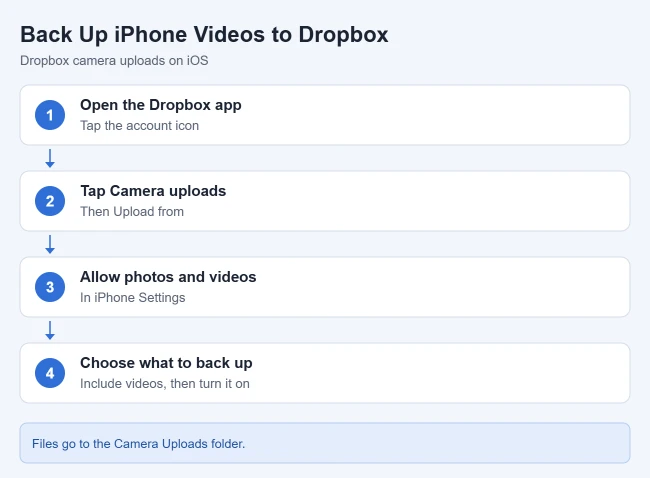
To upload iPhone videos to Dropbox automatically, open the Dropbox app, tap the account icon, tap Camera uploads, give Dropbox access to your photos and videos, turn on the option that includes videos, and tap Turn on camera uploads. New photos and videos then upload to a folder named Camera Uploads in your Dropbox account.
These steps match the current Dropbox app for iPhone and iPad as described in Dropbox’s help center, on iOS 27 and earlier iOS versions that Dropbox still supports. Older versions of the app had a separate Upload Videos switch inside a settings menu behind a gear icon. That layout is gone. The steps below follow the Dropbox help article on how to use camera uploads.
What You Need Before You Start
- The Dropbox app, signed in. Camera uploads is a feature of the Dropbox mobile app for iPhone and iPad. Dropbox says it is available to all users except people on Linux and teams that use Dropbox Enterprise Mobility Management (EMM) for Android, so an iPhone is covered.
- A current app version. Menu names change between versions. If your screens do not match the steps, update Dropbox from the App Store first.
- Enough Dropbox storage. Videos are much larger than photos and uploads stop when your account is full.
- Wi-Fi and a charger for the first run. The first upload can use a lot of battery, and it uses cellular data when Wi-Fi is not available unless you change that setting.
- Dropbox Basic accounts: the Dropbox troubleshooting page says Basic (free) users must have the Dropbox desktop app installed on a computer to use camera uploads.
How to Turn On Video Uploads in the Dropbox iPhone App
Before you begin: once this is on, Dropbox can upload from your whole photo library, not one video. If you have years of videos, that can fill your Dropbox storage and use a lot of cellular data. Read the cellular data section below before you tap the last button.
- Open the Dropbox app on your iPhone.
- Tap the account icon. It looks like a person inside a circle.
- Tap Camera uploads.
- Tap Upload from, then tap Settings. This opens the Dropbox page in the iPhone Settings app. Allow Dropbox to access your photos and videos there, then go back to the Dropbox app.
- Choose what you’d like to back up. Dropbox’s camera uploads tutorial shows a choice between backing up all photos or only those taken since a certain date, which is a good way to skip an old backlog.
- Turn on the videos option. Videos are not included automatically, so only photos upload unless you switch this on. (In the Dropbox desktop app the same choice is labeled Photos and videos.)
- Decide whether Dropbox may use cellular data for the backup.
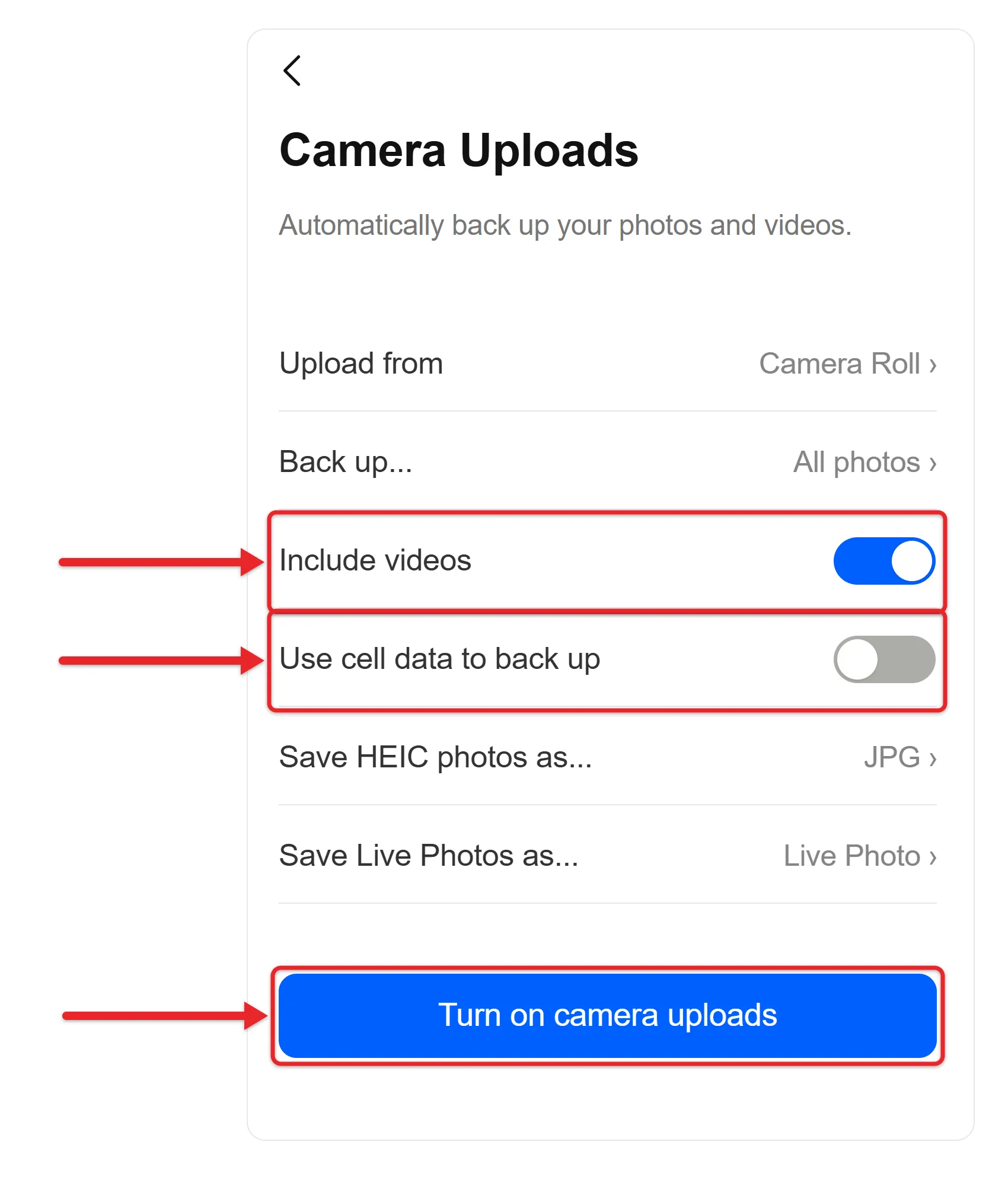
- Tap Turn on camera uploads.
Dropbox starts working through your library right away. Uploaded files go to a folder named Camera Uploads. That destination can’t be changed, but you can move files to another folder after they upload.
How to Confirm That Videos Are Uploading
Open the Files tab in the Dropbox app and open the Camera Uploads folder. Recent videos should appear there after they finish uploading. A long video can take a while, especially on a slow connection, so check again later before you assume something is wrong.
You can also sign in to Dropbox on a computer and look in the same folder. Seeing the video play on a second device is the clearest sign that it reached your account and is not only on the phone.
Stop Video Uploads From Using Cellular Data
By default, camera uploads use cellular data when Wi-Fi is not available. A few minutes of high-resolution video can use a large share of a monthly data allowance, so change this if your plan has a cap.
- Open the Dropbox app.
- Tap the account icon.
- Tap Camera uploads.
- Turn off Use cell data to back up.
Videos then wait until the iPhone is on Wi-Fi. To keep large videos off your data plan, you can stop Dropbox from using cellular data for uploads, and there are more ways to reduce cellular data usage on an iPhone as well.
Upload a Large Video Backlog Overnight
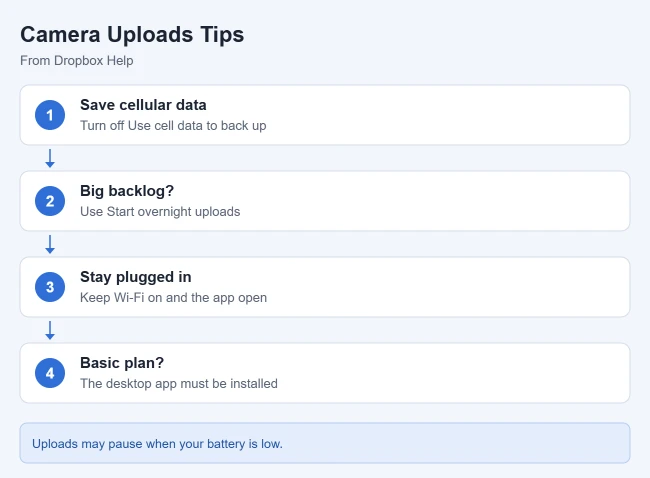
The first backup is the slow one. Dropbox offers an iPhone and iPad feature called overnight uploads for this. It keeps the app open and dims the screen so the upload can run without stopping.
- Open the Dropbox app.
- Tap the camera icon in the top-right corner.
- Tap Start overnight uploads.
Three conditions have to hold for this to work: keep the Dropbox app open, stay connected to Wi-Fi, and keep the phone plugged into a charger. To stop, tap Exit overnight uploads.
Upload a Single Video Manually Instead

You do not have to back up everything. If you only want one or two videos in Dropbox, leave camera uploads off and add them by hand. Dropbox’s help article on uploading files on a mobile device lays out these steps.
- Open the Dropbox app and open the folder where the video should go.
- Tap the + (plus sign) at the bottom of the screen.
- Choose Upload Photos. Despite the name, this is the option for uploading photos and videos.
- Tap the items you want to upload.
- Tap Next, tap Set location, and pick the destination folder.
- Tap Upload.
Another route starts in the Photos app: select the video, tap the Share button, choose Dropbox, pick a save location, and save. You must be signed in to the Dropbox app for this to work. The same manual method is shown step by step in how to upload pictures from an iPhone to Dropbox, and it works the same way on an iPad.
Once a video is in Dropbox, you can email a link to the file instead of attaching a large video.
Which method should you use?
| If you want to | Use |
|---|---|
| Back up every new video without thinking about it | Camera uploads with videos turned on |
| Send one or two clips to a shared folder | Manual upload with the + button |
| Move a video while you are already in Photos | The Share button in Photos |
| Catch up on hundreds of old videos | Camera uploads plus overnight uploads |
How to Turn Video Uploads Off Again
Open the Dropbox app, tap the account icon, and tap Camera uploads. Dropbox uses this same screen to turn the feature on or off. Switch off the videos option to keep backing up photos only, or turn camera uploads off completely.
Turning the feature off stops new uploads. It does not remove videos that are already in your Camera Uploads folder. Delete those separately if you want the space back. For the full walkthrough, read about stopping the iPhone Dropbox app from uploading pictures automatically.
If Videos Are Not Uploading
Work through these in order. The first group comes from the Dropbox page on troubleshooting camera uploads.
- Check that videos are included. If photos upload but videos do not, go back to Camera uploads and make sure the videos option is on. This was the most common fix in Dropbox’s own community forum when older app versions showed “Video Uploads are Off.”
- Restart the Dropbox app. To quit and reopen an app on iPhone, open the App Switcher, swipe up on the app, then open it again.
- Check your connection. Uploads can be slow on a weak connection, so try a different Wi-Fi network.
- Charge the phone. Dropbox stops auto-uploading when the battery is low.
- Check your Dropbox storage. If the account is full, delete files, leave shared folders, or upgrade the plan.
- Update Dropbox and iOS. Install the latest app version and make sure your iPhone software is one Dropbox still supports.
If uploads only happen while the app is open, Dropbox has a separate page about camera uploads not working in the background. For iPhone it lists these checks:
- Open the iPhone Settings app, select Dropbox, and make sure Background App Refresh is on.
- On the same screen, make sure Cellular Data is on if you want uploads away from Wi-Fi.
- Avoid Low Power Mode, charge the phone regularly, and do not switch the phone off every night.
- Turn off Low Data Mode: go to Settings, tap Cellular, tap Cellular Data Options, tap Data Mode, and choose Standard or Allow More Data. These screens can look different depending on your carrier.
Some videos are skipped: if you use iCloud Photos with Optimize Storage, the iPhone keeps smaller versions on the device while the full-resolution originals stay in iCloud. In the Dropbox Community, Dropbox support staff have pointed to this setting when camera uploads missed items, because the original may not be on the phone. Apple’s iCloud Photos guide shows where the setting is: Settings > your name > iCloud > Photos > iPhone Storage. Choosing Download and Keep Originals needs enough free space on the iPhone, so check your storage first.
Dropbox sees only some of your library: iOS lets you give an app access to selected photos only. Open the Dropbox page in the iPhone Settings app (step 4 above takes you there), tap Photos, and check which access level is chosen. Dropbox can only back up items it is allowed to see.
Missing Camera uploads option: if you are on a Dropbox team and the option is not there, your admin may have turned the feature off for the team. Only the admin can change that.
Two linked accounts: if you have linked a personal and a work Dropbox account, camera uploads can only be on for one of them at a time.
Dropbox cannot see your videos at all: repeat step 4 above. Tap Upload from, then Settings, and check that Dropbox is allowed to access your photos.
Frequently Asked Questions
Where do my iPhone videos go in Dropbox?
Camera uploads saves photos and videos to a folder named Camera Uploads in your Dropbox account. Automatic uploads can’t go to a different folder, but you can move the files anywhere in your Dropbox after they arrive. To clear out uploads you do not need, follow the steps to delete a picture in the Dropbox app on an iPhone.
Can I upload videos without uploading photos?
Dropbox does not document a videos-only setting for camera uploads on iPhone. The documented choices are which photos to back up and whether videos are included. To send only videos, upload them manually with the plus sign in the Dropbox app.
Does turning on camera uploads delete videos from my iPhone?
No. Camera uploads copies photos and videos to Dropbox. The Dropbox help article does not describe any step that removes them from the iPhone. If you want to free up space, check that each video opens and plays in Dropbox first, then delete it from the Photos app yourself. If you use iCloud Photos, deleting a video in Photos also removes it from iCloud and your other Apple devices.
Why did Dropbox use so much battery?
Camera uploads can use a large amount of battery the first time, because the app is sending your existing library. Battery use should return to normal once that first backup finishes.
Can Dropbox upload Live Photos?
Yes. The Dropbox app can upload Live Photos. Live Photos sent to Dropbox from other apps are saved as normal still photos.
Why are someone else’s photos in my Camera Uploads folder?
This can happen when another person plugs a phone or camera into a computer that has your Dropbox desktop app installed and accepts the prompt to enable uploads. You can open the Dropbox desktop app preferences, go to Backups, and click Forget next to that device.
Next Step
Once your videos are backing up, protect the app itself. Here is how to add a passcode to Dropbox on an iPhone so nobody else can open your files if they pick up your phone.

Matthew Burleigh is the founder, head writer, and editor of Solve Your Tech, which he launched in 2012. He has written technology tutorials since 2008 and worked in IT since 2003, including small-business support, IT management, and consulting. He holds Bachelor’s and Master’s degrees in Computer Science from Arizona State University.
Matthew writes practical guides for Windows, iPhone and iPad, Microsoft Office, Outlook, Google apps, and Android. Solve Your Tech’s guides are checked step by step against the device or app maker’s own documentation and tested on his own devices whenever he has the hardware or software, with clear steps, sources, and update dates.
Read more about Matthew and how Solve Your Tech writes and updates its guides, or report a correction.