To delete an alarm on iPhone, open the Clock app, tap Alarms at the bottom of the screen, swipe left on the alarm, and tap Delete. The alarm is removed right away and won’t go off again.
These steps work on current iPhones running iOS 27 and iOS 26. The swipe-to-delete method has worked the same way since iOS 9, so it applies to older iPhones too. Wake-up alarms from a sleep schedule are handled differently, and they have their own section below.
Delete an Alarm in the Clock App
- Open the Clock app from your Home Screen or App Library.
- Tap Alarms in the bar at the bottom. You’ll see a list of every alarm you’ve created, including alarms Siri set for you.
- Swipe left on the alarm you want to remove. A red Delete button appears on the right.
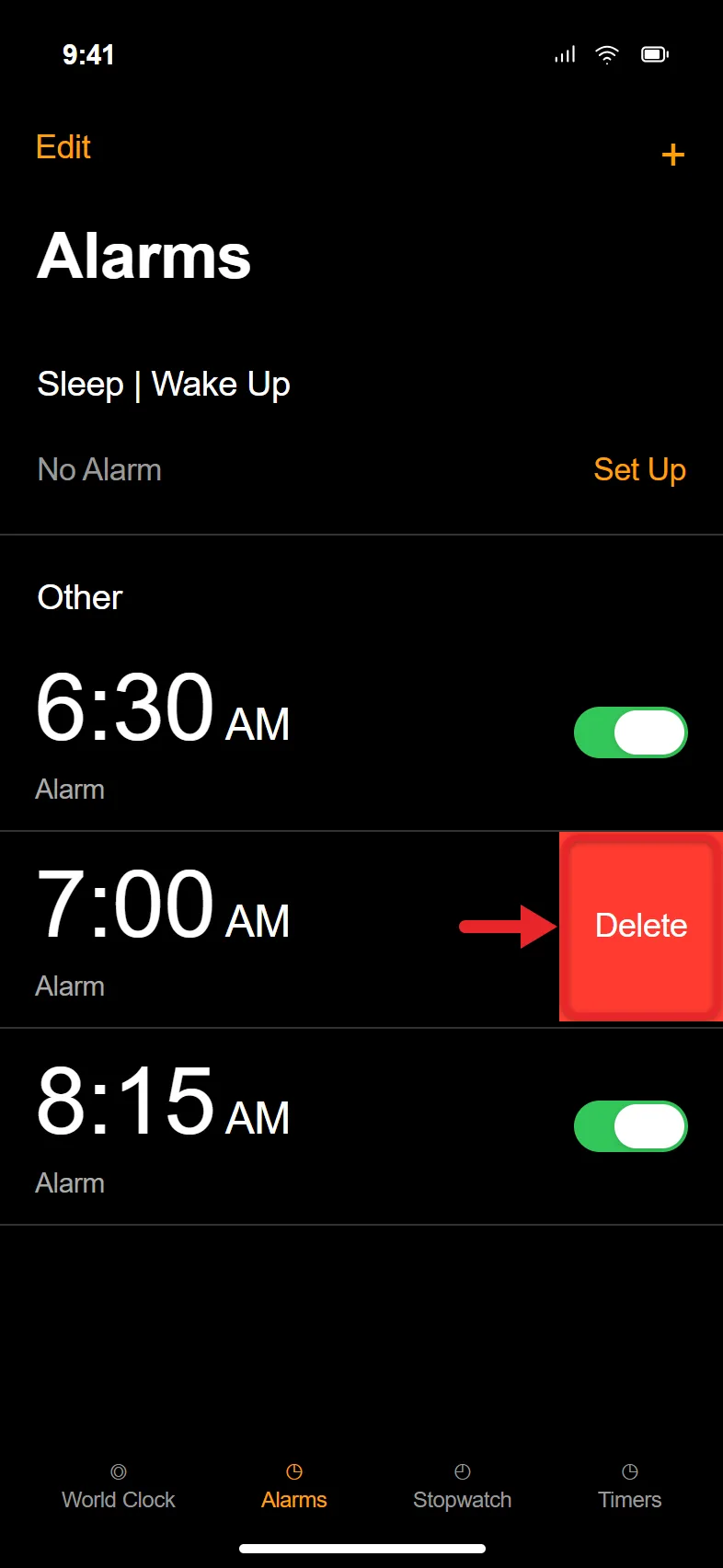
- Tap Delete. The alarm disappears from the list.
If you swipe all the way across the screen, the alarm is deleted without tapping the button. Deleting one alarm doesn’t change any of your other alarms.
Other Ways to Delete an Alarm
Apple’s alarm support article lists two more methods, which are handy if swiping is awkward:
- Tap Edit in the upper-left corner, tap the red minus button next to the alarm, then tap Delete. The minus button is small, so tap the center of the red circle.
- Tap Edit, tap the alarm to open its settings, scroll down, and tap Delete Alarm.
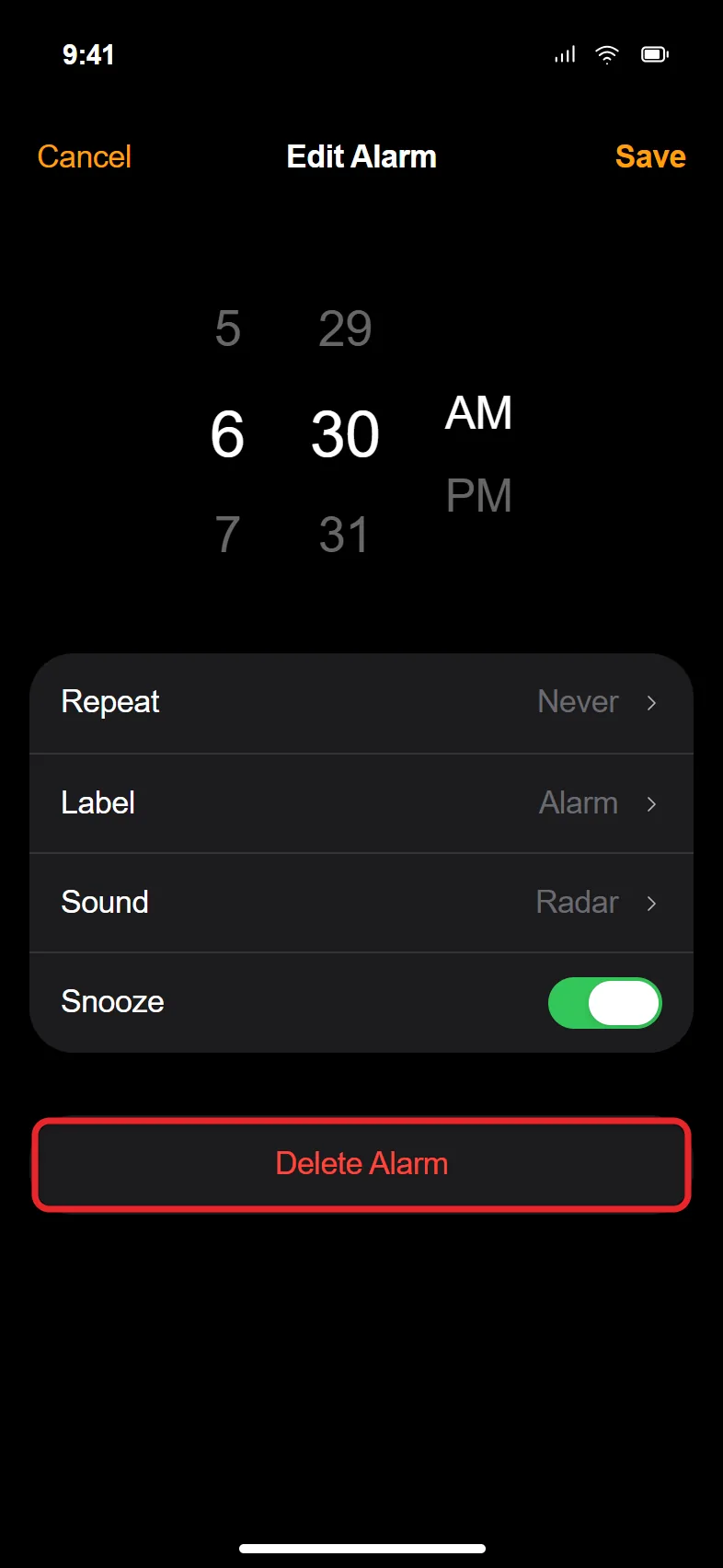
Tap Done when you finish to leave edit mode.
Change the Alarm Instead
If the alarm is only set for the wrong time, you don’t have to delete it. Tap the alarm’s time (or tap Edit, then the alarm), pick the new time, and tap Save. The label, repeat days, sound and snooze settings stay the same.
Delete Several or All Alarms
The Clock app doesn’t have a Delete All button. You have two options:
- Use Edit mode. Tap Edit, then tap the red minus button and Delete for each alarm. This is quick for five or ten alarms.
- Ask Siri. Say “Hey Siri, delete all my alarms,” or press and hold the side button (the Home button on an iPhone that has one) and ask. Siri asks you to confirm; say “Yes” or tap the confirm button. Every alarm is removed, whether it was on or off.
You can also delete one alarm by time with a request like “Delete my 6:30 alarm.” If Siri isn’t sure which alarm you mean, it asks.
With a very long list, Siri sometimes removes only part of it or says something went wrong. Check the Alarms tab afterward and repeat the request until the list is empty.
Turn an Alarm Off Instead of Deleting It
If you use an alarm on some days but not others, turning it off is easier than deleting it and setting it up again.
- Open Clock and tap Alarms.
- Tap the switch to the right of the alarm.
The switch turns gray and the alarm stays in your list without ringing. Tap the switch again when you want it back. A deleted alarm can’t be restored, so this is the safer choice for an alarm you might need again. When you need a new one later, follow the steps for setting an alarm on iPhone.
To switch off every alarm at once without deleting any, say “Hey Siri, turn off all my alarms.” Say “Turn on all my alarms” later to bring them back.
Alarms made on an Apple Watch are managed in the watch’s own Alarms app. For more on watch alarms, read about how to set an alarm on Apple Watch.
Delete or Turn Off a Sleep Schedule Alarm
The wake-up alarm at the top of the Alarms tab, under Sleep | Wake Up, comes from a sleep schedule in the Health app. It can’t be swiped away like a normal alarm.
Skip Only the Next Wake-Up Alarm
- Open the Health app.
- Tap Browse, then tap Sleep.
- Scroll to Your Schedule and tap Edit under Next.
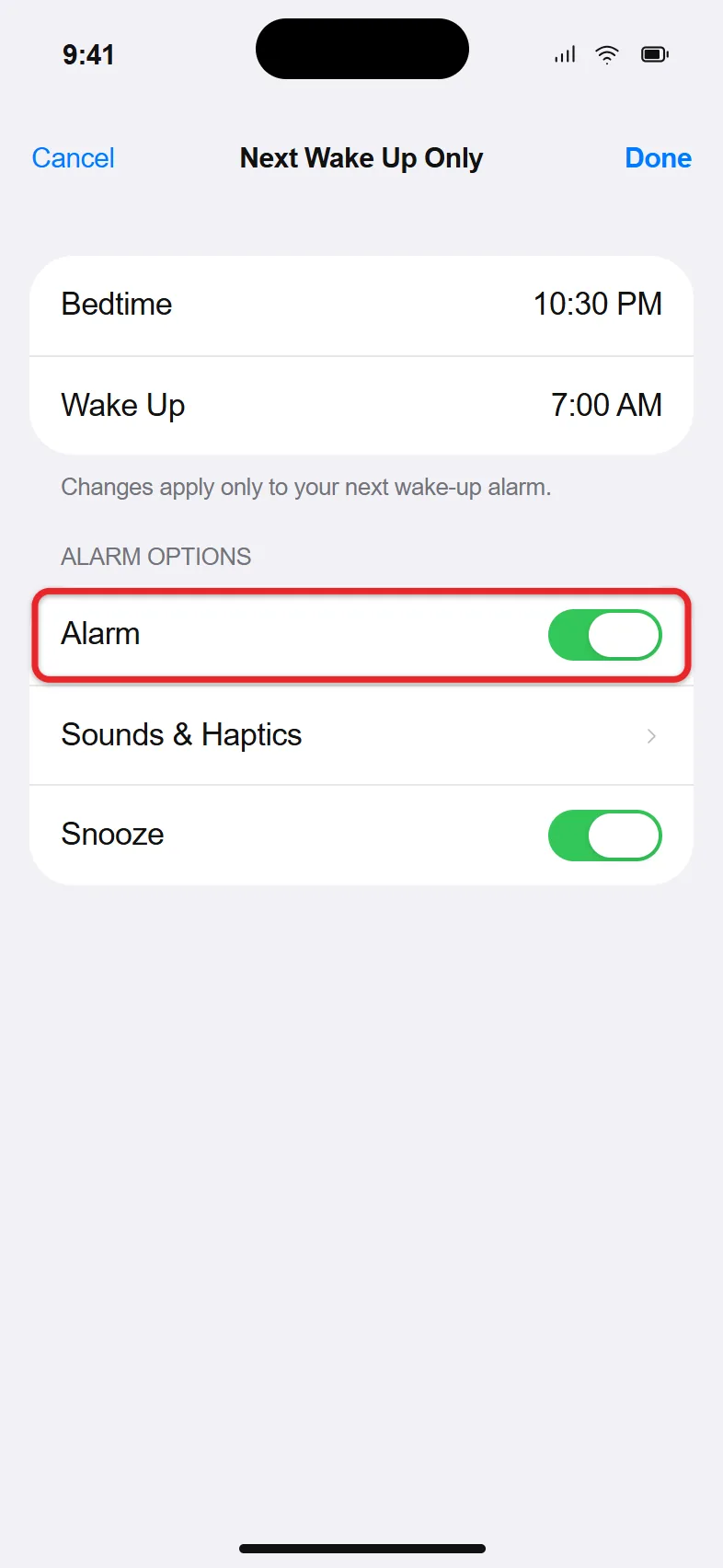
- Turn off Alarm and tap Done.
Your regular schedule comes back after that one day.
Stop All Sleep Schedule Alarms
- In Health, tap Browse > Sleep.
- Tap Full Schedule & Options.
- Turn off Sleep Schedule to stop every scheduled wake-up alarm, or tap Edit under one schedule and tap Delete Schedule at the bottom to remove just that one.
Apple’s iPhone User Guide covers these controls in Turn off alarms and delete sleep schedules.
On iOS 13 and earlier, this alarm came from the Bedtime tab in the Clock app instead. Open Clock, tap Bedtime, and turn off Bedtime Schedule.
Stop an Alarm That’s Ringing
When an alarm is going off, use the Stop control on the screen. On recent versions of iOS it’s a slider you drag; on older versions it’s a button you tap. Tapping Snooze only delays the alarm for its snooze length, and then it rings again. On iOS 26 and later you can change that length with the Snooze Duration option in the alarm’s settings.
Stopping a repeating alarm doesn’t delete it, so it will sound again on its next scheduled day. A one-time alarm turns itself off after it rings but stays in your list. To end either one for good, delete it from the Alarms tab.
Check That No Alarms Are Left
An alarm icon (a small clock) appears in the status bar while any alarm is turned on. On iPhones with Face ID, swipe down from the top-right corner to open Control Center and see the full status bar. If the icon is still there after you’ve deleted everything, look for a sleep schedule alarm or a switch you missed in the Alarms tab.
If a Deleted Alarm Still Goes Off
- It’s a sleep schedule alarm. Check the Sleep | Wake Up row in Clock or the schedule in Health, and turn it off there.
- There’s a second alarm at the same time. Scroll through the whole Alarms list. Duplicates are easy to create when you set alarms with Siri.
- It’s coming from another app. Some apps, such as sleep trackers or reminder apps, play their own alarms. Open that app and turn off its alarm or notifications.
- It’s coming from your Apple Watch. Alarms set on the watch live in the watch’s Alarms app. Open it on the watch and delete the alarm there.
- The list didn’t update. Close the Clock app by swiping up from the bottom of the screen and pausing, then swiping the Clock card away. Reopen it and check the list. If the alarm keeps appearing, restart your iPhone.
- An alarm went off at the wrong time. Apple notes that changing the time manually can affect alarms. Make sure Set Automatically is on in your iPhone’s date and time settings.
If you have the opposite problem and an alarm you kept doesn’t ring, find out why an iPhone alarm or timer isn’t going off.
Frequently Asked Questions
Can I recover a deleted alarm?
No. There’s no undo or Recently Deleted folder for alarms. You’ll need to create it again with the same time, repeat days, label and sound.
If the old alarm used a song or your own tone, you can set a custom alarm sound again. If it was set to buzz without a tone, you can set a vibration-only alarm.
Does deleting an alarm on my iPhone delete it on my iPad?
No. Alarms aren’t synced between devices. To remove one from an iPad, follow the steps for deleting an alarm on iPad on the iPad itself.
Why can’t I swipe to delete the alarm at the top of the list?
That’s the sleep schedule’s wake-up alarm. Turn it off or delete the schedule from the Health app, using the steps in the sleep schedule section above.
Will Silent mode or Do Not Disturb stop an alarm?
No. Do Not Disturb, the Ring/Silent switch and Silent mode don’t affect the alarm sound. To keep an alarm from ringing, turn it off or delete it.
Will deleting an alarm affect my other alarms?
No. Each alarm is separate, so removing one doesn’t change the time, sound or repeat days of any others.

Matthew Burleigh is the founder, head writer, and editor of Solve Your Tech, which he launched in 2012. He has written technology tutorials since 2008 and worked in IT since 2003, including small-business support, IT management, and consulting. He holds Bachelor’s and Master’s degrees in Computer Science from Arizona State University.
Matthew writes practical guides for Windows, iPhone and iPad, Microsoft Office, Outlook, Google apps, and Android. Solve Your Tech’s guides are checked step by step against the device or app maker’s own documentation and tested on his own devices whenever he has the hardware or software, with clear steps, sources, and update dates.
Read more about Matthew and how Solve Your Tech writes and updates its guides, or report a correction.