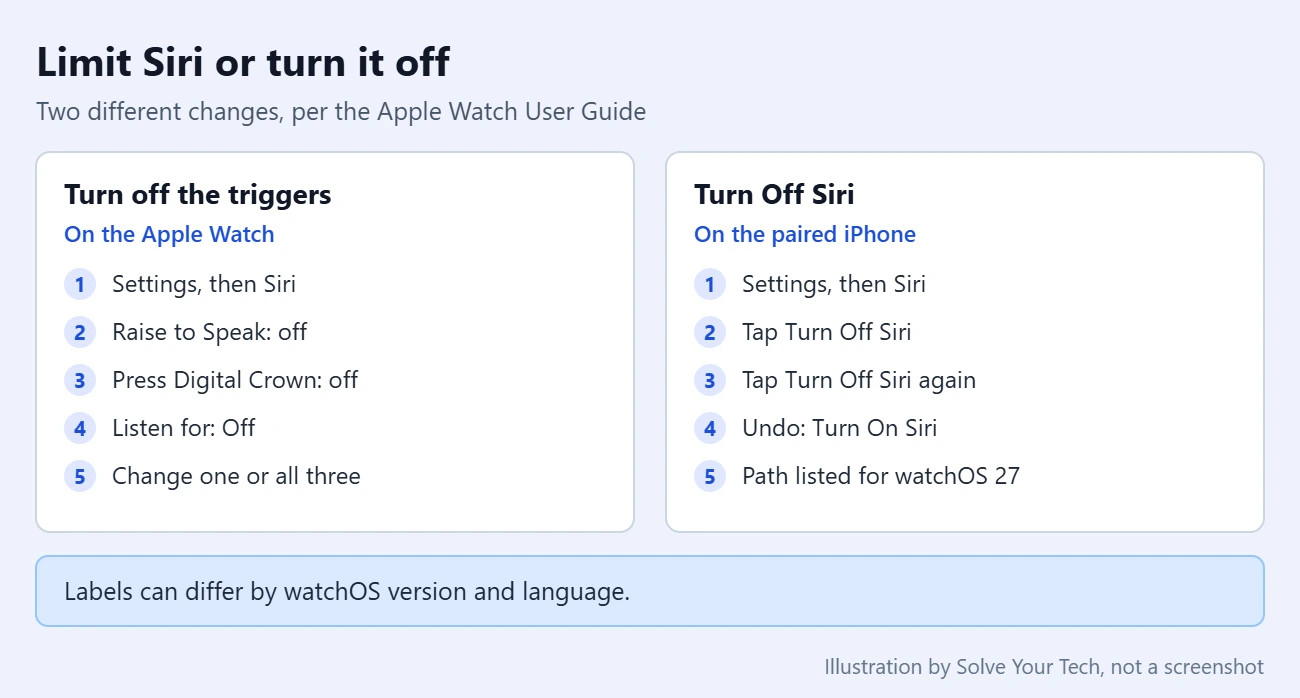
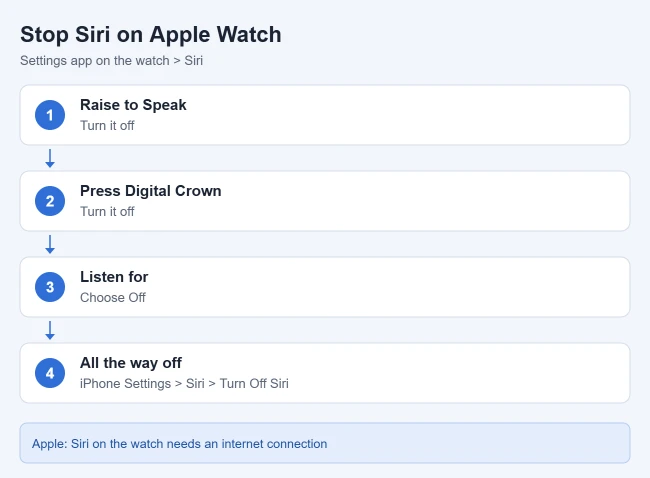
To stop Siri from starting on your Apple Watch, open Settings on the watch, tap Siri, turn off Raise to Speak and Press Digital Crown, then tap Listen for and choose Off. To turn Siri off entirely, Apple’s current Apple Watch guide points to the paired iPhone instead: open Settings, tap Siri, then tap Turn Off Siri.
These steps follow Apple’s How to use Siri on Apple Watch page in the Apple Watch User Guide for watchOS 27, checked in October 2026. Where an older watchOS version is documented differently, that is called out below.
Before You Start
There are two different changes you can make, and they do not do the same thing. Pick the one that matches your problem before you tap anything.
- Turn off the triggers: Siri stays set up, but it no longer starts from your wrist, the Digital Crown, or your voice. You can switch off one trigger or all three. This is done on the watch.
- Turn Off Siri: the assistant itself is switched off. On watchOS 27, Apple lists this in the Settings app on the iPhone that is paired with the watch.
The Digital Crown is the round dial on the side of the watch. A trigger, in this article, simply means one of the ways Siri gets started.
You need the watch on your wrist and unlocked for the watch steps, and the paired iPhone for the full shutoff. Setting names can vary slightly by watchOS version and language. For example, Apple notes that the Listen for row may read “Siri” or “Hey Siri” or just “Hey Siri,” because saying “Siri” alone is not available in some languages and regions.
How to Stop Siri From Starting on Apple Watch
This is the fix for Siri popping up when you did not ask for it. Nothing is deleted, and every switch can be turned back on later.
- Press the Digital Crown to see your apps, then open Settings (the gear icon).
- Scroll down and tap Siri.
- Turn off Raise to Speak. Siri will no longer start when you lift your wrist and talk into the watch.
- Turn off Press Digital Crown. Pressing and holding the Crown will no longer start Siri.
- Tap Listen for “Siri” or “Hey Siri” (it may say only “Hey Siri”), then choose Off. The watch stops responding to the spoken phrase.
You do not have to turn off all three. If the only problem is the Crown being pressed by the back of your hand, turn off Press Digital Crown and leave the other two alone. If the watch keeps answering when you were talking to another device, set Listen for to Off and keep the Crown.
On some earlier watchOS versions, other guides report that turning off the last of the three switches shows a Turn Off Siri prompt on the watch. Apple’s watch guide does not describe that prompt, so treat it as something you may or may not see. If it appears, tapping it confirms that you want Siri off.
How to Turn Off Siri Completely
Read this first: these steps use the iPhone’s own Siri settings, not a watch-only switch. Apple’s watch guide does not say the change is limited to the watch, so expect Siri to be off on the iPhone as well. If you still want Siri on your phone, use the trigger steps above instead.
- On the iPhone paired with your watch, open the Settings app.
- Tap Siri.
- Scroll to the bottom and tap Turn Off Siri.
- Tap Turn Off Siri again to confirm.
Apple documents this path for watchOS 27. The guide pages for watchOS 26 and watchOS 11 do not include a separate Turn Off Siri section. They list only the three trigger switches, so on those versions the watch steps above are the documented method.
Apple’s guide to adjusting the watch’s volume also shows that the iPhone’s Apple Watch app has its own Siri screen, under My Watch > Siri. Other guides say the same three trigger switches appear there, which is handy when the watch is on its charger. Apple’s guide only documents the watch route for those switches, so check what your version shows.
How to Check That It Worked, and How to Undo It
Try each trigger once. Raise your wrist and speak, say the wake phrase, and press and hold the Digital Crown. When Siri does start, Apple says you see a listening indicator on the screen. If nothing appears, that trigger is off.
To undo the watch changes, go back to Settings > Siri on the watch and turn the switches on again, or set Listen for back to a wake phrase.
To undo a full shutoff, open Settings > Siri on the iPhone, tap Turn On Siri, and follow the onscreen instructions. Siri then needs a trigger before it can hear a request, so turn at least one back on if you had switched them all off.
Keep Siri but Make It Quiet
If the real complaint is Siri talking out loud, you can leave it on and change how it answers. Apple covers this in Change how Siri responds on Apple Watch.
- Open Settings on your Apple Watch.
- Tap Siri, then tap Siri Responses.
- Choose one of the three options in the table below.
| Option | What Apple says it does |
|---|---|
| Always On | Siri speaks responses, even when the watch is in Silent Mode. |
| Control With Silent Mode | Siri responses are silenced when the watch is set to Silent Mode. |
| Headphones Only | Siri speaks only when the watch is connected to Bluetooth headphones. |
Headphones Only is the quietest choice if you rarely wear headphones with the watch. Control With Silent Mode works well if you already silence your Apple Watch in meetings. Silent Mode is the bell button in Control Center, which opens when you press the side button.
On the same Siri Responses screen you can scroll down to Voice Volume to make Siri quieter, and to Always Show Siri Captions and Always Show Speech if you would rather read than listen. While Siri is speaking, turning the Digital Crown also changes its volume.
Other Siri Settings You Might Want Instead
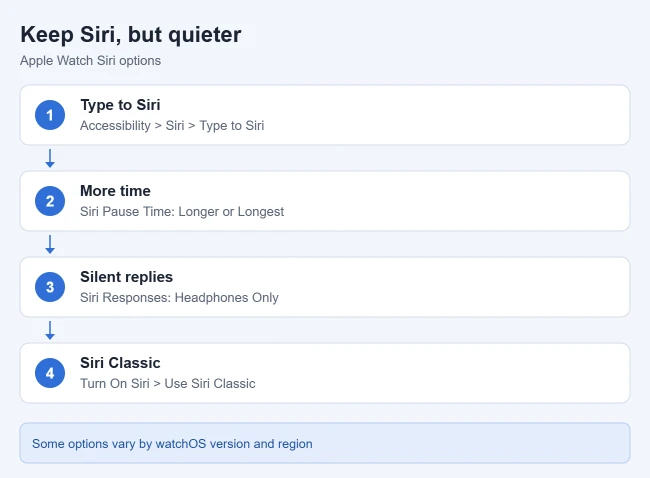
- Type to Siri: on the watch, open Settings > Accessibility > Siri and turn on Type to Siri to make requests without speaking.
- Siri Pause Time: on that same screen, choose Longer or Longest so Siri waits for you to finish. Both are in Apple’s accessibility features with Siri guide.
- Siri Classic: if you have Siri AI, the newer version of Siri that Apple offers in beta on watchOS 27, and you prefer the previous one, Apple says to tap Turn On Siri in the iPhone’s Siri settings, then tap Use Siri Classic.
Siri AI is not on every watch. Apple’s Siri AI guide lists Apple Watch Series 9 and later, Apple Watch Ultra 2 and later, and Apple Watch SE 3, paired with a supported iPhone, in English to start. If you never turned it on, the Siri Classic option does not apply to you.
How to Delete Your Siri History
Turning Siri off does not, on its own, clear the requests you already made. Apple’s watchOS 26 guide gives a watch route for this: open Settings, tap Siri, tap Siri History, then tap Delete Siri History. The watchOS 27 page no longer lists that section, so the row may have moved or been renamed on the newest version.
On the iPhone, Apple’s Siri, Dictation & Privacy page says you can go to Settings > Siri > Siri & Dictation History and tap Delete Siri & Dictation History. Deleting history cannot be undone, so do it only if you mean to.
That page also explains that Siri and Dictation are separate settings. Dictation is the feature that turns your speech into typed text. If you want both off, see our guide on how to turn Dictation on or off on iPhone. Apple says that when both are off, the request transcripts stored on your device to personalize your experience are deleted.
Troubleshooting
- You cannot find Listen for “Siri” or “Hey Siri”: look for a row that says only Listen for or “Hey Siri.” The wording depends on your watchOS version and language.
- There is no Turn Off Siri button on the iPhone: if the row says Turn On Siri, Siri is already off. On older software the Siri screen is laid out differently. Apple’s privacy page, for instance, describes turning Siri off through Talk to Siri and the side or Home button switch in the iPhone’s Siri settings.
- Siri still starts after you changed the switches: open Settings > Siri on the watch again and confirm all three are off. If they are, restart the watch. Apple notes you cannot restart it while it is charging.
- The watch still talks, but it is not Siri: a voice that reads out everything you touch is usually the screen reader. See how to turn VoiceOver on or off on Apple Watch.
- Siri does nothing when you want it back: check that Siri is turned on in the iPhone’s Siri settings and that at least one trigger is on. Apple also says the watch must be connected to the internet to use Siri.
- The watch buzzes too often rather than talks: that is a notification setting, not Siri. Our guide to turning off notifications on Apple Watch covers it.
Frequently Asked Questions
Can I turn off Siri on my Apple Watch but keep it on my iPhone?
Yes, by turning off the three triggers on the watch: Raise to Speak, Press Digital Crown, and Listen for. Those switches are in the watch’s own Siri settings, so Siri no longer starts from the watch. The Turn Off Siri button is different. It sits in the iPhone’s Siri settings, and Apple does not describe it as watch-only.
Why does Siri keep coming on by itself?
Apple lists three ways Siri starts on the watch: raising your wrist and speaking, saying “Hey Siri” or “Siri,” and pressing and holding the Digital Crown. An unwanted start comes from one of those. A bent wrist can hold the Crown down, and a raised wrist during a conversation can be taken as a request. Turn off whichever trigger matches what you were doing.
Does Siri on Apple Watch need the internet?
Yes. Apple says Apple Watch must be connected to the internet to use Siri, and that cellular charges may apply.
Can Siri answer through headphones instead of the watch speaker?
Yes. Apple says you can hear Siri responses through a Bluetooth headset or speakers connected to your Apple Watch. To make that the only time Siri speaks, choose Headphones Only under Settings > Siri > Siri Responses on the watch.
Will Silent Mode stop Siri from talking?
Only if Siri Responses is set to Control With Silent Mode. With Always On selected, Apple says Siri speaks responses even when the watch is in Silent Mode.
Next Step
Start with the smallest change: turn off the one trigger that keeps catching you out, then use the watch for a day. If Siri still gets in the way, turn off the other two, and use Turn Off Siri on the iPhone only if you want the assistant off altogether. If battery life is your other concern, see how to turn on Low Power Mode on Apple Watch.

Matthew Burleigh is the founder, head writer, and editor of Solve Your Tech, which he launched in 2012. He has written technology tutorials since 2008 and worked in IT since 2003, including small-business support, IT management, and consulting. He holds Bachelor’s and Master’s degrees in Computer Science from Arizona State University.
Matthew writes practical guides for Windows, iPhone and iPad, Microsoft Office, Outlook, Google apps, and Android. Solve Your Tech’s guides are tested on current devices or checked against official product documentation, with clear steps, sources, and update dates.
Read more about Matthew and how Solve Your Tech writes and updates its guides, or report a correction.