While many set-top streaming devices like the Apple TV have most of the video streaming apps that you may need, there are still times when you only have a video on your iPad.
Fortunately the iPad and the Apple TV work very well together, and you can often stream videos from the iPad to the Apple TV.
Our tutorial below will show you how to watch an iPad movie on Your TV using AirPlay.
How to Cast a Movie from Your iPad to a Television
- Make sure your Apple TV and iPad are turned on and connected to the same network.
- Find the movie on your iPad that you want to watch.
- Start playing the video.
- Tap the screen and select the screen icon.
- Choose the Apple TV from the device list.
Our guide continues below with additional information on how to watch an iPad movie on Your TV, including pictures of these steps.
Digital movies are great because they can usually be watched on a number of different devices.
It isn’t always easy to watch them directly on your TV, however, and usually requires you to have a special cable or electronic gadget.
So if you are interested in watching a movie that you have on your iPad on your television, then you can use an Apple TV to accomplish this goal.
How to Use the Apple TV and AirPlay to Watch an iPad Movie on Your TV (Guide with Pictures)
This tutorial is going to require you to have an Apple TV and an iPad, and both of them will need to be connected to the same wireless network.
You can also watch a movie from your iPad on your TV using the Apple Digital AV adapter (for 3rd generation iPads or older) or the Lightning Digital AV adapter (for iPads with a lightning port) and an HDMI cable, if you do not want to purchase an Apple TV.
Step 1: Turn on your TV and your Apple TV, then switch the TV to the input channel to which the Apple TV is connected.
Step 2: Touch the Videos icon on your iPad.

Step 3: Select the type of video that you want to watch on your TV from the options at the top of the screen.

Step 4: Select the video that you want to watch.

Step 5: Play the video.
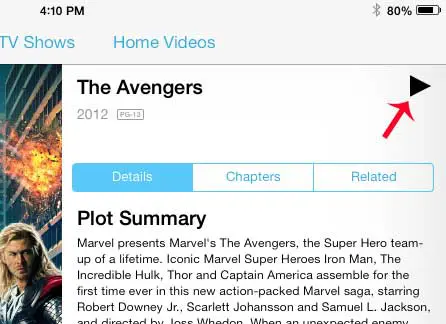
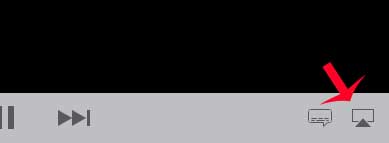
Step 6: Touch the Screen icon at the bottom-right corner of the screen.
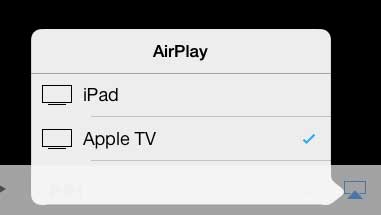
Step 7: Select the Apple TV option from the pop-up menu.
Now that you know how to watch an iPad movie on Your TV, you will be able to use these steps to AirPlay content from other compatible apps to your Apple TV as well.
If you are unsure about whether you should go with the digital AV adapter or the Apple TV, then you can read this article about reasons to consider the Apple TV. If none of the options in that article seem important to you, then going with the less expensive digital AV adapter might be the best choice for you.

Matthew Burleigh has been writing tech tutorials since 2008. His writing has appeared on dozens of different websites and been read over 50 million times.
After receiving his Bachelor’s and Master’s degrees in Computer Science he spent several years working in IT management for small businesses. However, he now works full time writing content online and creating websites.
His main writing topics include iPhones, Microsoft Office, Google Apps, Android, and Photoshop, but he has also written about many other tech topics as well.