This post contains affiliate links. As an Amazon Associate, solveyourtech.com earns from qualifying purchases, at no extra cost to you.
To screen mirror an iPad or iPhone to a TV, open Control Center, tap Screen Mirroring, and choose your Apple TV or AirPlay-compatible smart TV. If a code appears on the TV, enter it on your device. The device and TV need to be on the same Wi-Fi network. For TVs without AirPlay, a compatible HDMI adapter or an added AirPlay receiver can be an alternative.
This guide covers mirroring your whole screen, sending just one video or photo, turning AirPlay on for Samsung and other smart TVs, connecting with a cable, and fixing a TV that won’t show up. AirPlay support depends on the receiving device and its model, rather than simply whether it is called a smart TV. Using an Android phone instead? See how to screen mirror Android to a TV.
What You Need
- An iPhone or iPad and a TV on the same Wi-Fi network.
- An AirPlay receiver: an Apple TV box plugged into the TV, a smart TV with AirPlay built in, or a Roku device that supports AirPlay.
- For a wired connection: a video adapter compatible with your exact iPhone or iPad model, an HDMI cable, and a TV with an HDMI input (see below).
Mirror Your Screen With AirPlay
- Connect the iPad or iPhone and the TV (or Apple TV) to the same Wi-Fi network.
- Open Control Center: swipe down from the upper-right corner. (On an iPhone with a Home button, swipe up from the bottom edge.)
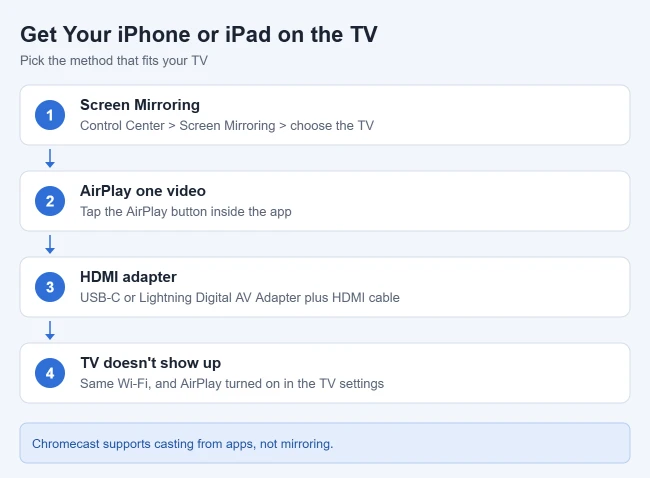
- Tap Screen Mirroring (two overlapping rectangles). Expected result: a list of nearby AirPlay devices appears.
- Choose your TV from the list.
- Enter the AirPlay code shown on the TV if asked. Expected result: your device’s screen appears on the TV.
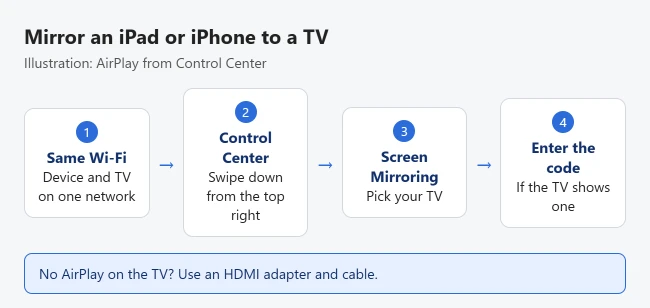
To stop, open Control Center, tap Screen Mirroring, and tap Stop Mirroring. With an Apple TV, you can also press the Menu (Back) button on the remote. These steps follow Apple’s AirPlay guide.
Turning the iPad sideways fills more of the TV, since many apps show a wider layout in landscape. If the picture does not turn, check how to turn off rotation lock on an iPad.
Stream Just a Video or Photo
- Open the video in an app that supports AirPlay.
- Tap the AirPlay button. In Photos, tap the Share button first, then AirPlay. Our guide on how to AirPlay an iPhone picture to an Apple TV covers the photo steps in detail.
- Choose your TV. Expected result: only the video or photo plays on the TV, and you can keep using your device for other things.
To stop streaming, tap the AirPlay button again and choose your iPhone or iPad. Apple notes that some video apps don’t support AirPlay; in that case, check whether the app is available on your Apple TV or smart TV instead. Our streaming service availability chart lists which services have apps on each device.
Turn On AirPlay on a Smart TV
If your smart TV doesn’t appear, AirPlay may be off in its settings. On Samsung TVs, Samsung’s guide says to go to Settings > All Settings > Connections > Apple AirPlay Settings and turn on AirPlay. Menu names vary by model and software version. Confirm AirPlay support in the TV’s manual if you cannot find the setting.
Mirror an iPad or iPhone to an LG TV
First check that your exact LG TV model supports AirPlay. On supported models, open Home Dashboard or Home Hub from the TV remote, select AirPlay, then open AirPlay and HomeKit Settings and set AirPlay to On. Some remotes use the Input or Home Hub button to reach this menu. LG provides supported model information and dashboard instructions; the menu can differ by model.
Connect the iPad or iPhone to the same Wi-Fi as the LG TV. Open Control Center > Screen Mirroring, select the LG TV, and enter the TV’s code if asked. To send only a video, use the video’s AirPlay button instead. To disconnect the mirrored screen, return to Screen Mirroring > Stop Mirroring.
Cast an iPhone Screen to a Fire TV Stick
A Fire TV Stick and a Fire TV smart television are different receivers. Amazon’s mirroring compatibility guidance excludes iOS from the standard Miracast display-mirroring feature. Enabling that option on a stick does not make it appear in the iPhone’s AirPlay list. An AirPlay-capable Fire TV smart television may instead let you mirror directly to the television.
For a stick, an AirPlay receiver app such as AirScreen is an alternative if it is available and compatible with your exact device. Check its current Amazon Appstore listing, supported software, permissions and any ads or subscription terms before installing. This method is conditional; it does not promise support on every Fire TV model or iOS release.
- Prepare the receiver. Use the Fire TV’s app search to find the compatible receiver, install it on the stick and open it. Follow its on-screen setup until it is ready to receive AirPlay. Note the receiver name it displays.
- Connect both devices to the same Wi-Fi. Keep the receiver app open and select the TV’s HDMI input for the stick. The app belongs on the receiving Fire TV; you use the iPhone’s built-in Screen Mirroring control to send the screen.
- Open Control Center on the iPhone. Use the gesture in the AirPlay steps above, tap Screen Mirroring and select the receiver name. Enter a displayed AirPlay code if prompted. Check that an ordinary screen or photo appears before trying a streaming service.
- End the session. Open Control Center > Screen Mirroring > Stop Mirroring, then close the receiver app when finished.
If the receiver does not appear, check that it is actually running and accepting AirPlay, then recheck the Wi-Fi network. Whole-screen mirroring can display private messages and notifications; choose what you open accordingly. AirScreen documents protected-content limitations, so a working photo does not guarantee Netflix or another movie app will mirror. Prefer the streaming service’s Fire TV app when it is available; do not try to bypass copy protection. If the receiver cannot run on your model, use a compatible AirPlay television or the wired option below instead.
Connect With a Cable
- Check the exact model’s display-output support and the adapter’s compatibility list before buying. Supported USB-C models can use a compatible USB-C HDMI adapter; Lightning models use a compatible Lightning Digital AV Adapter. Matching the plug alone does not confirm compatibility.
- Plug the adapter into your device and connect an HDMI cable from the adapter to the TV.
- Switch the TV to that HDMI input. Expected result: your screen appears on the TV, with no Wi-Fi needed.
Apple sells both adapters: the USB-C Digital AV Multiport Adapter and the Lightning Digital AV Adapter. You’ll also need a standard HDMI cable.
Some apps do not support every adapter, and protected movies or shows can require HDCP support. Check the app and adapter compatibility if you get a black screen or a copy-protection message. Apple explains adapter and HDCP troubleshooting and connecting an iPhone display cable. A compatible adapter with a charging port can also let you charge while watching.
Other Options for TVs Without AirPlay
For whole-screen mirroring, use an AirPlay-compatible receiver such as Apple TV connected to the TV, or a video adapter compatible with your Apple device. If the TV supports Google Cast, supported iPhone or iPad apps can send their own video using the Cast button. Put both devices on the same Wi-Fi, open the compatible app, tap Cast, and select the TV. Tap Cast again and choose Disconnect to stop. Enable Local Network access for the app if required. This app-based Google Cast feature is separate from Control Center’s AirPlay Screen Mirroring. See Google’s casting instructions. Our iPhone-to-Chromecast guide explains Local Network permissions, app compatibility, and what to check when a receiver is missing. For one app as an example, see how to cast Vudu (Fandango) to a Chromecast from an iPhone.
Troubleshooting
The TV doesn’t appear in the list
- Make sure your exact TV or streaming-device model supports AirPlay and that AirPlay is turned on in its settings.
- Put both devices on the same Wi-Fi network, not a guest network.
- Restart the TV and your iPad or iPhone, and update the TV’s software.
The video stutters or drops
Move closer to your router, pause other downloads, or use an HDMI adapter instead.
The screen is black or a video won’t play
Some streaming apps block mirroring. Use the app’s own AirPlay button, or open the app directly on your TV. Apple also says you cannot record your screen while mirroring, so stop mirroring before you screen record on an iPhone or screen record on an iPad.
There’s no sound on the TV
Check the TV’s volume and input, and make sure your device isn’t set to play audio through Bluetooth headphones.
For an iPad as the destination rather than a TV, see whether you can cast an iPhone to an iPad. An ordinary iPad is not a built-in AirPlay receiver; that guide explains file transfers, FaceTime sharing and the limits of third-party alternatives.
Frequently Asked Questions
Can I mirror to a Chromecast or Roku?
Compatible Roku models can receive AirPlay, including whole-screen mirroring. Check Roku’s model and software requirements, then enable Settings > Apple AirPlay and HomeKit > AirPlay. Chromecast and other Google Cast receivers use supported apps’ Cast buttons; they do not appear as native AirPlay receivers just because they support Google Cast.
Why does my iPhone connect to the TV on its own?
That’s the Automatically AirPlay setting. Go to Settings > General > AirPlay & Continuity > Automatically AirPlay and choose Never or Ask.
Can I mirror to a Mac?
Yes, if the Mac supports AirPlay to Mac. Apple’s AirPlay guide lists compatible models.
Can a Windows laptop do this too?
Yes. See how to cast your laptop to a TV in Windows 11.
Want your iPad and iPhone to share photos and messages too? See how to sync an iPad and iPhone.
Have movies in a Plex library? You can also AirPlay a Plex movie from an iPhone to an Apple TV.

Matthew Burleigh has been writing tech tutorials since 2008. His writing has appeared on dozens of different websites and been read hundreds of millions of times.
After receiving his Bachelor’s and Master’s degrees in Computer Science he spent several years working in IT management for small businesses. However, he now works full time writing content online and creating websites.
His main writing topics include iPhones, Microsoft Office, Google Apps, Android, and Photoshop, but he has also written about many other tech topics as well.