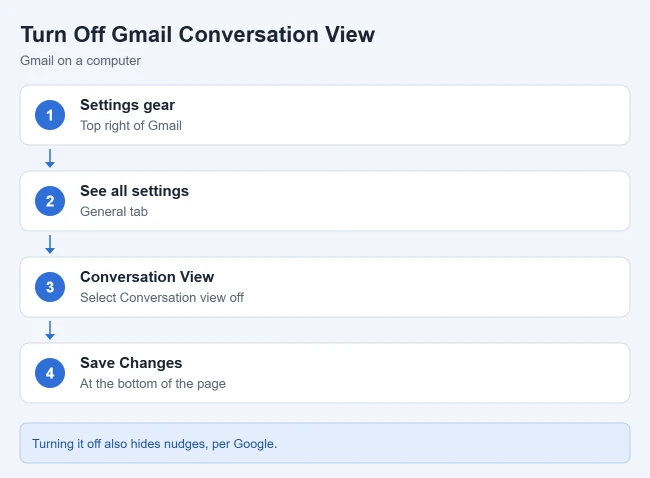
To turn off conversation view in Gmail, click Settings > See all settings, scroll to Conversation View on the General tab, select Conversation view off, and click Save Changes. Google says each email will then show up in your inbox on its own instead of grouped with its replies.
These steps follow Google’s Group emails into conversations help article for computers, Android, and iPhone and iPad, plus its Reply to messages in Gmail article for nudges.
How to Turn Off Conversation View in Gmail on a Computer
- Open Gmail on your computer.
- At the top right, click Settings (the gear icon), then See all settings.
- On the General tab, scroll to the Conversation View section.
- Select Conversation view off.
- Click Save Changes at the bottom.
Result: Gmail reloads your inbox, and each reply then appears as a separate email. To switch back, repeat the steps and select Conversation view on.
The Quick Settings Shortcut
There is a faster way. Click the Settings gear to open the Quick settings panel, scroll to the bottom, and uncheck Conversation view. When Gmail asks to reload, click Reload.
How to Turn Off Conversation View in the Gmail App
Google says this setting is changed for each account in the app:
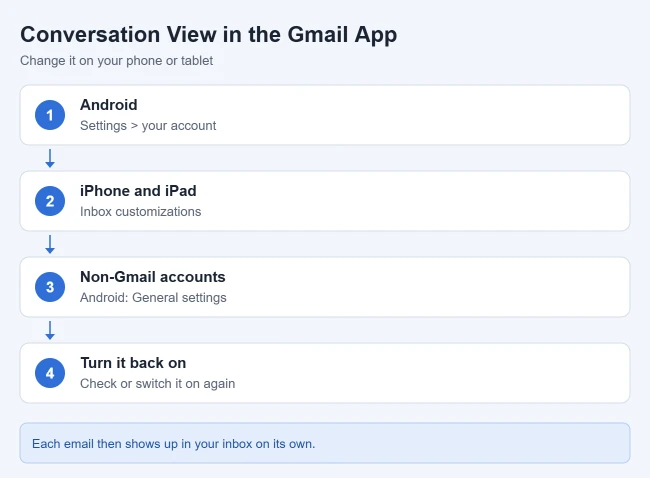
Android
- Open the Gmail app and tap Menu at the top left, then Settings.
- Tap your account address.
- Under General, uncheck Conversation view.
For non-Gmail accounts in the app, Google says to tap General settings and uncheck Email conversation view instead.
iPhone and iPad
- Open the Gmail app and tap Menu at the top left, then Settings.
- Under Inbox, tap Inbox customizations.
- Turn Conversation view off.
Result: The change applies to that account in the app. On Android, the change takes effect right away when you go back to your inbox.
What Conversation View Does
Google says that with it on, Gmail groups replies into one conversation, with the newest email at the bottom. A conversation splits into a new one when the subject line changes or it reaches more than 100 emails.
Google also explains that Gmail may group automated notification emails into one conversation if they share recipients, senders, or subjects, use the same reference header, and are sent within a week of each other. Giving each message a new subject keeps them apart.
Why turn it off? GMass’s Sam Greenspan writes that with it off, every message gets its own line and preview in the inbox, which he finds easier to scan and less likely to hide new emails inside long threads.
How to Turn Off Nudges in Gmail
Nudges are suggestions at the top of your inbox about emails to reply to or follow up on. Google says to turn them off:
- Go to Settings > See all settings and click the General tab.
- Next to Nudges, uncheck Suggest emails to reply to and Suggest emails to follow up on.
- Click Save Changes.
Result: The suggestions stop appearing. Google notes that nudges need conversation view, and that turning conversation view off hides them too.
Frequently Asked Questions
Does turning off conversation view delete any emails?
No. It only changes how messages are shown. Google describes it as choosing whether replies are grouped or whether each email shows up in your inbox separately.
Can I make the inbox look less crowded instead?
Yes. Google says you can change the conversation list density under Settings > Quick settings > Density, with Default, Comfortable, and Compact options. If you use the reading pane, you can also choose when Gmail marks a previewed conversation as read.
More Gmail Guides
- How to switch to compact view in Gmail
- How to enable tabs in Gmail
- How to stop Gmail from loading images automatically
- How to change the subject line in Gmail

Matthew Burleigh is the founder, head writer, and editor of Solve Your Tech, which he launched in 2012. He has written technology tutorials since 2008 and worked in IT since 2003, including small-business support, IT management, and consulting. He holds Bachelor’s and Master’s degrees in Computer Science from Arizona State University.
Matthew writes practical guides for Windows, iPhone and iPad, Microsoft Office, Outlook, Google apps, and Android. Solve Your Tech’s guides are tested on current devices or checked against official product documentation, with clear steps, sources, and update dates.
Read more about Matthew and how Solve Your Tech writes and updates its guides, or report a correction.