PowerPoint can’t rotate a single slide, but you can change the whole presentation to portrait by selecting Design > Slide Size > Custom Slide Size and choosing Portrait. To turn text or pictures on one slide sideways, rotate those objects instead. If you need just one portrait slide in a landscape deck, Microsoft’s workaround links two presentations together.
This guide covers switching all slides to portrait on Windows, Mac and the web, linking a portrait presentation for mixed orientations, rotating objects and whole-slide content, and fixing layouts after the change. It applies to PowerPoint for Microsoft 365, 2024, 2021, 2019 and 2016. Steps follow Microsoft Support, checked October 1, 2026.
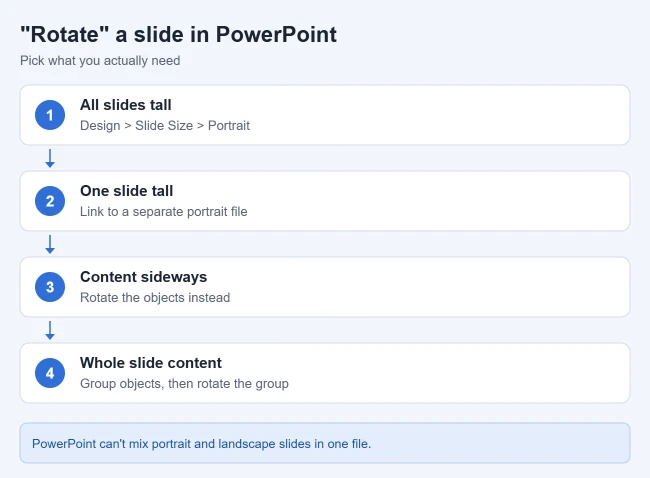
Make All Slides Portrait (Windows)
- Select the Design tab.
- Near the right end, select Slide Size > Custom Slide Size. Result: the Slide Size dialog opens.
- Under Slides, choose Portrait, then select OK.
- Choose Maximize or Ensure Fit for existing content. Result: every slide in the presentation turns vertical.
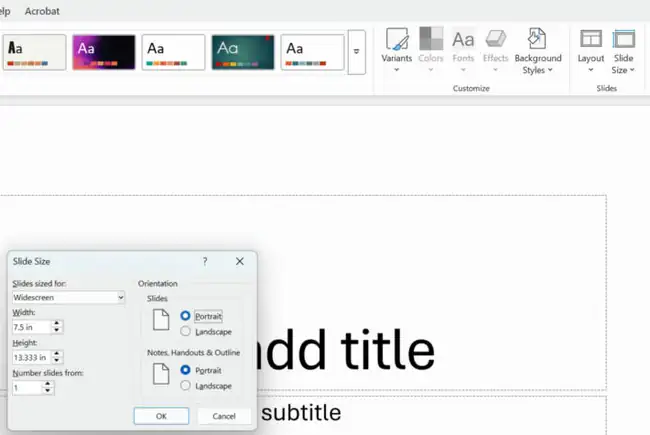
Maximize uses all the space but may push content off the slide, while Ensure Fit shrinks content so it all fits. Microsoft covers this in Change the page orientation in PowerPoint. The Slide Size dialog also has a separate orientation setting for notes, handouts and outlines, which only affects printouts.
PowerPoint for Mac and the Web
- Mac: select Design > Slide Size > Page Setup, then choose the portrait orientation under Slides and select OK.
- Web: select Design > Slide Size > Custom Slide Size, choose Portrait, and select OK. If PowerPoint for the web can’t scale your content automatically, it offers Maximize or Ensure Fit.
Use One Portrait Slide in a Landscape Deck
Microsoft says PowerPoint doesn’t allow mixing landscape and portrait slides in the same presentation, but its workaround links two files so they play like one:
- Save a second presentation set to Portrait in the same folder as your main deck. Microsoft recommends the same folder so links keep working if you move them.
- In the main deck, select the text or object you’ll click to jump to the portrait slide.
- On the Insert tab, select Action. Under Mouse Click, choose Hyperlink to > Other PowerPoint Presentation.
- Pick the portrait file, select the slide to open, and select OK twice. Result: clicking that object during the slide show opens the portrait slide.
- In the portrait file, add an Action link back to the next slide of the main deck the same way.
Microsoft also notes a simpler option: put a portrait-shaped image or shape on a landscape slide. When projected, it looks the same as it would on a portrait slide.
Rotate Objects on a Slide
- Select a text box, picture, or shape.
- Drag the circular rotate handle at the top, or select Shape Format (or Picture Format) > Rotate.
- Choose Rotate Right 90° or Rotate Left 90°. Result: the object turns sideways; hold Shift while dragging the handle to rotate in 15-degree steps.
To turn everything on a slide as one unit, press Ctrl + A, then Ctrl + G to group the objects, and rotate the group. Without grouping, each object rotates around its own center. Title and content placeholders can’t be grouped, so this works best with text boxes, shapes, and pictures.
Fix Layouts After Changing Orientation
- Content is cut off: undo with Ctrl + Z and repeat with Ensure Fit.
- Text looks tiny: increase font sizes in the slide master (View > Slide Master) so every slide updates at once.
- Pictures look stretched: right-click and use Reset Picture & Size, then resize with a corner handle.
Frequently Asked Questions
Can I mix portrait and landscape slides?
Not in one file. Microsoft’s workaround is to link a separate portrait presentation from a slide, as described above.
How do I rotate a video?
Select it and drag the rotate handle, the same as a picture.
Does rotating change the printout?
Portrait slides print in portrait. Check File > Print settings before printing.
What else can I change in my presentation?
You can change the line spacing on every slide at once, add a voiceover, or convert the file to Google Slides.

Matthew Burleigh has been writing tech tutorials since 2008. His writing has appeared on dozens of different websites and been read hundreds of millions of times.
After receiving his Bachelor’s and Master’s degrees in Computer Science he spent several years working in IT management for small businesses. However, he now works full time writing content online and creating websites.
His main writing topics include iPhones, Microsoft Office, Google Apps, Android, and Photoshop, but he has also written about many other tech topics as well.