To make a reel on Facebook, open the reel creator, record or select your video, review it, choose its audience and publish. On a phone, start with Create > Reel in the Facebook app. On a computer, open your profile’s Reels > Create reel section to upload a video.
Facebook’s current video experience differs from older tutorials: ordinary video uploads are now shared as reels regardless of length or orientation. Stories and Live are separate. This guide covers creating your own reel, rather than resharing someone else’s post.
Prepare Your Video and Audience
Use footage you created or have permission to publish. Keep the original file so that an unfinished edit is not your only copy. Before recording or uploading, check which profile or Page you are using and whether you intend to share with friends or a wider audience.
Preview the whole clip before sharing. Look for private messages, addresses or other details visible in the background, and listen for unwanted audio. For example, a useful demonstration can show a problem, its solution and the result without revealing account information.
Create a Reel in the Facebook Mobile App
- Open Facebook and check the posting identity. From Feed, tap Create at the top right, then Reel. Icon placement can differ by app version; look for the creation control rather than assuming every camera icon starts a reel.
- Add your footage. Choose the camera to record or select a video from your phone’s gallery. Allow the camera, microphone or photo access needed for your chosen method when prompted. Review the selected clip before proceeding.
- Edit the video. Use the tools offered in your app to trim unwanted portions or add text, effects and audio. Play the result from beginning to end, including any transitions between clips.
- Review the sharing screen. Continue through the creator’s on-screen controls, add a useful description and inspect the audience. Check any remixing or crossposting options separately.
- Publish when the preview and settings are correct. Use the final sharing button shown in your app and keep Facebook open until the upload finishes. Then find the posted reel and play it to check the result.
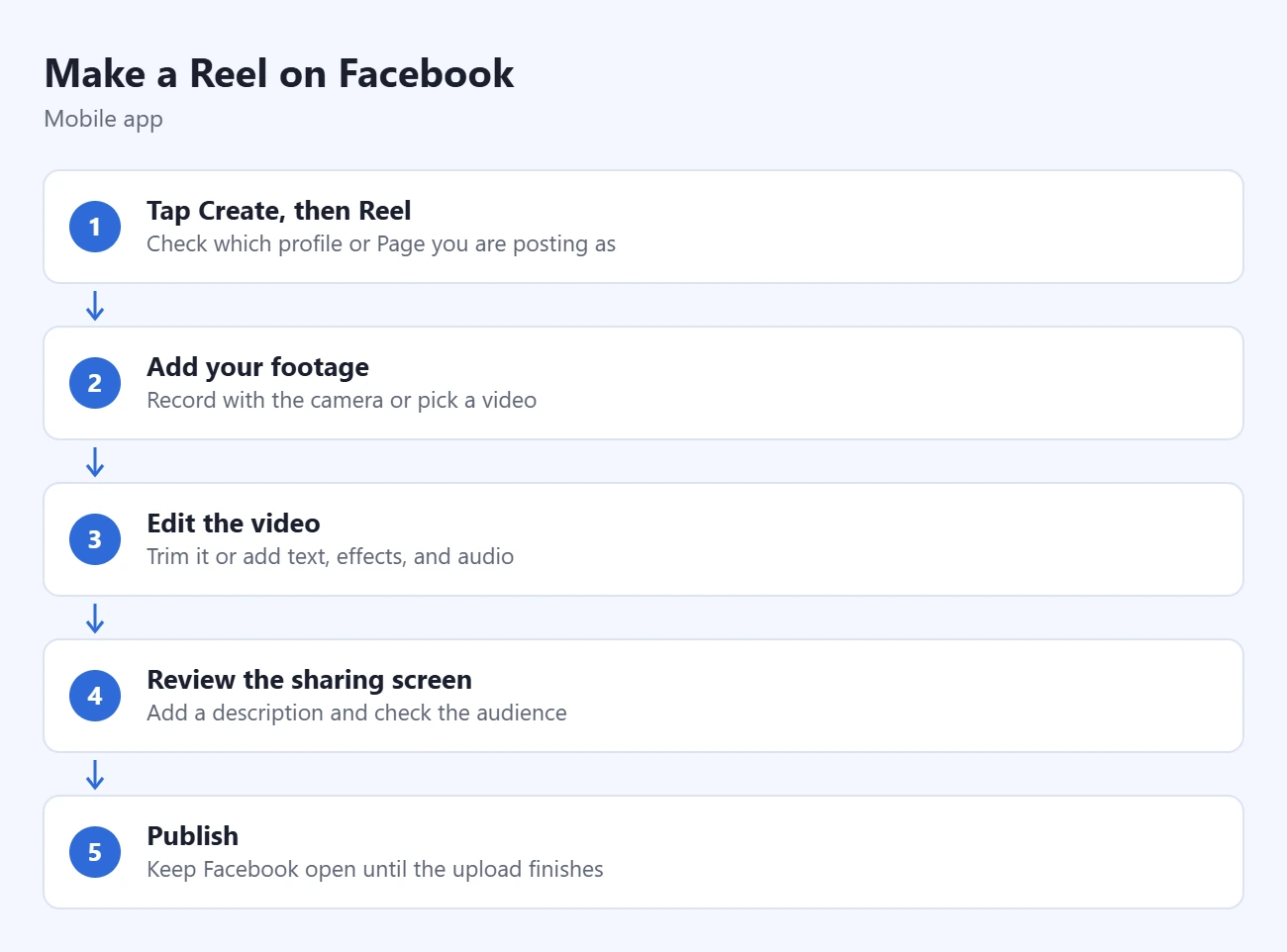
Meta documents the Create > Reel entry point in its reel-draft instructions. Its reel creation guide identifies the iPhone and Android apps as the route for advanced editing, including effects, music and multiple clips. The controls available in a desktop upload are different.
Add Music or Adjust the Audio
In the mobile creator, Meta’s audio instructions describe Audio on the right: search for a track, preview it with Play and select its name. During editing, Audio > Controls provides options such as adding music or a voiceover and changing volume with sliders.
Listen to speech and music together. Background music that sounds fine alone may overwhelm a spoken explanation. The available library does not mean that every song is available to every account or for every use. Meta warns that a reel can become unavailable to other viewers if the rights to its chosen music change.
Upload a Reel From a Computer
- Open your profile. Click your profile picture in Facebook, then your name. Choose Reels > Create reel.
- Select the file. Click Add video, select your video and choose Next. Review the upload and use the trimming or cover options offered.
- Complete the sharing settings. Continue with Next, add a description if useful, select your audience and confirm it with Done. Review remixing before publishing.
- Click Publish. Wait for the upload to finish, then open the reel to check playback and the chosen audience.
These steps follow Meta’s current computer instructions. Use the mobile app if your project needs creative tools that the computer uploader does not offer.
Check Who Can See and Reuse Your Reel
Read the audience displayed on the final screen each time. Public can include people outside Facebook; Friends limits viewing to friends, and Friends except excludes selected people. A locked profile cannot choose a public audience in the documented computer workflow.
Meta’s video-format announcement explains the move toward a shared default audience for Feed posts and reels. A previous setting or an older guide is therefore a poor substitute for checking the current selection. Public visibility and permission to remix are separate decisions.
For a personal clip, start with the smallest audience that serves your purpose. A public demonstration intended to help other people is a different decision from a video of a private family event. Publishing publicly is optional; it is not required simply to create a reel.
Save an Unfinished Reel
On iPhone, Meta documents More options > Save > Save as draft after recording and beginning the edit. To resume, return to Create > Reel > Drafts and choose the saved item. Meta says saved reel drafts are removed after 60 days, so keep your original footage separately.
Drafts of reels and drafts of ordinary profile or Page posts are different. Our Facebook draft guide explains the distinction. Saving another person’s published reel to watch later is also different from saving your own unfinished edit.
If the Reel Will Not Upload
Meta’s sharing troubleshooting guide recommends a strong connection and keeping the app open until the upload completes. Try reconnecting to Wi-Fi or another reliable network. Save a draft before restarting Facebook, then reopen that draft rather than recreating all your edits.
Update Facebook through your device’s official app store if the problem continues. Keep the original video and confirm the draft is available before taking steps that could remove local work. If an error remains, record its wording and use Facebook’s problem-reporting route rather than repeatedly publishing duplicates.
If mixed clips look different after uploading, Meta says combining HDR and non-HDR recordings can result in standard-format output. Some effects and stickers can also affect HDR. Compare the original footage and published version before assuming the upload used the wrong file.
Can You See Who Watched Your Facebook Reel?
A Reel view count or Insights screen is not a list of everyone who watched. Meta’s Reels interaction privacy guide says watch history is not visible to others. Names may appear for visible actions such as likes or comments, but those people are only part of the audience. Do not treat the reaction list as a complete viewer list or install an extension promising to reveal hidden viewers.
For performance numbers on an eligible personal profile, open your profile, find the reel and click See insights. Meta currently lists pro mode and at least 1,000 followers as requirements for these profile insights. The screen reports measures such as views, engagement, reach and average watch time. Check the definition shown beside a metric before treating views as a count of distinct people. Meta’s Reels insights instructions cover availability and access.
For a Page, switch into the intended Page and open Meta Business Suite > Insights > Content. Use the Media type filter for Reels and select the intended reel for its performance data. Meta’s same insights guide documents this Page route. Missing profile insights may reflect eligibility rather than an outdated app, and changing privacy settings will not reveal a hidden roster of viewers.
Common Questions
Does a reel have to be 30 or 90 seconds?
Those fixed limits describe older versions of Facebook’s reel experience. Meta’s current guidance says the unified video format supports any length or orientation. That does not guarantee that every recording tool or upload route has identical controls; follow the limits actually displayed by your current composer.
Can I fix a mistake after publishing?
Open the posted reel’s menu and inspect the options offered for that post. Do not assume a description or audience change also replaces the uploaded video. Keep your source clip and correct the project before making a replacement. If you decide to remove the old post, read its deletion warning first.
Will creating a reel automatically earn money?
No. Creating a reel and enrolling in a monetization program are separate tasks. Our Facebook Reels monetization guide explains how to check the program and eligibility actually offered to your account.
Finish by checking playback, sound and audience on the published reel. Use what you learn from that first result to improve your next video, without relying on a promised view count or earnings figure.

Matthew Burleigh is the founder, head writer, and editor of Solve Your Tech, which he launched in 2012. He has written technology tutorials since 2008 and worked in IT since 2003, including small-business support, IT management, and consulting. He holds Bachelor’s and Master’s degrees in Computer Science from Arizona State University.
Matthew writes practical guides for Windows, iPhone and iPad, Microsoft Office, Outlook, Google apps, and Android. Solve Your Tech’s guides are tested on current devices or checked against official product documentation, with clear steps, sources, and update dates.
Read more about Matthew and how Solve Your Tech writes and updates its guides, or report a correction.